NVR/Video and Audio Settings: Difference between revisions
From Luminys WIKI
Techsupport (talk | contribs) Created page with "= <div class="center">Video and Audio Settings</div> = ===Description=== This tutorial will go over how to configure video and audio settings via NVR webGUI. ===Prerequisites=== * Web browser on a computer. ===Video Instructions=== <!--<youtube>https://www.youtube.com/watch?v=IQCQncIXNGM&ab_channel=LuminysSystemsCorporation</youtube>--> Coming Soon ===Step by Step Instructions=== 1. Click on Camera then Video Parameters. File:NVR_Video_Audio_Settings_1.png|1000px..." |
Techsupport (talk | contribs) |
||
| (One intermediate revision by the same user not shown) | |||
| Line 13: | Line 13: | ||
===Step by Step Instructions=== | ===Step by Step Instructions=== | ||
1. Click on Camera then Video Parameters. | 1. Click on Camera then Video Parameters. Table below clarifies the meaning of each option. | ||
[[File:NVR_Video_Audio_Settings_1.png|1000px|link=]] | [[File:NVR_Video_Audio_Settings_1.png|1000px|link=https://wiki.luminyscorp.com/images/2/28/NVR_Video_Audio_Settings_1.png]] | ||
{| class="wikitable" | {| class="wikitable" | ||
| Line 23: | Line 23: | ||
| style="text-align:left;" | <span style=color:black;font-style:italic;font-weight:bold>Record Type</span> || style="text-align:left;" | *Continuous (ensures uninterrupted video capture, providing a complete record of all activities.) <br> *Motion Detection (starts capturing only when motion is detected.) <br> *Alarm (triggers recording based on alarms.) | | style="text-align:left;" | <span style=color:black;font-style:italic;font-weight:bold>Record Type</span> || style="text-align:left;" | *Continuous (ensures uninterrupted video capture, providing a complete record of all activities.) <br> *Motion Detection (starts capturing only when motion is detected.) <br> *Alarm (triggers recording based on alarms.) | ||
|- | |- | ||
| style="text-align:left;" | <span style=color:black;font-style:italic;font-weight:bold></span> || style="text-align:left;" | | | style="text-align:left;" | <span style=color:black;font-style:italic;font-weight:bold>Encoding Model</span> || style="text-align:left;" | Types of video compression such as H.264 and H.265 | ||
|- | |- | ||
| style="text-align:left;" | <span style=color:black;font-style:italic;font-weight:bold></span> || style="text-align:left;" | | | style="text-align:left;" | <span style=color:black;font-style:italic;font-weight:bold>Resolution</span> || style="text-align:left;" | Select a resolution matching the camera's specifications. | ||
|- | |- | ||
| style="text-align:left;" | <span style=color:black;font-style:italic;font-weight:bold></span> || style="text-align:left;" | | | style="text-align:left;" | <span style=color:black;font-style:italic;font-weight:bold>Frame Rate (fps)</span> || style="text-align:left;" | Number of video frames captured or displayed per second. | ||
|- | |- | ||
| style="text-align:left;" | <span style=color:black;font-style:italic;font-weight:bold></span> || style="text-align:left;" | | | style="text-align:left;" | <span style=color:black;font-style:italic;font-weight:bold>Bitrate Type</span> || style="text-align:left;" | *CBR (Constant Bit Rate - Maintains a fixed bit rate throughout the video stream, regardless of scene complexity.) <br> *VBR (Variable Bit Rate - Adjusts the bit rate dynamically based on the complexity of the scene.) | ||
|- | |- | ||
| style="text-align:left;" | <span style=color:black;font-style:italic;font-weight:bold></span> || style="text-align:left;" | | | style="text-align:left;" | <span style=color:black;font-style:italic;font-weight:bold>Image Quality</span> || style="text-align:left;" | Image quality rated 1 (lowest) to 6 (highest), but may be unadjustable depending on the recorder. | ||
|- | |- | ||
| style="text-align:left;" | <span style=color:black;font-style:italic;font-weight:bold></span> || style="text-align:left;" | | | style="text-align:left;" | <span style=color:black;font-style:italic;font-weight:bold>Bit Rate (Kb/S)</span> || style="text-align:left;" | amount of data processed per unit of time in a video stream which determines the quality and size of the video. | ||
|- | |- | ||
| style="text-align:left;" | <span style=color:black;font-style:italic;font-weight:bold></span> || style="text-align:left;" | | | style="text-align:left;" | <span style=color:black;font-style:italic;font-weight:bold>Audio</span> || style="text-align:left;" | Switch to enable or disable audio recording on the recorder. | ||
|- | |- | ||
| style="text-align:left;" | <span style=color:black;font-style:italic;font-weight:bold></span> || style="text-align:left;" | | | style="text-align:left;" | <span style=color:black;font-style:italic;font-weight:bold>Audio Encoding</span> || style="text-align:left;" | Types of audio compression such as PCM, G.711A, G.711Mu, and AAC. | ||
|- | |- | ||
| style="text-align:left;" | <span style=color:black;font-style:italic;font-weight:bold></span> || style="text-align:left;" | | | style="text-align:left;" | <span style=color:black;font-style:italic;font-weight:bold>Sampling Rate</span> || style="text-align:left;" | During audio encoding, the analog sound wave (e.g., voices, ambient noise) is sampled at regular intervals to create a digital representation. | ||
| | |} | ||
Latest revision as of 17:12, 24 April 2025
Video and Audio Settings
Description
This tutorial will go over how to configure video and audio settings via NVR webGUI.
Prerequisites
- Web browser on a computer.
Video Instructions
Coming Soon
Step by Step Instructions
1. Click on Camera then Video Parameters. Table below clarifies the meaning of each option.
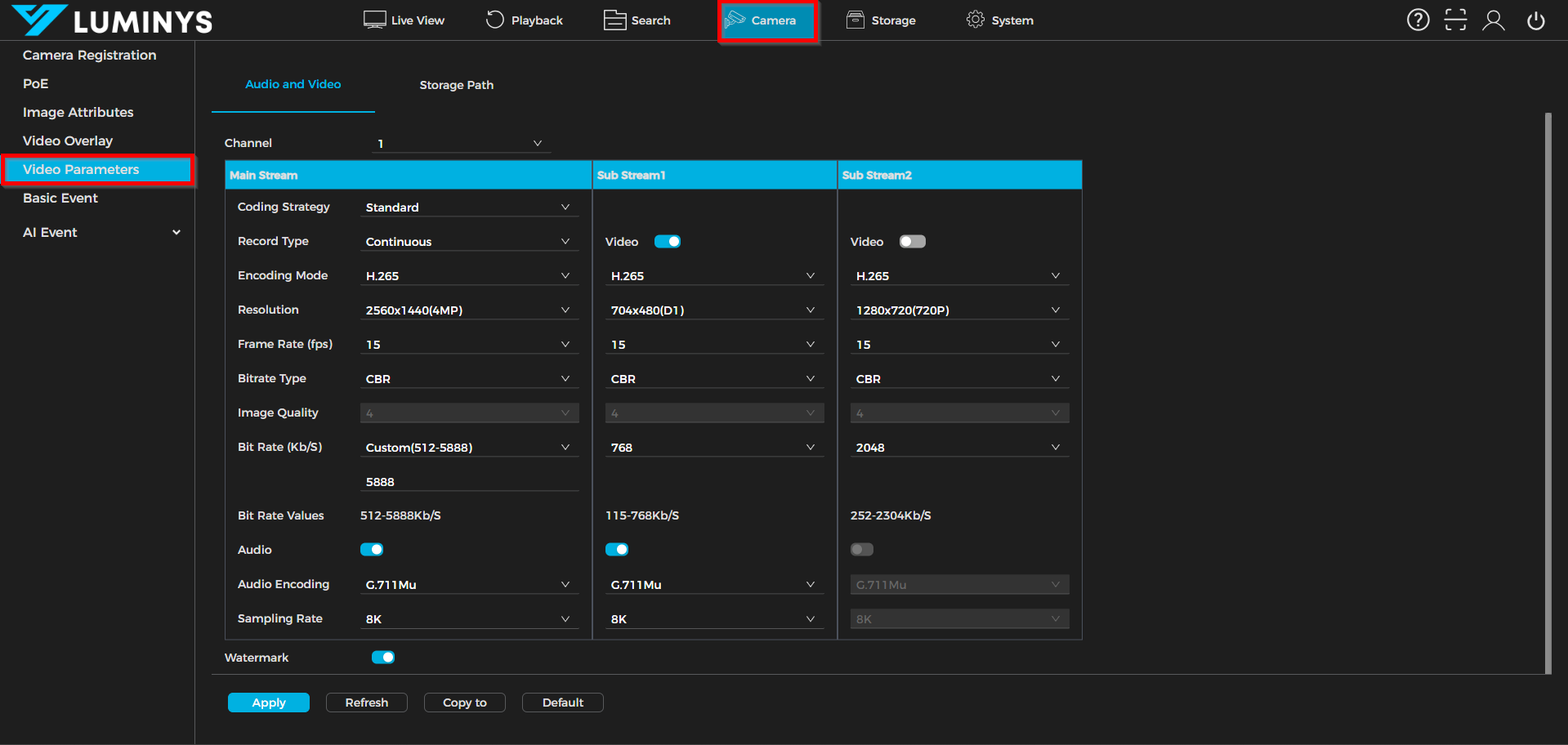
| Coding Strategy | *Standard (uses basic H.264 or H.265 for video compression. This is recommended for general usage.) *Smart Codec (improves compression efficiency by reducing bitrate while maintaining image quality, especially in static scenes.) *AI Codec (focuses on prioritizing human and vehicle targets during encoding.) |
| Record Type | *Continuous (ensures uninterrupted video capture, providing a complete record of all activities.) *Motion Detection (starts capturing only when motion is detected.) *Alarm (triggers recording based on alarms.) |
| Encoding Model | Types of video compression such as H.264 and H.265 |
| Resolution | Select a resolution matching the camera's specifications. |
| Frame Rate (fps) | Number of video frames captured or displayed per second. |
| Bitrate Type | *CBR (Constant Bit Rate - Maintains a fixed bit rate throughout the video stream, regardless of scene complexity.) *VBR (Variable Bit Rate - Adjusts the bit rate dynamically based on the complexity of the scene.) |
| Image Quality | Image quality rated 1 (lowest) to 6 (highest), but may be unadjustable depending on the recorder. |
| Bit Rate (Kb/S) | amount of data processed per unit of time in a video stream which determines the quality and size of the video. |
| Audio | Switch to enable or disable audio recording on the recorder. |
| Audio Encoding | Types of audio compression such as PCM, G.711A, G.711Mu, and AAC. |
| Sampling Rate | During audio encoding, the analog sound wave (e.g., voices, ambient noise) is sampled at regular intervals to create a digital representation. |

