NVR/NVR LPR Setup and Search: Difference between revisions
From Luminys WIKI
Techsupport (talk | contribs) Created page with "= <div class="center">How to Search License Plates via NVR</div> = ===Description=== This tutorial will go over how to search license plates via NVR. ===Prerequisites=== * Access NVR webGUI via web browser. ===Video Instructions=== <youtube start=340>https://www.youtube.com/watch?v=27RLu5qDtw0&t=5s&ab_channel=LuminysSystemsCorporation</youtube> ===Step by Step Instructions=== 1. To search for vehicle license plates, navigate to Search > Vehicle Detection. {| class="..." |
(No difference)
|
Latest revision as of 15:19, 29 May 2025
How to Search License Plates via NVR
Description
This tutorial will go over how to search license plates via NVR.
Prerequisites
- Access NVR webGUI via web browser.
Video Instructions
Step by Step Instructions
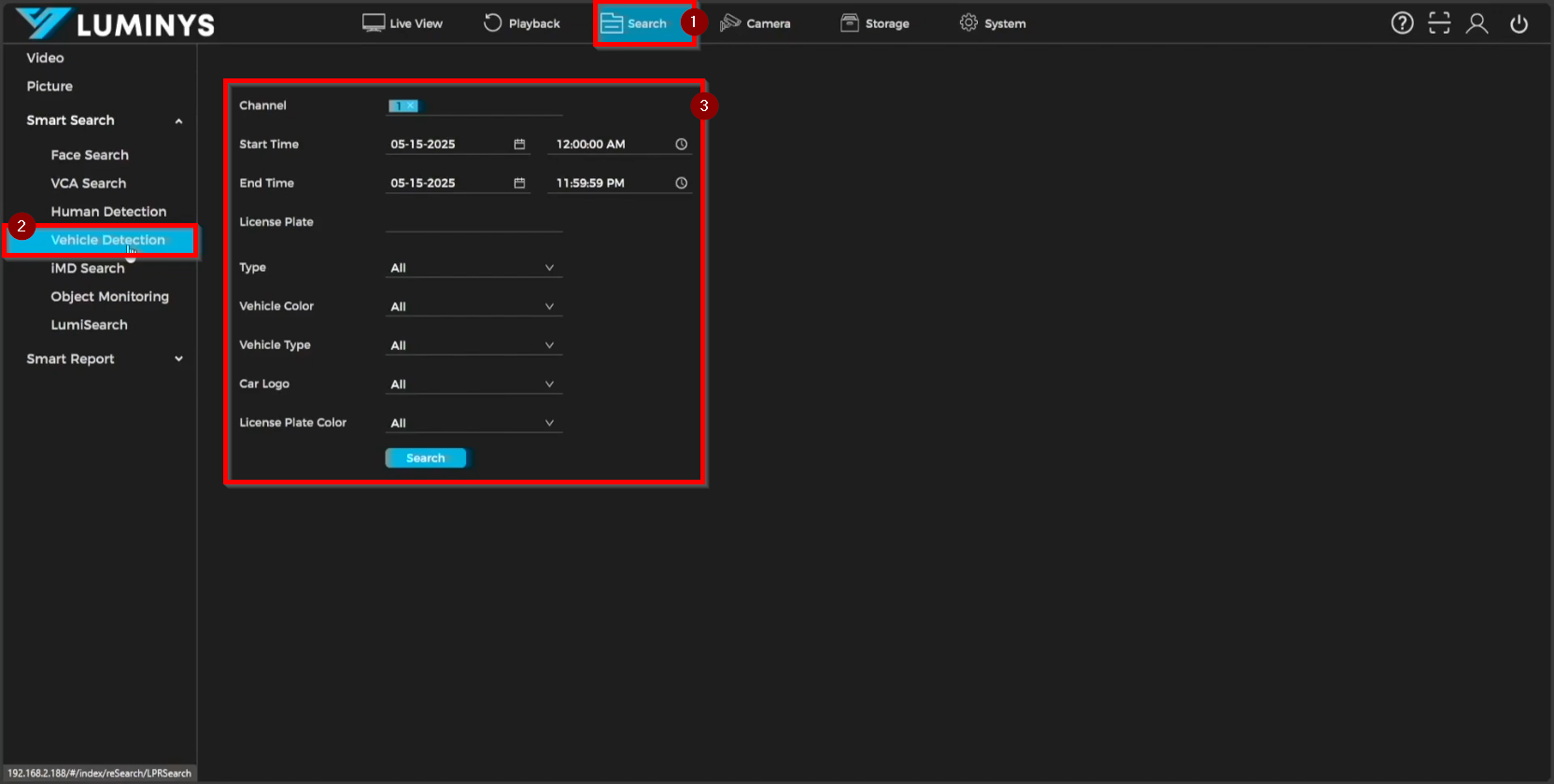
1. To search for vehicle license plates, navigate to Search > Vehicle Detection.
| Channel | Either a single channel or multiple channels can be selected to display search results. |
| Start Time | The Start Time defines the beginning point for the search results. |
| End Time | The End Time defines the cutoff point for the search results. |
| License Plate | Enter the license plate in this field to filter the search results. |
| Type, Vehicle Color, Vehicle Type, Car Logo, and License Plate Color | These options provide additional filters to refine the search results. |
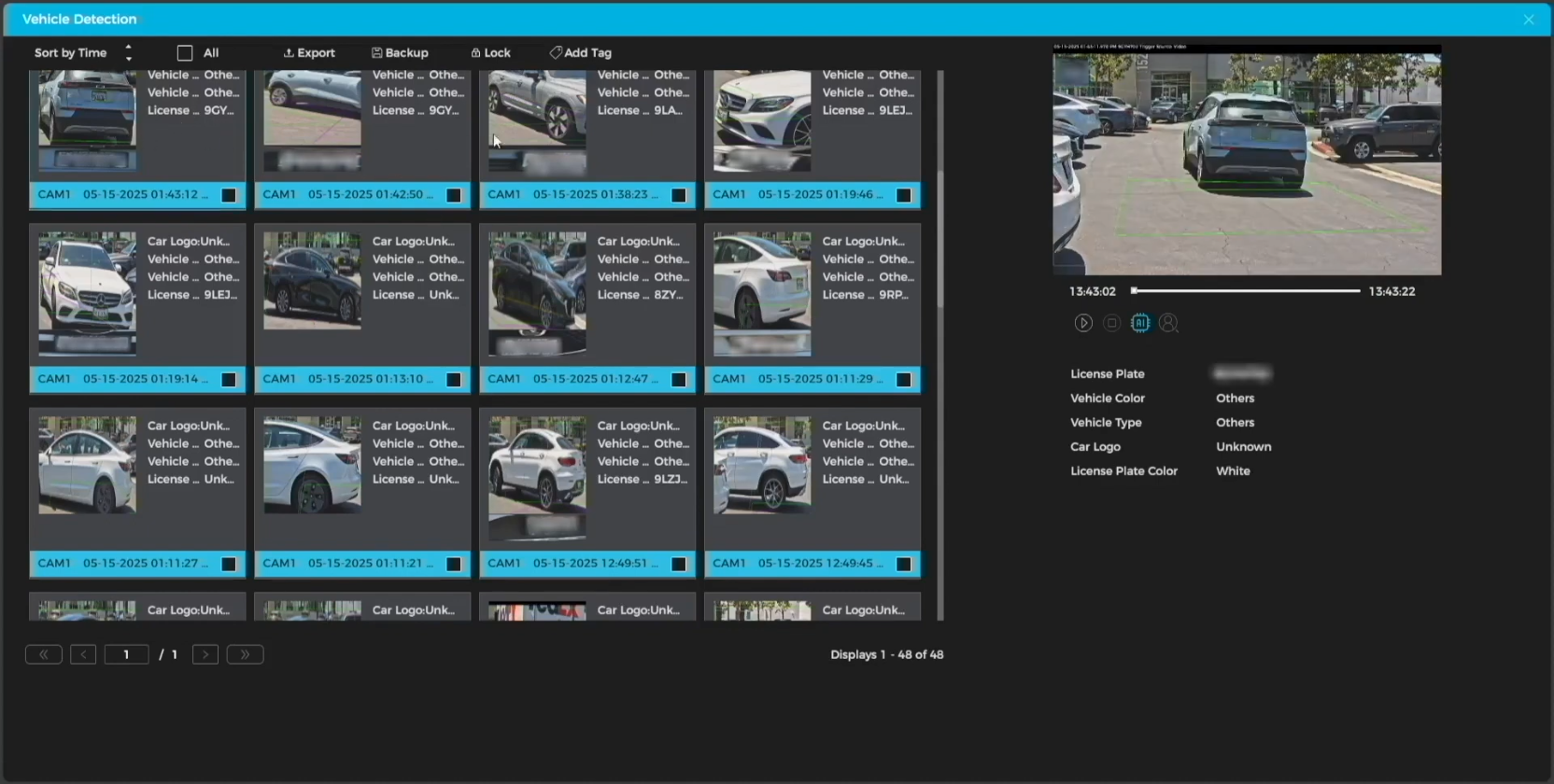
2. Once the search results are displayed, selecting a result will show the corresponding video clip on the right side.
| Play button | Begin playback of the recording that captures the vehicle passing by. |
| Stop button | Stop the recording from playing. |
| Export | Export information including snapshots of the vehicle, license plates, metadata, and more. |
| Backup | Similar to Export, this option only backs up snapshots of the vehicle and the license plate. |
| Lock | After selecting results to be locked, these entries will be protected from being overwritten by the NVR. |
| Add Tag | This feature enables adding short tags to recordings, making them easier to identify when navigating the Playback section of the NVR. |