LumiViewer Mobile App/How to Add Devices in LumiViewer: Difference between revisions
From Luminys WIKI
Techsupport (talk | contribs) Created page with "<div class="lm-banner">File:LuminysMainPageBanner2.png</div> = <div class="center">How to Add Devices in LumiViewer</div> = ===Description=== This tutorial will go over how to add devices in LumiViewer app. ===Prerequisites=== * Devices already initialized, and powered on. ===Video Instructions=== <!--<embedvideo service="youtube">Coming soon</embedvideo>--> Coming soon ===Step by Step Instructions=== 1. Launch the LumiViewer app on the phone and tap the “+..." |
Techsupport (talk | contribs) No edit summary |
||
| (2 intermediate revisions by the same user not shown) | |||
| Line 1: | Line 1: | ||
<div class="lm-banner">[[File:LuminysMainPageBanner2.png]]</div> | <div class="lm-banner">[[File:LuminysMainPageBanner2.png]]</div> | ||
= <div class="center">How to Add Devices in LumiViewer</div> = | = <div class="center">How to Add Devices in LumiViewer Mobile App</div> = | ||
===Description=== | ===Description=== | ||
This tutorial will go over how to add devices in LumiViewer app. | This tutorial will go over how to add devices in LumiViewer mobile app. | ||
===Prerequisites=== | ===Prerequisites=== | ||
| Line 10: | Line 10: | ||
===Video Instructions=== | ===Video Instructions=== | ||
< | <youtube>https://www.youtube.com/watch?v=rGFl7wH8jzE</youtube> | ||
===Step by Step Instructions=== | ===Step by Step Instructions=== | ||
Latest revision as of 09:11, 3 June 2025

How to Add Devices in LumiViewer Mobile App
Description
This tutorial will go over how to add devices in LumiViewer mobile app.
Prerequisites
- Devices already initialized, and powered on.
Video Instructions
Step by Step Instructions
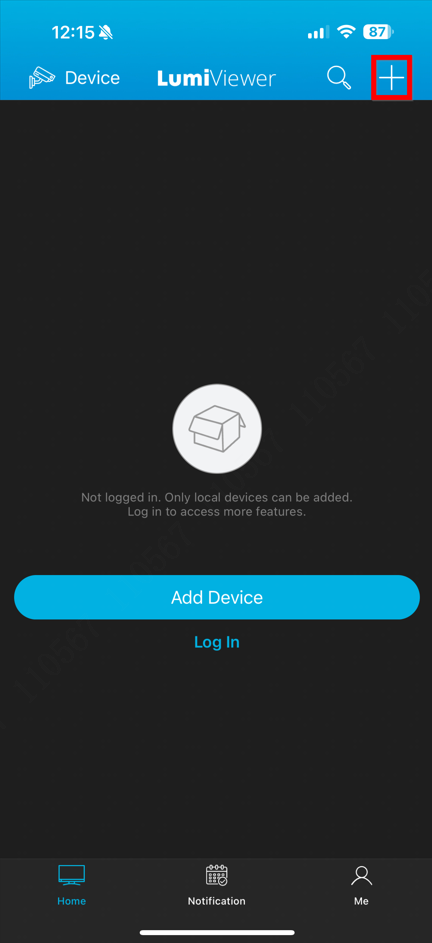
1. Launch the LumiViewer app on the phone and tap the “+” sign to start the adding process.
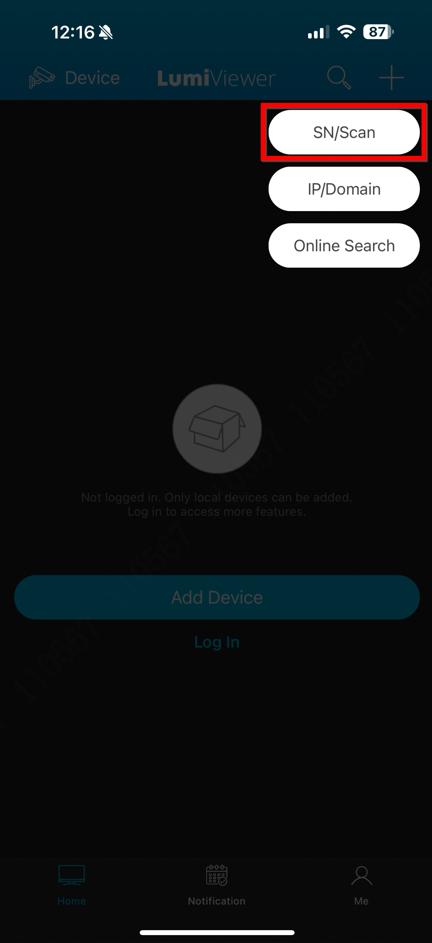
2. Select “SN/Scan” to scan the device's QR code.
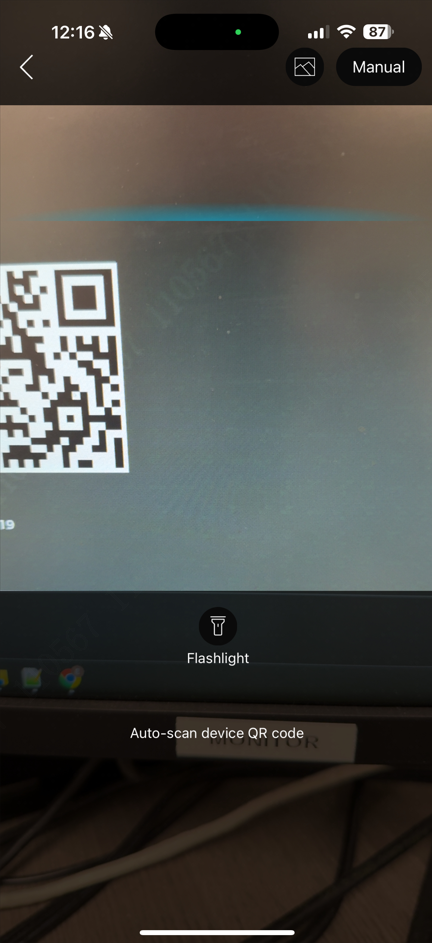
3. Scan the QR code.
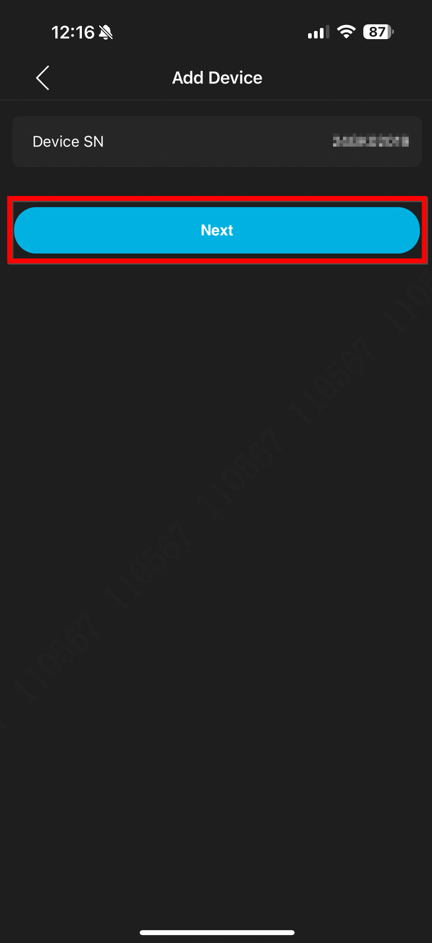
4. Confirm the device's serial number displayed at the top, then select “Next.”
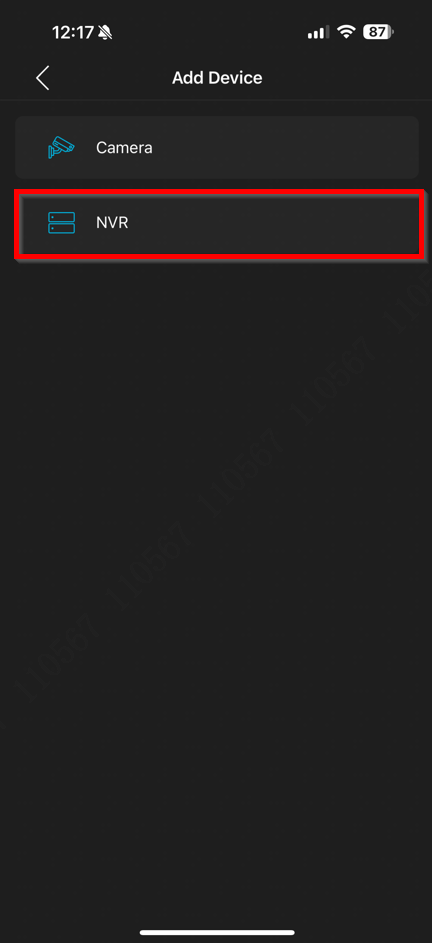
5. Choose the appropriate device to add. In this example, selecting “NVR” in this case.
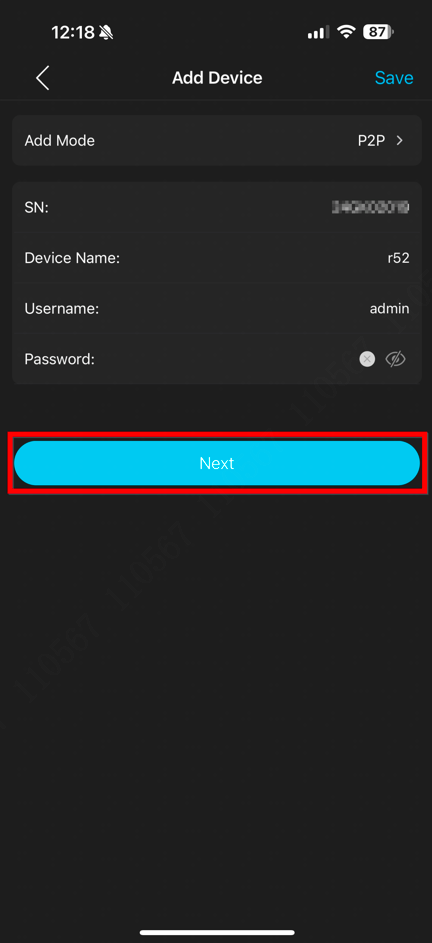
6. Provide the user-defined device name, username, and password, then select “Next.”
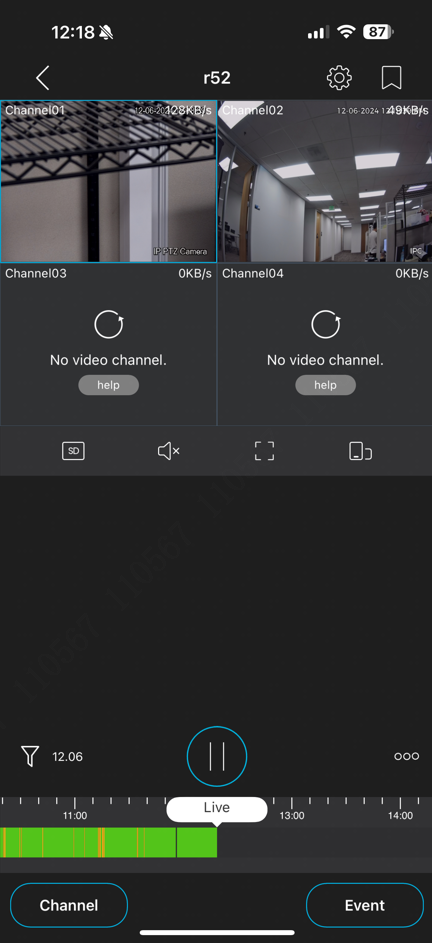
7. The live view of the recorder will appear upon completion.