LumiCenter/Layouts Introduction: Difference between revisions
From Luminys WIKI
Techsupport (talk | contribs) No edit summary |
Techsupport (talk | contribs) No edit summary |
||
| Line 16: | Line 16: | ||
1. At the top left of LumiCenter click on the Layouts icon | 1. At the top left of LumiCenter click on the Layouts icon | ||
[[File:LayoutIntro1.png| | [[File:LayoutIntro1.png|1000px|link=https://wiki.luminyscorp.com/images/4/46/LayoutIntro1.png]] | ||
2. Click on the arrow at the top left to expand the device lists | 2. Click on the arrow at the top left to expand the device lists | ||
[[File:LumiCenterLayoutIntro2.png| | [[File:LumiCenterLayoutIntro2.png|1000px|link=https://wiki.luminyscorp.com/images/e/e2/LumiCenterLayoutIntro2.png]] | ||
3. Select the device view you want from the bottom: | 3. Select the device view you want from the bottom: | ||
| Line 26: | Line 26: | ||
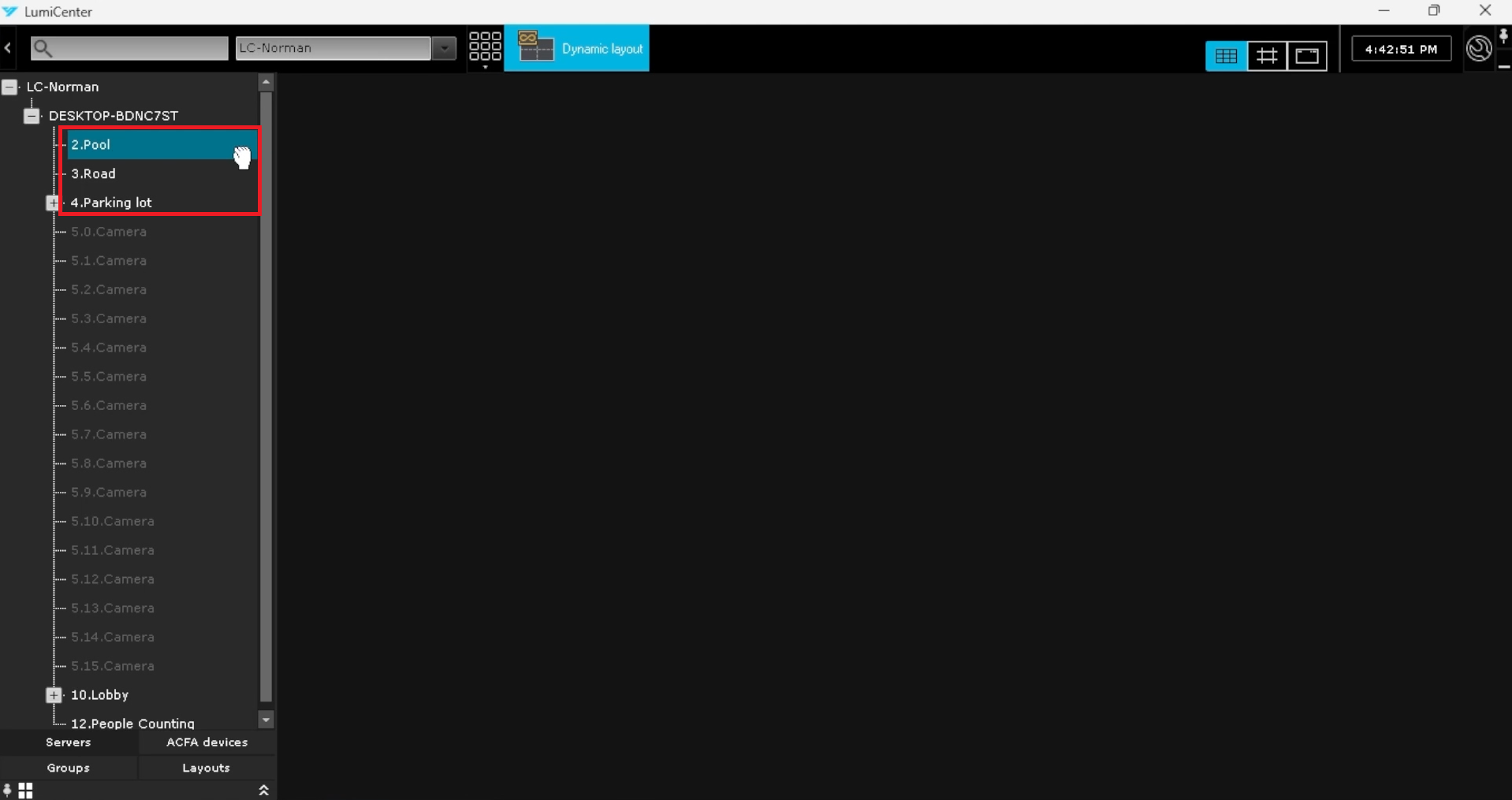
* '''Servers''': Display the list of servers and the devices added under each server | * '''Servers''': Display the list of servers and the devices added under each server | ||
[[File:LumiCenterLayoutIntro3.png| | [[File:LumiCenterLayoutIntro3.png|1000px|link=https://wiki.luminyscorp.com/images/d/df/LumiCenterLayoutIntro3.png]] | ||
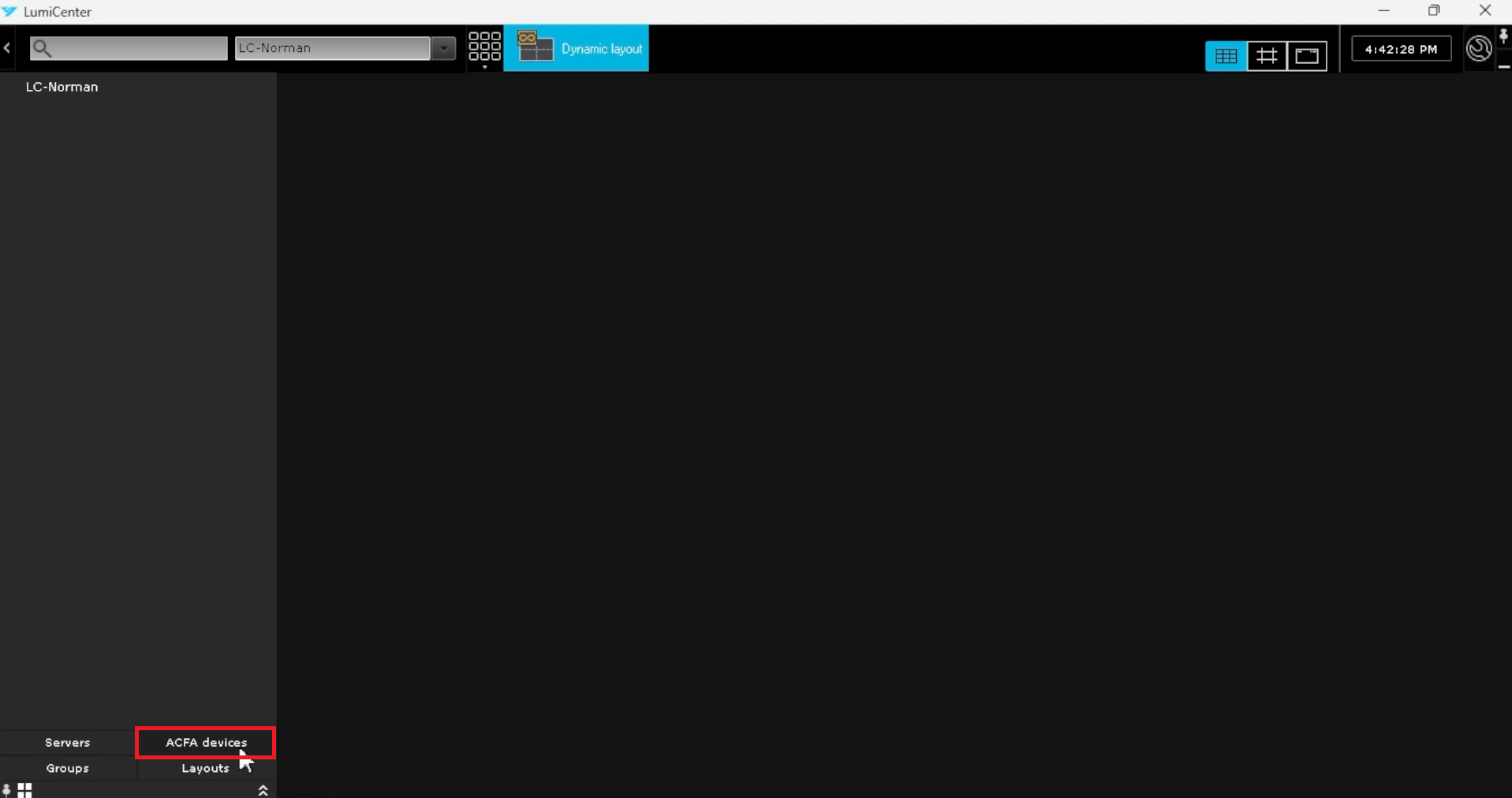
* '''ACFA devices''': Display the list of Access Control and Fire Alarm devices | * '''ACFA devices''': Display the list of Access Control and Fire Alarm devices | ||
[[File:LumiCenterLayoutIntro4.png| | [[File:LumiCenterLayoutIntro4.png|1000px|link=https://wiki.luminyscorp.com/images/a/af/LumiCenterLayoutIntro4.png]] | ||
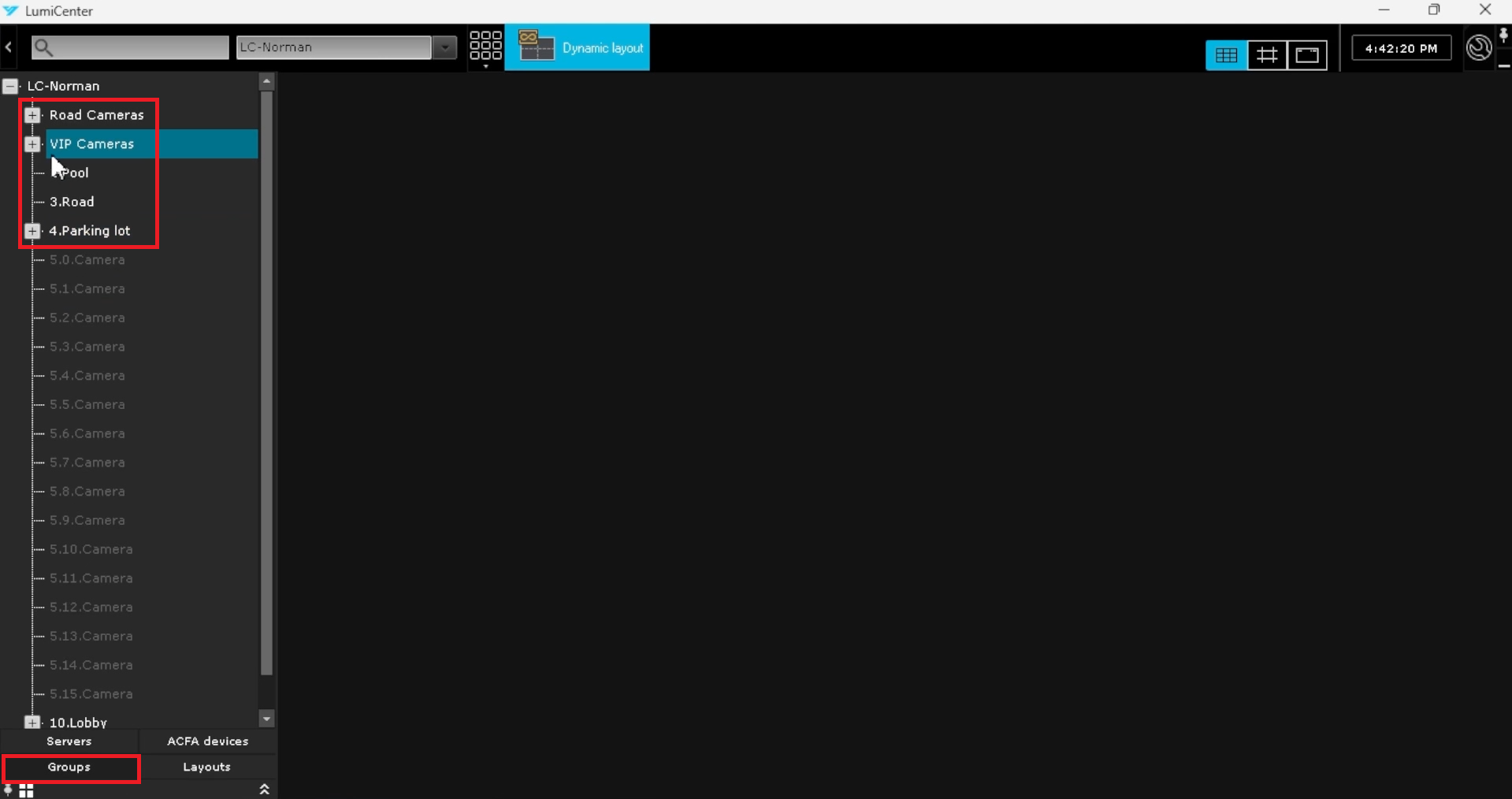
* '''Groups''': Display the list of device groups | * '''Groups''': Display the list of device groups | ||
[[File:LumiCenterLayoutIntro5.png| | [[File:LumiCenterLayoutIntro5.png|1000px|link=https://wiki.luminyscorp.com/images/c/c0/LumiCenterLayoutIntro5.png]] | ||
* '''Layouts''': Display the list of previously saved Layouts | * '''Layouts''': Display the list of previously saved Layouts | ||
| Line 40: | Line 40: | ||
4. Double-click or drag a camera to the '''Dynamic Layout''' section | 4. Double-click or drag a camera to the '''Dynamic Layout''' section | ||
[[File:LumiCenterLayoutIntro6.png| | [[File:LumiCenterLayoutIntro6.png|1000px|link=https://wiki.luminyscorp.com/images/0/00/LumiCenterLayoutIntro6.png]] | ||
5. The live view of that camera will be displayed inthe Dynamic Layout. | 5. The live view of that camera will be displayed inthe Dynamic Layout. | ||
<br>Please Note: Any cameras pulled up in the Dynamic Layout will not be saved if LumiCenter is closed and re-opened | <br>Please Note: Any cameras pulled up in the Dynamic Layout will not be saved if LumiCenter is closed and re-opened | ||
[[File:LumiCenterLayoutIntro7.png| | [[File:LumiCenterLayoutIntro7.png|1000px|link=https://wiki.luminyscorp.com/images/7/77/LumiCenterLayoutIntro7.png]] | ||
Latest revision as of 11:31, 12 June 2025

4.1 - First Look at Layouts Interface
Description
This article will cover the initial use of Layouts in LumiCenter
Prerequisites
- LumiCenter Server and Client installed, running, and logged in
- Cameras added to LumiCenter Server
Video Instructions
Step by Step Instructions
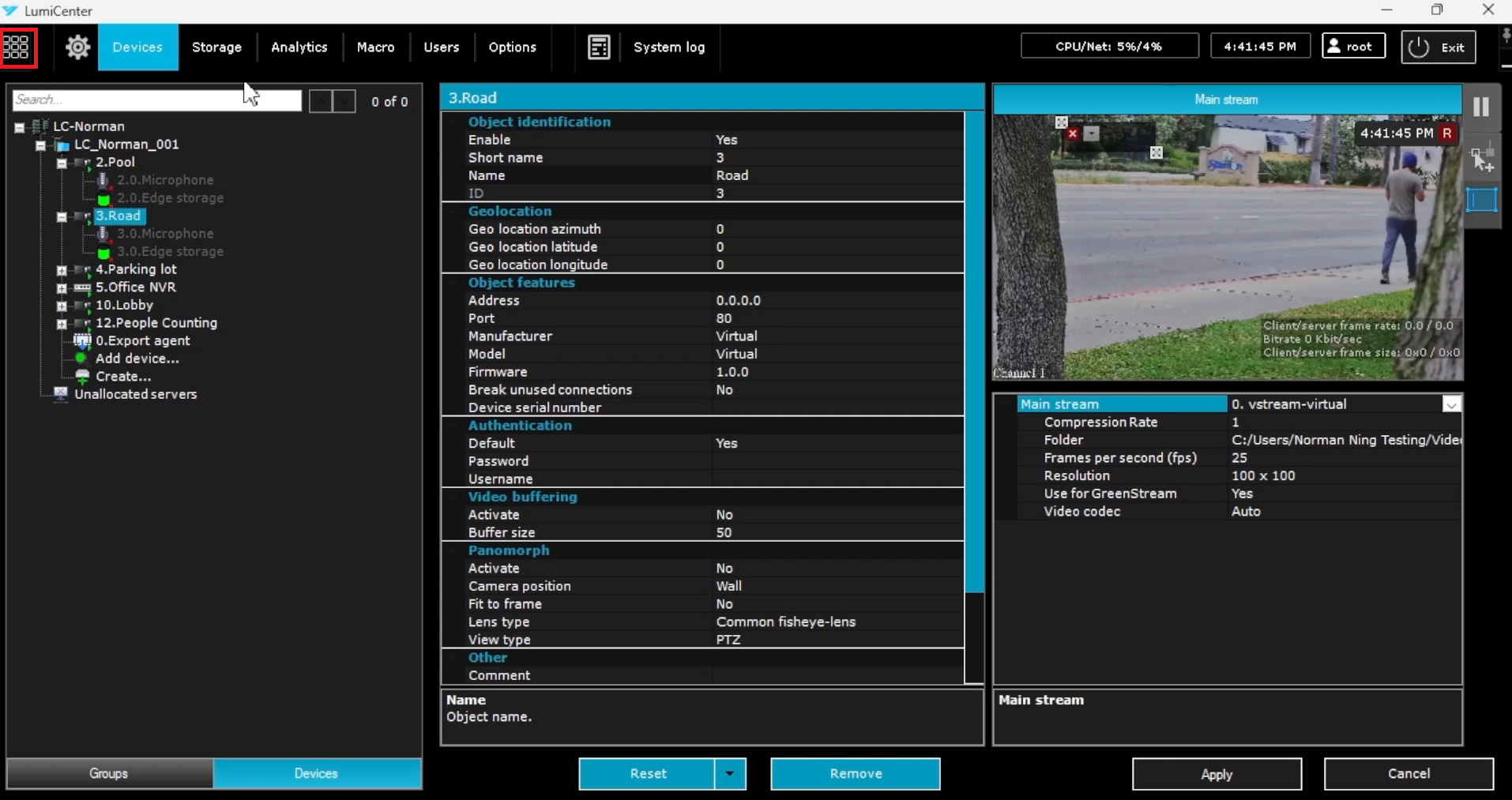
1. At the top left of LumiCenter click on the Layouts icon
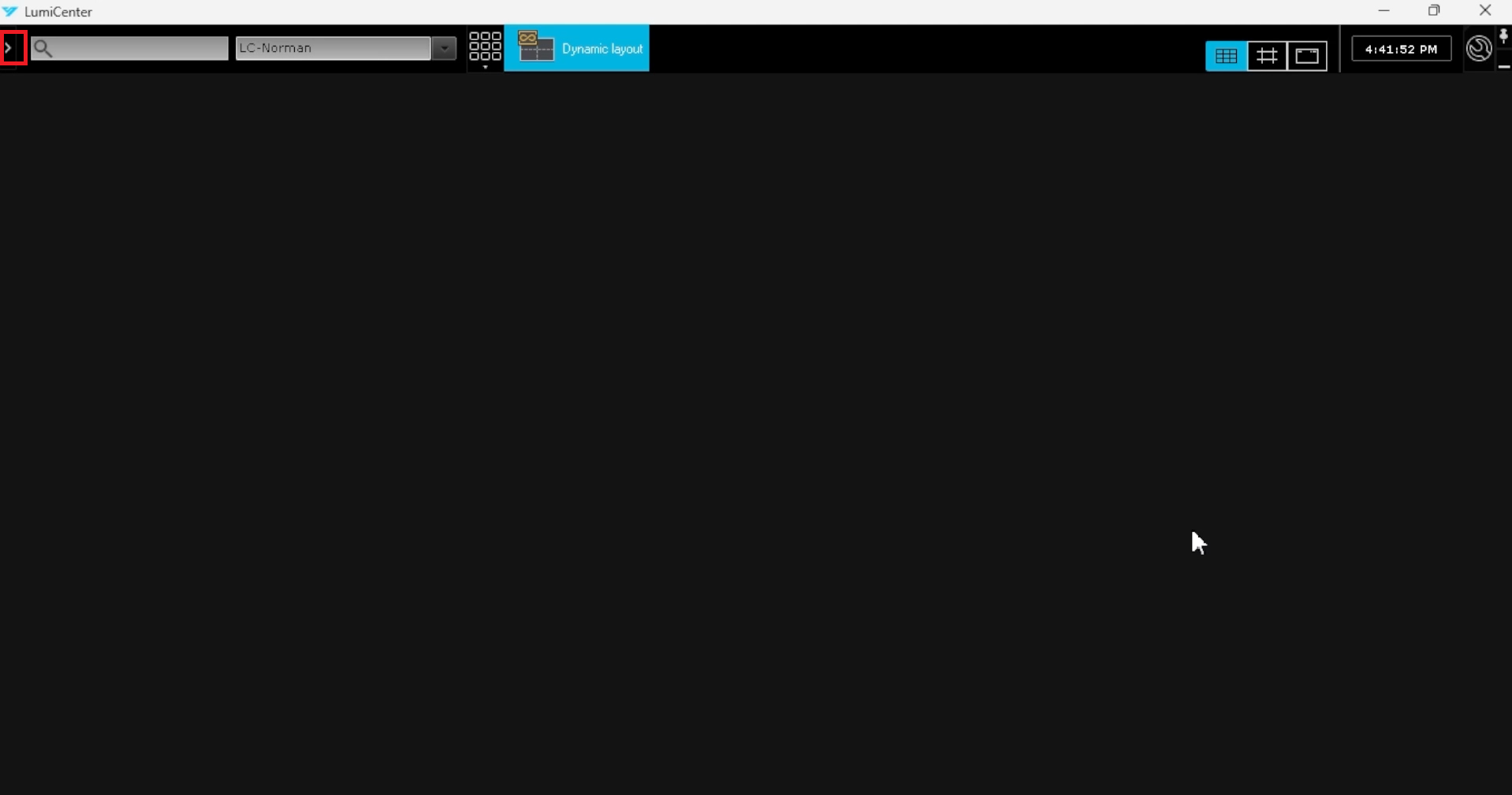
2. Click on the arrow at the top left to expand the device lists
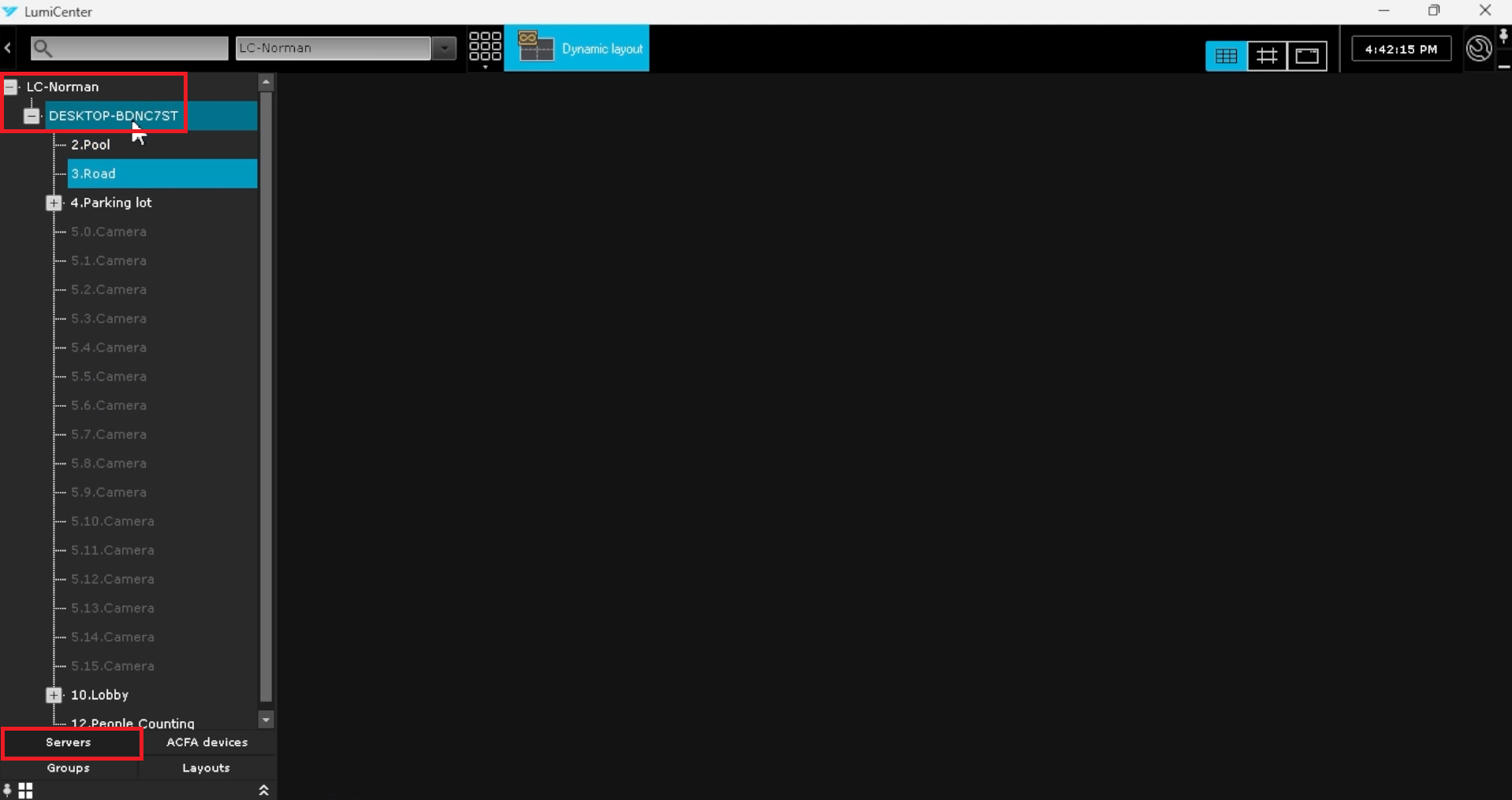
3. Select the device view you want from the bottom:
- Servers: Display the list of servers and the devices added under each server
- ACFA devices: Display the list of Access Control and Fire Alarm devices
- Groups: Display the list of device groups
- Layouts: Display the list of previously saved Layouts
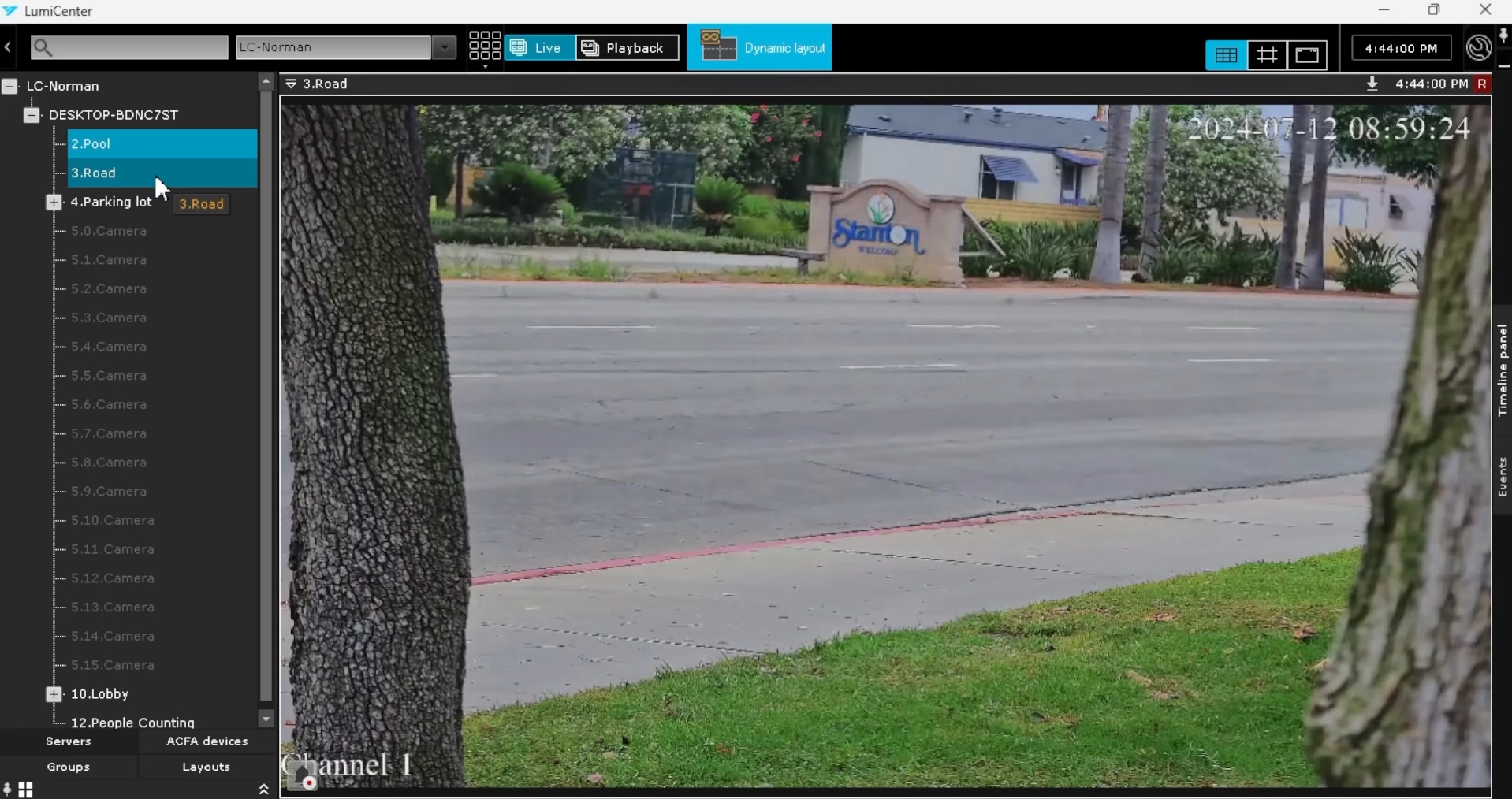
4. Double-click or drag a camera to the Dynamic Layout section
5. The live view of that camera will be displayed inthe Dynamic Layout.
Please Note: Any cameras pulled up in the Dynamic Layout will not be saved if LumiCenter is closed and re-opened