LumiCloud/Firmware Upgrade in Partner Portal: Difference between revisions
Techsupport (talk | contribs) No edit summary |
Techsupport (talk | contribs) m Techsupport moved page LumiGuardian/LumiCloud for LumiGuardian/Firmware Upgrade in Partner Portal to LumiCloud/Firmware Upgrade in Partner Portal without leaving a redirect |
||
| (One intermediate revision by the same user not shown) | |||
| Line 1: | Line 1: | ||
= <div class="center"> | = <div class="center">How to Upgrade Firmware and Reboot Devices in the Partner Portal</div> = | ||
===Description=== | ===Description=== | ||
Latest revision as of 09:14, 15 August 2025
How to Upgrade Firmware and Reboot Devices in the Partner Portal
Description
This tutorial will go over how to reboot and update the firmware in partner portal.
Prerequisites
- Access partner portal via web browser.
Video Instructions
Step by Step Instructions
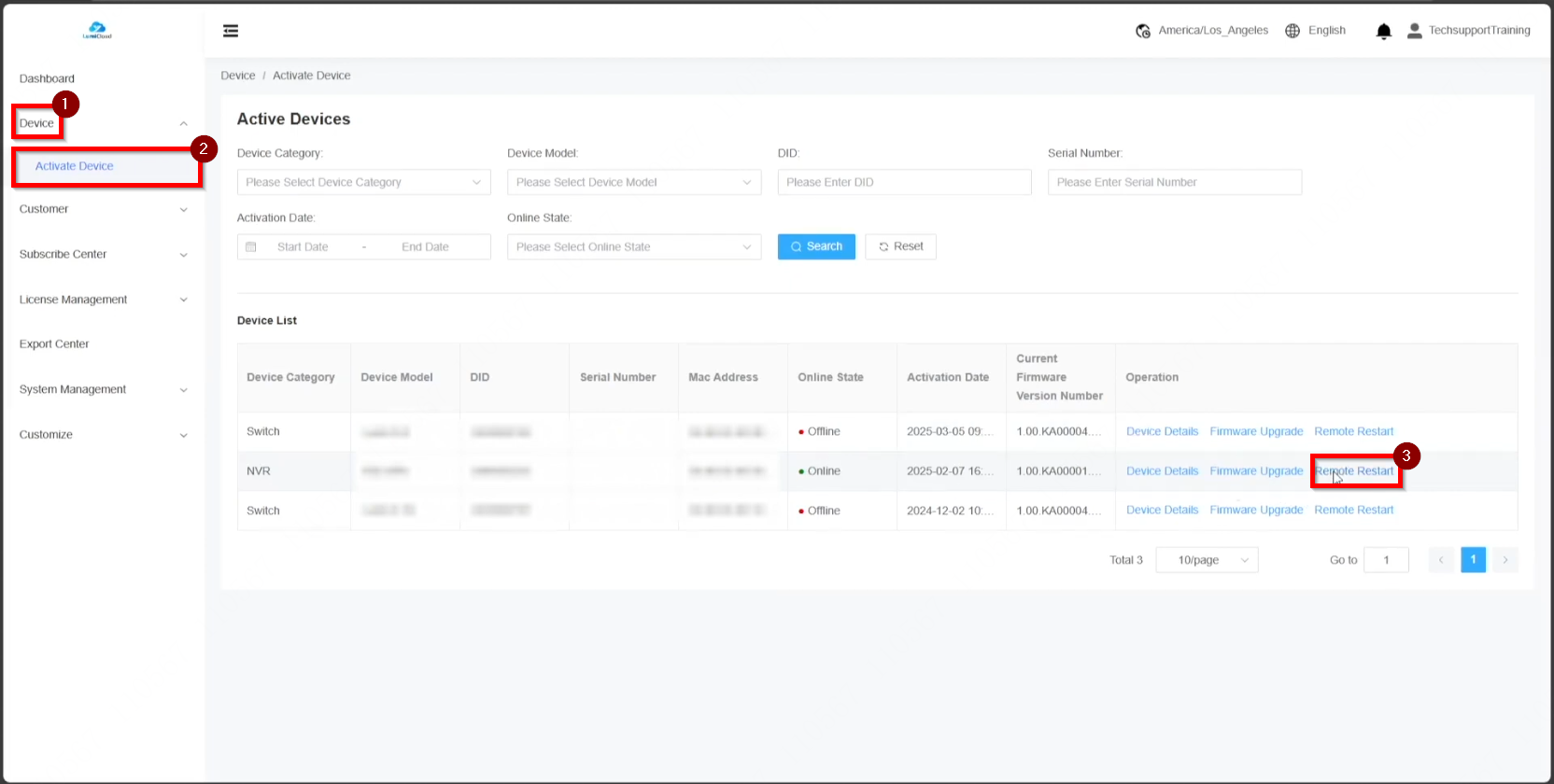
1. Access “Device,” navigate to “Activate Device,” and select “Remote Restart” to reboot the devices.
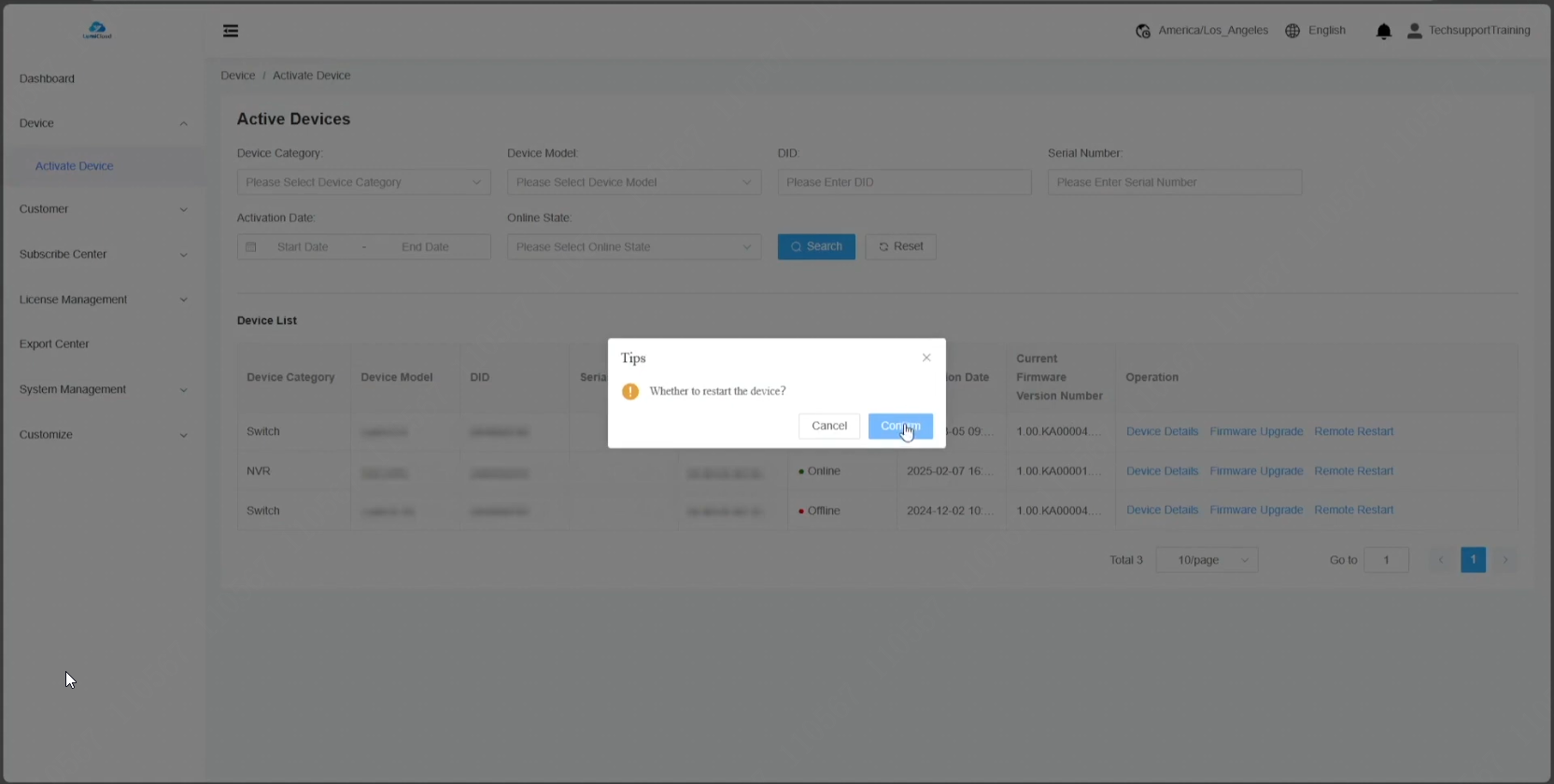
2. Select “Confirm” to initiate the device reboot.
3. During the reboot process, the status changes to red, indicating "Offline." Use the "Reset" button at the top to refresh the page. Once the reboot is complete, the status updates to green, showing "Online."

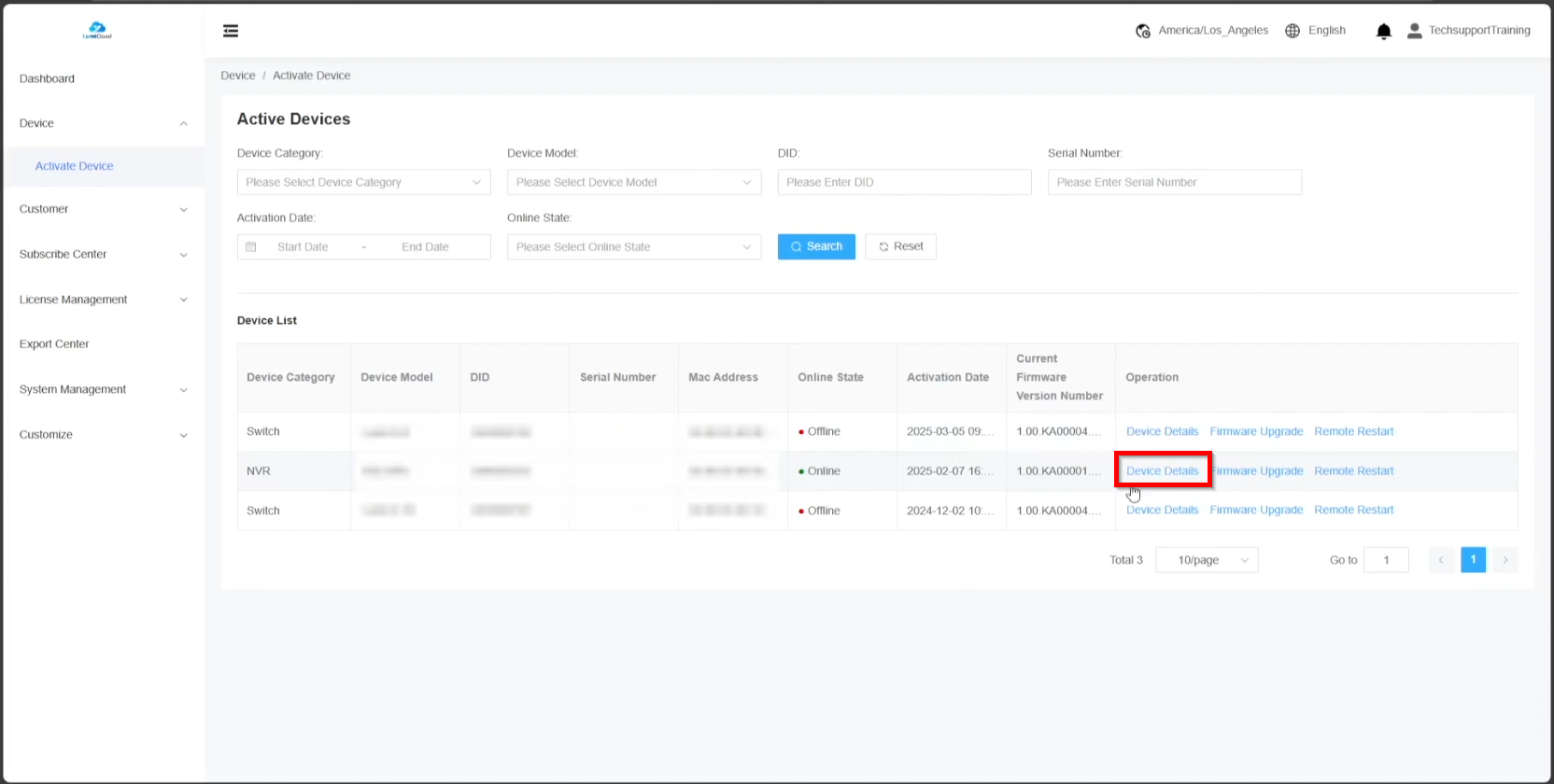
4. Open “Device Details” to check for the availability of a newer firmware version.
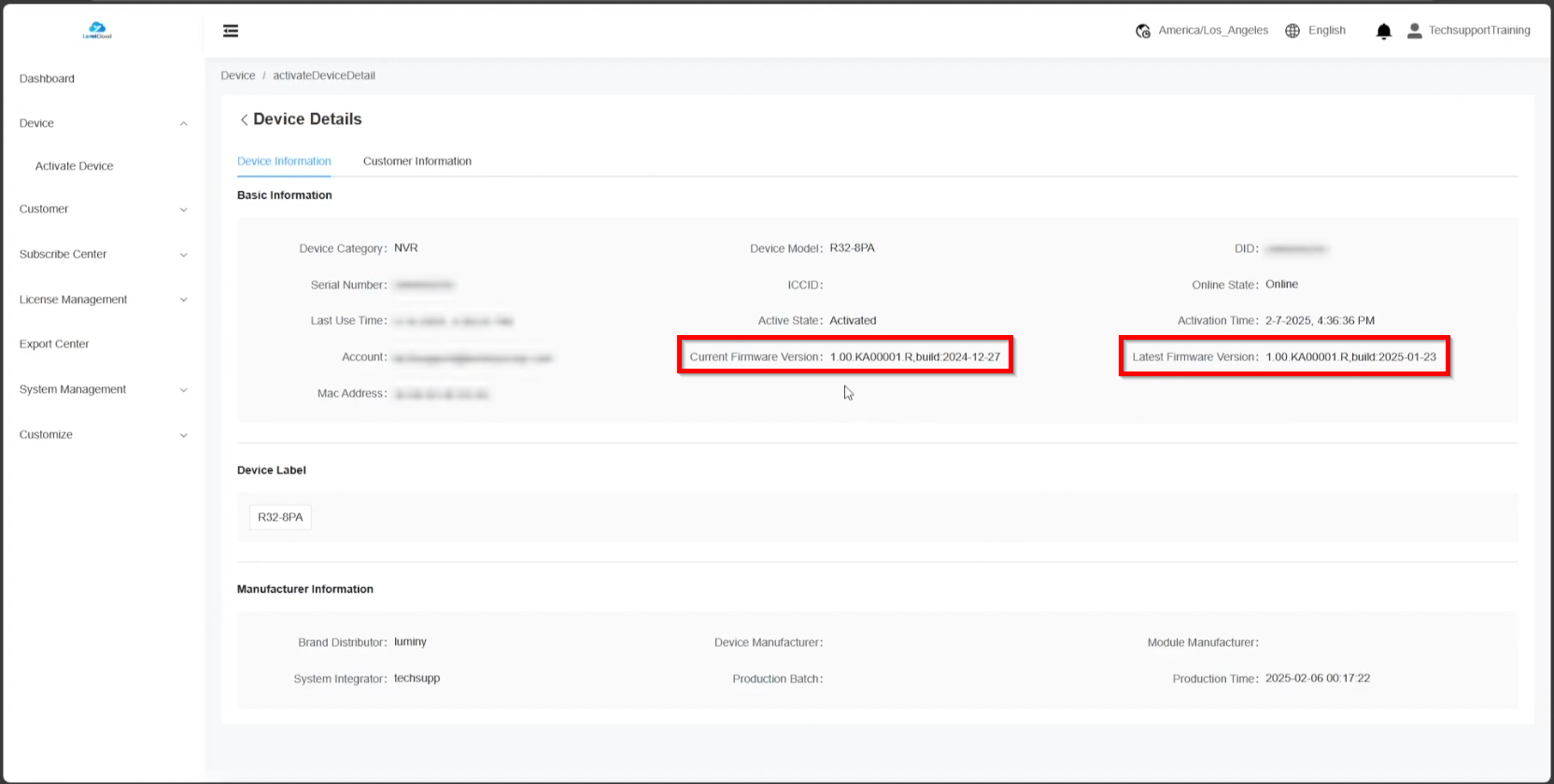
5. This screen displays the current firmware version and the latest available version. If the versions differ or the latest version is newer, a firmware update can be performed.
6. Return to the previous page and select “Firmware Upgrade” to initiate the firmware update.
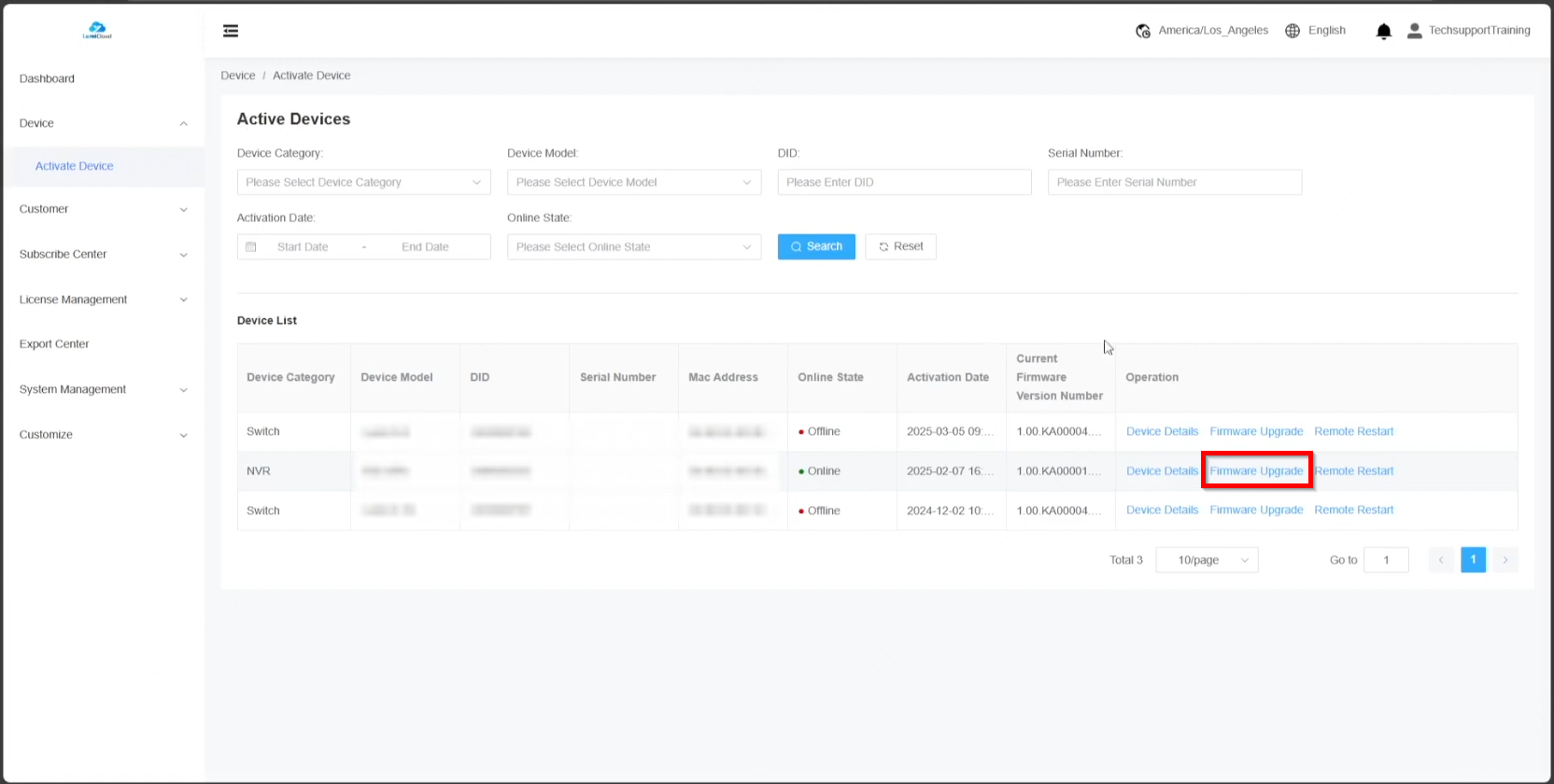
7. Click “Push” to confirm the update process. Once the firmware update is complete, the device will reboot automatically.

8. After the device returns online, the current firmware information updates to reflect the newly installed version.


