IP Speaker/Add to LumiCenter via External IP: Difference between revisions
Techsupport (talk | contribs) |
Techsupport (talk | contribs) No edit summary |
||
| (13 intermediate revisions by the same user not shown) | |||
| Line 8: | Line 8: | ||
==Step by Step Instructions== | ==Step by Step Instructions== | ||
1. Parameters setting for IP speaker: | 1. Parameters setting for IP speaker: | ||
After | After logging in, go to Interface Protocol > ONVIF tab > Click on "Enable" button. Configure the Username, Password, ONVIF Port, RTSP Port, RTP Port, NAT IP Address, and NAT ONVIF Port as shown in the images below:<br> | ||
<span style="color:red; font-style:italic;"> | |||
< | Tip: Use 554 as the RTSP port.<br> | ||
<br>RTP | Set the RTP port range to 8000–8005 and use UDP for port forwarding.<br> | ||
<br>NAT IP Address is the static IP address | The NAT IP Address is the network’s static public IP address.<br> | ||
<br>NAT ONVIF Port is the | The NAT ONVIF Port is the public ONVIF port used for adding the device.<br> | ||
</span> | |||
[[File:IPSpeakertoLumiCenter1a.png| | [[File:IPSpeakertoLumiCenter1a.png|700px|link=https://wiki.luminyscorp.com/images/a/a0/IPSpeakertoLumiCenter1a.png]]<br> | ||
<br>[[File:IPSpeakertoLumiCenter1b.png| | [[File:IPSpeakertoLumiCenter1b.png|700px|link=https://wiki.luminyscorp.com/images/e/ea/IPSpeakertoLumiCenter1b.png]] | ||
2. Perform port forwarding in advance. The following is an example of the configuration:<br> | |||
<span style="color:red; font-style:italic"> | |||
Tip: HTTP port forwarding is optional if remote web access is not required. | |||
</span> | |||
[[File:IPSpeakertoLumiCenter2a.png|700px|link=https://wiki.luminyscorp.com/images/2/28/IPSpeakertoLumiCenter2a.png]]<br> | |||
[[File:IPSpeakertoLumiCenter2b.png|700px|link=https://wiki.luminyscorp.com/images/9/92/IPSpeakertoLumiCenter2b.png]] | |||
3. Add the IP speaker to LumiCenter by going to Device > Default > Server > Add Devices.<br> | |||
Enter the speaker’s static IP address, ONVIF forwarding port, ONVIF protocol (Generic), and the ONVIF username and password configured in Step 1.<br> | |||
Click the “+” button on the right. After a few seconds, the device will be added. A green status indicates the device was added successfully. | |||
[[File:IPSpeakertoLumiCenter3.png|1400px|link=https://wiki.luminyscorp.com/images/d/d0/IPSpeakertoLumiCenter3.png]] | |||
4. Enable the Speaker and Microphone by selecting them under the added device. | |||
[[File:IPSpeakertoLumiCenter4a.png|700px|link=https://wiki.luminyscorp.com/images/f/f8/IPSpeakertoLumiCenter4a.png]] | |||
[[File:IPSpeakertoLumiCenter4b.png|700px|link=https://wiki.luminyscorp.com/images/d/d3/IPSpeakertoLumiCenter4b.png]] | |||
5. Return to the main page and drag the IP Speaker device into the preview layout. Enable the Speaker and Microphone when you want to use two-way talk; both are disabled by default. | |||
[[File:IPSpeakertoLumiCenter5a.png|700px|link=https://wiki.luminyscorp.com/images/0/0d/IPSpeakertoLumiCenter5a.png]] | |||
<span style = "color: red; font-style: italic"> | |||
Tip: If the workstation microphone does not work after being enabled, go to Options > Audio Parameters > Audio Source and ensure the correct option is selected. | |||
Restart the client after changing the audio source. | |||
</span> | |||
[[File:IPSpeakertoLumiCenter5b.png|700px|link=https://wiki.luminyscorp.com/images/1/10/IPSpeakertoLumiCenter5b.png]] | |||
6. Use the audio playback feature to play pre-recorded audio. Go to Device > Default > Server > IP Speaker > Speaker > Audio Path, then click Add, select the File Path, and click OK. | |||
[[File:IPSpeakertoLumiCenter6.png|700px|link=https://wiki.luminyscorp.com/images/9/97/IPSpeakertoLumiCenter6.png]] | |||
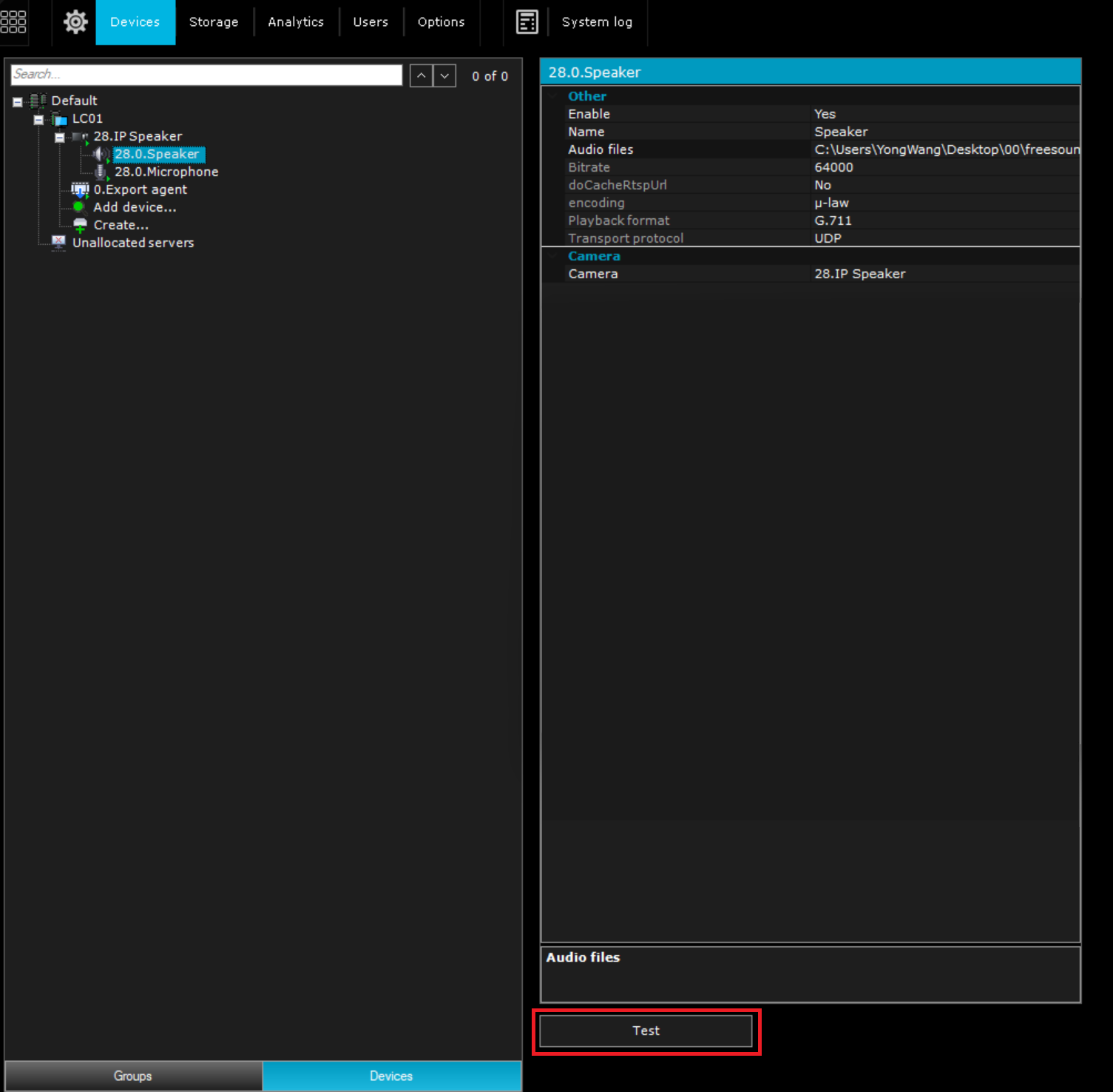
7. Click the Test button at the bottom of the Speaker page to play the selected audio file. | |||
[[File:IPSpeakertoLumiCenter7.png|700px|link=https://wiki.luminyscorp.com/images/6/6d/IPSpeakertoLumiCenter7.png]] | |||
Latest revision as of 14:43, 3 June 2026
Description
This is used in LumiCenter to remotely add an IP speaker and enable audio playback and two-way communication.
Prerequisites
- The IP speaker must be on a network with a static public IP address.
- The IP speaker firmware must be version V1.43.1(260522B) or later.
Step by Step Instructions
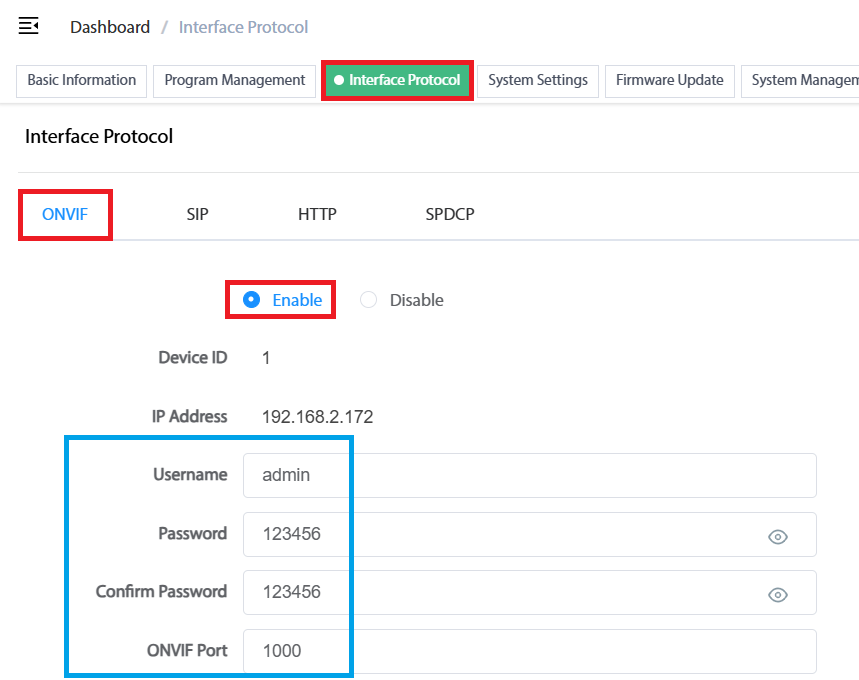
1. Parameters setting for IP speaker:
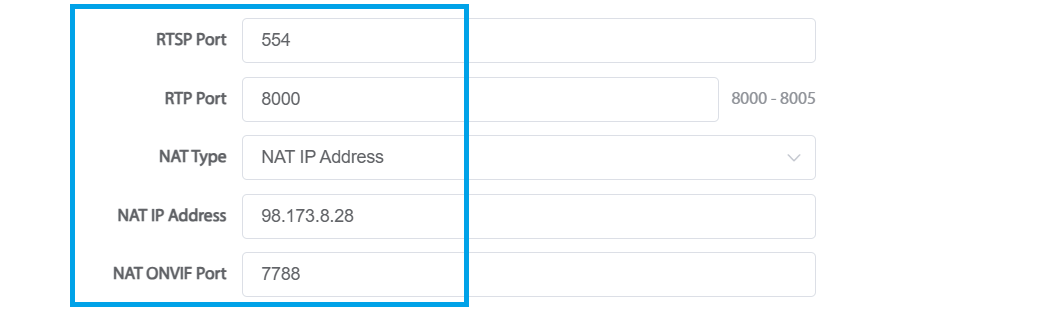
After logging in, go to Interface Protocol > ONVIF tab > Click on "Enable" button. Configure the Username, Password, ONVIF Port, RTSP Port, RTP Port, NAT IP Address, and NAT ONVIF Port as shown in the images below:
Tip: Use 554 as the RTSP port.
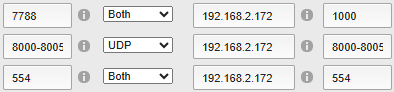
Set the RTP port range to 8000–8005 and use UDP for port forwarding.
The NAT IP Address is the network’s static public IP address.
The NAT ONVIF Port is the public ONVIF port used for adding the device.
2. Perform port forwarding in advance. The following is an example of the configuration:
Tip: HTTP port forwarding is optional if remote web access is not required.

3. Add the IP speaker to LumiCenter by going to Device > Default > Server > Add Devices.
Enter the speaker’s static IP address, ONVIF forwarding port, ONVIF protocol (Generic), and the ONVIF username and password configured in Step 1.
Click the “+” button on the right. After a few seconds, the device will be added. A green status indicates the device was added successfully.

4. Enable the Speaker and Microphone by selecting them under the added device.
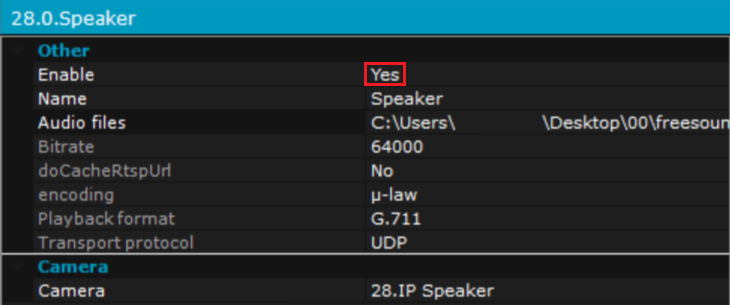
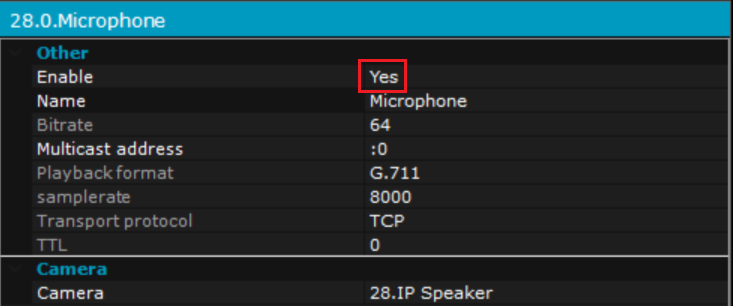
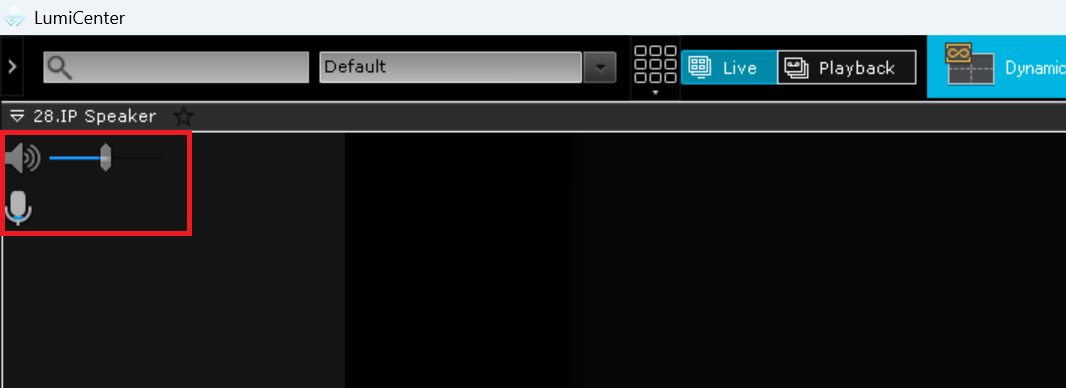
5. Return to the main page and drag the IP Speaker device into the preview layout. Enable the Speaker and Microphone when you want to use two-way talk; both are disabled by default.
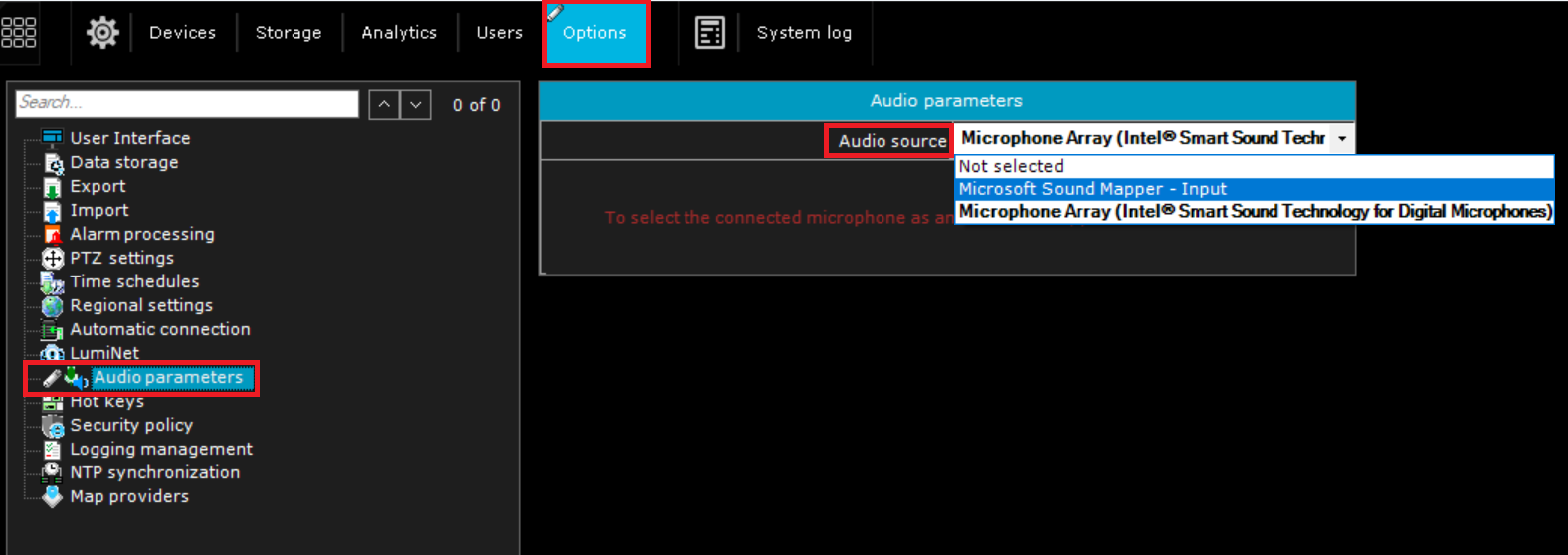
Tip: If the workstation microphone does not work after being enabled, go to Options > Audio Parameters > Audio Source and ensure the correct option is selected. Restart the client after changing the audio source.
6. Use the audio playback feature to play pre-recorded audio. Go to Device > Default > Server > IP Speaker > Speaker > Audio Path, then click Add, select the File Path, and click OK.
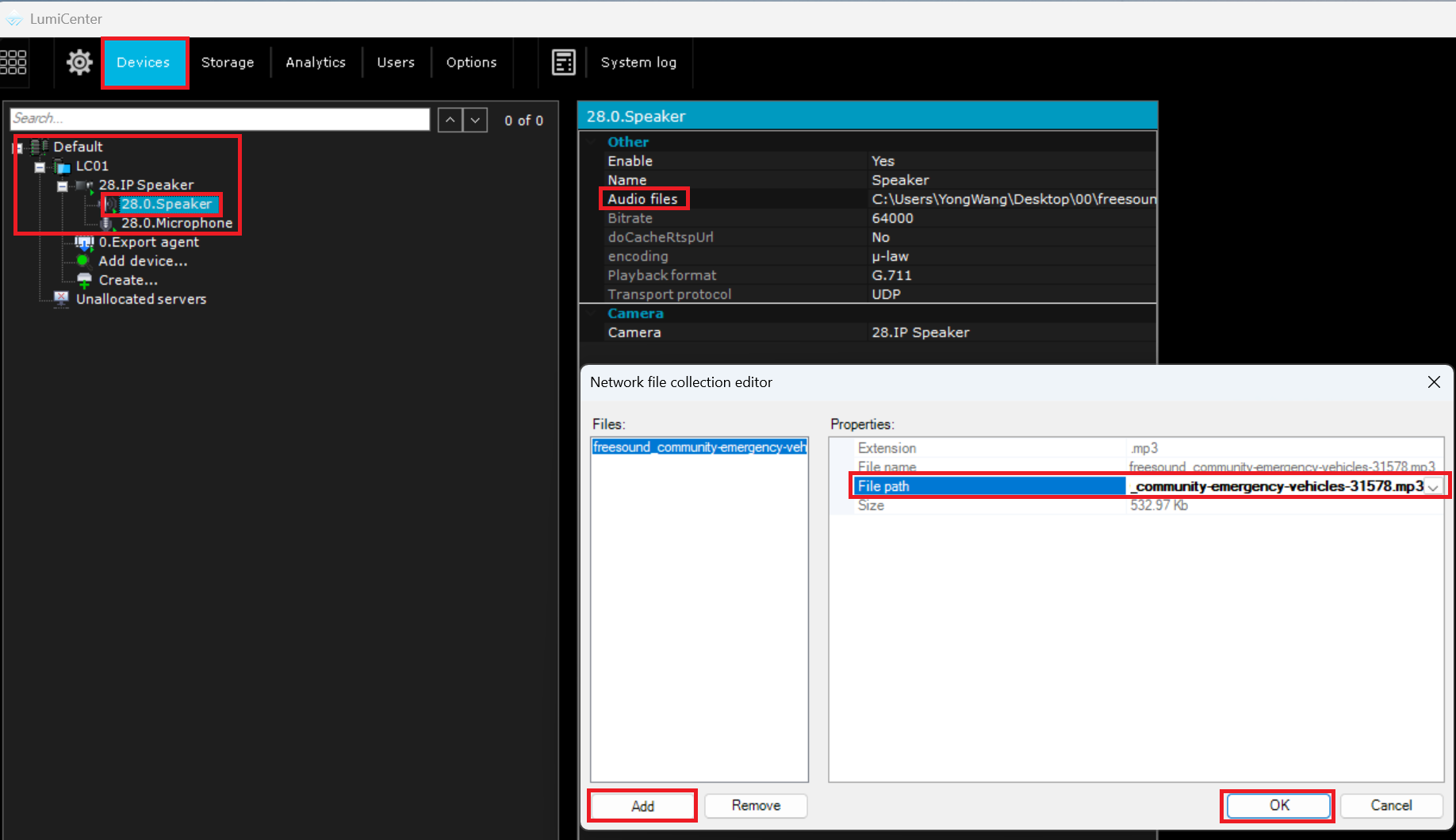
7. Click the Test button at the bottom of the Speaker page to play the selected audio file.