NVR/Hard Drive Configurations: Difference between revisions
Techsupport (talk | contribs) No edit summary |
Techsupport (talk | contribs) |
||
| (2 intermediate revisions by the same user not shown) | |||
| Line 3: | Line 3: | ||
===Description=== | ===Description=== | ||
This tutorial will go over how to format hard drives and related configurations. | This tutorial will go over how to format hard drives and related configurations. | ||
<span style="color:red; font-style:italic;"> | |||
For the eSATA, the maximum supported storage capacity is 4TB, supporting continuous recording and video backup. | |||
</span> | |||
===Prerequisites=== | ===Prerequisites=== | ||
| Line 8: | Line 12: | ||
===Video Instructions=== | ===Video Instructions=== | ||
<youtube>https://www.youtube.com/watch?v=mdBcYsulFs0</youtube> | |||
===Step by Step Instructions=== | ===Step by Step Instructions=== | ||
| Line 15: | Line 19: | ||
1. Under <span style=color:black;font-weight:bold>Storage</span>, the list will display the connected hard drives. In this case, two hard drives are inserted. | 1. Under <span style=color:black;font-weight:bold>Storage</span>, the list will display the connected hard drives. In this case, two hard drives are inserted. | ||
<span style=color:black;font-weight:bold>Note: A star icon next to a number indicates the hard drive currently in use. Once the active hard drive is full, the star will shift to the other hard drive, indicating the change in recording location.</span> | <span style=color:black;font-style:italic;font-weight:bold>Note: A star icon next to a number indicates the hard drive currently in use. Once the active hard drive is full, the star will shift to the other hard drive, indicating the change in recording location.</span> | ||
[[File:Setup_Hard_Drive_WebGUI_1.png|1000px|link=https://wiki.luminyscorp.com/images/a/af/Setup_Hard_Drive_WebGUI_1.png]] | [[File:Setup_Hard_Drive_WebGUI_1.png|1000px|link=https://wiki.luminyscorp.com/images/a/af/Setup_Hard_Drive_WebGUI_1.png]] | ||
Latest revision as of 12:27, 8 June 2026
Setup Hard Drives via WebGUI
Description
This tutorial will go over how to format hard drives and related configurations.
For the eSATA, the maximum supported storage capacity is 4TB, supporting continuous recording and video backup.
Prerequisites
- Web browser on a computer.
Video Instructions
Step by Step Instructions
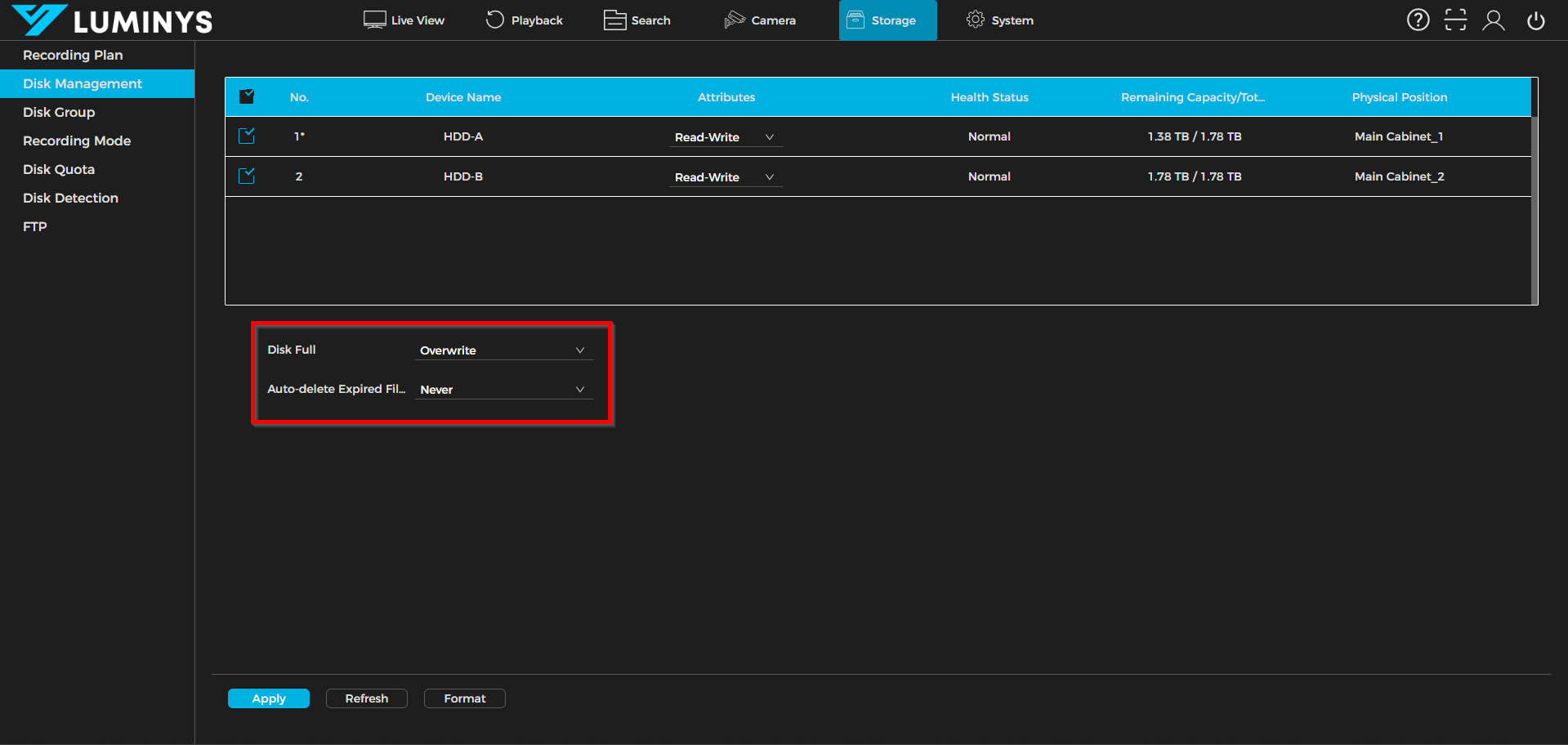
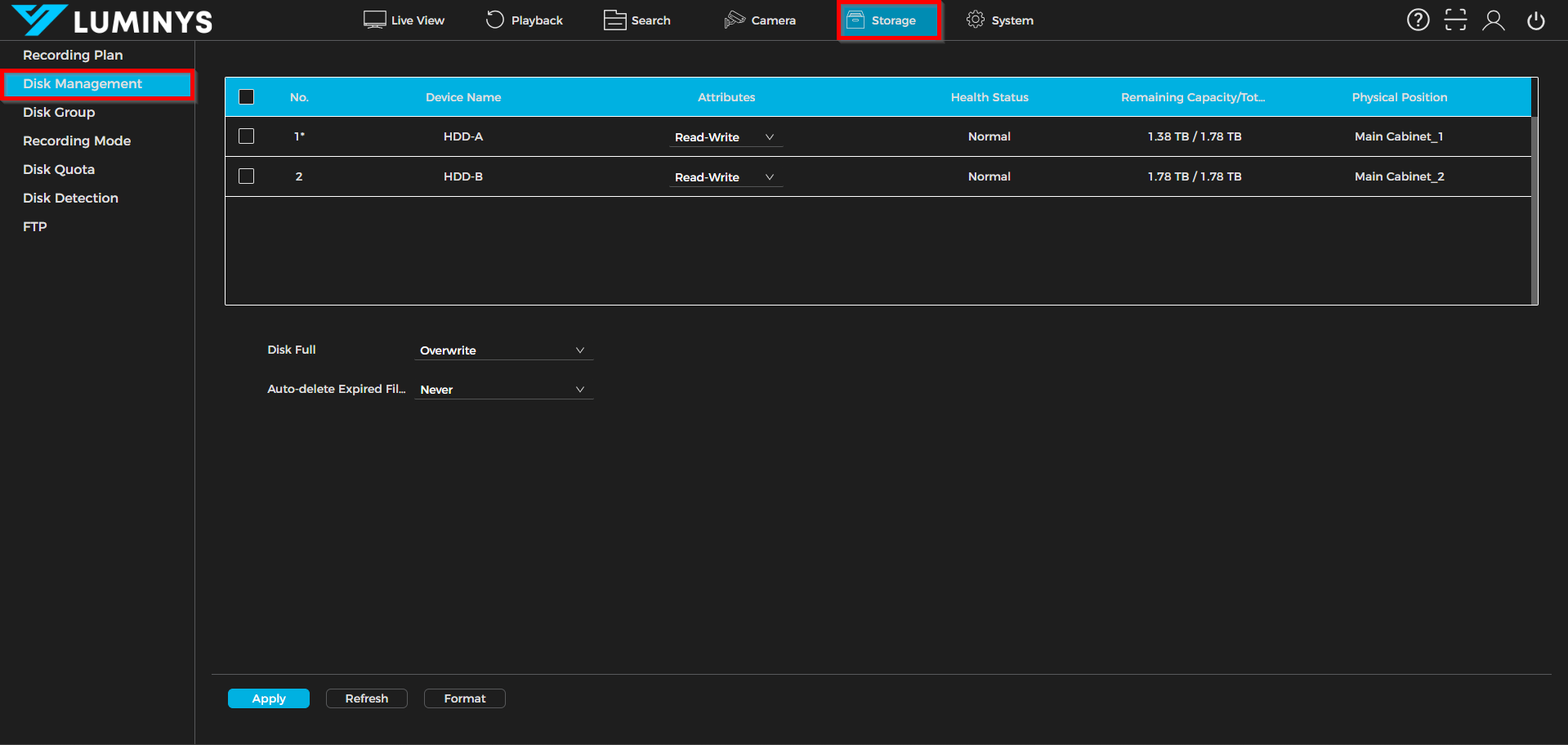
1. Under Storage, the list will display the connected hard drives. In this case, two hard drives are inserted.
Note: A star icon next to a number indicates the hard drive currently in use. Once the active hard drive is full, the star will shift to the other hard drive, indicating the change in recording location.
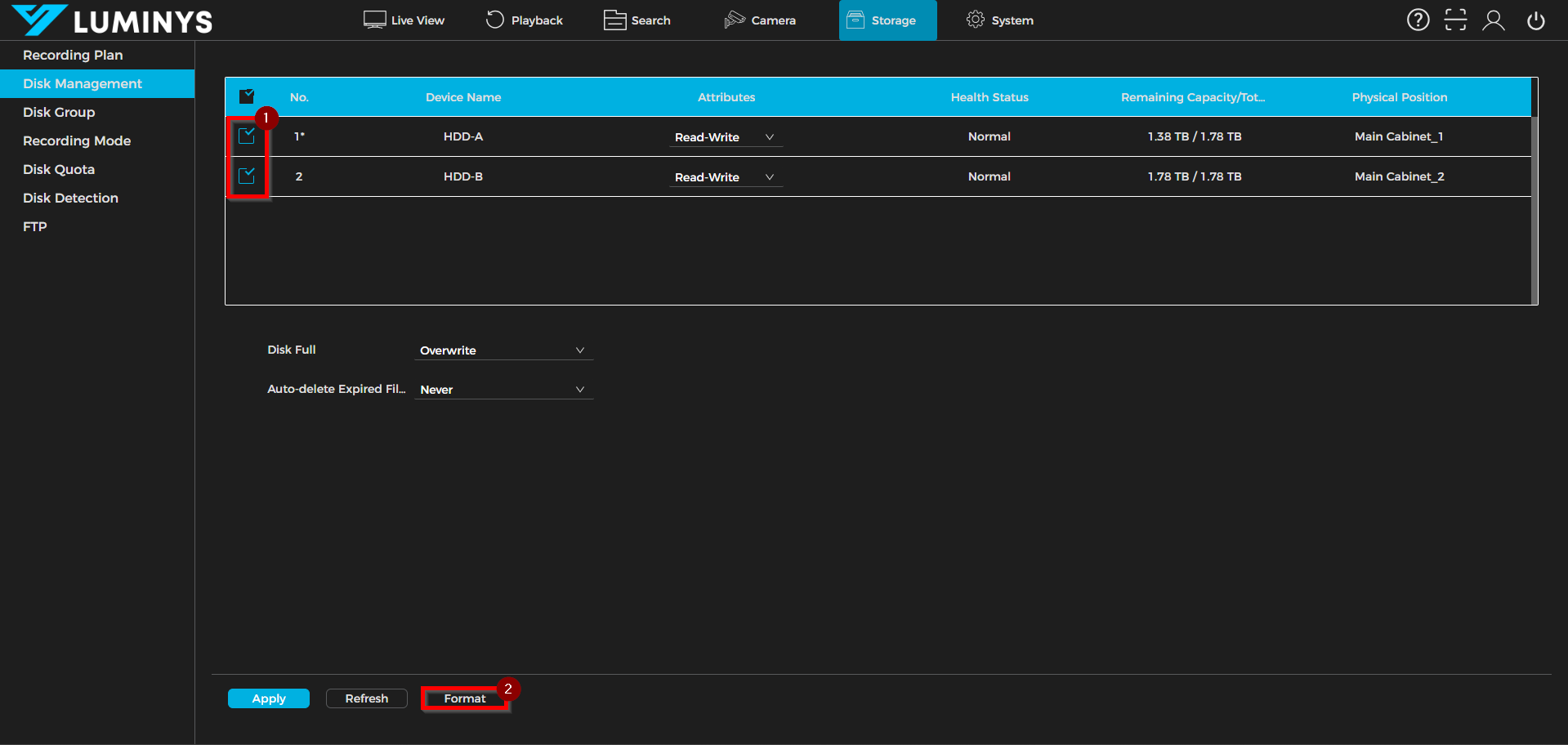
2. Select the desired hard drives for formatting, then click Format to begin the process.
3. By default, when the drives reach full capacity, the system will begin overwriting the oldest recordings. It is recommended to set Auto-delete expired Files to Never to ensure that recordings are only removed when the drives are full.