LumiGuardian/Allocate Licenses in the Partner Portal: Difference between revisions
Techsupport (talk | contribs) No edit summary |
Techsupport (talk | contribs) No edit summary |
||
| (2 intermediate revisions by the same user not shown) | |||
| Line 1: | Line 1: | ||
= <div class="center">LumiGuardian - Allocate Licenses in the Partner Portal</div> = | |||
= <div class="center">Allocate Licenses in the Partner Portal</div> = | |||
===Description=== | ===Description=== | ||
| Line 10: | Line 8: | ||
===Video Instructions=== | ===Video Instructions=== | ||
<youtube>https://www.youtube.com/watch?v= | <youtube>https://www.youtube.com/watch?v=ebnLPs9vkeQ&ab_channel=LuminysSystemsCorporation</youtube> | ||
===Step by Step Instructions=== | ===Step by Step Instructions=== | ||
Latest revision as of 10:05, 27 May 2025
LumiGuardian - Allocate Licenses in the Partner Portal
Description
This tutorial will go over how to allocate licenses via partner portal in LumiCloud.
Prerequisites
- Computer
Video Instructions
Step by Step Instructions
1. After receiving the license key, log in to the partner portal and navigate to "My Orders." Select "Redeem," enter the license key, and click "Confirm."
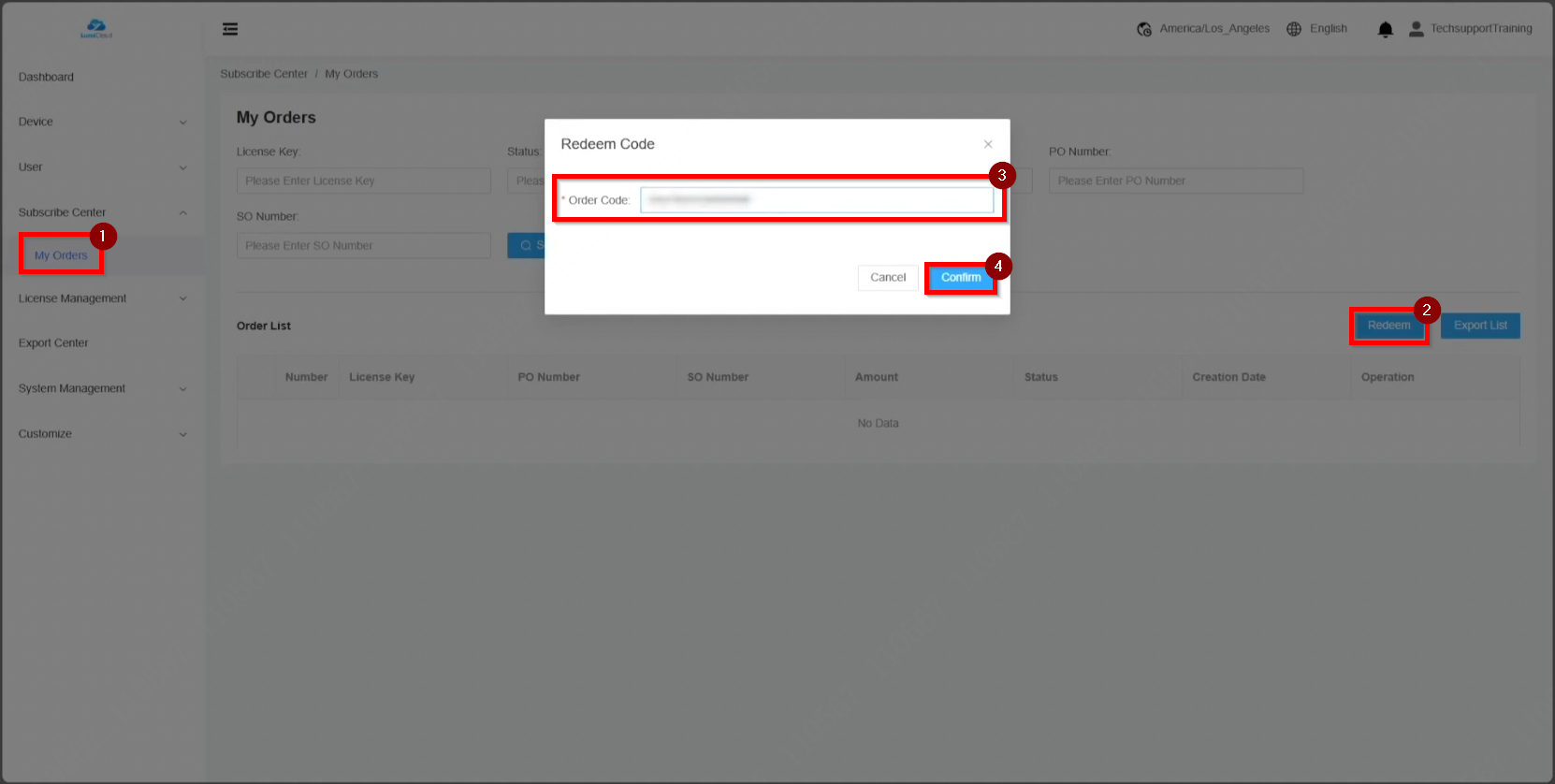
2. Once redeemed, the license appears under the "Order List."

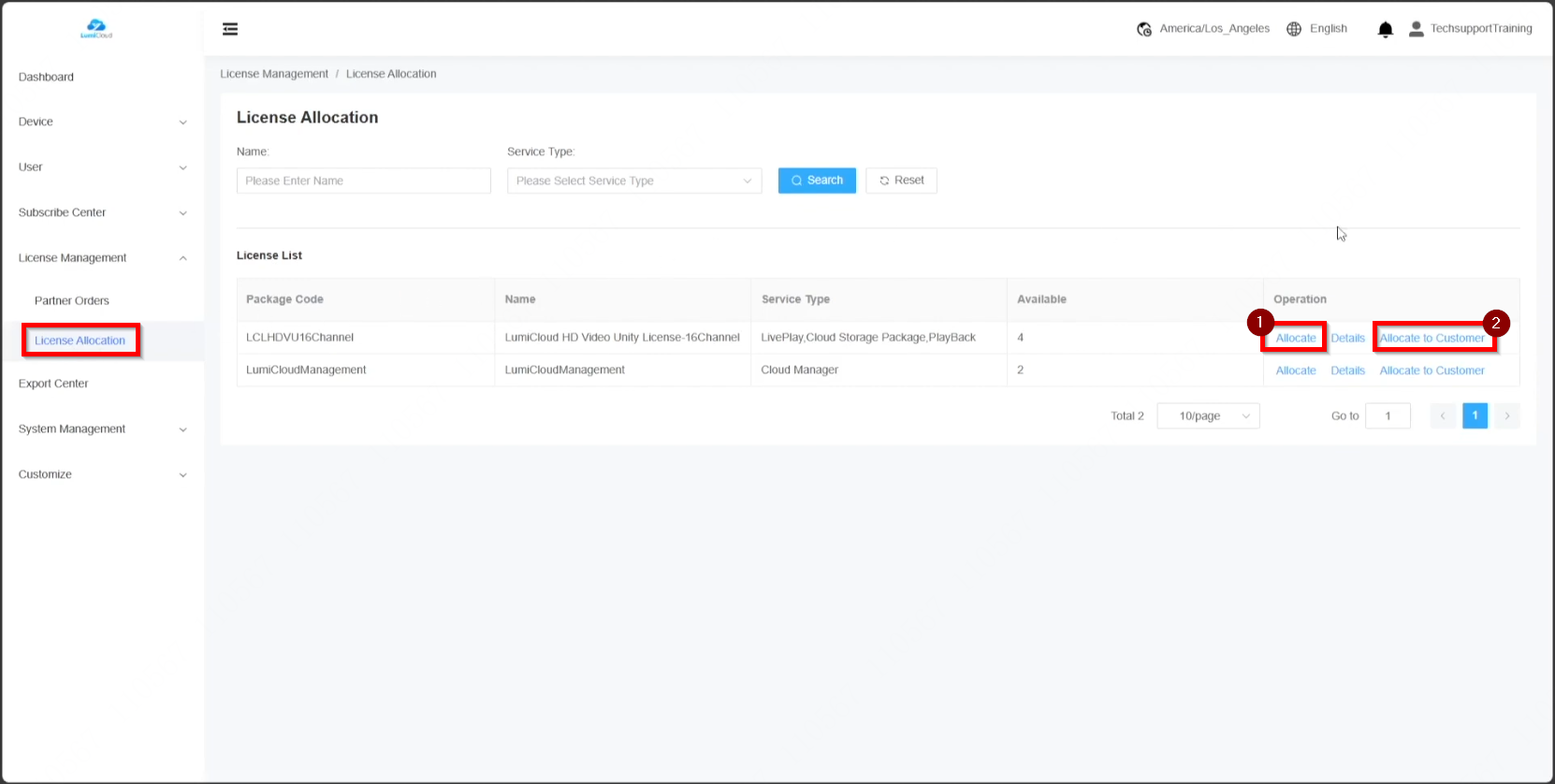
3. To allocate licenses, go to "License Allocation." Licenses can be assigned in two ways: dealers can apply the license directly to a device, or the license can be assigned to an end user for application.
The first method involves assigning the license to an end user. Select the user from the drop-down list, adjust the license quantity, and click "Allocate."
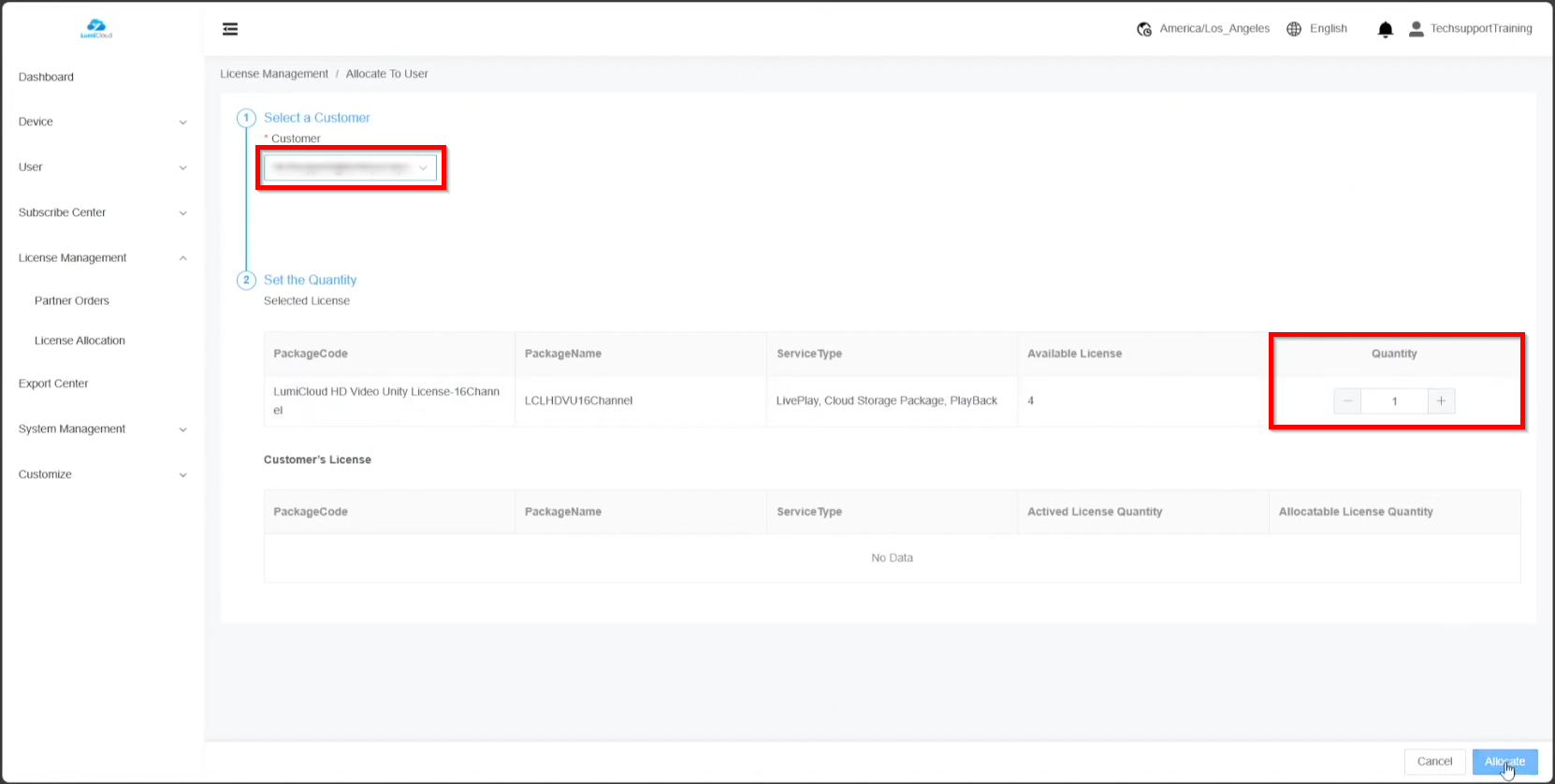
The available license count updates accordingly, reflecting the deducted amount.

The second method involves dealers applying the license directly to a device.

4. To verify license application, select "Details."



