NVR/WebGUI Live View: Difference between revisions
From Luminys WIKI
Techsupport (talk | contribs) Created page with "= <div class="center">How to Live View in NVR</div> = ===Description=== This tutorial will go over how to live view on the NVR via webGUI. ===Prerequisites=== * Web browser on a computer. ===Video Instructions=== <!--<youtube>https://www.youtube.com/watch?v=IQCQncIXNGM&ab_channel=LuminysSystemsCorporation</youtube>--> Coming soon ===Step by Step Instructions=== 1. After all cameras have been added to the recorder, open the Live View section. Left-click on the desire..." |
Techsupport (talk | contribs) |
||
| (2 intermediate revisions by the same user not shown) | |||
| Line 1: | Line 1: | ||
= <div class="center">How to Live View in NVR</div> = | = <div class="center">How to Live View in NVR via WebGUI</div> = | ||
===Description=== | ===Description=== | ||
| Line 8: | Line 8: | ||
===Video Instructions=== | ===Video Instructions=== | ||
<youtube>https://www.youtube.com/watch?v=BQC48QnbkAw</youtube> | |||
===Step by Step Instructions=== | ===Step by Step Instructions=== | ||
Latest revision as of 12:06, 8 June 2026
How to Live View in NVR via WebGUI
Description
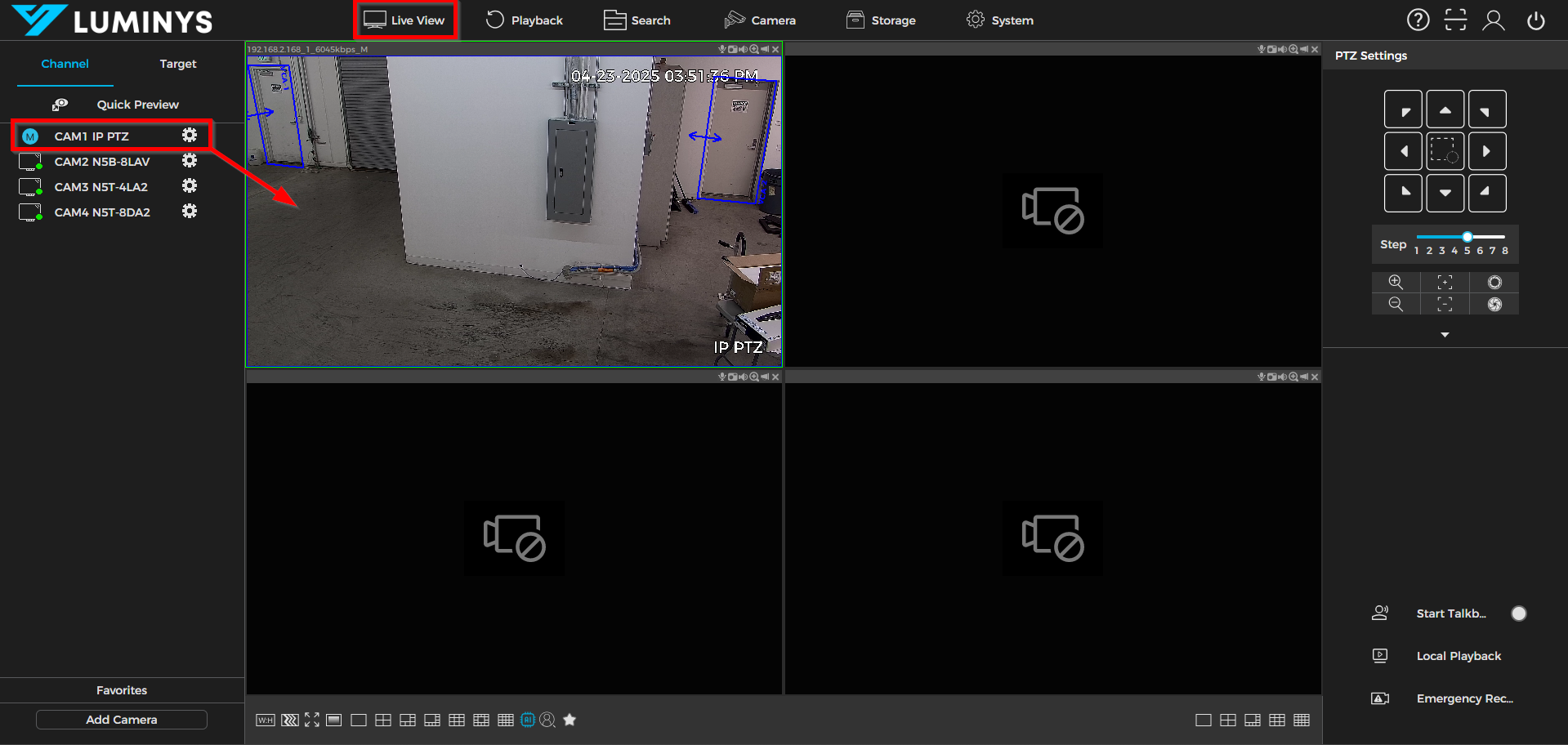
This tutorial will go over how to live view on the NVR via webGUI.
Prerequisites
- Web browser on a computer.
Video Instructions
Step by Step Instructions
1. After all cameras have been added to the recorder, open the Live View section. Left-click on the desired camera to display its feed on the viewing grid.