NVR Timelapse: Difference between revisions
Techsupport (talk | contribs) |
Techsupport (talk | contribs) |
||
| (15 intermediate revisions by the same user not shown) | |||
| Line 11: | Line 11: | ||
Coming Soon | Coming Soon | ||
===Step by Step Instructions=== | ===Step by Step Instructions - Enable Timelapse=== | ||
1. Click Storage tab <span style=color:red;font-weight:bold>(1)</span> | 1. Click Storage tab <span style=color:red;font-weight:bold>(1)</span> then click on the Timelapse option <span style=color:red;font-weight:bold>(2)</span> on the left panel of the GUI. | ||
[[File: | [[File:Timelapse_1.png|1000px|link=https://wiki.luminyscorp.com/images/9/95/Timelapse_1.png]] | ||
2. | 2. Click the plus icon <span style=color:red;font-weight:bold>(1)</span> to add a timelapse profile. A profile will popup. <span style=color:green;font-weight:bold>(2)</span> | ||
[[File: | [[File:Timelapse_2.png|1000px|link=https://wiki.luminyscorp.com/images/4/49/Timelapse_2.png]] | ||
3. | 3. Double-click to open the dropdown and choose a channel number. | ||
[[File: | [[File:Timelapse_3.png|1000px|link=https://wiki.luminyscorp.com/images/2/20/Timelapse_3.png]] | ||
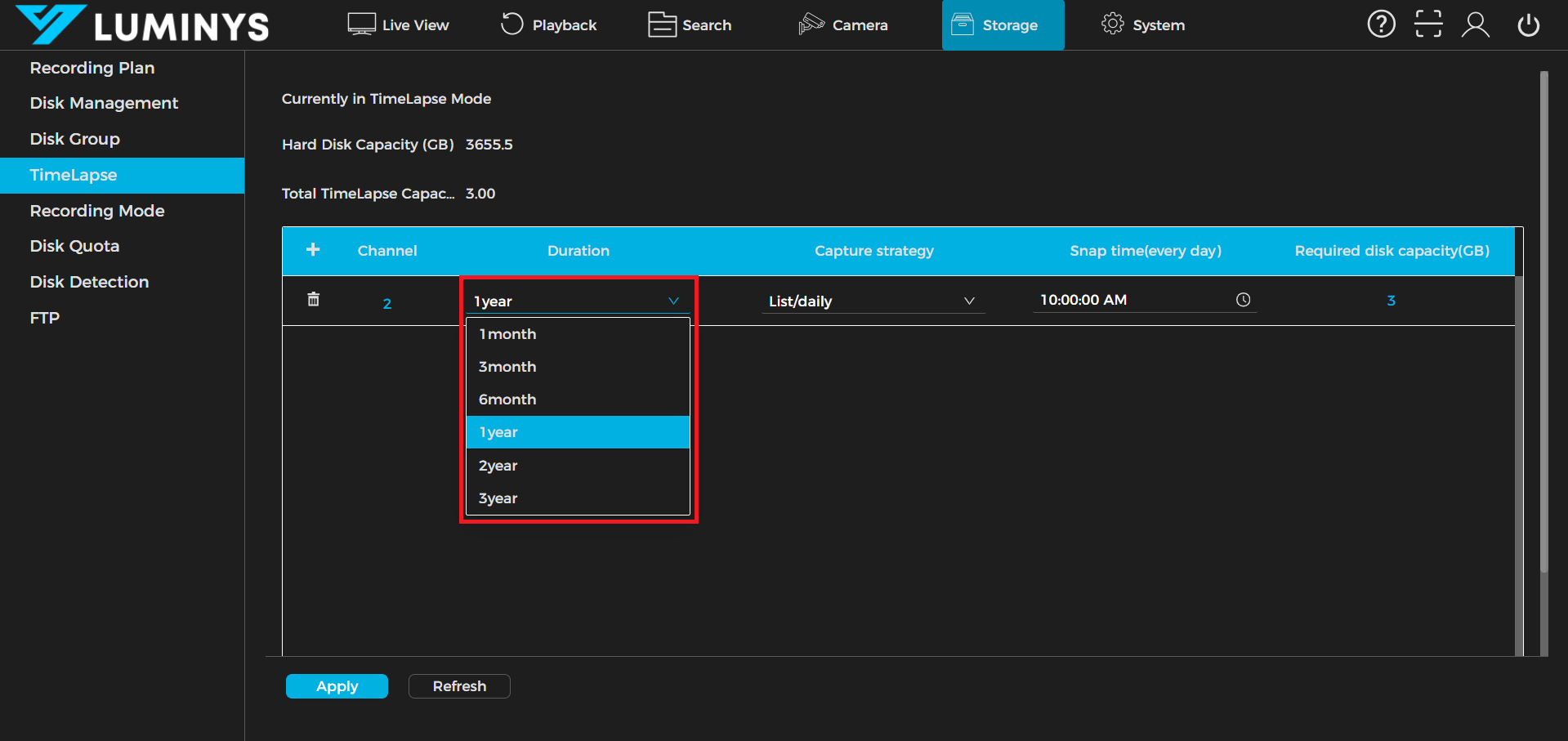
4. Click the duration dropdown to select the duration of the timelapse feature. | |||
[[File:Timelapse_4.png|1000px|link=https://wiki.luminyscorp.com/images/2/2b/Timelapse_4.png]] | |||
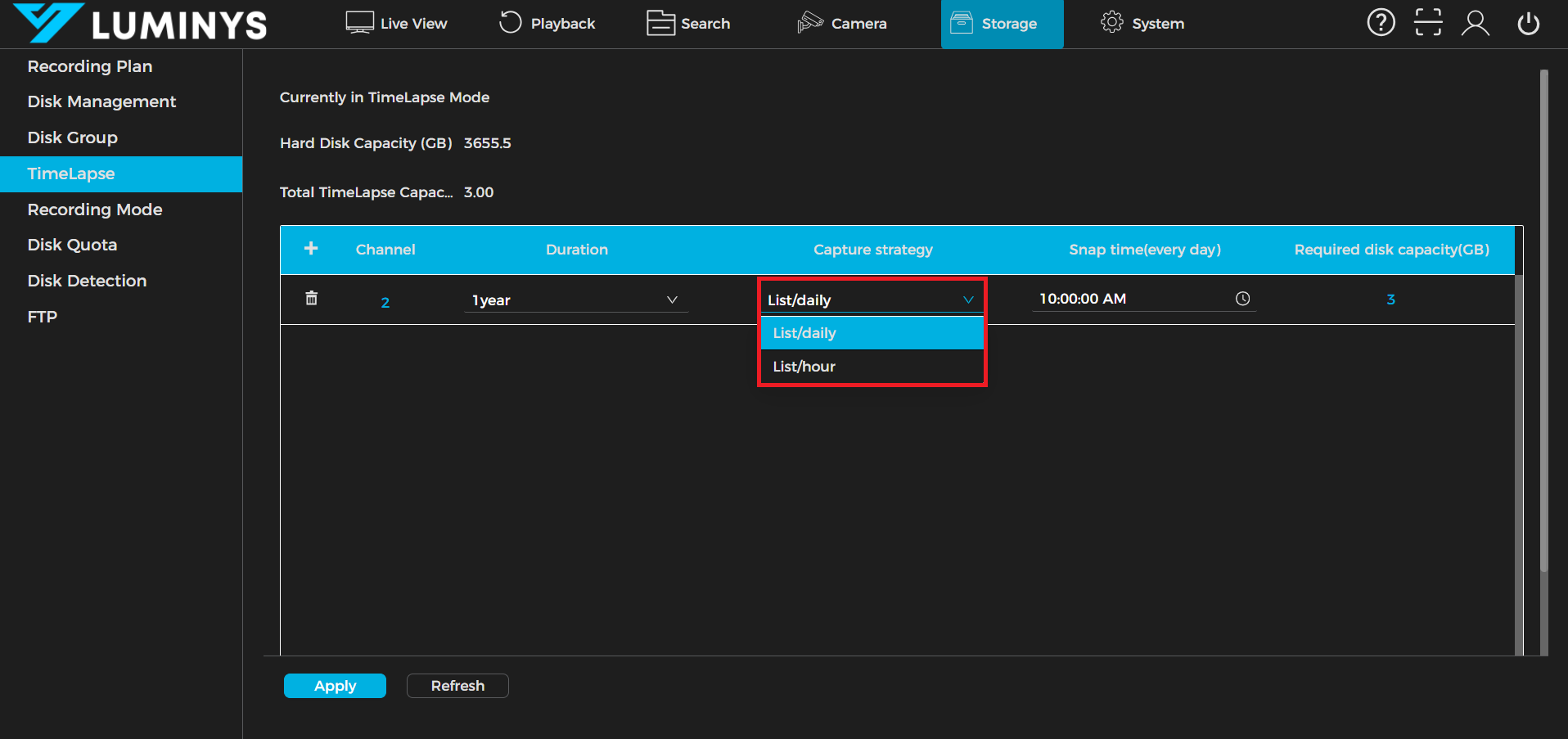
5. Click the Capture Strategy dropdown to select a mode: | |||
* List/Daily: Captures one image per day at a specified time. | |||
* List/Hour: Captures one image every hour. | |||
[[File:Timelapse_5.png|1000px|link=https://wiki.luminyscorp.com/images/a/ae/Timelapse_5.png]] | |||
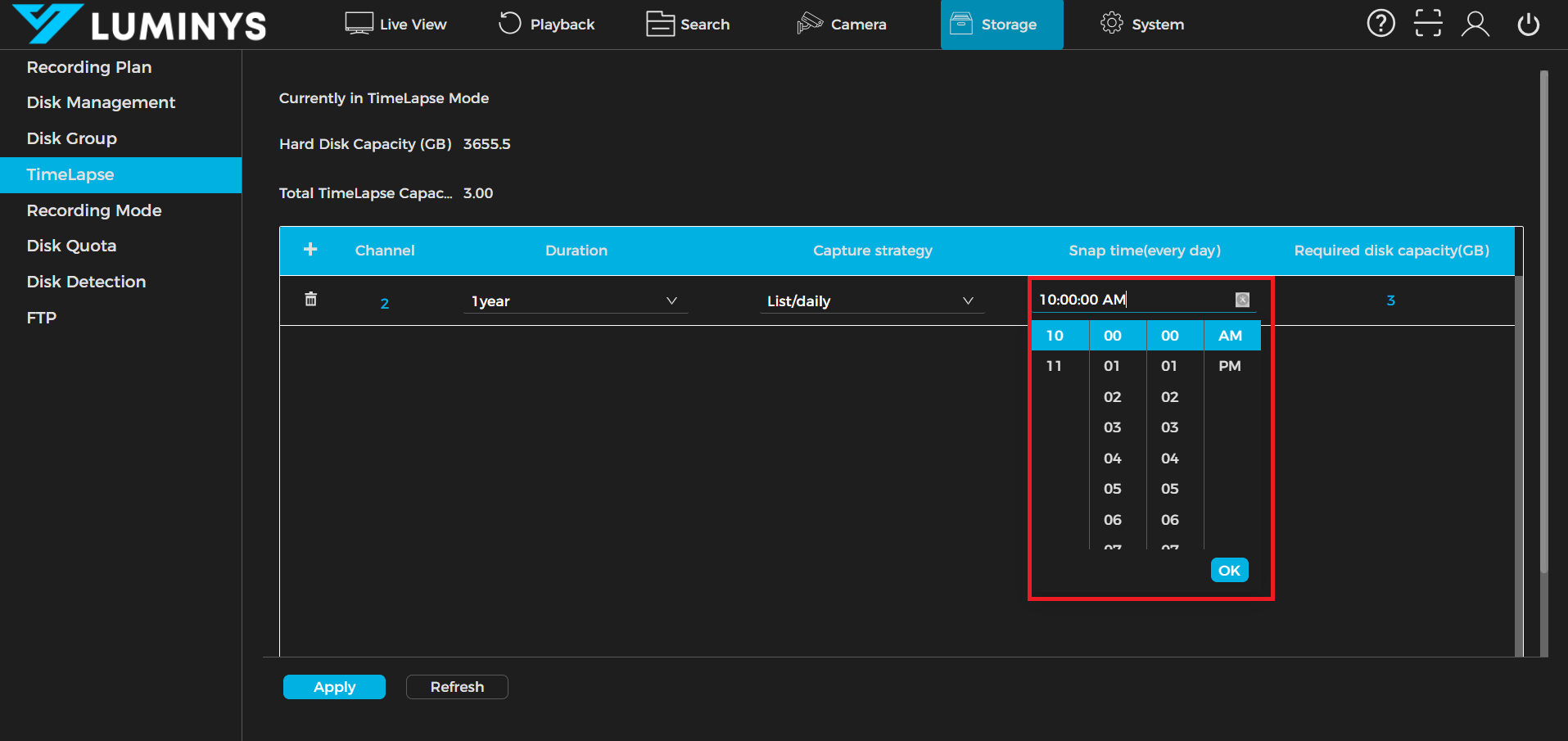
6. Click Snaptime to configure the daily capture time (available only when List/Daily is selected). | |||
[[File:Timelapse_6.png|1000px|link=https://wiki.luminyscorp.com/images/1/19/Timelapse_6.png]] | |||
7. To apply the time-lapse feature to additional channels, repeat Step 2 to 6. | |||
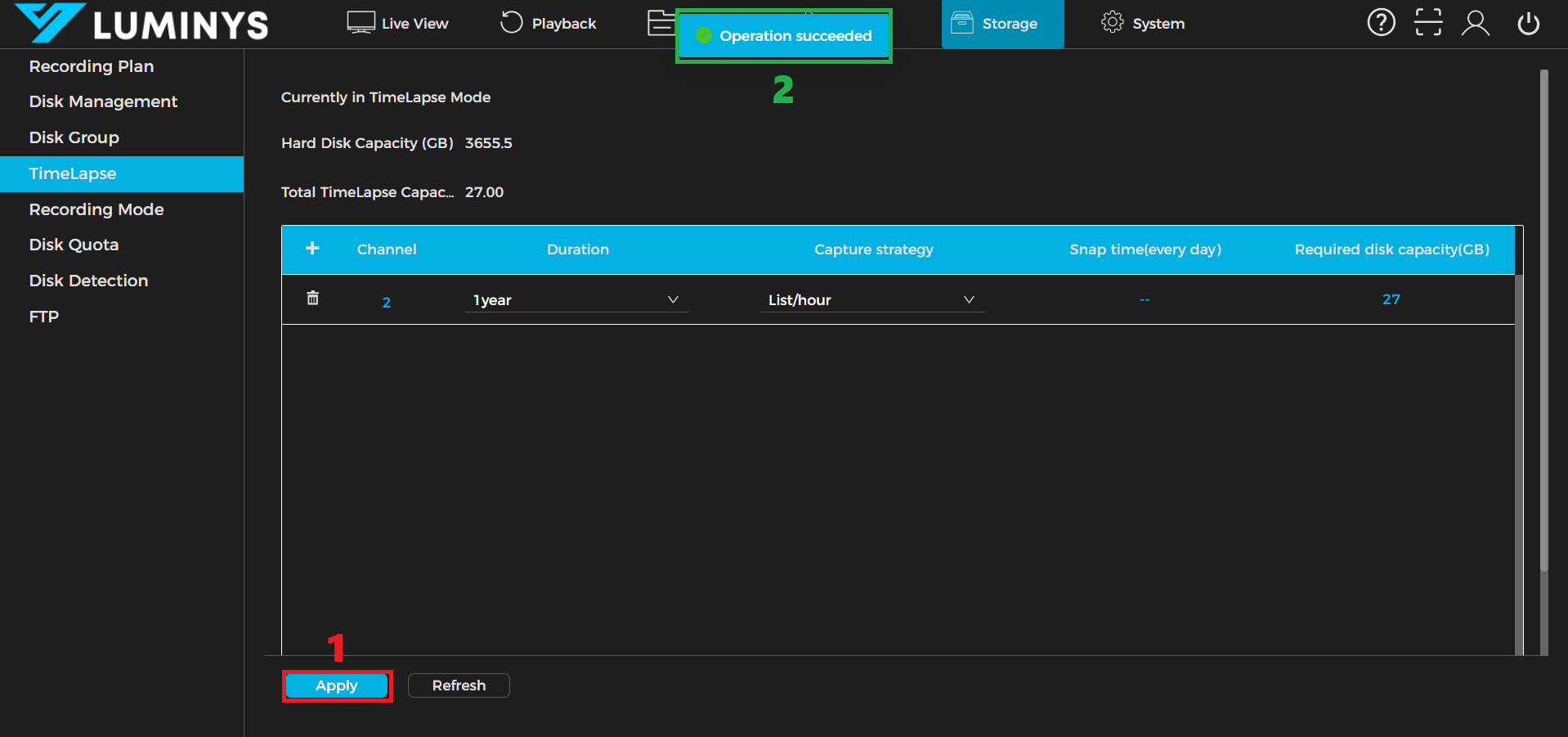
8. Click Apply <span style=color:red;font-weight:bold>(1)</span> to save the settings. A confirmation message, “Operation Succeeded,” will appear. <span style=color:green;font-weight:bold>(2)</span> | |||
[[File:Timelapse_7.png|1000px|link=https://wiki.luminyscorp.com/images/7/79/Timelapse_7.png]] | |||
===Step by Step Instructions - Export timelapse video=== | |||
1. Click Search tab <span style=color:red;font-weight:bold>(1)</span> then click on the Video option <span style="color:yellow; font-weight:bold; background-color:black;">(2)</span> on the left panel of the GUI. Then click "TimeLapse" <span style=color:green ;font-weight:bold>(3)</span> | |||
[[File:Export_1.png|1000px|link=https://wiki.luminyscorp.com/images/3/3c/Export_1.png]] | |||
2. Select the start and end dates for the timelapse capture. <span style=color:red;font-weight:bold>(1)</span> Then click Browse to choose the folder for the video. <span style="color:yellow; font-weight:bold; background-color:black;">(2)</span> Click the "Record Channel" dropdown menu to select which channel you want to use to retrieve images for the video. <span style=color:green ;font-weight:bold>(3)</span> | |||
[[File:Export_2.png|1000px|link=https://wiki.luminyscorp.com/images/0/06/Export_2.png]] | |||
3. After setting all the parameters, click "Search". The estimated video length and required storage will then be displayed. <span style=color:red;font-weight:bold>(1)</span> Click Export, then wait for the NVR to finish exporting the video. <span style="color:yellow; font-weight:bold; background-color:black;">(2)</span> | |||
[[File:Export_3.png|1000px|link=https://wiki.luminyscorp.com/images/c/cd/Export_3.png]] | |||
Latest revision as of 11:32, 3 June 2026
Timelapse feature for R5 series
Description
This tutorial will show you how to enable the timelapse feature on the R5 Series NVR, followed by how to export the video.
Prerequisites
- Web browser on a computer.
- Time-lapse is available on specific firmware versions only (contact Support)
Video Instructions
Coming Soon
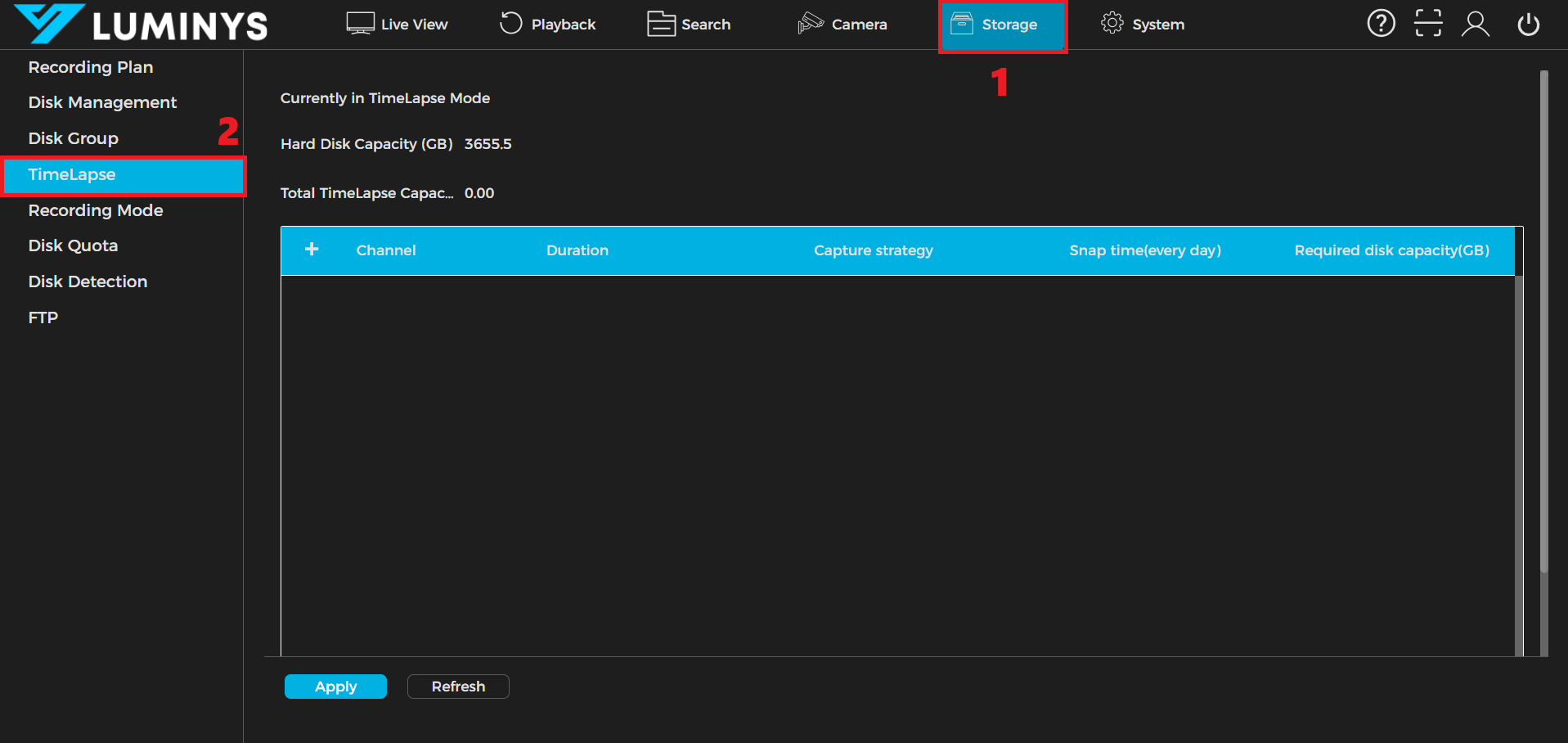
Step by Step Instructions - Enable Timelapse
1. Click Storage tab (1) then click on the Timelapse option (2) on the left panel of the GUI.
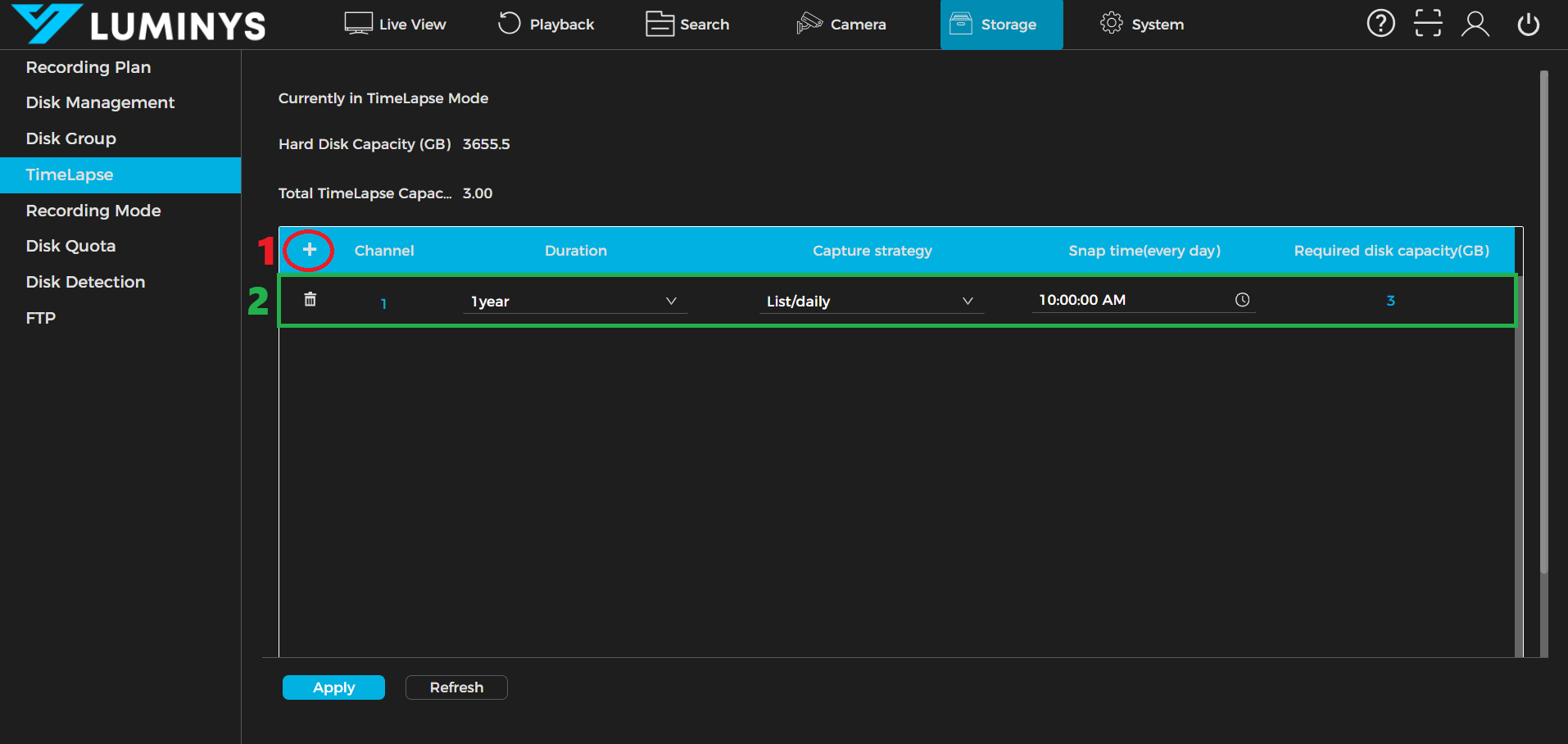
2. Click the plus icon (1) to add a timelapse profile. A profile will popup. (2)
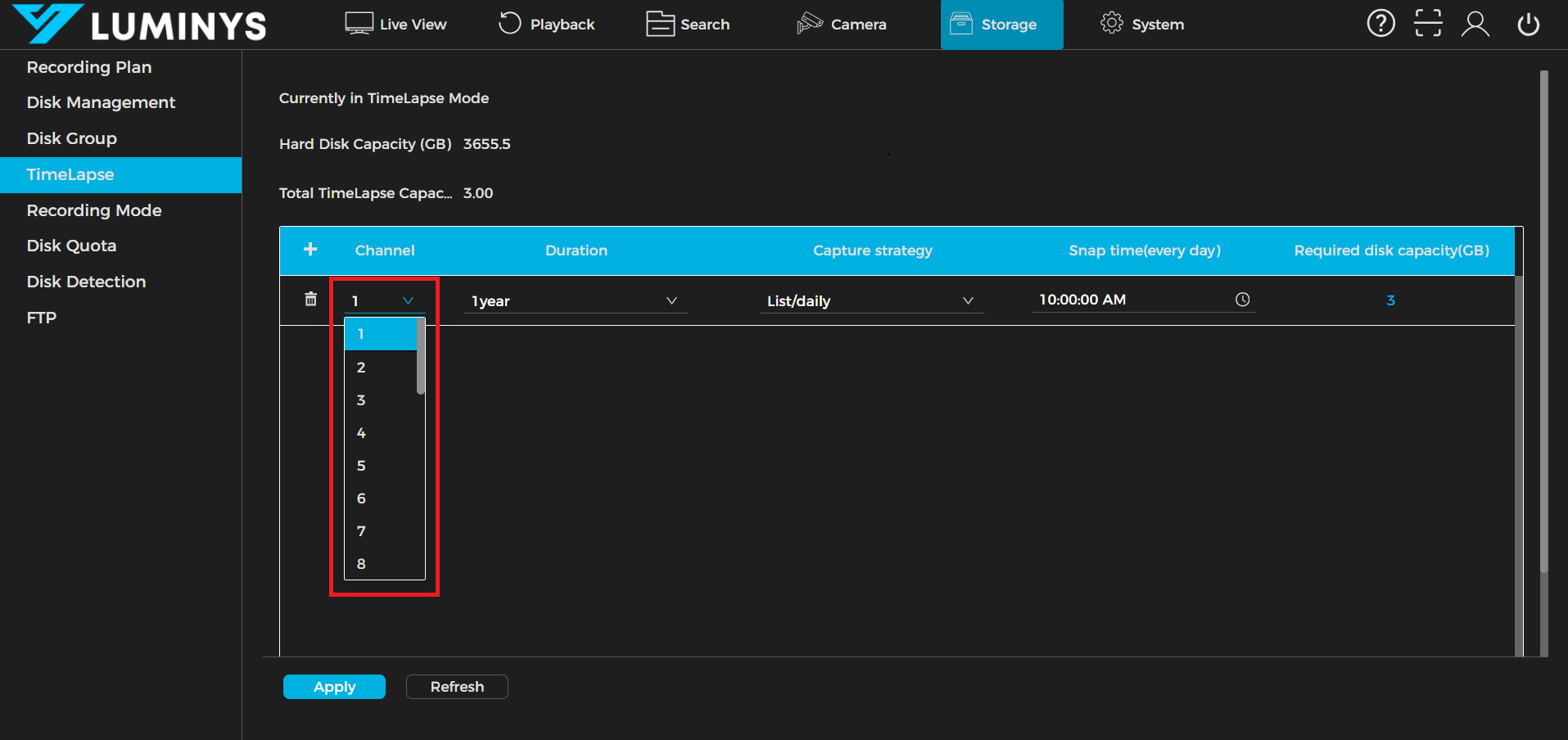
3. Double-click to open the dropdown and choose a channel number.
4. Click the duration dropdown to select the duration of the timelapse feature.
5. Click the Capture Strategy dropdown to select a mode:
- List/Daily: Captures one image per day at a specified time.
- List/Hour: Captures one image every hour.
6. Click Snaptime to configure the daily capture time (available only when List/Daily is selected).
7. To apply the time-lapse feature to additional channels, repeat Step 2 to 6.
8. Click Apply (1) to save the settings. A confirmation message, “Operation Succeeded,” will appear. (2)
Step by Step Instructions - Export timelapse video
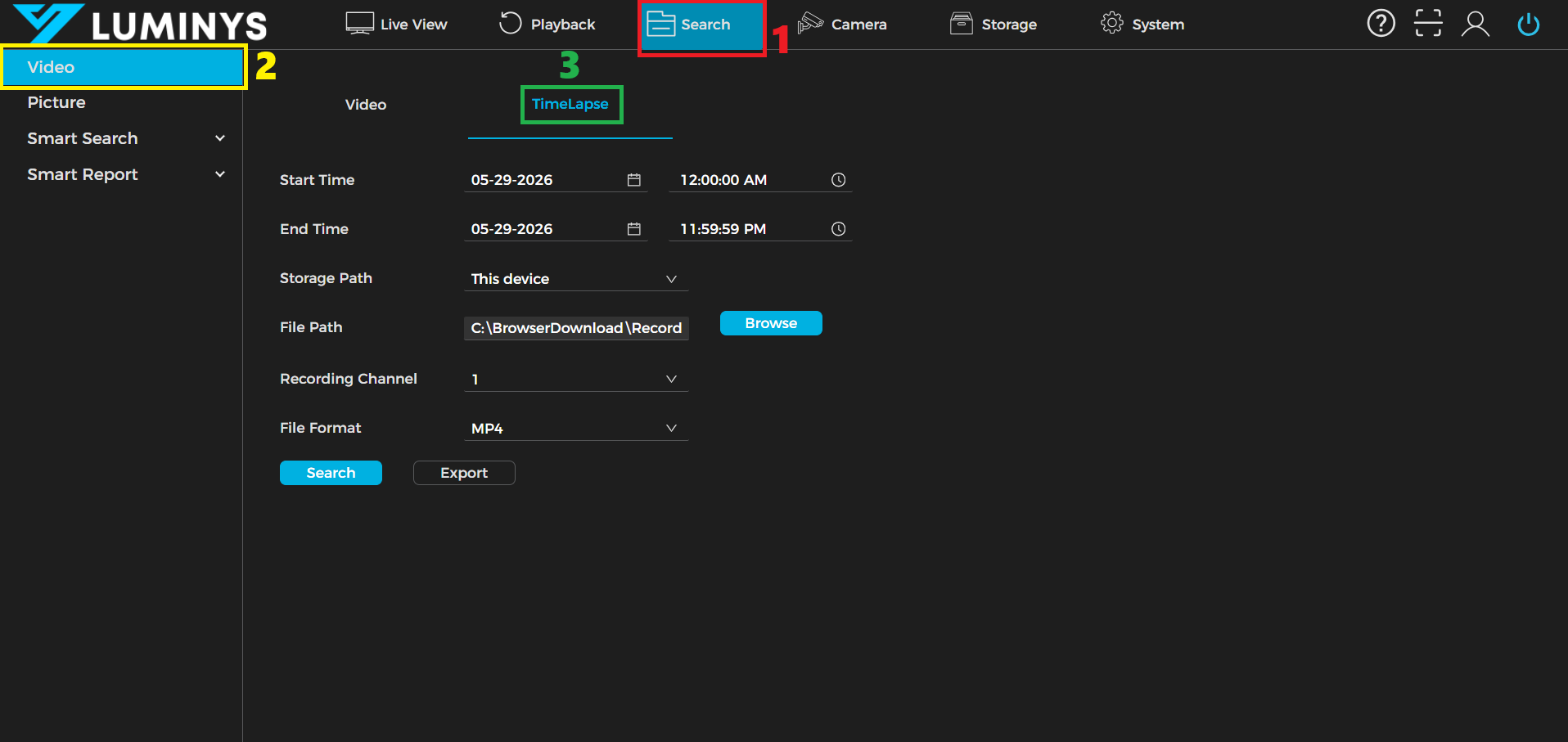
1. Click Search tab (1) then click on the Video option (2) on the left panel of the GUI. Then click "TimeLapse" (3)
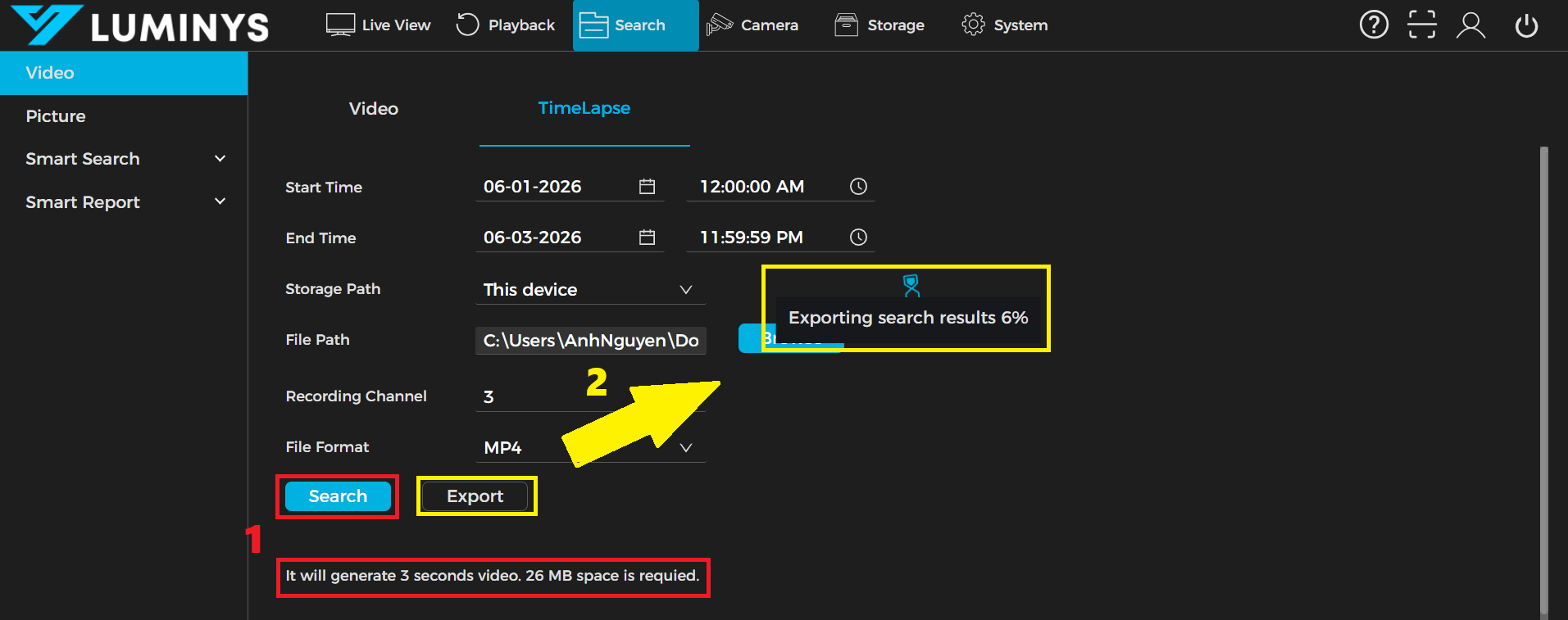
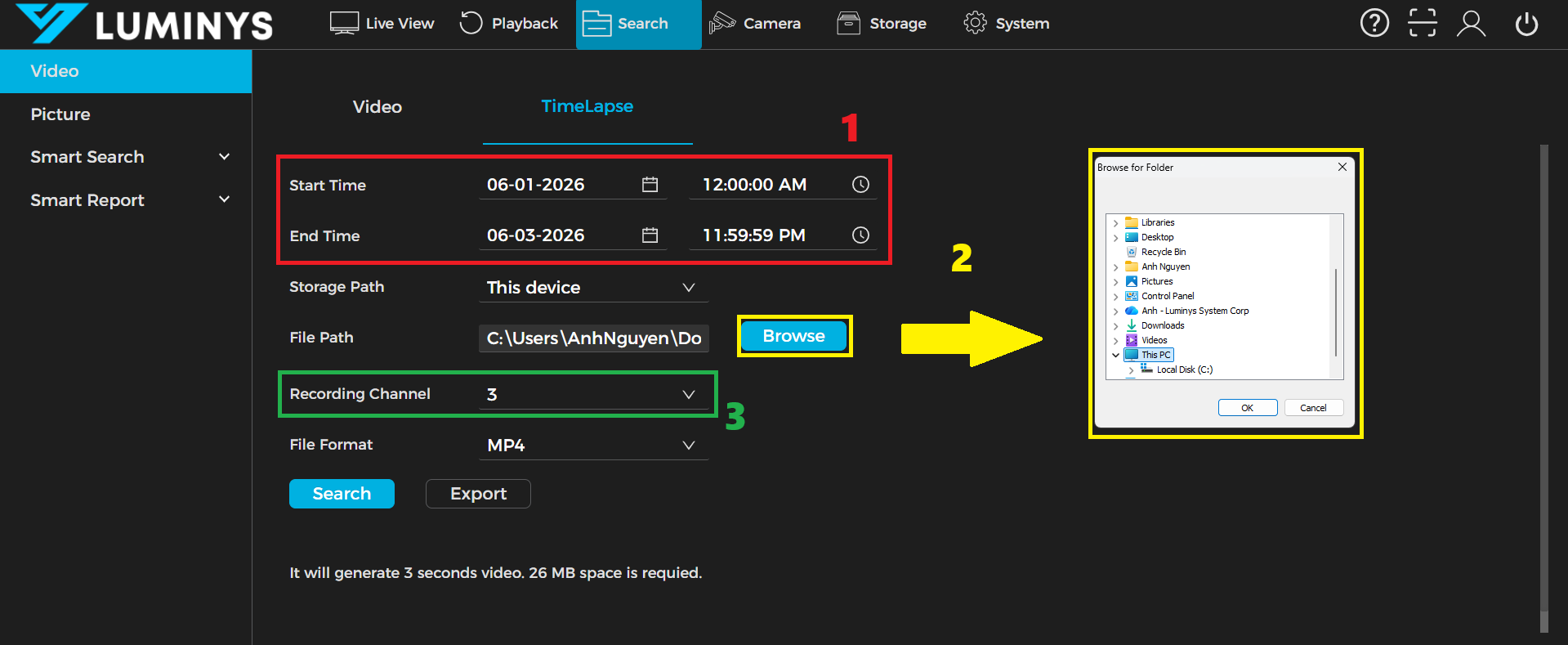
2. Select the start and end dates for the timelapse capture. (1) Then click Browse to choose the folder for the video. (2) Click the "Record Channel" dropdown menu to select which channel you want to use to retrieve images for the video. (3)
3. After setting all the parameters, click "Search". The estimated video length and required storage will then be displayed. (1) Click Export, then wait for the NVR to finish exporting the video. (2)