LumiWatch/LumiWatch router first time configuration: Difference between revisions
Techsupport (talk | contribs) No edit summary |
Techsupport (talk | contribs) |
||
| (8 intermediate revisions by the same user not shown) | |||
| Line 9: | Line 9: | ||
1. LumiWatch powered on and running. </br> | 1. LumiWatch powered on and running. </br> | ||
2. 4G SIM card with an active data plan installed.</br> | 2. 4G SIM card with an active data plan installed.</br> | ||
3. Computer network segment configured to 192.168.1.x | 3. Computer network segment configured to 192.168.1.x</br> | ||
4. RJ45 coupler (not mandatory)</br> | |||
5. Extra Cat cable (not mandatory) | |||
===Step by Step Instructions=== | ===Step by Step Instructions=== | ||
1. https://iot.inhandnetworks.com/user/register | 1. Open a web browser and navigate to https://iot.inhandnetworks.com/user/register, or click the link to open it directly. | ||
2. Fill out the information on the page, then click "Registration" | |||
[[File:LumiWatch_router_first_time_config_2.png|512px|link=https://wiki.luminyscorp.com/images/5/5e/LumiWatch_router_first_time_config_2.png]] | |||
3. When you see this screen, check the inbox of the email address you used to register. | |||
[[File:LumiWatch_router_first_time_config_3.png|512px|link=https://wiki.luminyscorp.com/images/0/09/LumiWatch_router_first_time_config_3.png]] | |||
4. Look for an email titled “Please verify your email account” from “noreply@inhand.com” in your inbox. If you do not see it, check your Junk or Spam folder. Click "Verify my email" | |||
[[File:LumiWatch_router_first_time_config_4.png|1024px|link=https://wiki.luminyscorp.com/images/a/a0/LumiWatch_router_first_time_config_4.png]] | |||
5. Connect your laptop to the LumiWatch router via Ethernet cable.</br> | |||
Tip: Since the CAT cable provided with the LumiWatch is relatively short, it is recommended to use a coupler and an additional CAT cable. This allows the laptop to be positioned more comfortably during use. | |||
[[File:LumiWatch_router_first_time_config_5.png|1024px|link=https://wiki.luminyscorp.com/images/7/71/LumiWatch_router_first_time_config_5.png]] | |||
6. Check that your laptop is on the same network segment, or simply set it to obtain an IP address automatically (DHCP). Once connected, go to 192.168.1.1 to access the module.</br> | |||
Default Username: adm</br> | |||
Default Password: 123456 | |||
[[File:LumiWatch_router_first_time_config_6.png|512px|link=https://wiki.luminyscorp.com/images/2/21/LumiWatch_router_first_time_config_6.png]] | |||
7. Go to "Services", then select "Device Manager" | |||
[[File:LumiWatch_router_first_time_config_7.png|512px|link=https://wiki.luminyscorp.com/images/b/b8/LumiWatch_router_first_time_config_7.png]] | |||
8. Check the "Enable" box, then enter the email address you used when signing up in Steps 1 through 4 in the "Registered Account" field.</br> | |||
Click "Apply" after finish. | |||
[[File:LumiWatch_router_first_time_config_8.png|512px|link=https://wiki.luminyscorp.com/images/1/17/LumiWatch_router_first_time_config_8.png]] | |||
9. To verify that everything is working, go to https://iot.inhandnetworks.com/user/login and sign in with your account. Then click "Gateway". You should see one device listed there. | |||
[[File:LumiWatch_router_first_time_config_9.png|1024px|link=https://wiki.luminyscorp.com/images/c/c2/LumiWatch_router_first_time_config_9.png]] | |||
Latest revision as of 16:47, 4 August 2026

LumiWatch router first time configuration
Description
This tutorial will walk you through the process of configuring the LumiWatch router for the first time.
Prerequisite
1. LumiWatch powered on and running.
2. 4G SIM card with an active data plan installed.
3. Computer network segment configured to 192.168.1.x
4. RJ45 coupler (not mandatory)
5. Extra Cat cable (not mandatory)
Step by Step Instructions
1. Open a web browser and navigate to https://iot.inhandnetworks.com/user/register, or click the link to open it directly.
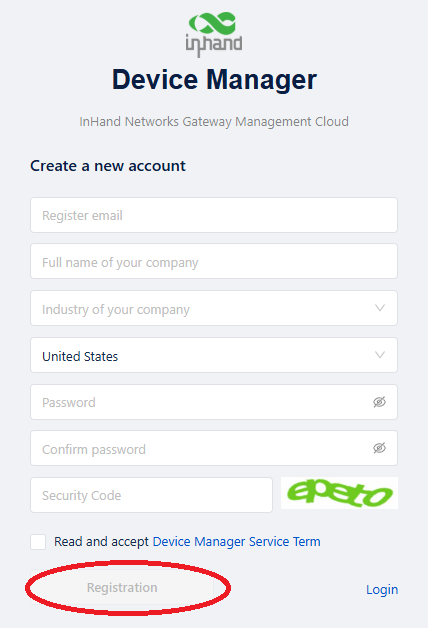
2. Fill out the information on the page, then click "Registration"
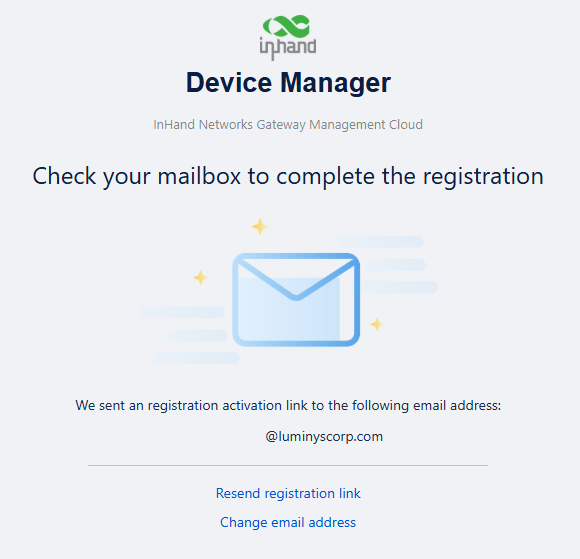
3. When you see this screen, check the inbox of the email address you used to register.
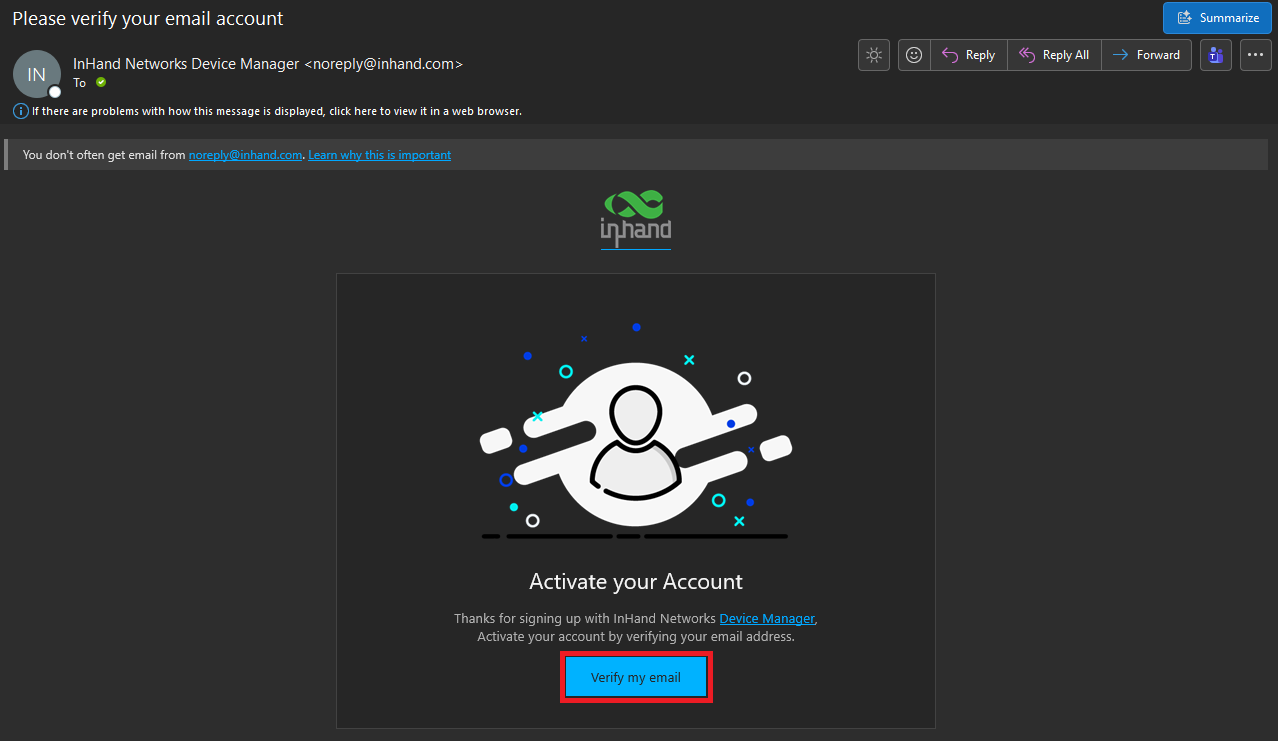
4. Look for an email titled “Please verify your email account” from “noreply@inhand.com” in your inbox. If you do not see it, check your Junk or Spam folder. Click "Verify my email"
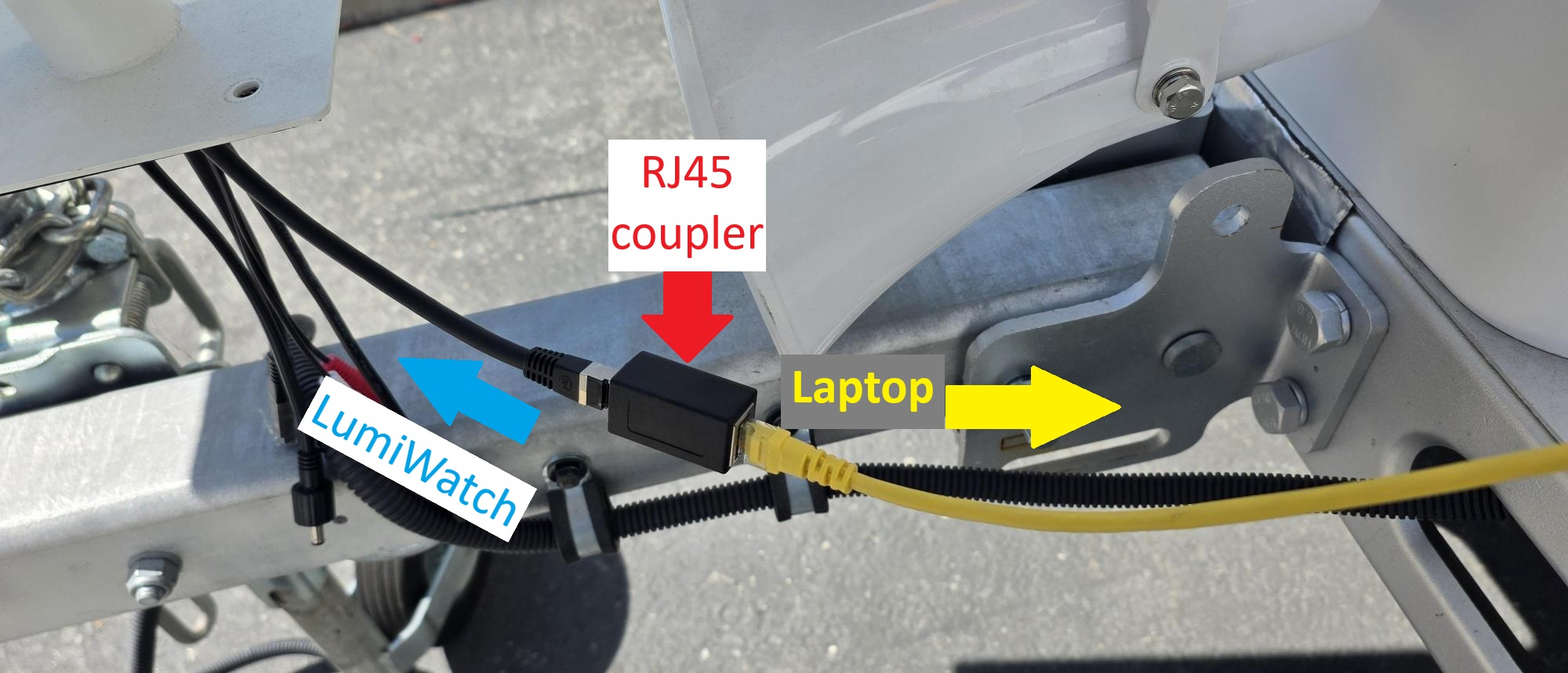
5. Connect your laptop to the LumiWatch router via Ethernet cable.
Tip: Since the CAT cable provided with the LumiWatch is relatively short, it is recommended to use a coupler and an additional CAT cable. This allows the laptop to be positioned more comfortably during use.
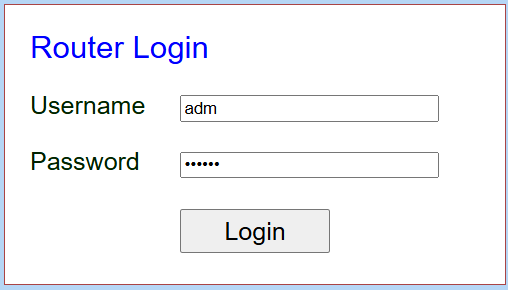
6. Check that your laptop is on the same network segment, or simply set it to obtain an IP address automatically (DHCP). Once connected, go to 192.168.1.1 to access the module.
Default Username: adm
Default Password: 123456
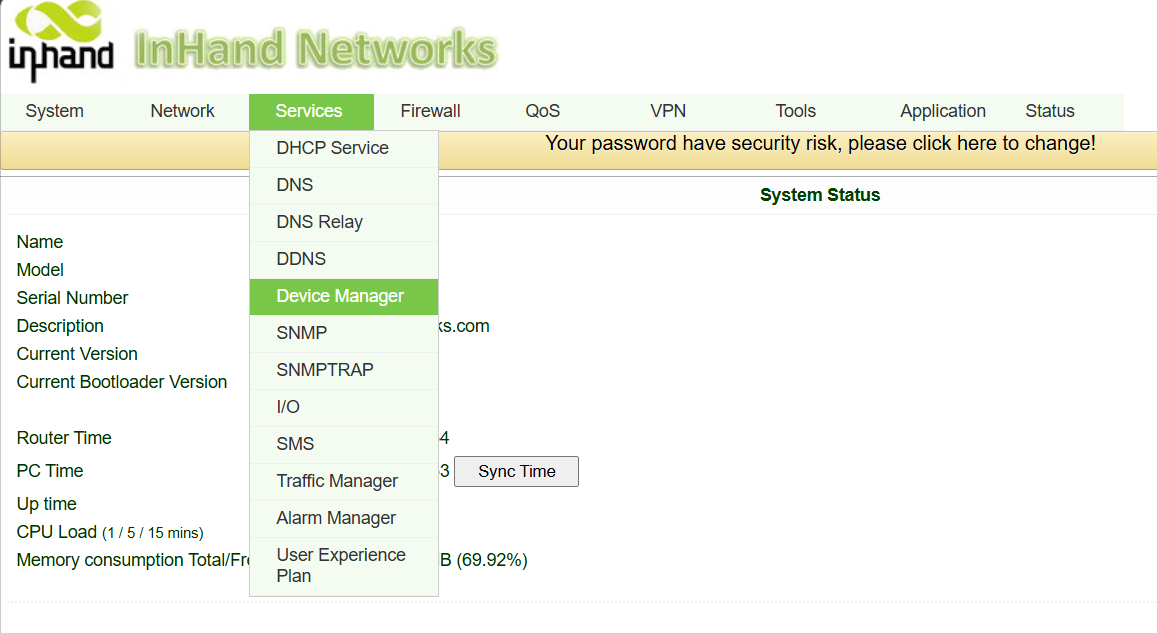
7. Go to "Services", then select "Device Manager"
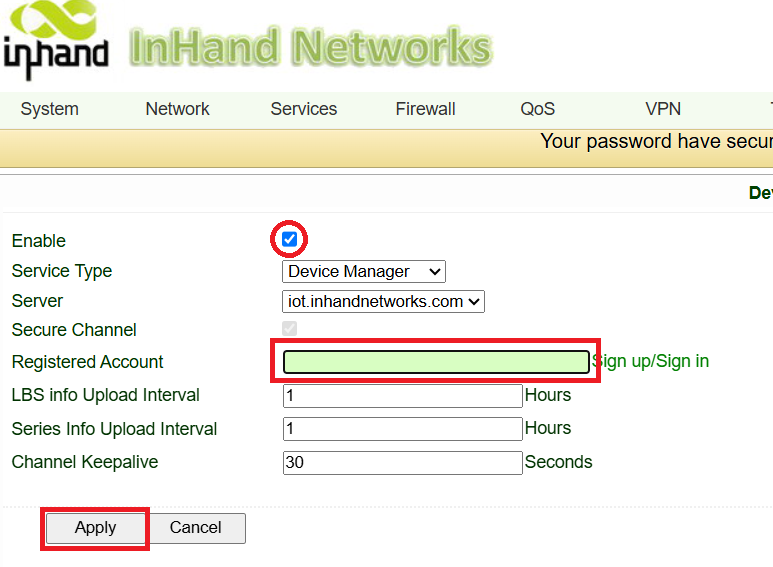
8. Check the "Enable" box, then enter the email address you used when signing up in Steps 1 through 4 in the "Registered Account" field.
Click "Apply" after finish.
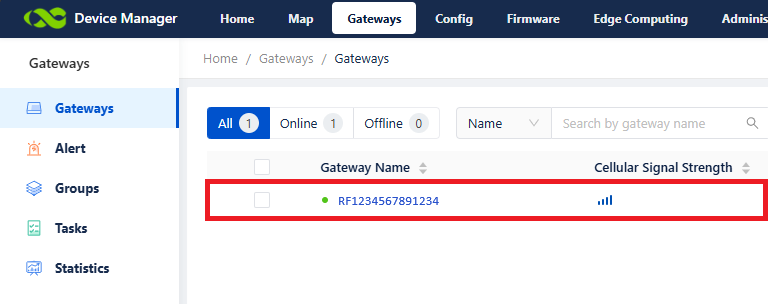
9. To verify that everything is working, go to https://iot.inhandnetworks.com/user/login and sign in with your account. Then click "Gateway". You should see one device listed there.