LumiCenter/Alarm Bell: Difference between revisions
Techsupport (talk | contribs) Created page with "= <div class="center">How to make the alarm bell appear on live view</div> = <span style=color:black;font-weight:bold>Step 1</span> Depending on the order you did things in LumiCenter there is a possiblity that when you go to layout (live view) the alarm bell icon will be missing from Live View. The Alarm bell's main function is to classify alarms whether they are valid events or if they are false alarms. Besides that, you can also test the alarm functions with the ala..." |
Techsupport (talk | contribs) No edit summary |
||
| Line 11: | Line 11: | ||
The first thing you want to do if you do not have the alarm bell is to make sure you have a storage archive set up, and if it isn't set one up. You can use the below link to see the steps to set up the storage archive | The first thing you want to do if you do not have the alarm bell is to make sure you have a storage archive set up, and if it isn't set one up. You can use the below link to see the steps to set up the storage archive | ||
https://wiki.luminyscorp.com/LumiCenter/How_to_Create_Storage_Archives | [[https://wiki.luminyscorp.com/LumiCenter/How_to_Create_Storage_Archives How to create Storage Archives]] | ||
Latest revision as of 06:53, 6 May 2025
How to make the alarm bell appear on live view
Step 1
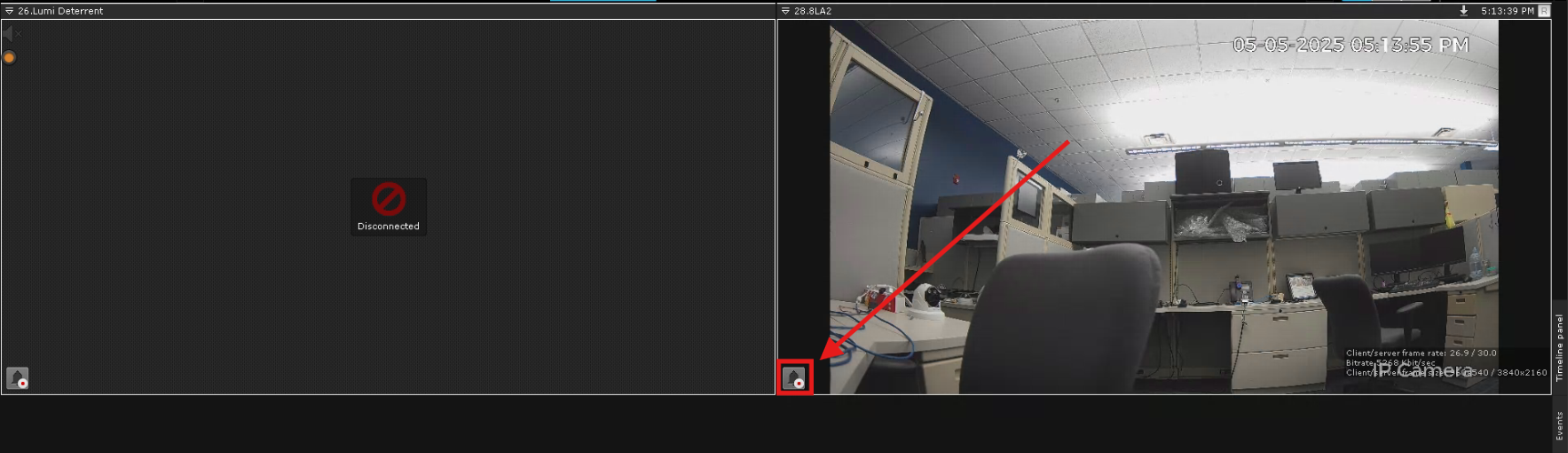
Depending on the order you did things in LumiCenter there is a possiblity that when you go to layout (live view) the alarm bell icon will be missing from Live View. The Alarm bell's main function is to classify alarms whether they are valid events or if they are false alarms. Besides that, you can also test the alarm functions with the alarm bell by manually triggering an alarm when an alarm event has not occurred. Below I will go throw the steps necessary to make it appear.
Step 2
The main reason the alarm bell may not appear would be that at the time of adding your devices into LumiCenter there was no storage archives set up. If you create the storage archive and then add the devices, you will likely not need to do these steps as it will happen automatically.
The first thing you want to do if you do not have the alarm bell is to make sure you have a storage archive set up, and if it isn't set one up. You can use the below link to see the steps to set up the storage archive
[How to create Storage Archives]
Step 3
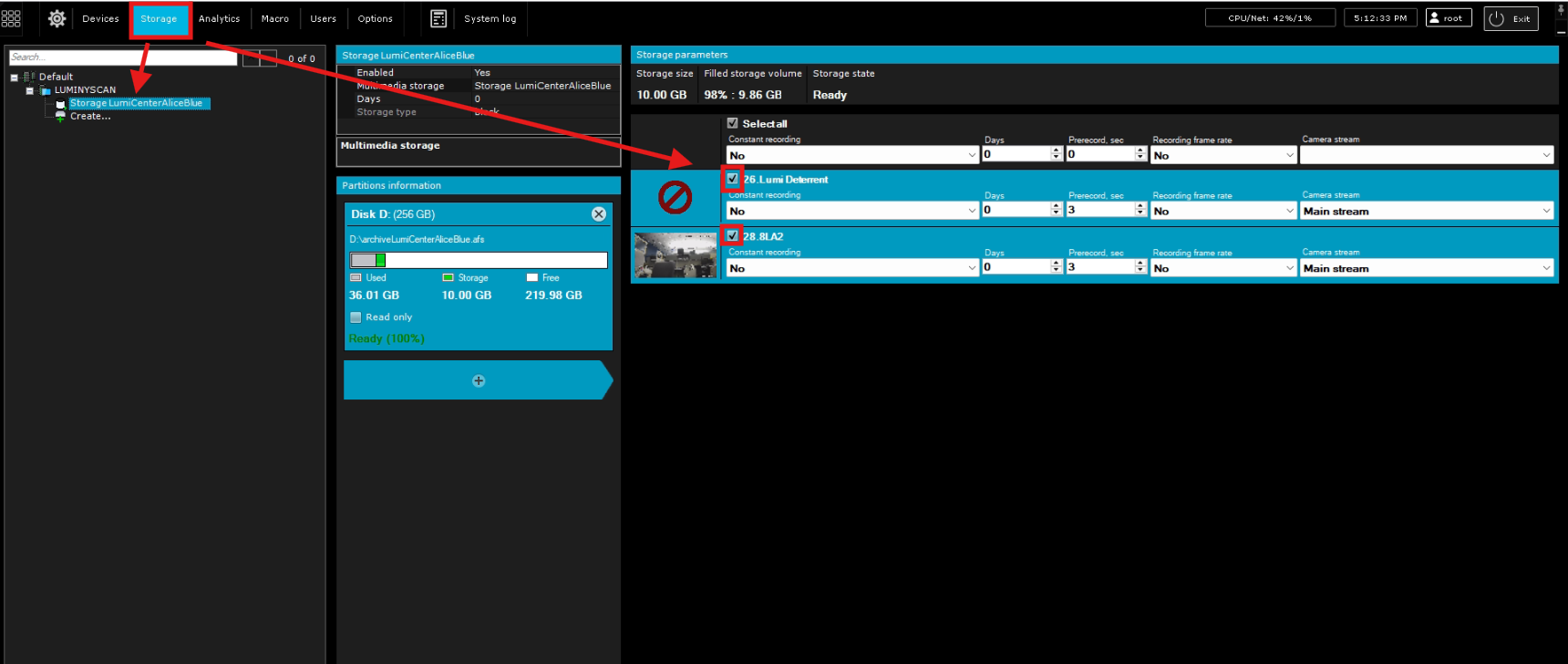
Once you have created the storage archive, the next step is to make sure the devices are setup to use the storage archive that you created. To do this you will need to be in the storage section of settings, once there you will first want to select the storage archive that you have created under the server tree. Once you have selected the storage archive you should see the devices on the right hand side. If the devices were added before the storage archive, the devices will not be highlighted blue and will not contain a check mark in the boxes. All you will need to do is put checks in the boxes beside the devices you have added. When adding the checks and saving you will now notice the devices have a blue highlight.
Step 4
After you have put checks in the device boxes, you can then go over to your layouts to see your live view. You will now see that the alarm bell icon is now in the bottom left of your camera views.