LumiGuardian/VCA Rule Validation: Difference between revisions
Techsupport (talk | contribs) No edit summary |
Techsupport (talk | contribs) No edit summary |
||
| Line 1: | Line 1: | ||
= <div class="center">Adding Devices to LumiViewer</div> = | = <div class="center">Adding Devices to LumiViewer</div> = | ||
| Line 14: | Line 12: | ||
===Step by Step Instructions=== | ===Step by Step Instructions=== | ||
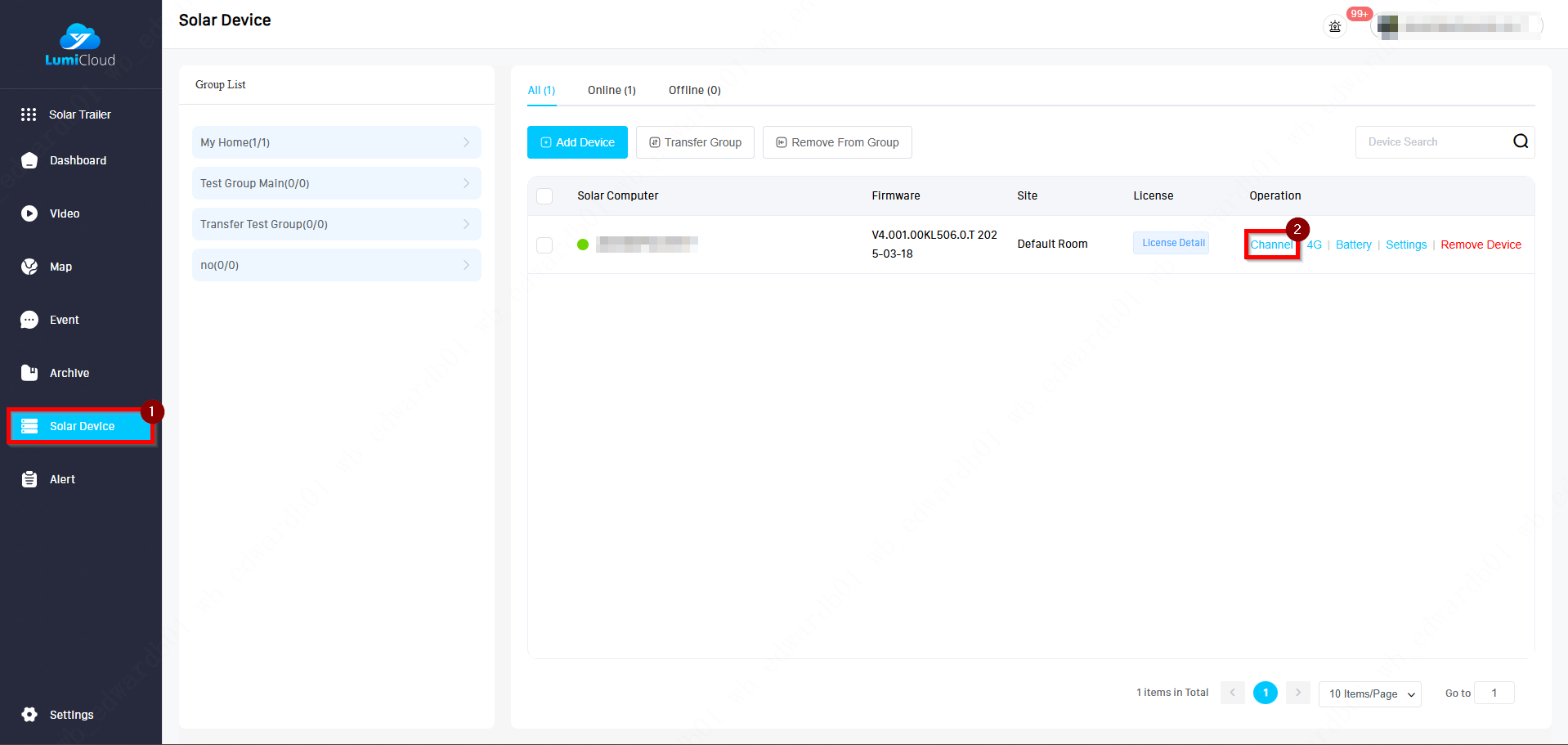
1. | 1. Navigate to Solar Device, click on Channel. | ||
[[File:VCA_Rule_Validation_1.png|1000px|link=https://wiki.luminyscorp.com/images/b/b5/VCA_Rule_Validation_1.png]] | |||
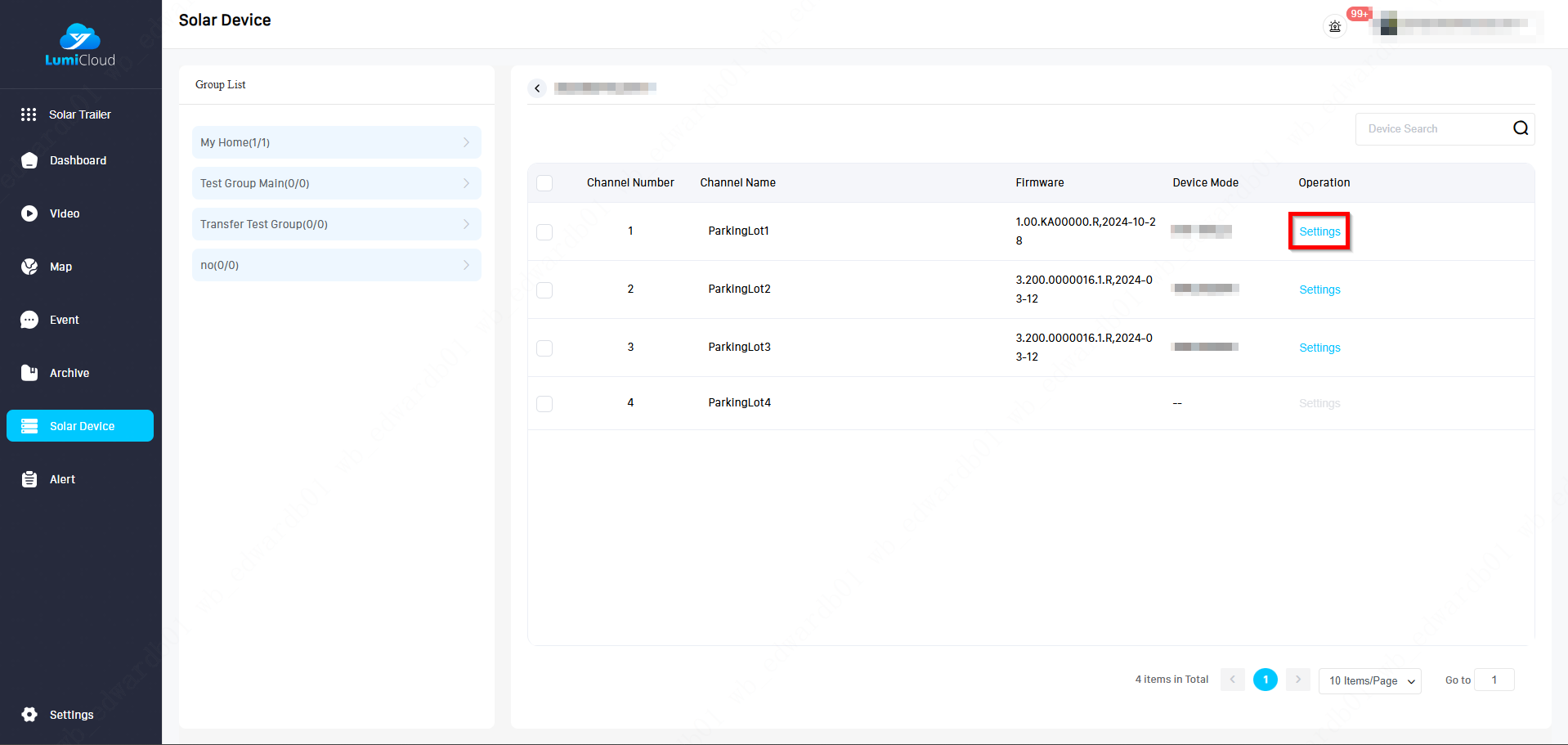
2. For each of the camera, you can click on Settings to verify the whether VCA is enabled or not. | |||
[[File:VCA_Rule_Validation_2.png|1000px|link=https://wiki.luminyscorp.com/images/f/f2/VCA_Rule_Validation_2.png]] | |||
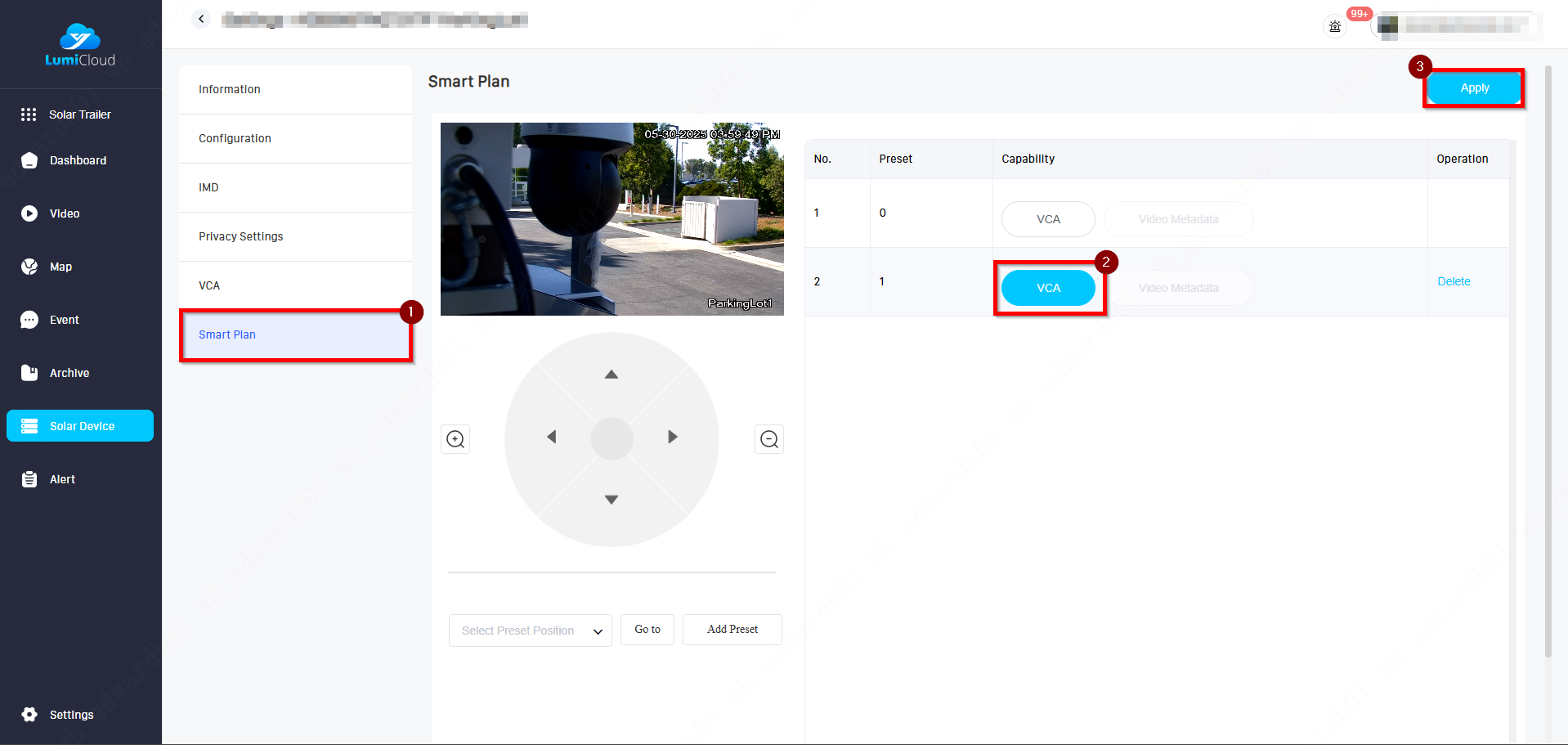
3. Click on Smart Plan, and ensure the VCA is lit up as blue meaning the smart plan is active for this specific rule. | |||
[[File:VCA_Rule_Validation_3.png|1000px|link=https://wiki.luminyscorp.com/images/f/f9/VCA_Rule_Validation_3.png]] | |||
4. Go back to the Solar Device, and click on Settings. | |||
[[File:VCA_Rule_Validation_4.png|1000px|link=https://wiki.luminyscorp.com/images/a/a6/VCA_Rule_Validation_4.png]] | |||
5. Under Information tab, click on Device Management. | |||
[[File:VCA_Rule_Validation_5.png|1000px|link=https://wiki.luminyscorp.com/images/a/a7/VCA_Rule_Validation_5.png]] | |||
6. Once you are logged into the recorder's webGUI, click on Advanced Settings. | |||
[[File:VCA_Rule_Validation_6.png|1000px|link=https://wiki.luminyscorp.com/images/a/a4/VCA_Rule_Validation_6.png]] | |||
7. Click on Alert Center | |||
[[File:VCA_Rule_Validation_7.png|1000px|link=https://wiki.luminyscorp.com/images/0/04/VCA_Rule_Validation_7.png]] | |||
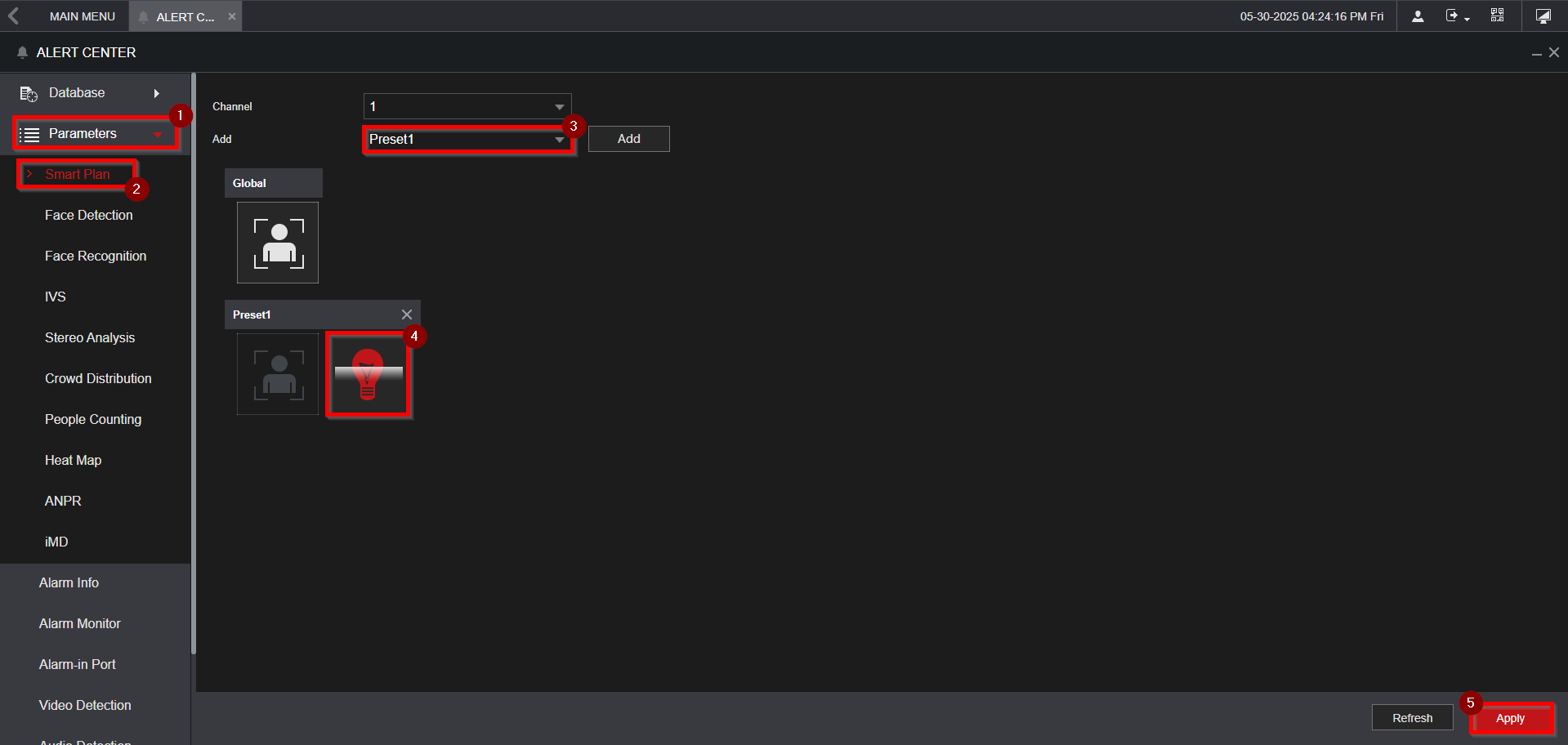
8. Expand Parameters > Smart Plan > Choose the channel > Select the Preset > Enable the icon is lit up as red. | |||
[[File:VCA_Rule_Validation_8.png|1000px|link=https://wiki.luminyscorp.com/images/4/48/VCA_Rule_Validation_8.png]] | |||
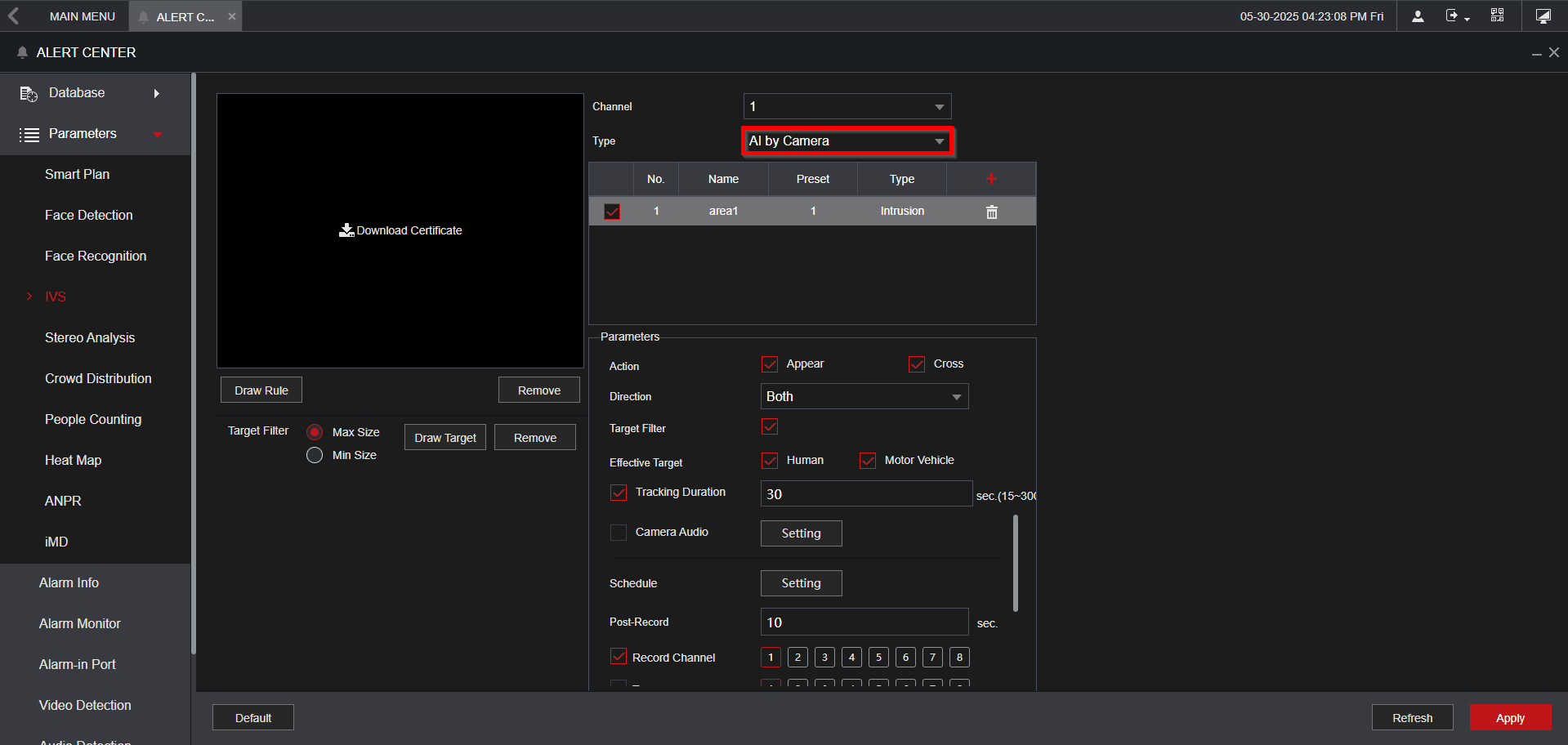
9. Make sure the type is set to AI by Camera, and ensure all options are selected appropriately. | |||
= | [[File:VCA_Rule_Validation_9.png|1000px|link=https://wiki.luminyscorp.com/images/2/2f/VCA_Rule_Validation_9.png]] | ||
Revision as of 11:18, 3 June 2025
Adding Devices to LumiViewer
Description
This tutorial will go over how to add devices to LumiViewer desktop app.
Prerequisites
- LumiViewer application installed on the computer.
Video Instructions
Step by Step Instructions
1. Navigate to Solar Device, click on Channel.
2. For each of the camera, you can click on Settings to verify the whether VCA is enabled or not.
3. Click on Smart Plan, and ensure the VCA is lit up as blue meaning the smart plan is active for this specific rule.
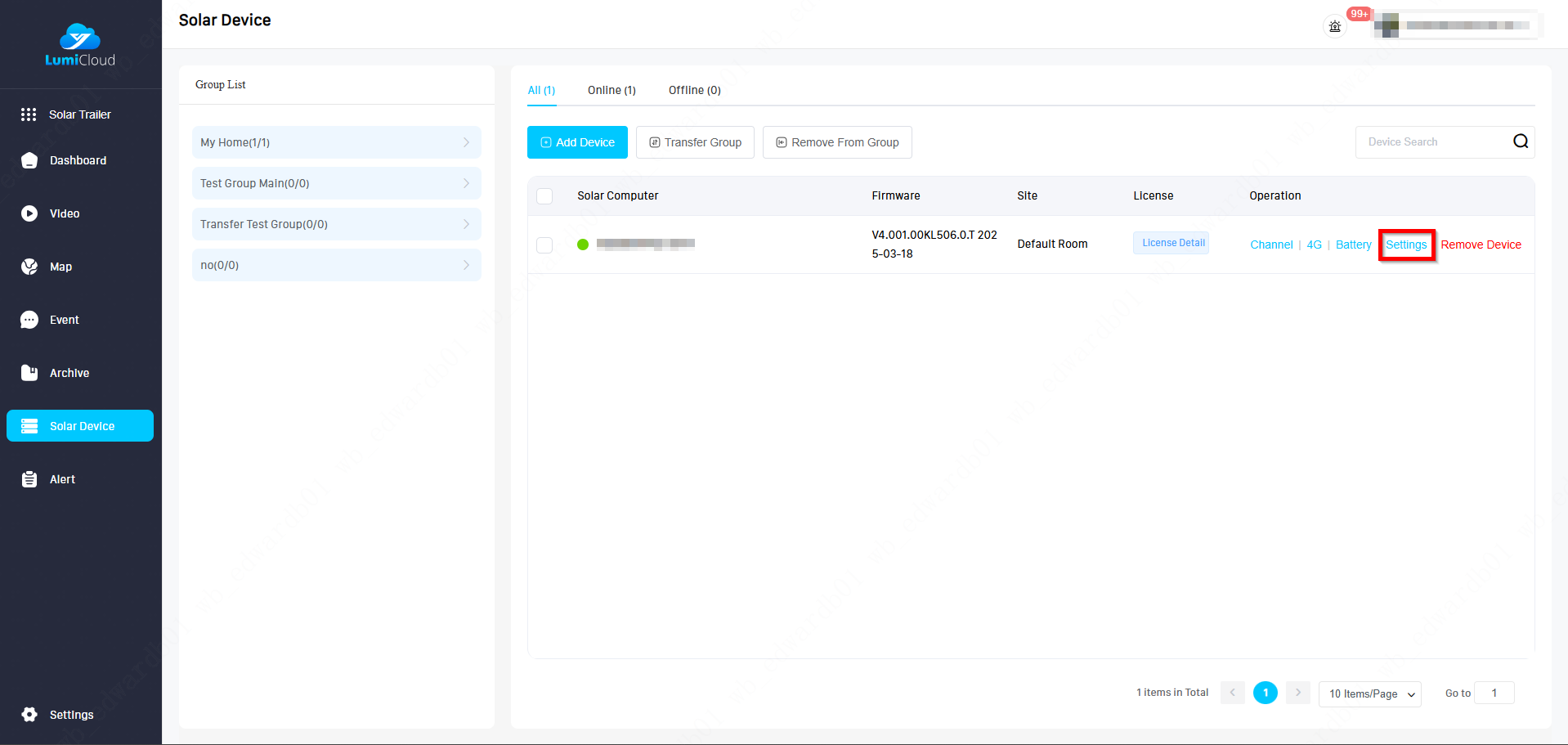
4. Go back to the Solar Device, and click on Settings.
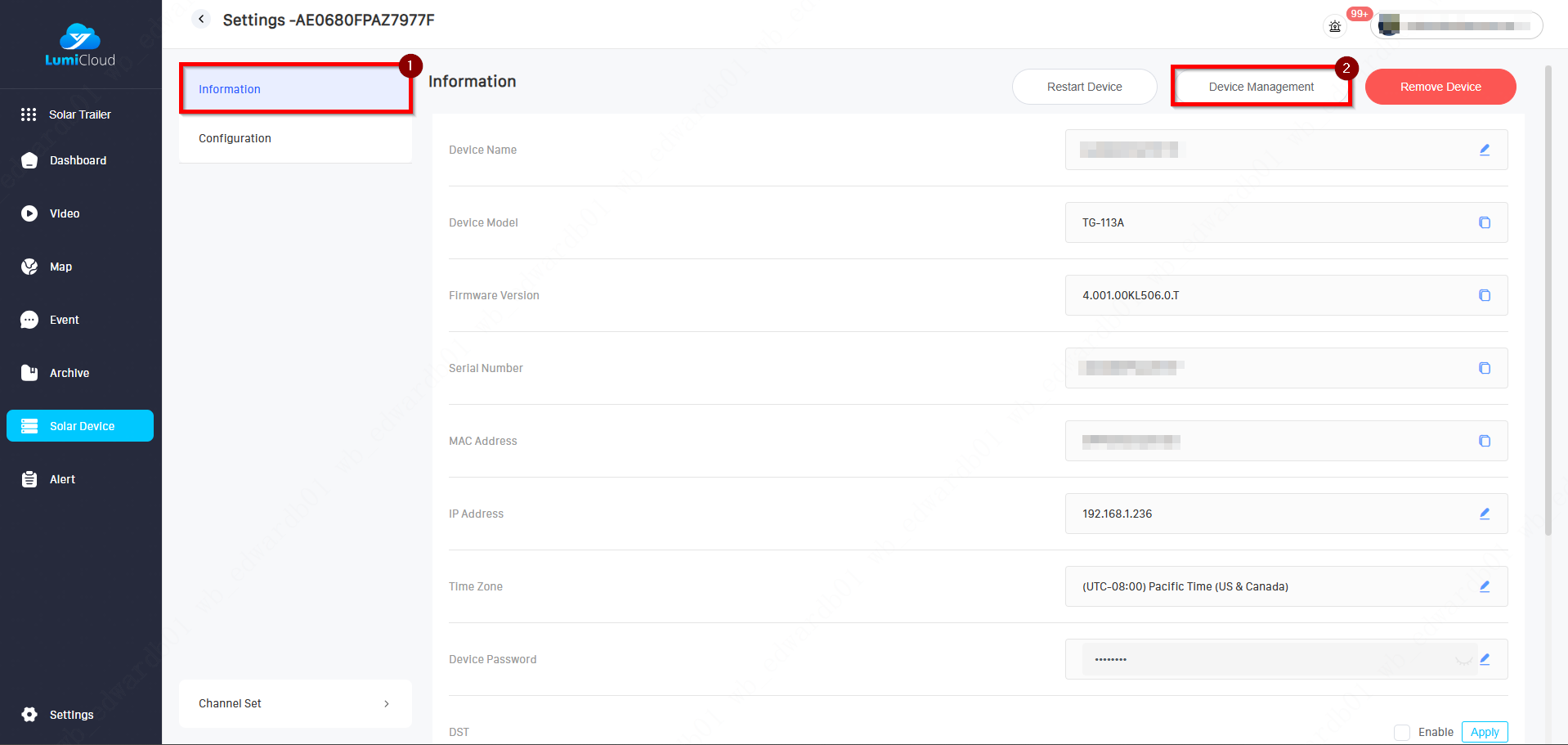
5. Under Information tab, click on Device Management.
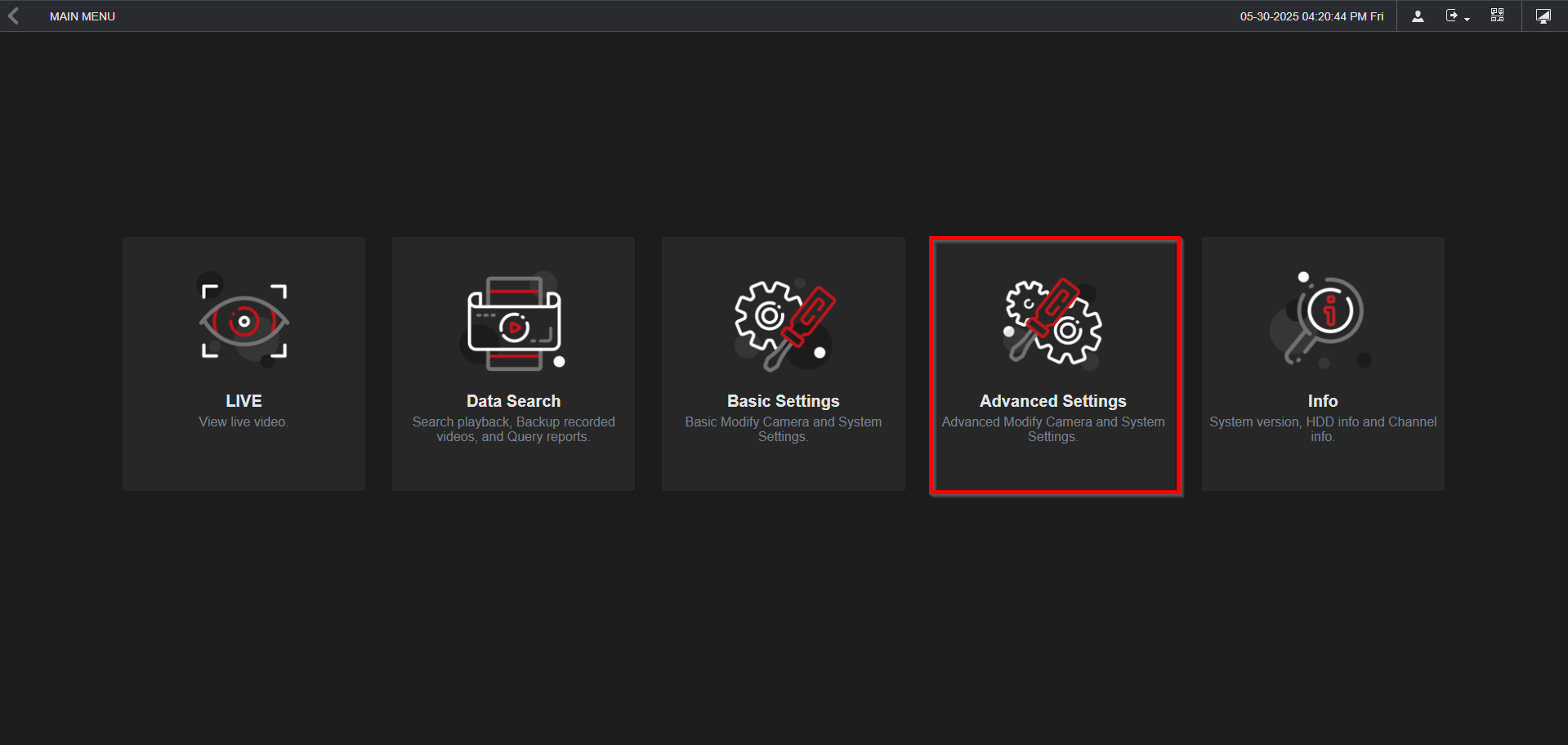
6. Once you are logged into the recorder's webGUI, click on Advanced Settings.
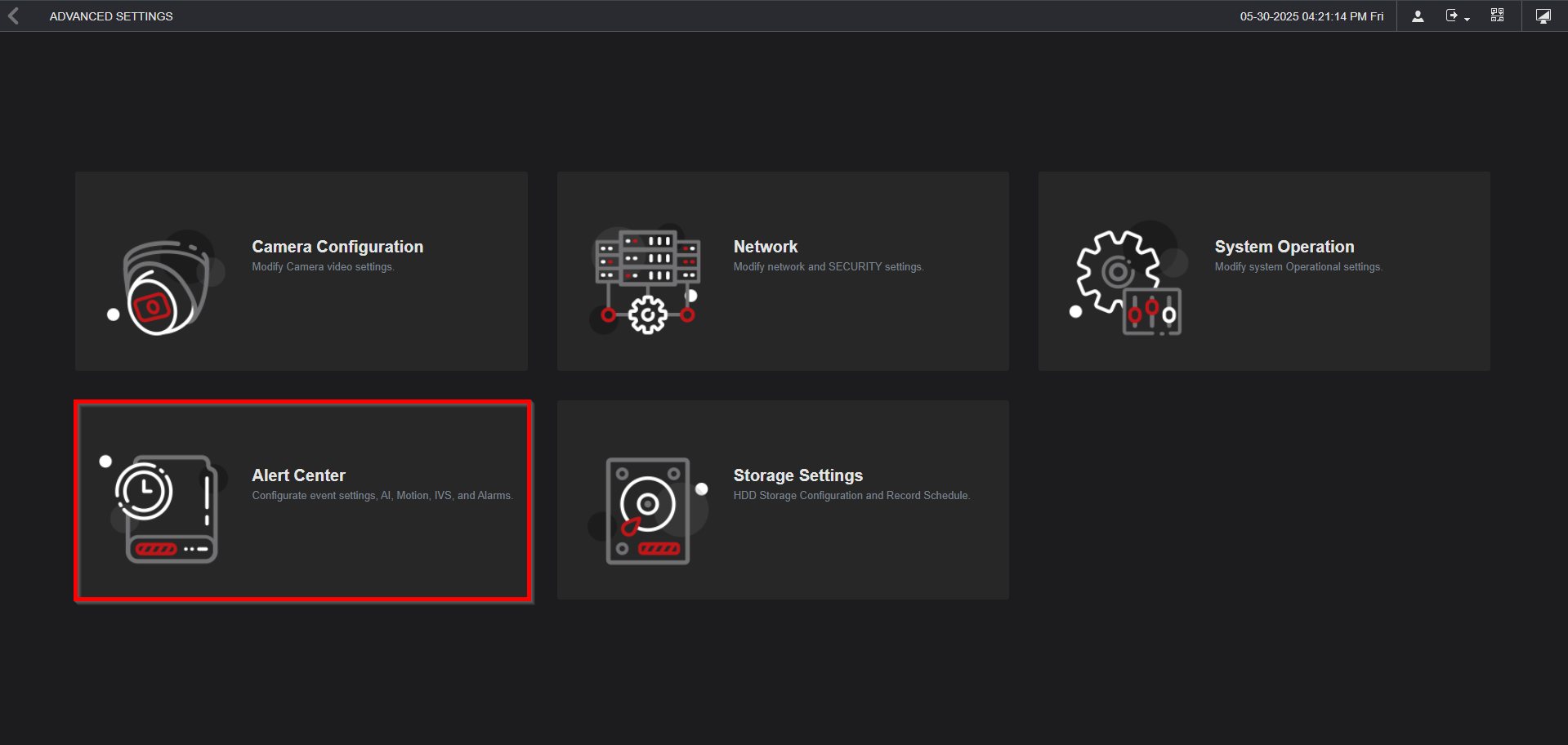
7. Click on Alert Center
8. Expand Parameters > Smart Plan > Choose the channel > Select the Preset > Enable the icon is lit up as red.
9. Make sure the type is set to AI by Camera, and ensure all options are selected appropriately.