NVR/Enabling and Using LumiSearch via WebGUI: Difference between revisions
Techsupport (talk | contribs) m Techsupport moved page NVR/LumiSearch to NVR/LumiSearch Web without leaving a redirect |
Techsupport (talk | contribs) No edit summary |
||
| Line 1: | Line 1: | ||
<div class="lm-banner">[[File:LuminysMainPageBanner2.png]]</div> | <div class="lm-banner">[[File:LuminysMainPageBanner2.png]]</div> | ||
= <div class="center">LumiSearch via | = <div class="center">Enabling and Using LumiSearch via WebGUI</div> = | ||
===Description=== | ===Description=== | ||
| Line 14: | Line 14: | ||
Coming Soon | Coming Soon | ||
=== | ===Enabling LumiSearch=== | ||
1. Start by accessing the NVR's web GUI and entering the login credentials. | 1. Start by accessing the NVR's web GUI and entering the login credentials. | ||
| Line 28: | Line 28: | ||
[[File:Lumisearch_3.png|1000px|link=https://wiki.luminyscorp.com/images/5/5b/Lumisearch_3.png]] | [[File:Lumisearch_3.png|1000px|link=https://wiki.luminyscorp.com/images/5/5b/Lumisearch_3.png]] | ||
===LumiSearch via Playback=== | |||
1. Click the small 'person icon' at the bottom right of the screen—this is the LumiSearch button. | |||
[[File:Lumisearch_4.png|1000px|link=https://wiki.luminyscorp.com/images/a/a7/Lumisearch_4.png]] | [[File:Lumisearch_4.png|1000px|link=https://wiki.luminyscorp.com/images/a/a7/Lumisearch_4.png]] | ||
2. Once the LumiSearch icon is clicked, the screen will zoom in on the target and highlight it with a blue rectangle. Next, click the magnifying glass icon to proceed. | |||
[[File:Lumisearch_5.png|1000px|link=https://wiki.luminyscorp.com/images/8/81/Lumisearch_5.png]] | [[File:Lumisearch_5.png|1000px|link=https://wiki.luminyscorp.com/images/8/81/Lumisearch_5.png]] | ||
3. All results from the LumiSearch cameras will then be displayed. In this example, the results will be from Camera 1 and Camera 2. The search time frame can be adjusted using the panel on the left. | |||
[[File:Lumisearch_6.png|1000px|link=https://wiki.luminyscorp.com/images/b/bd/Lumisearch_6.png]] | [[File:Lumisearch_6.png|1000px|link=https://wiki.luminyscorp.com/images/b/bd/Lumisearch_6.png]] | ||
4. Any result can be selected for quick playback, and a secondary search can be performed from the displayed results. | |||
[[File:Lumisearch_7.png|1000px|link=https://wiki.luminyscorp.com/images/e/e7/Lumisearch_7.png]] | [[File:Lumisearch_7.png|1000px|link=https://wiki.luminyscorp.com/images/e/e7/Lumisearch_7.png]] | ||
5. Additionally, LumiSearch allows searches based on events. In this example, the VCA/Tripwire results will be applied. | |||
[[File:Lumisearch_8.png|1000px|link=https://wiki.luminyscorp.com/images/f/fb/Lumisearch_8.png]] | [[File:Lumisearch_8.png|1000px|link=https://wiki.luminyscorp.com/images/f/fb/Lumisearch_8.png]] | ||
6. From the Tripwire results, the target can be selected for a secondary search, which will retrieve the secondary LumiSearch results. | |||
[[File:Lumisearch_9.png|1000px|link=https://wiki.luminyscorp.com/images/7/79/Lumisearch_9.png]] | [[File:Lumisearch_9.png|1000px|link=https://wiki.luminyscorp.com/images/7/79/Lumisearch_9.png]] | ||
[[File:Lumisearch_10.png|1000px|link=https://wiki.luminyscorp.com/images/7/7e/Lumisearch_10.png]] | [[File:Lumisearch_10.png|1000px|link=https://wiki.luminyscorp.com/images/7/7e/Lumisearch_10.png]] | ||
Revision as of 07:56, 14 August 2025

Enabling and Using LumiSearch via WebGUI
Description
This tutorial provides instructions for performing LumiSearch over the webGUI.
Prerequisites
- Access NVR's webGUI
- NVR with LumiSearch capabilities
- IP Camera with LumiSearch capabilities
Video Instructions
Coming Soon
Enabling LumiSearch
1. Start by accessing the NVR's web GUI and entering the login credentials.

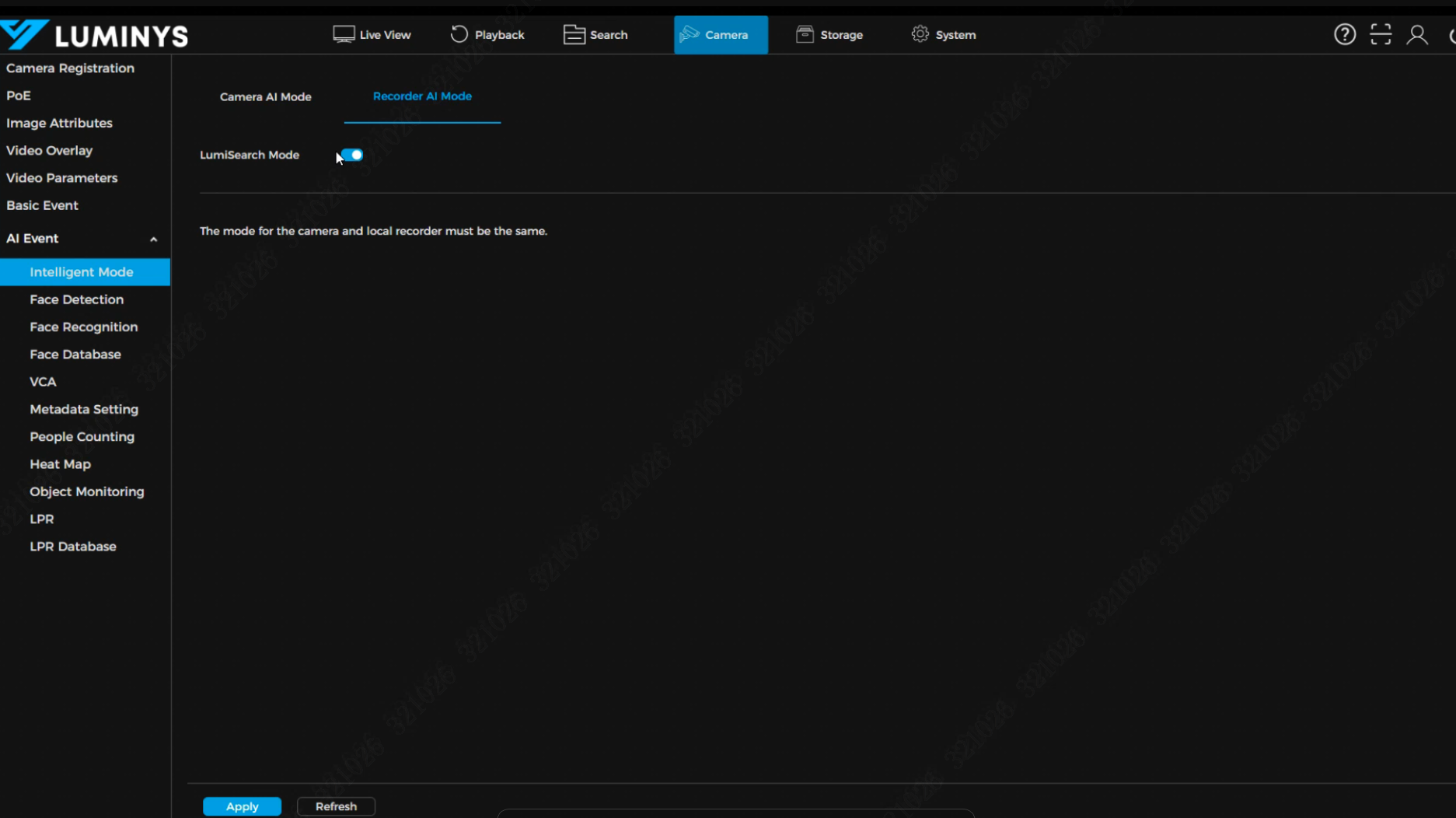
2. After logging in, verify that LumiSearch mode is enabled on the NVR.
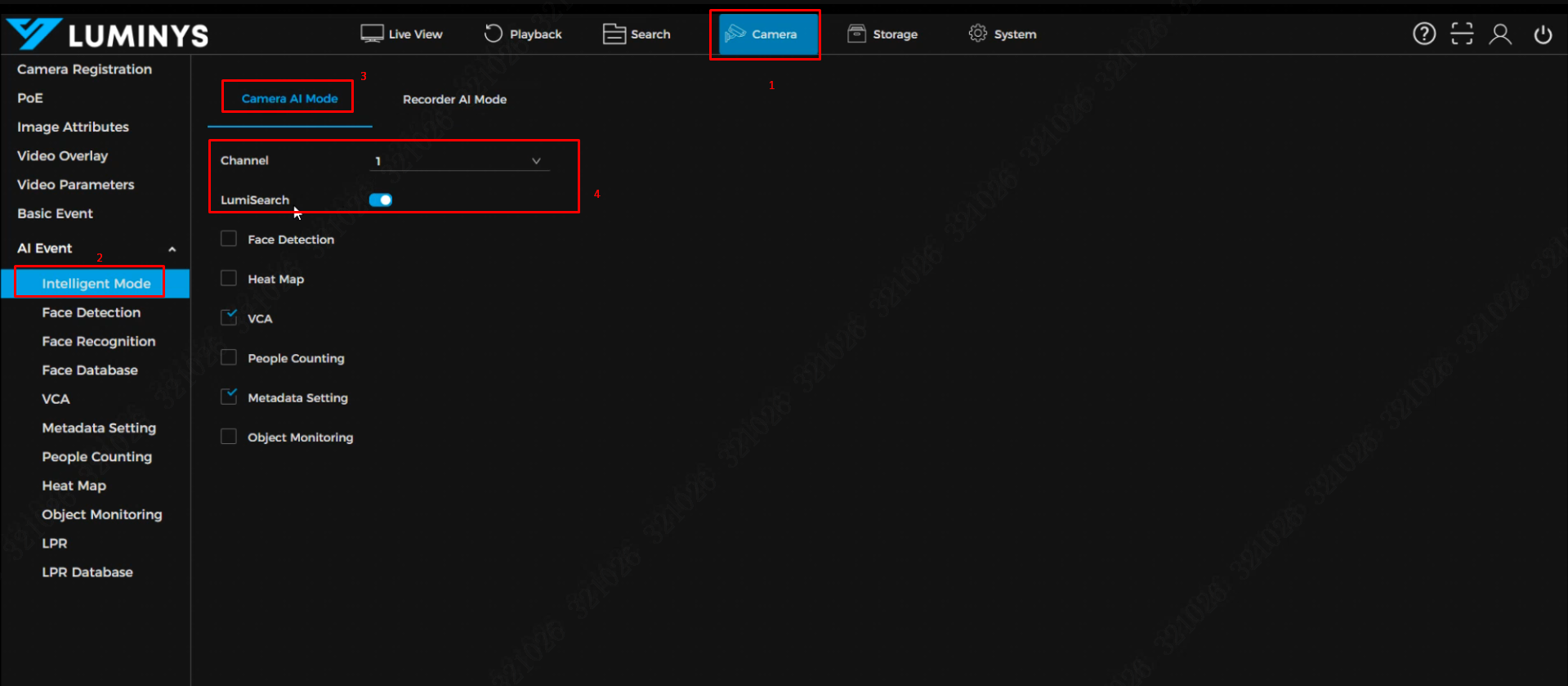
3. Additionally, confirm that the connected cameras support LumiSearch and that LumiSearch mode is enabled.
LumiSearch via Playback
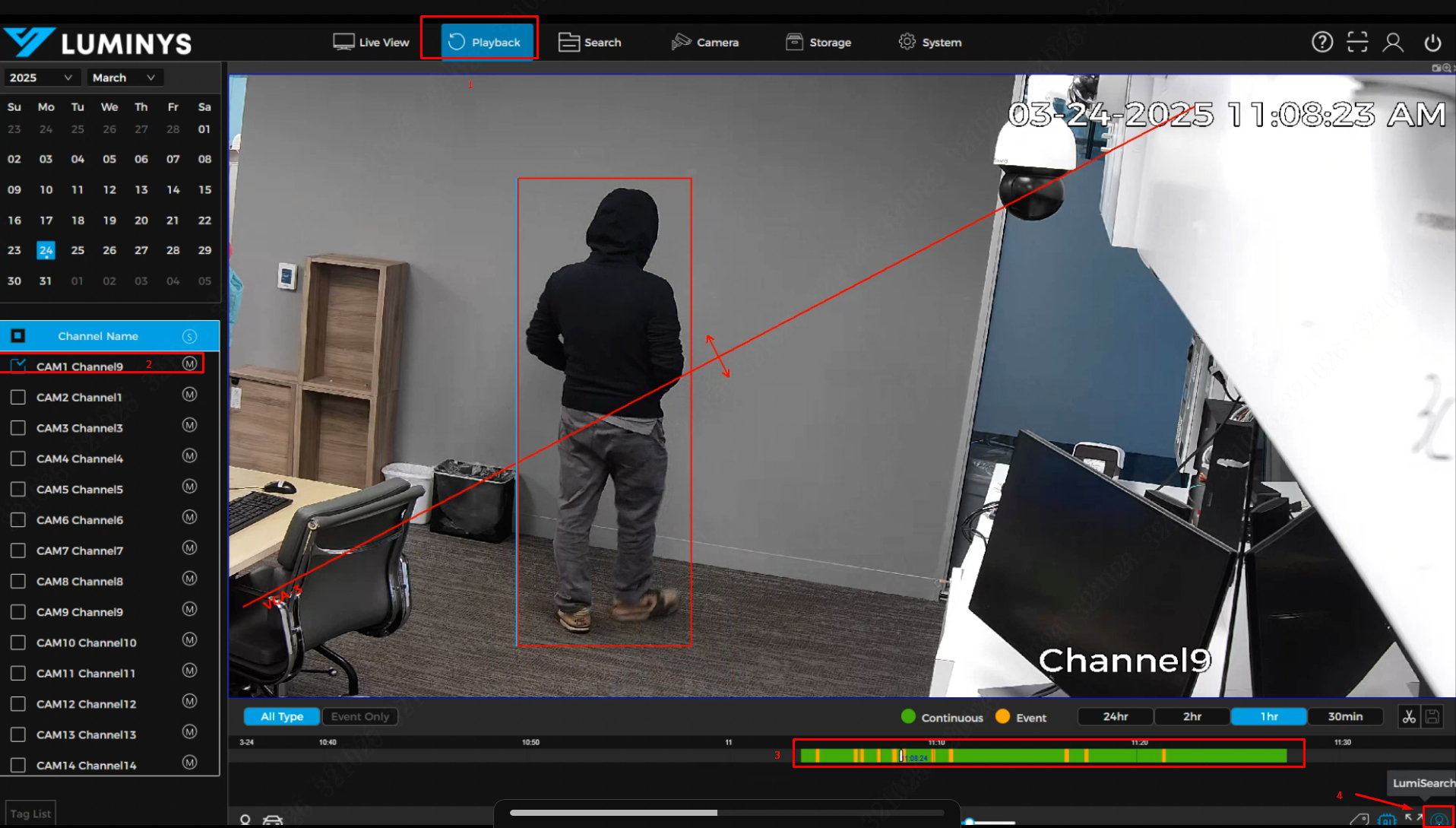
1. Click the small 'person icon' at the bottom right of the screen—this is the LumiSearch button.
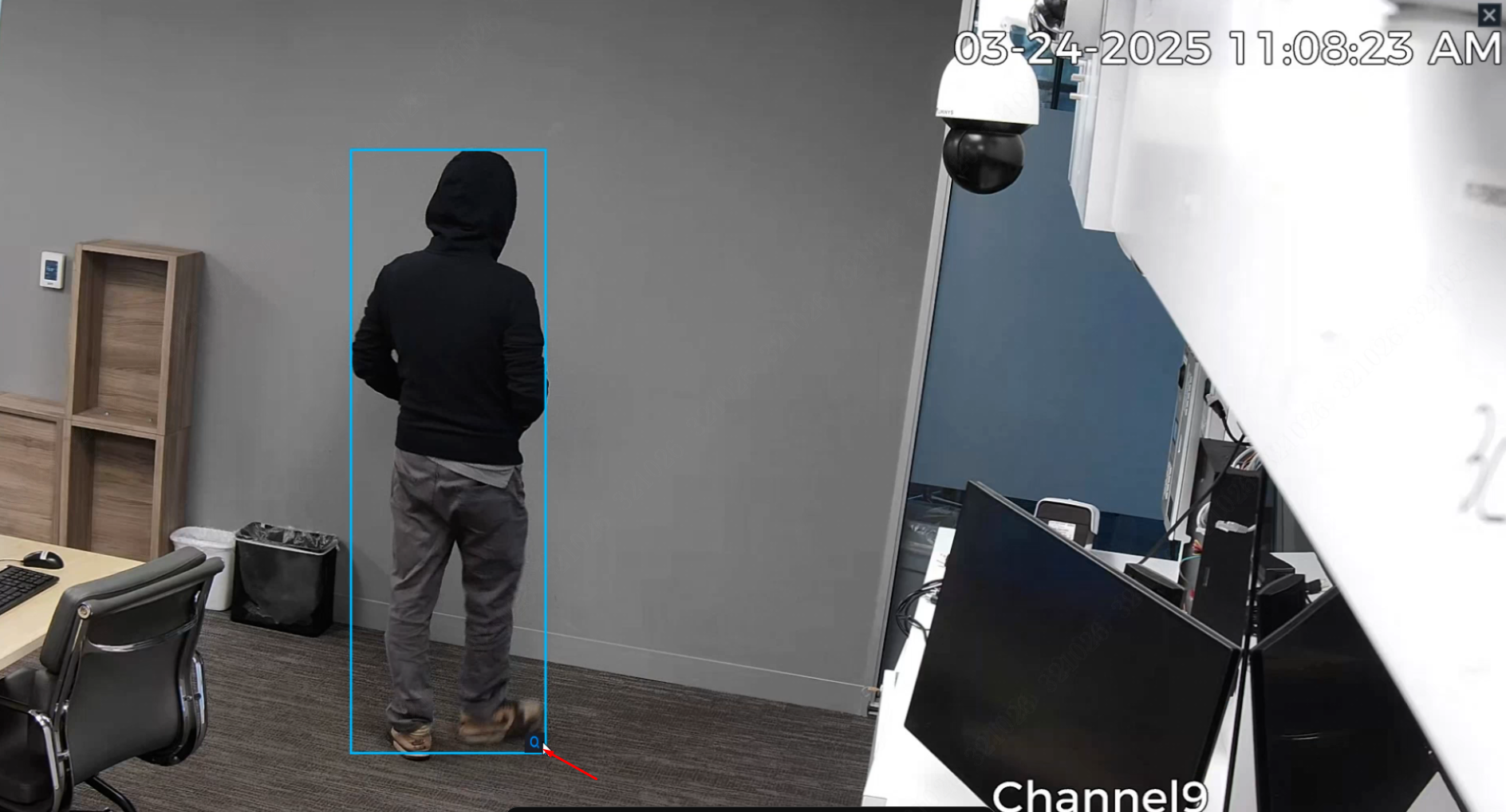
2. Once the LumiSearch icon is clicked, the screen will zoom in on the target and highlight it with a blue rectangle. Next, click the magnifying glass icon to proceed.
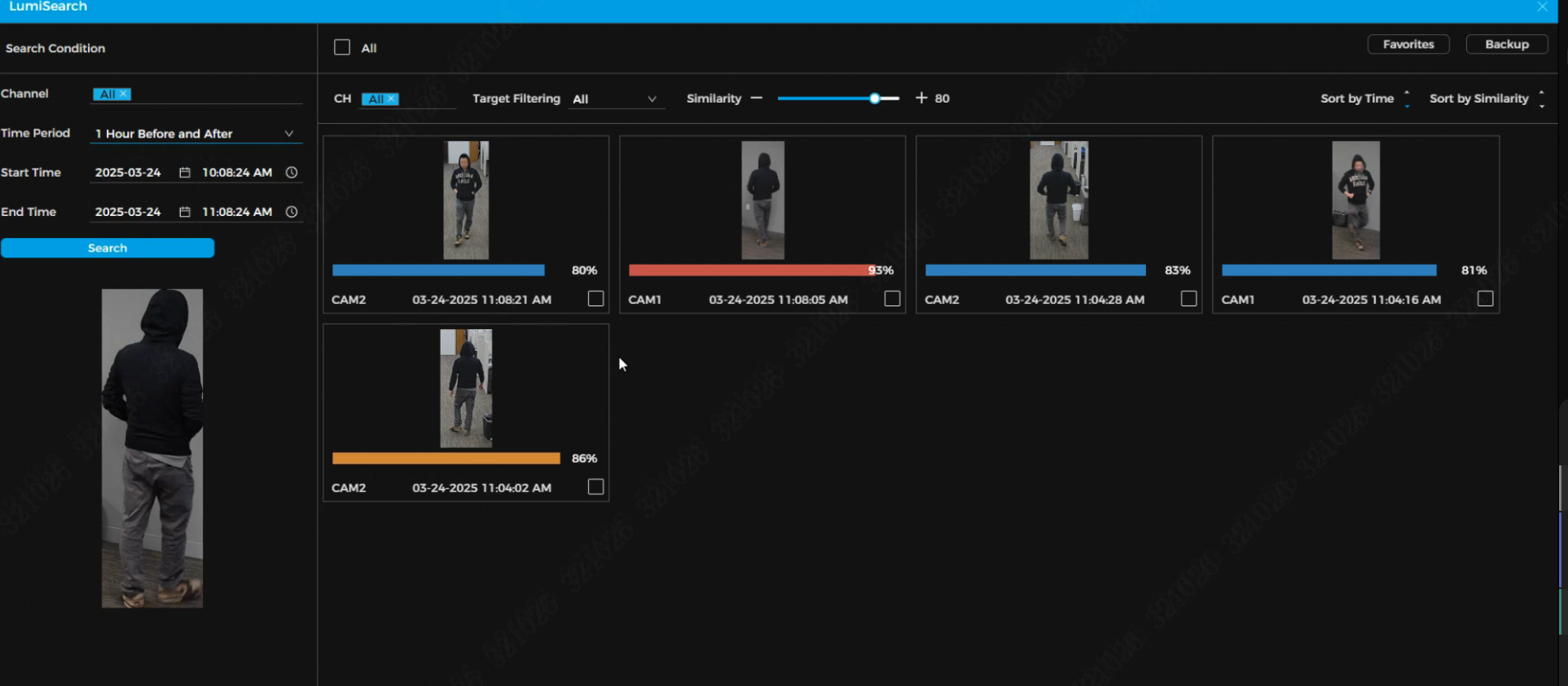
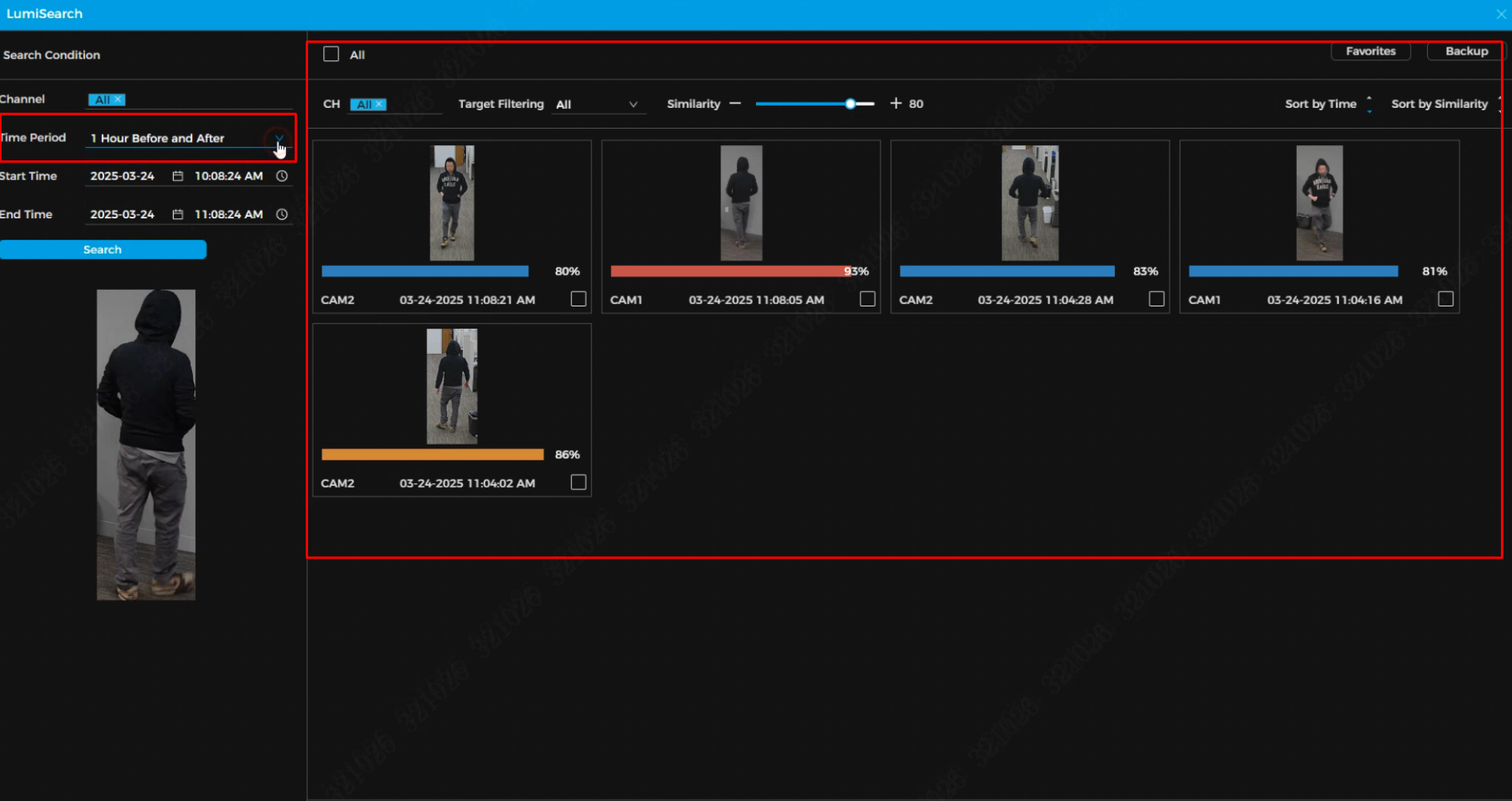
3. All results from the LumiSearch cameras will then be displayed. In this example, the results will be from Camera 1 and Camera 2. The search time frame can be adjusted using the panel on the left.
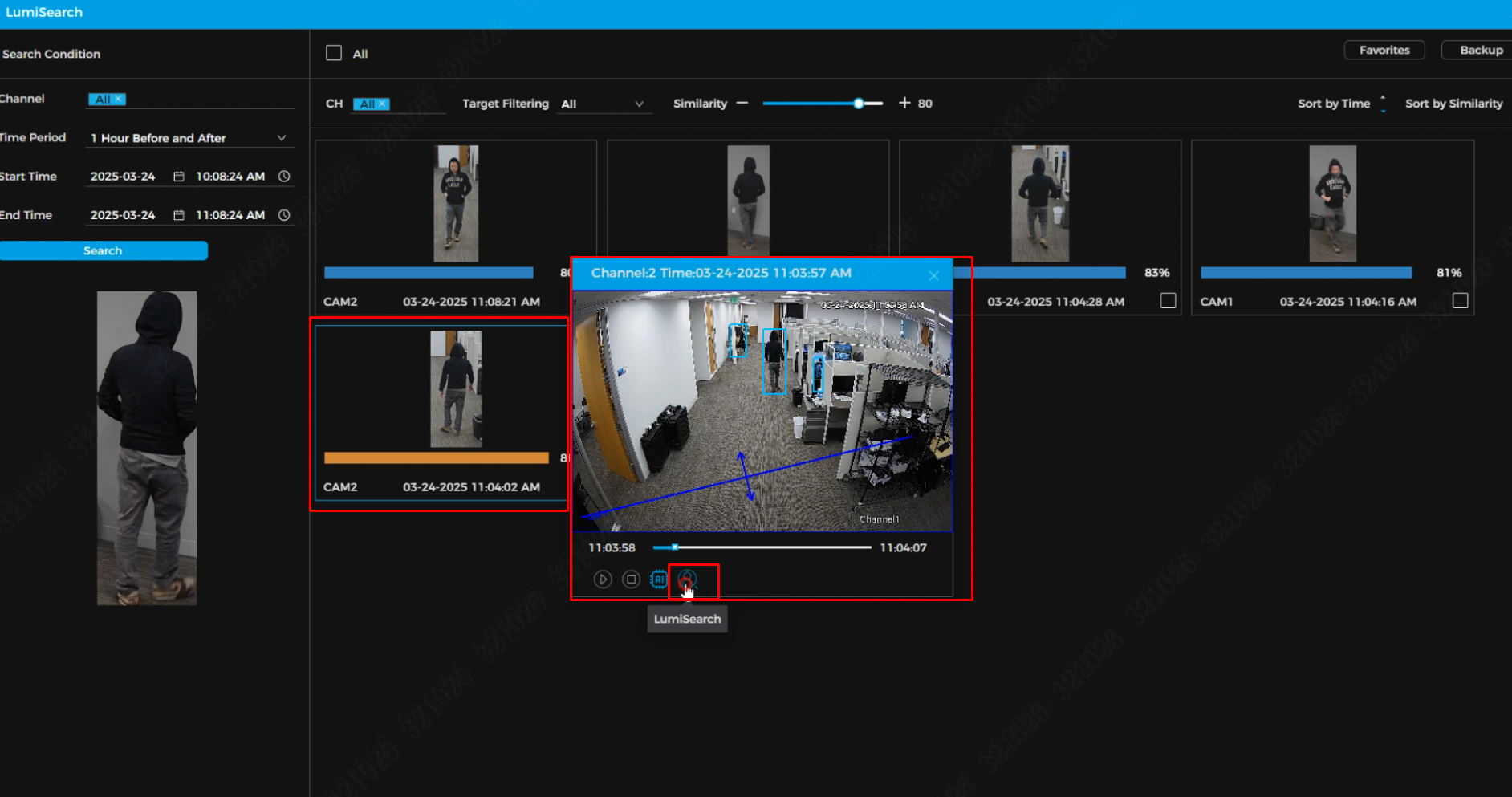
4. Any result can be selected for quick playback, and a secondary search can be performed from the displayed results.
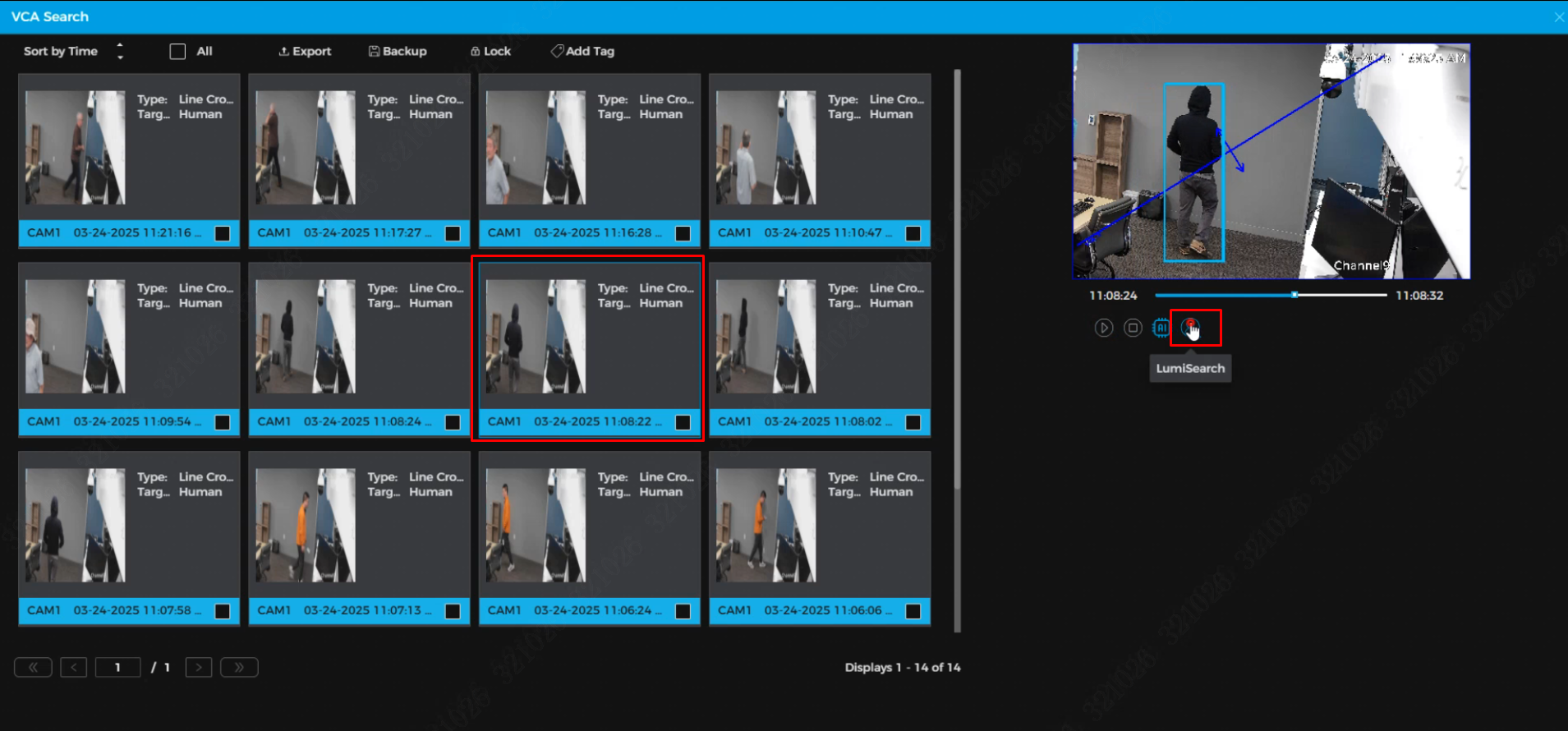
5. Additionally, LumiSearch allows searches based on events. In this example, the VCA/Tripwire results will be applied.
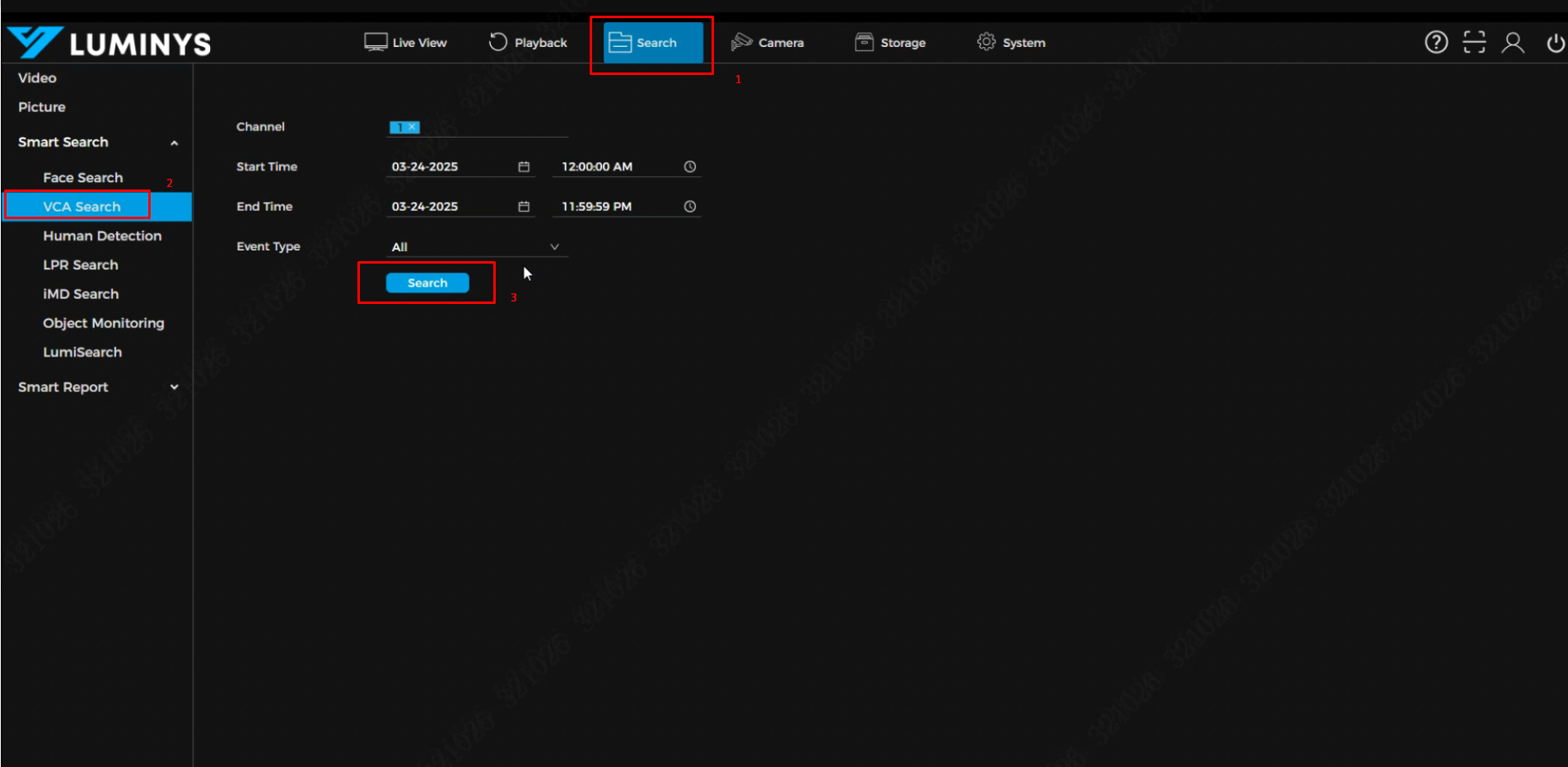
6. From the Tripwire results, the target can be selected for a secondary search, which will retrieve the secondary LumiSearch results.