|
|
| Line 10: |
Line 10: |
| |! style="text-align:left;"|Ethernet and PoE Over Coax Long-Distance IP transmission Plug-and-Play Deployment | | |! style="text-align:left;"|Ethernet and PoE Over Coax Long-Distance IP transmission Plug-and-Play Deployment |
| |} | | |} |
|
| |
|
| |
| <div class="lm-banner">[[File:LuminysMainPageBanner2.png]]</div>
| |
|
| |
| = <div class="center">SAL-1LAB Coax Extender Basic Setup</div> =
| |
|
| |
| ===Description===
| |
| This tutorial will go over how to setup the coax extender.
| |
|
| |
|
| |
| ===Step by Step Instructions===
| |
|
| |
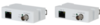
| 1. Out of the box you have the pair of baluns, one you will notice has POE IN and the other POE Out.
| |
|
| |
| [[File:Access_Control_Initialization_1.png|1000px|link=https://wiki.luminyscorp.com/images/2/22/Access_Control_Initialization_1.png]]
| |
|
| |
| 2. So from the main POE power source, POE Switch/NVR POE ports run your ethernet cable from there to the POE IN
| |
| on the Extender marked POE IN. It should light up the RED power LED.
| |
|
| |
| [[File:Access_Control_Initialization_2.png|1000px|link=https://wiki.luminyscorp.com/images/f/fa/Access_Control_Initialization_2.png]]
| |
|
| |
| 3. Next connect your coax cable to this one, then on the other end connect to the 2nd extender marked POE Out, it should then also light up as it has received power.
| |
|
| |
| [[File:Access_Control_Initialization_3.png|1000px|link=https://wiki.luminyscorp.com/images/0/0b/Access_Control_Initialization_3.png]]
| |
|
| |
| 4. Now you can connect your ethernet cable from this extender to your desired camera and it should power
| |
| up and be visible on the network.
| |
|
| |
| [[File:Access_Control_Initialization_4.png|1000px|link=https://wiki.luminyscorp.com/images/1/11/Access_Control_Initialization_4.png]]
| |
|
| |
| 5. This method will auto activate Luminys cameras when
| |
| direct connected to a Luminys NVR, if cameras are on a switch
| |
| you would activate using Lumi Utility
| |