NVR/Doorbell event Setup on NVR: Difference between revisions
From Luminys WIKI
Techsupport (talk | contribs) |
Techsupport (talk | contribs) No edit summary |
||
| Line 27: | Line 27: | ||
! Term !! Description | ! Term !! Description | ||
|- | |- | ||
| | | Picture Storage || Saves images when alarm detected and can attach snapshots to emails when used with the “Send Email” feature. | ||
| Arming Period || Defines schedules for motion detection activation based on specific dates and times. | |||
|} | |} | ||
Revision as of 12:56, 22 June 2026

Configure Doorbell event on NVR
Description
This tutorial will go over how to configure Doorbell event on the NVR.
Prerequisites
- Adding Video Doorbell to NVR
- Access the WebUI of the NVR
Step by Step Instructions
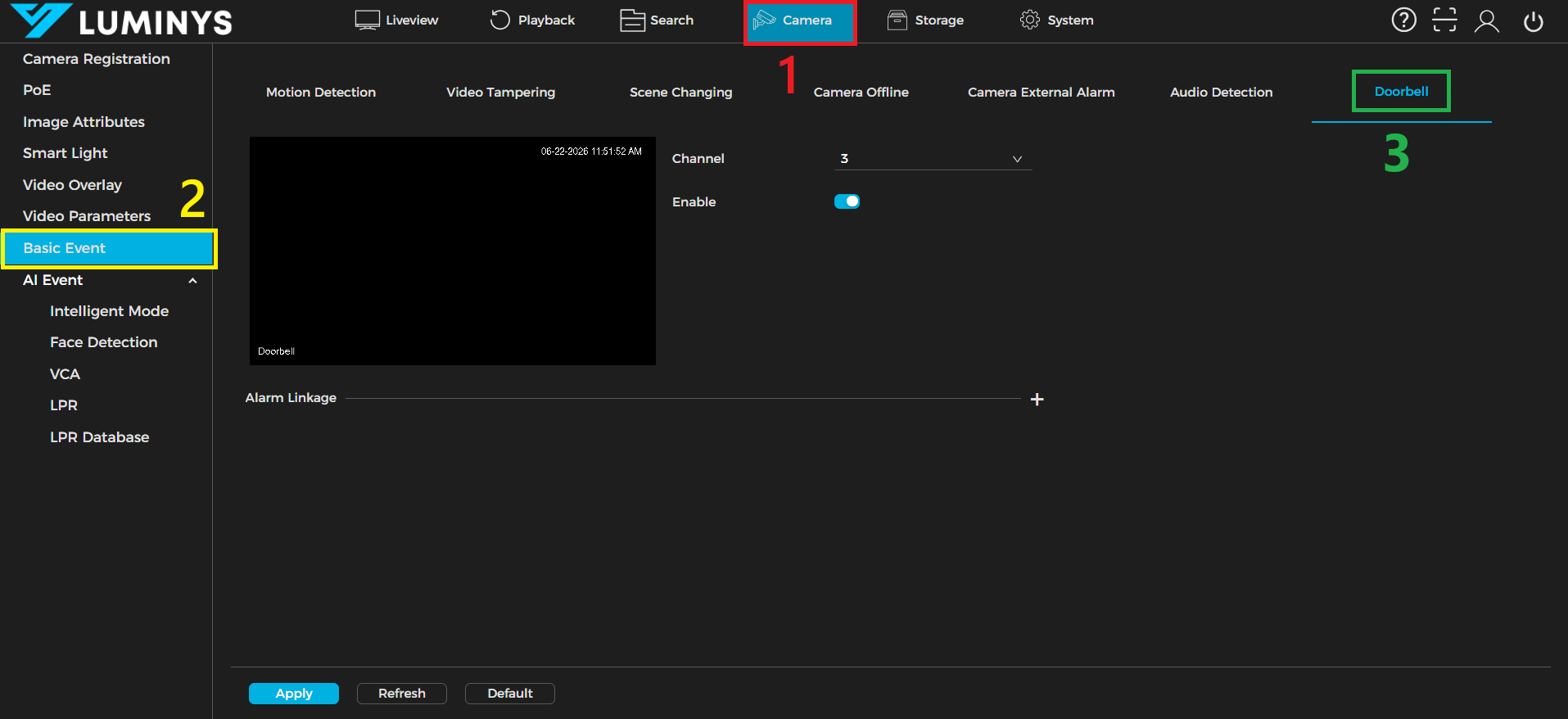
1. From the NVR WebUI, click the Camera (1) tab, then select Basic event (2) from the left panel. Locate the Doorbell subtab (3).
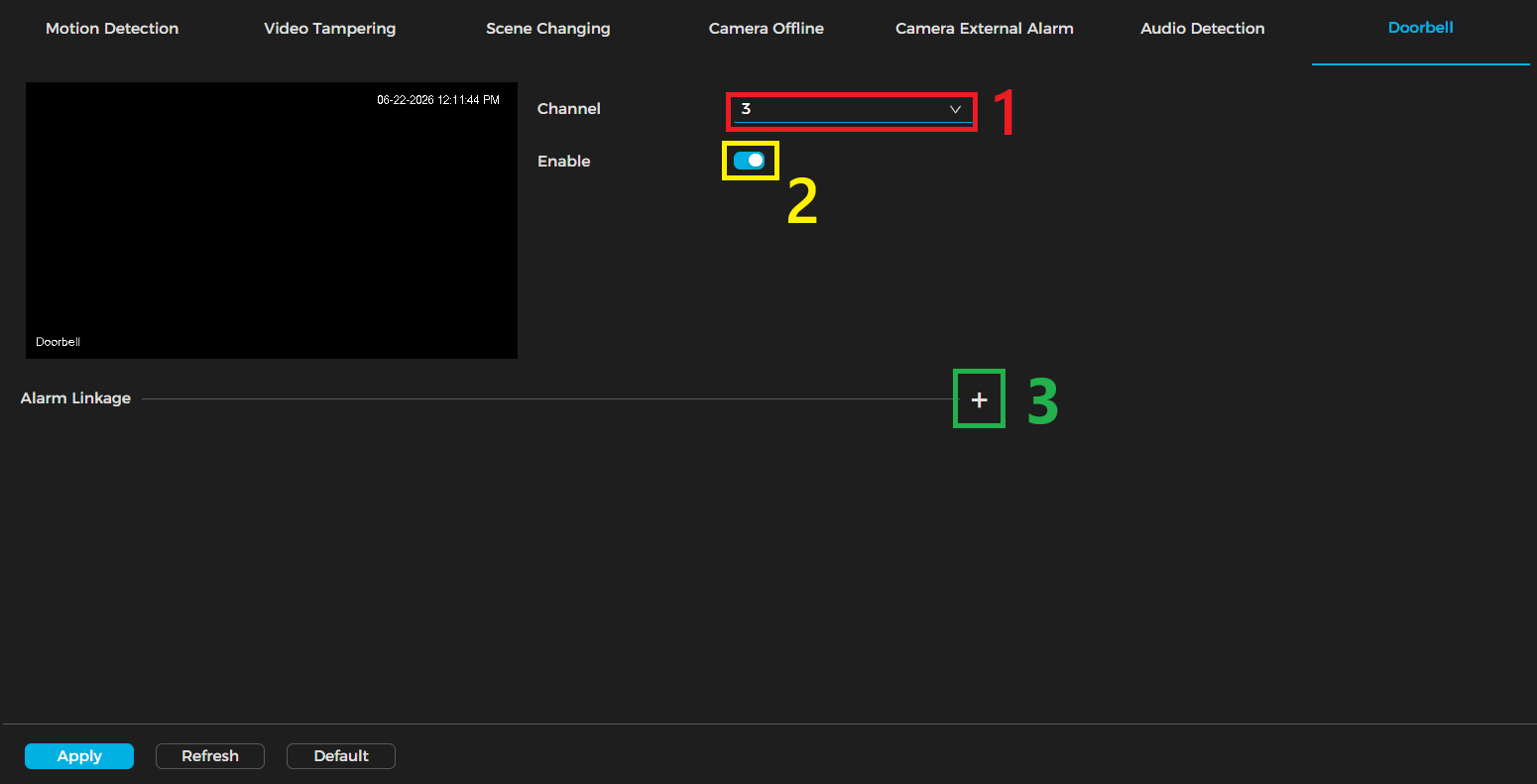
2. Click the Channel dropdown (1) and select the channel you connected the doorbell to. Then, enable the toggle switch (2) to activate the alarm function. After that, click the Alarm Linkage plus sign (3) to expand the linkage menu.
3. Configure all linkages, then click Apply.
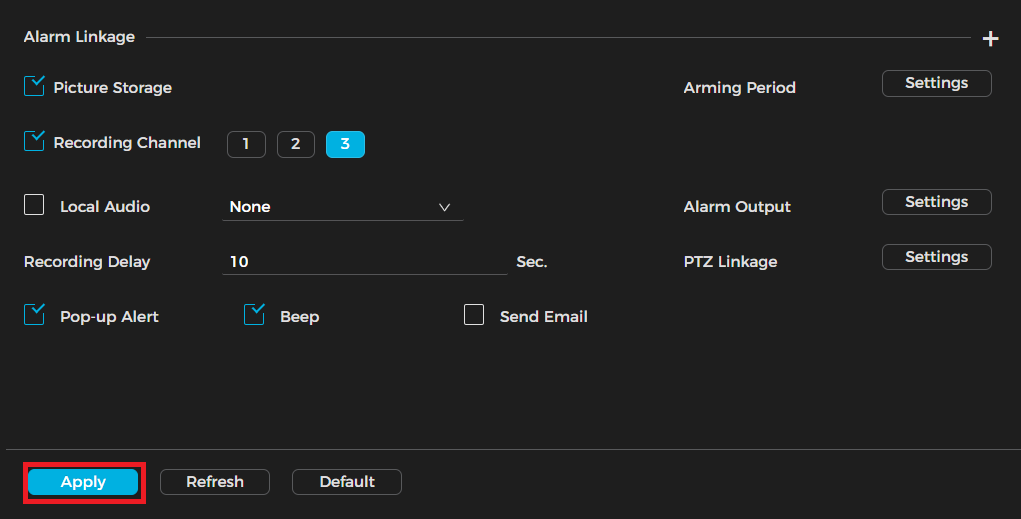
| Term | Description | ||
|---|---|---|---|
| Picture Storage | Saves images when alarm detected and can attach snapshots to emails when used with the “Send Email” feature. | Arming Period | Defines schedules for motion detection activation based on specific dates and times. |