LumiPlayer/How to use Watermark Detection in LumiPlayer: Difference between revisions
From Luminys WIKI
Techsupport (talk | contribs) |
Techsupport (talk | contribs) |
||
| Line 13: | Line 13: | ||
===Step by Step Instructions=== | ===Step by Step Instructions=== | ||
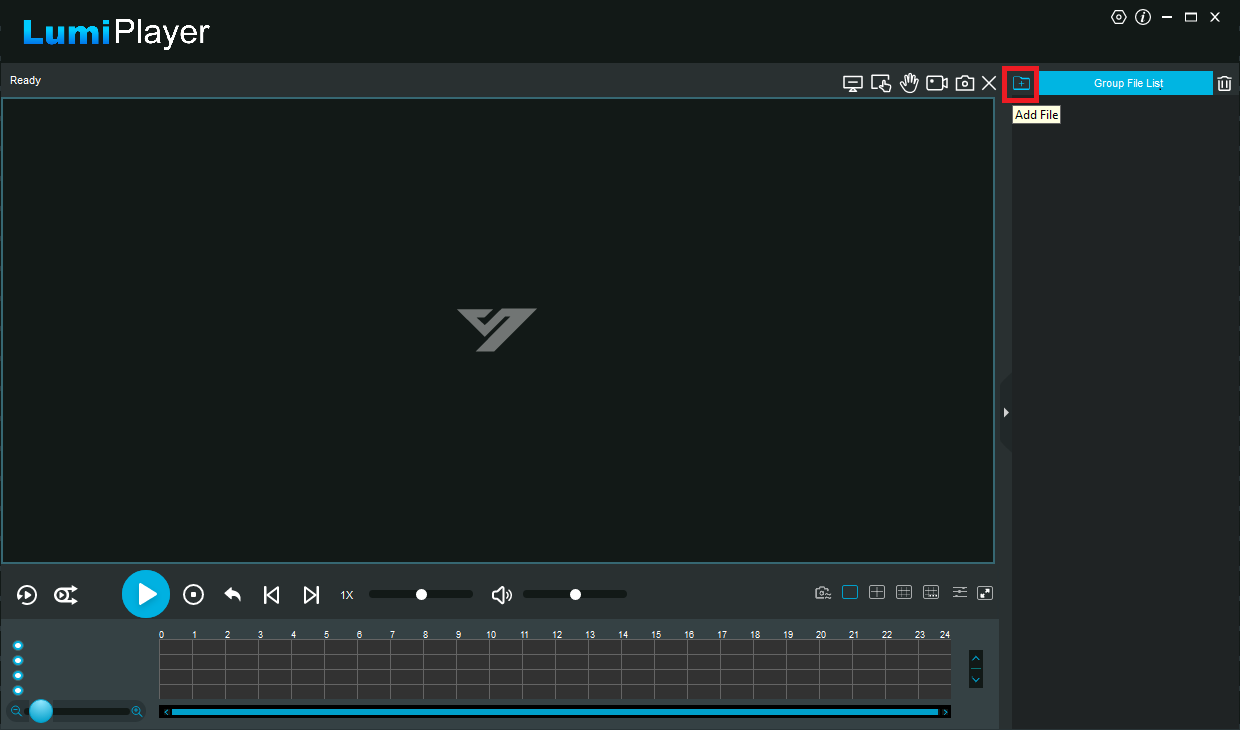
1. Launch the LumiPlayer software. Then, in the top-right corner, click the "Add File" icon. | 1. Launch the LumiPlayer software. Then, in the top-right corner, click the "Add File" icon. | ||
[[File:LumiPlayer_WD_1.png|1024px|link=https://wiki.luminyscorp.com/images/8/89/LumiPlayer_WD_1.png]] | [[File:LumiPlayer_WD_1.png|1024px|link=https://wiki.luminyscorp.com/images/8/89/LumiPlayer_WD_1.png]] | ||
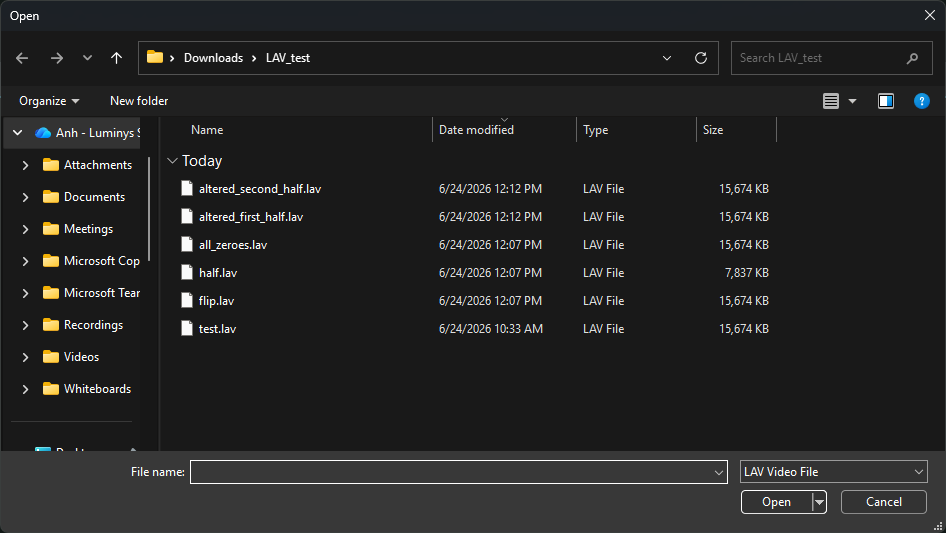
2. Select the LAV file you want to use to check the watermark. | |||
Note: All files in the same folder will also be automatically added to the list. | |||
[[File:LumiPlayer_WD_2.png|1024px|link=https://wiki.luminyscorp.com/images/0/0a/LumiPlayer_WD_2.png]] | |||
3. Click the '''Watermark Detection''' icon at the bottom. | |||
Revision as of 14:49, 24 June 2026

Watermark Detection in LumiPlayer
Description
This tutorial will go over how to use Watermark Detection feature in LumiPlayer.
Prerequisites
- Ensure the LumiViewer application is installed on the computer.
- Download the playback video to the computer.
- Verify that the playback video uses the LAV extension (REQUIRED).
Step by Step Instructions
1. Launch the LumiPlayer software. Then, in the top-right corner, click the "Add File" icon.
2. Select the LAV file you want to use to check the watermark. Note: All files in the same folder will also be automatically added to the list.
3. Click the Watermark Detection icon at the bottom.