LumiCloud/Preset and Tour: Difference between revisions
From Luminys WIKI
Techsupport (talk | contribs) |
Techsupport (talk | contribs) |
||
| Line 10: | Line 10: | ||
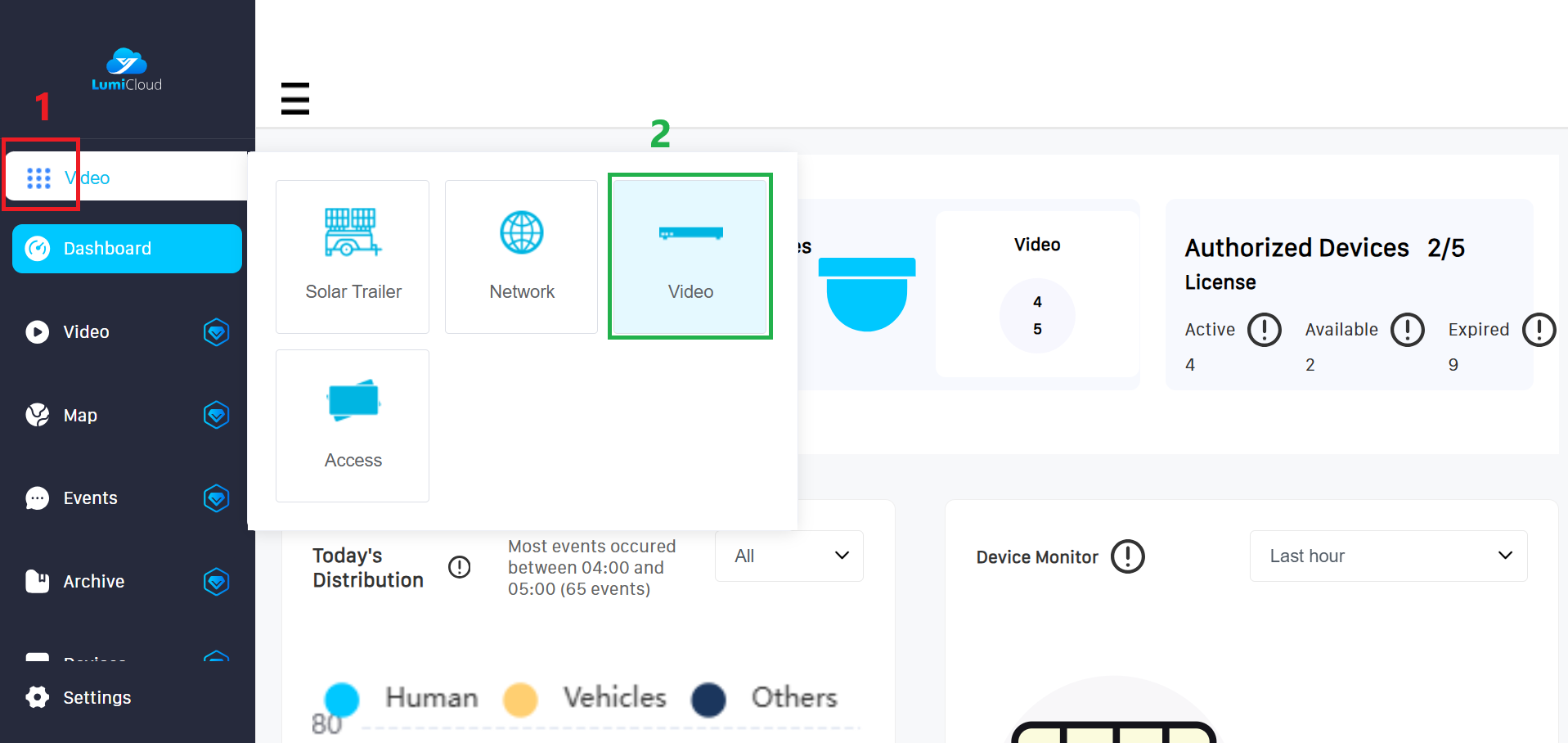
1. After logging in, select launcher <span style = "color: red"> (1) </span> icon from the left panel, then choose the "Video" <span style = "color: green"> (2) </span> option. | 1. After logging in, select launcher <span style = "color: red"> (1) </span> icon from the left panel, then choose the "Video" <span style = "color: green"> (2) </span> option. | ||
[[File: | [[File:PTZ_Preset_cloud_1.png|1000px|link=https://wiki.luminyscorp.com/images/b/ba/PTZ_Preset_cloud_1.png]] | ||
Revision as of 10:33, 10 June 2026
Description
This tutorial will go over how to setup preset and tour in LumiCloud for PTZ cameras.
Prerequisites
- LumiCloud account logged in to https://webapp.lumicloud.com
- Device with licensed video channels
Instructions
1. After logging in, select launcher (1) icon from the left panel, then choose the "Video" (2) option.