LumiCloud/Preset and Tour: Difference between revisions
From Luminys WIKI
Techsupport (talk | contribs) |
Techsupport (talk | contribs) |
||
| Line 11: | Line 11: | ||
[[File:PTZ_Preset_cloud_1.png|1000px|link=https://wiki.luminyscorp.com/images/b/ba/PTZ_Preset_cloud_1.png]] | [[File:PTZ_Preset_cloud_1.png|1000px|link=https://wiki.luminyscorp.com/images/b/ba/PTZ_Preset_cloud_1.png]] | ||
2. Select the “Video” tab <span style = "color: red"> (1) </span> on the left panel, locate the PTZ camera <span style = "color: yellow; back-ground: black" > (2) </span> for which you want to create a preset, and then click the PTZ icon <span style = "color: green"> (3) </span> at the bottom. | |||
Revision as of 10:41, 10 June 2026
Description
This tutorial will go over how to setup preset and tour in LumiCloud for PTZ cameras.
Prerequisites
- LumiCloud account logged in to https://webapp.lumicloud.com
- Device with licensed video channels
Instructions
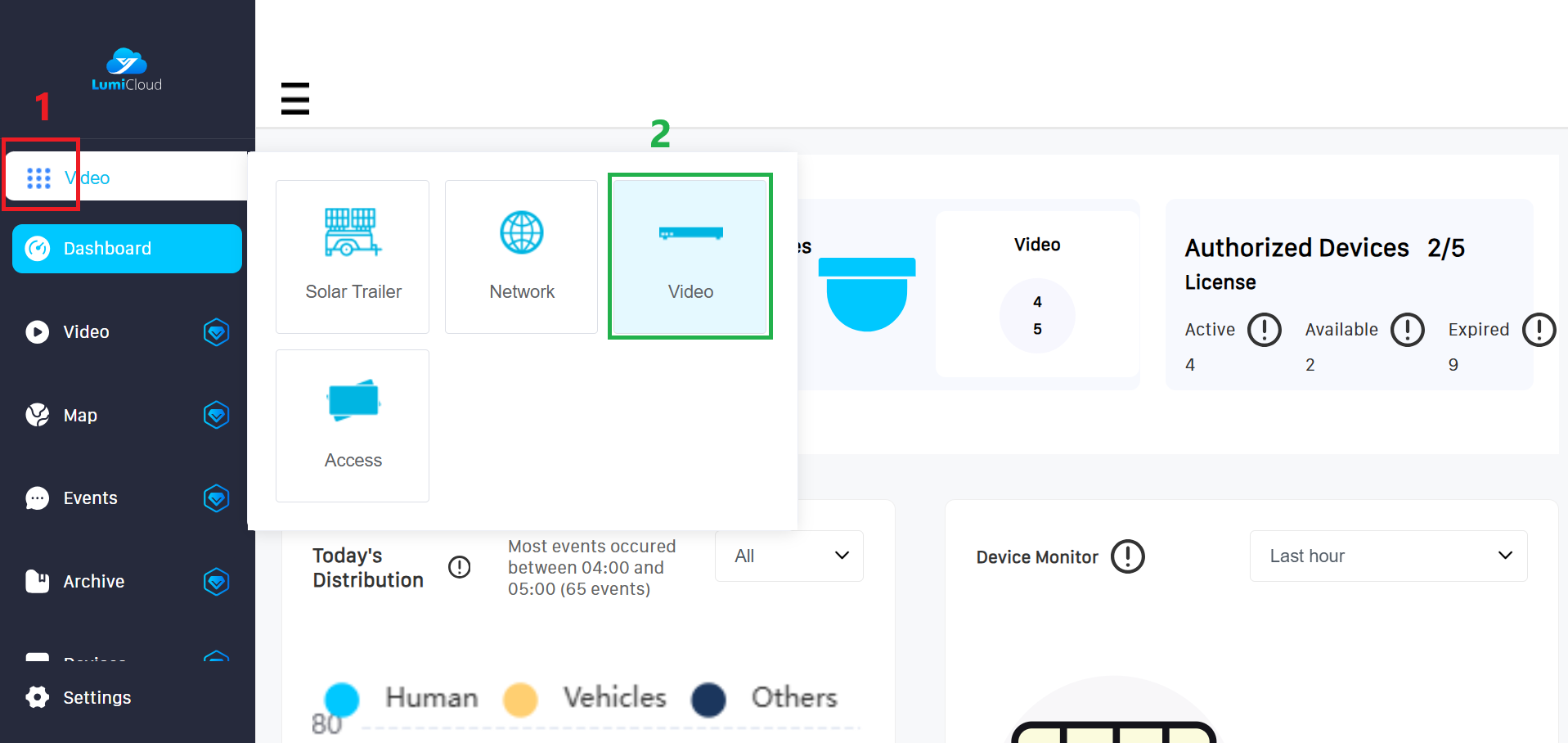
1. After logging in, select launcher (1) icon from the left panel, then choose the "Video" (2) option.
2. Select the “Video” tab (1) on the left panel, locate the PTZ camera (2) for which you want to create a preset, and then click the PTZ icon (3) at the bottom.

