NVR Timelapse
Timelapse feature for R5 series
Description
This tutorial will show you how to enable the timelapse feature on the R5 Series NVR, followed by how to export the video.
Prerequisites
- Web browser on a computer.
- Time-lapse is available on specific firmware versions only (contact Support)
Video Instructions
Coming Soon
Step by Step Instructions
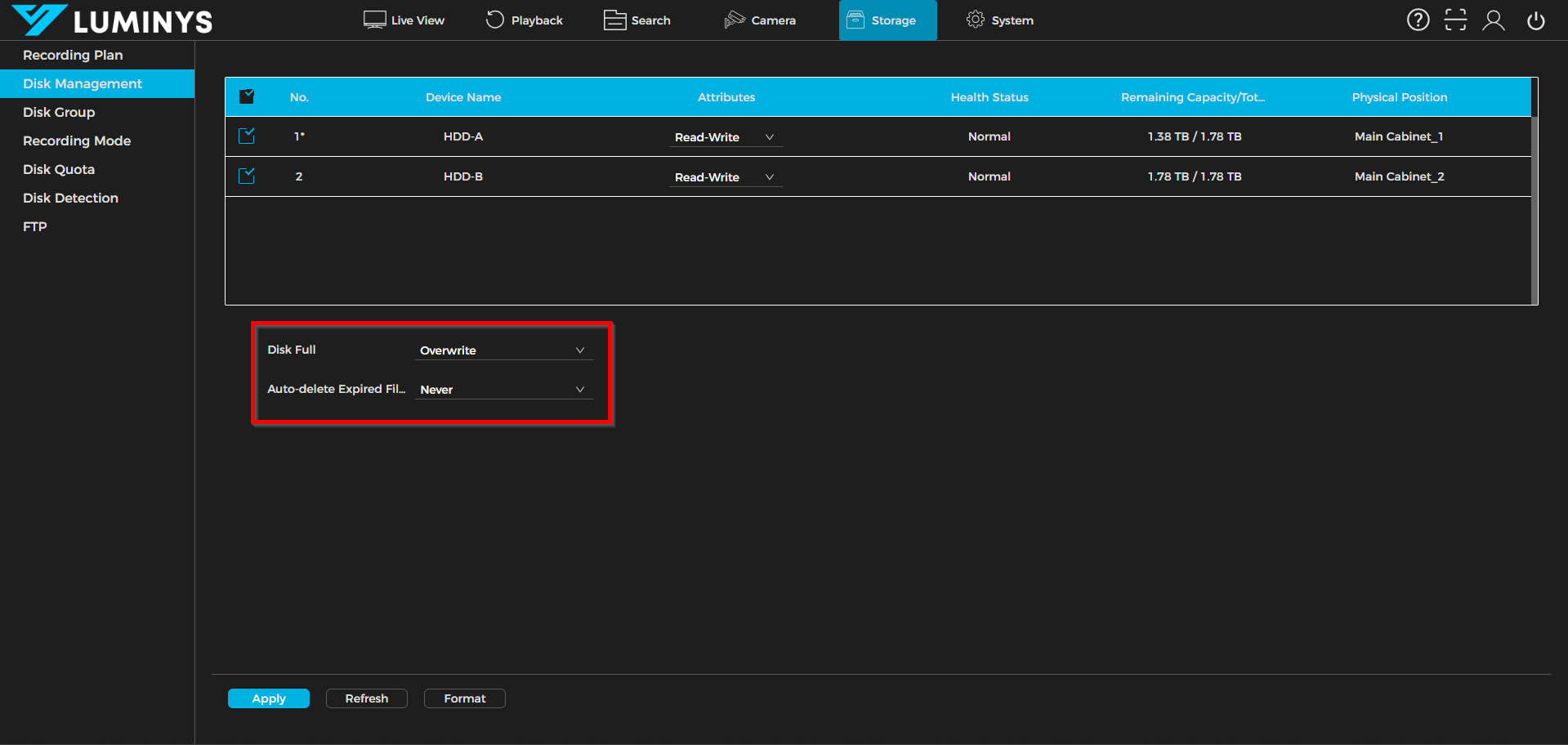
1. Under Storage, the list will display the connected hard drives. In this case, two hard drives are inserted.
Note: A star icon next to a number indicates the hard drive currently in use. Once the active hard drive is full, the star will shift to the other hard drive, indicating the change in recording location.
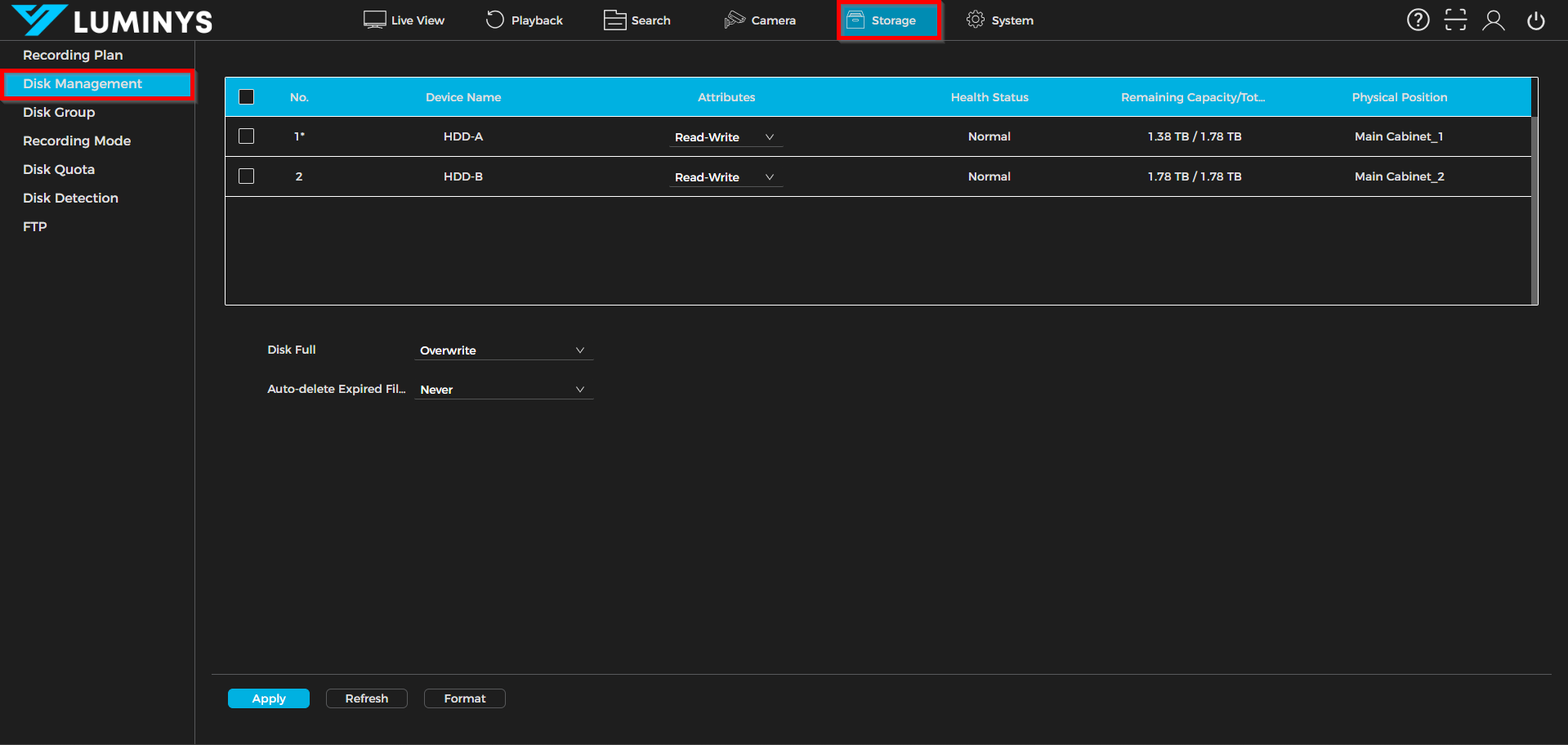
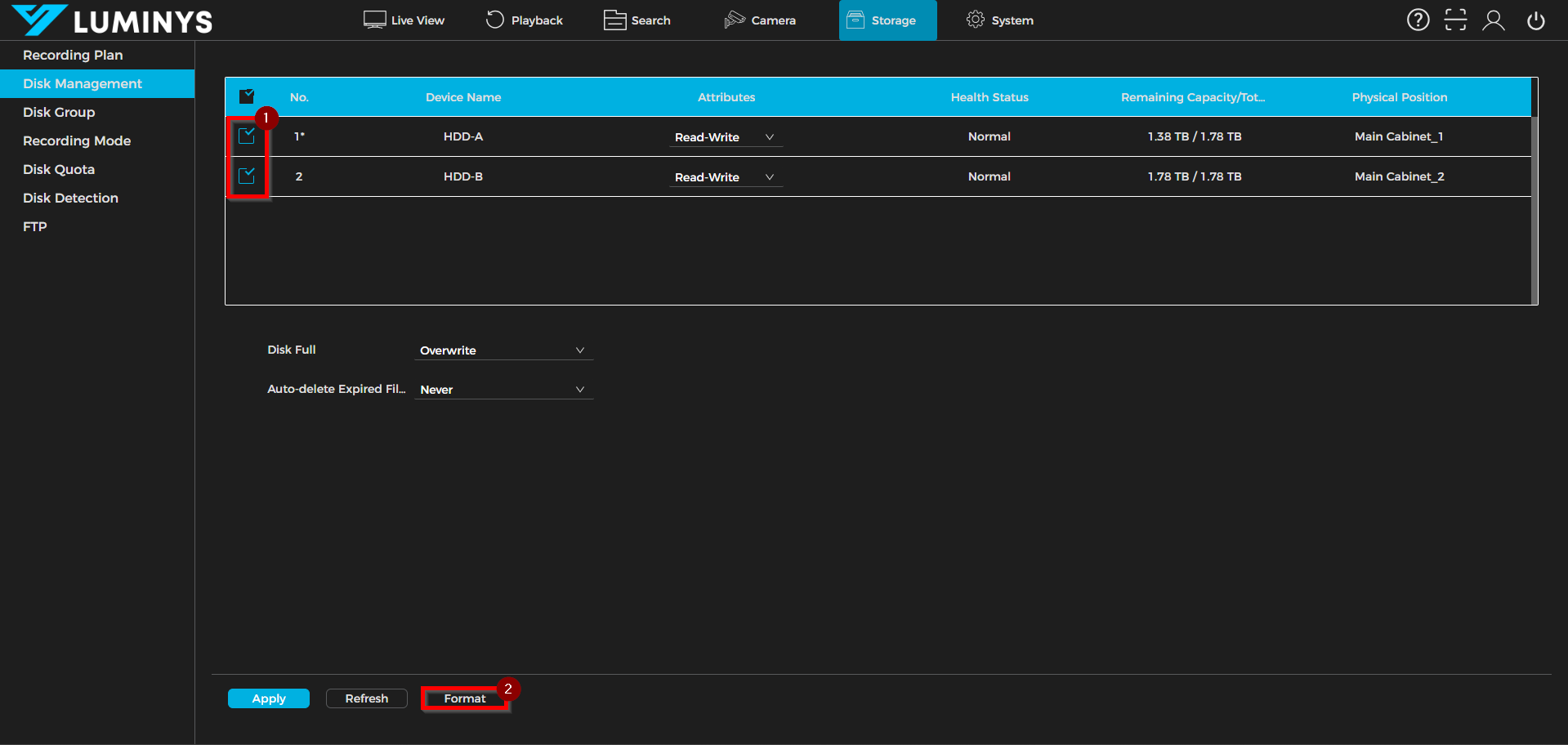
2. Select the desired hard drives for formatting, then click Format to begin the process.
3. By default, when the drives reach full capacity, the system will begin overwriting the oldest recordings. It is recommended to set Auto-delete expired Files to Never to ensure that recordings are only removed when the drives are full.