Video doorbell/Chime setup instructions

Description
This guide provides instructions for configuring your chime for an the video doorbell.
Prerequisites
- Video Doorbell initial setup instruction
- Power on the chime and wait for the green LED indicator to begin flashing.
Step by Step Instructions
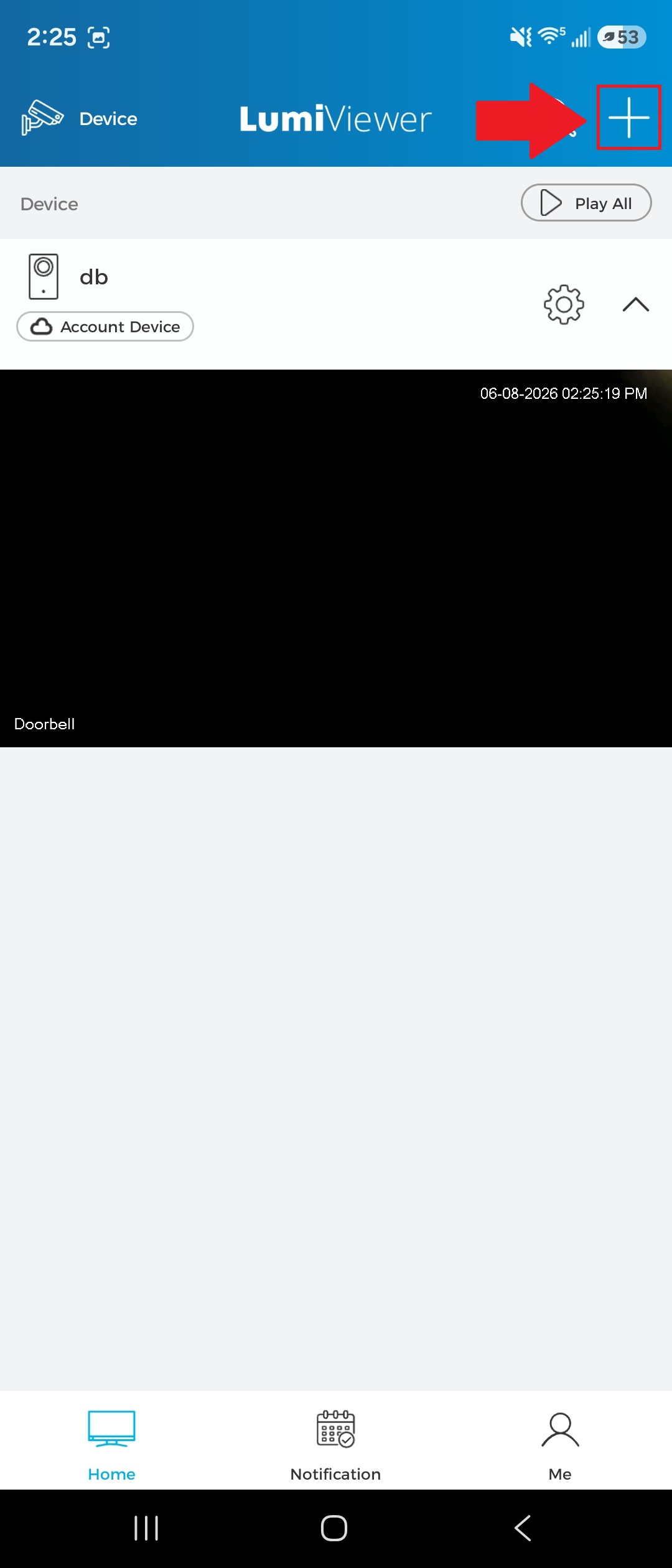
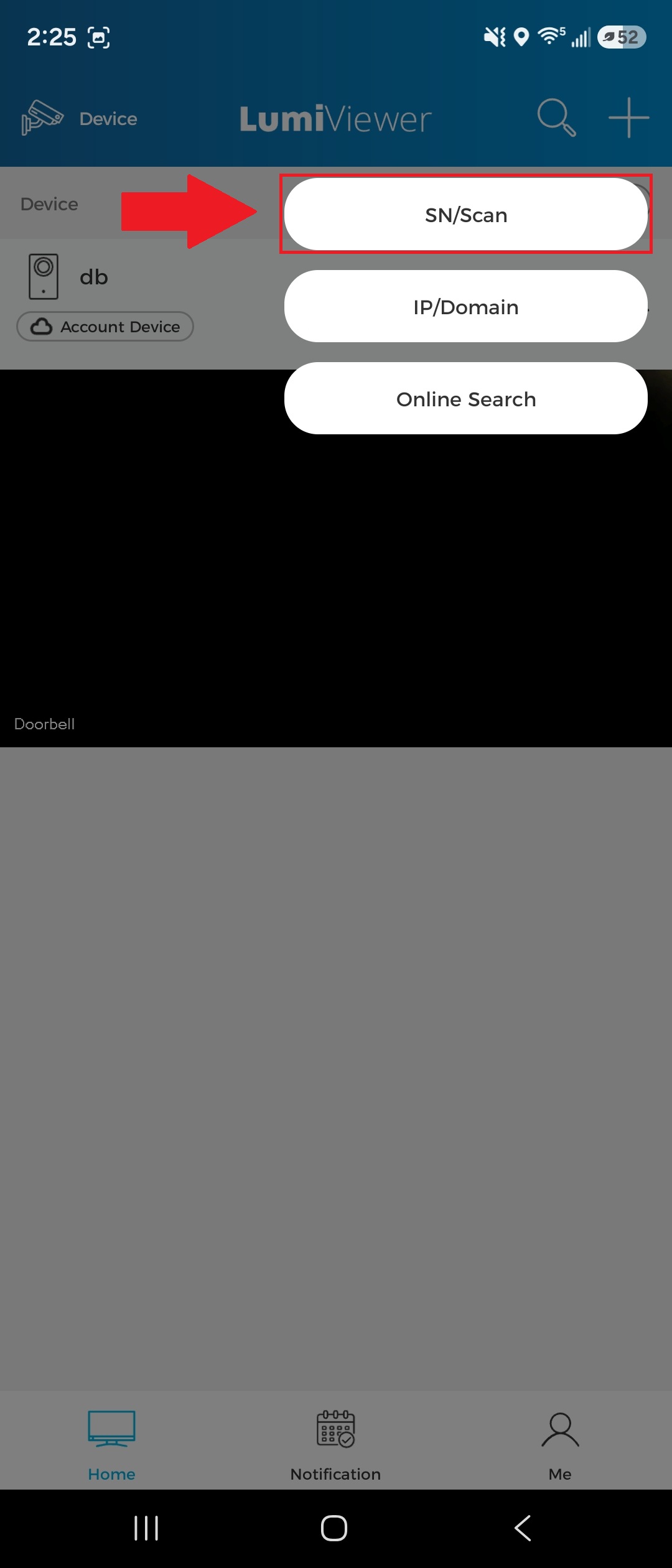
1. Tap the "+" icon in the top-right corner of the app, then select “SN/Scan.”
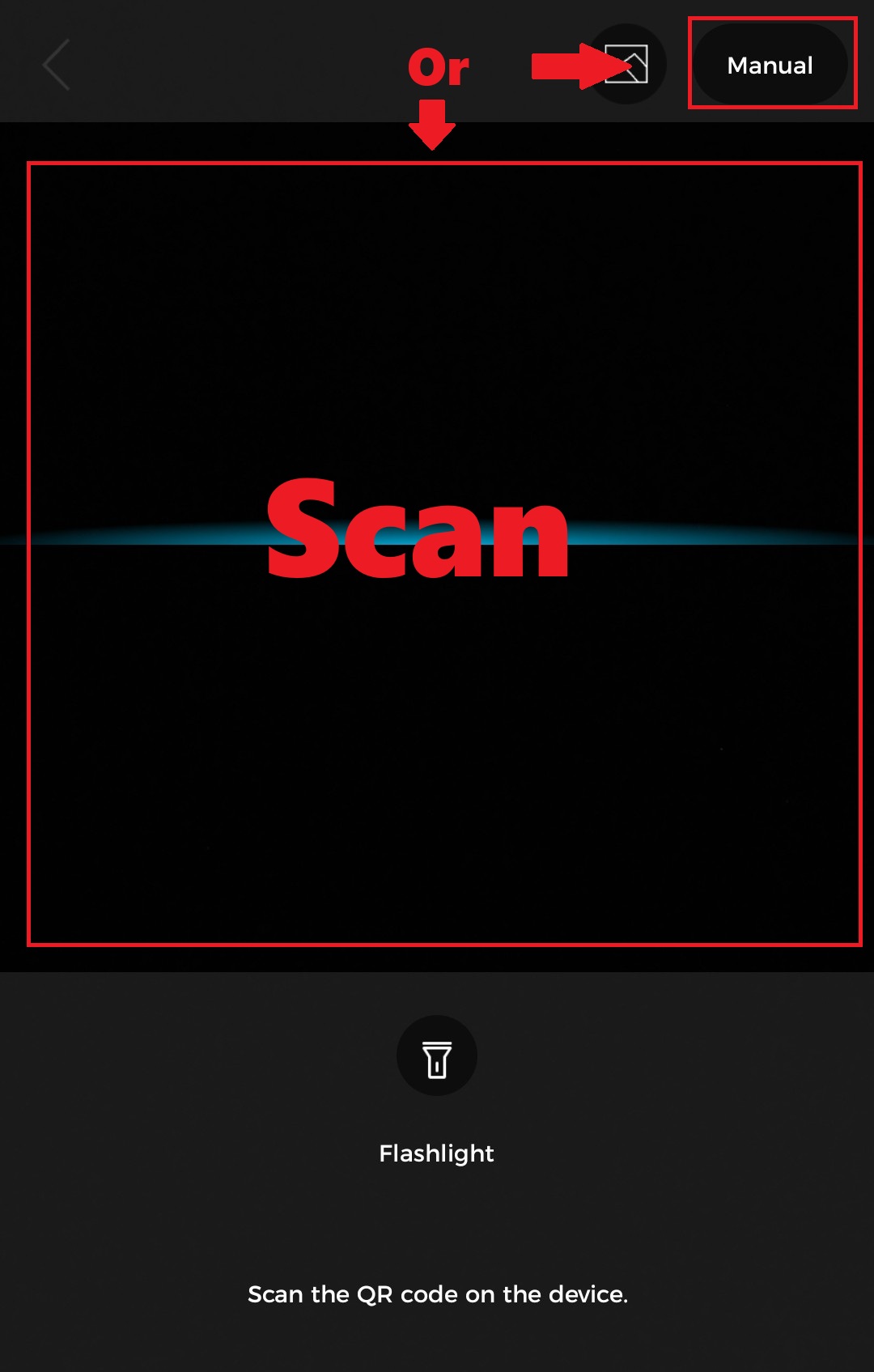
2. Scan the QR code on the product’s serial number (SN). Alternatively, tap the “Manual” button in the top-right corner to enter the SN manually.
3. If you scanned the QR code in the previous step, tap “Next” to continue. If you selected “Manual,” enter the serial number (SN) and then tap “Next” to proceed.
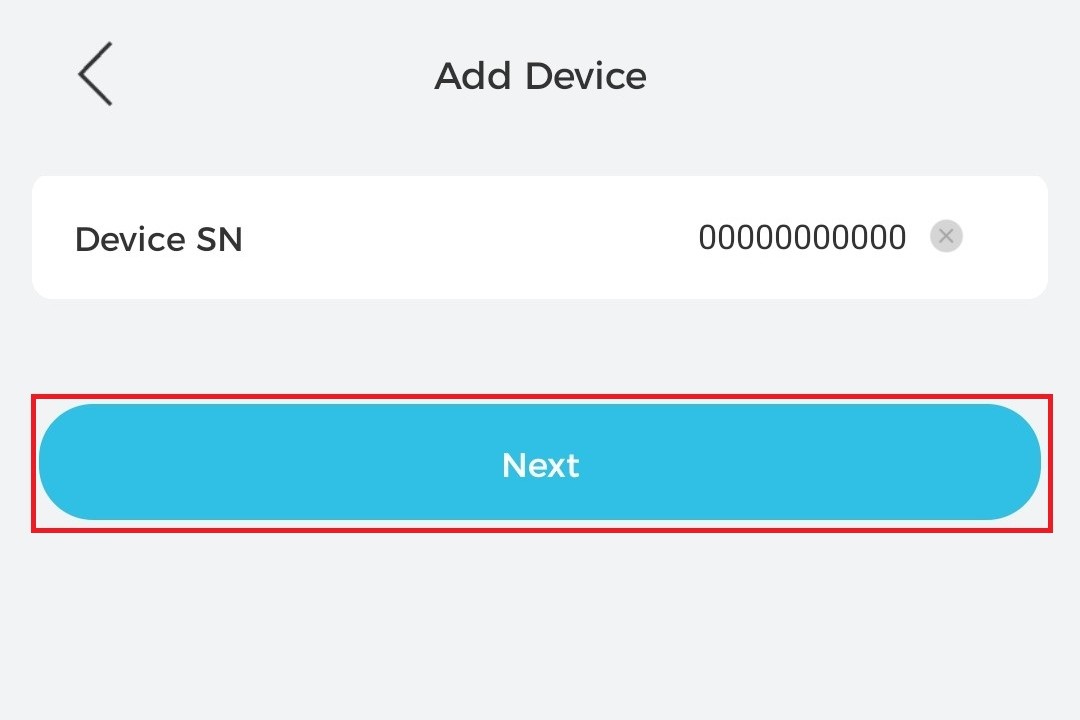
4. Follow the on-screen instructions, then tap “Next” to continue.
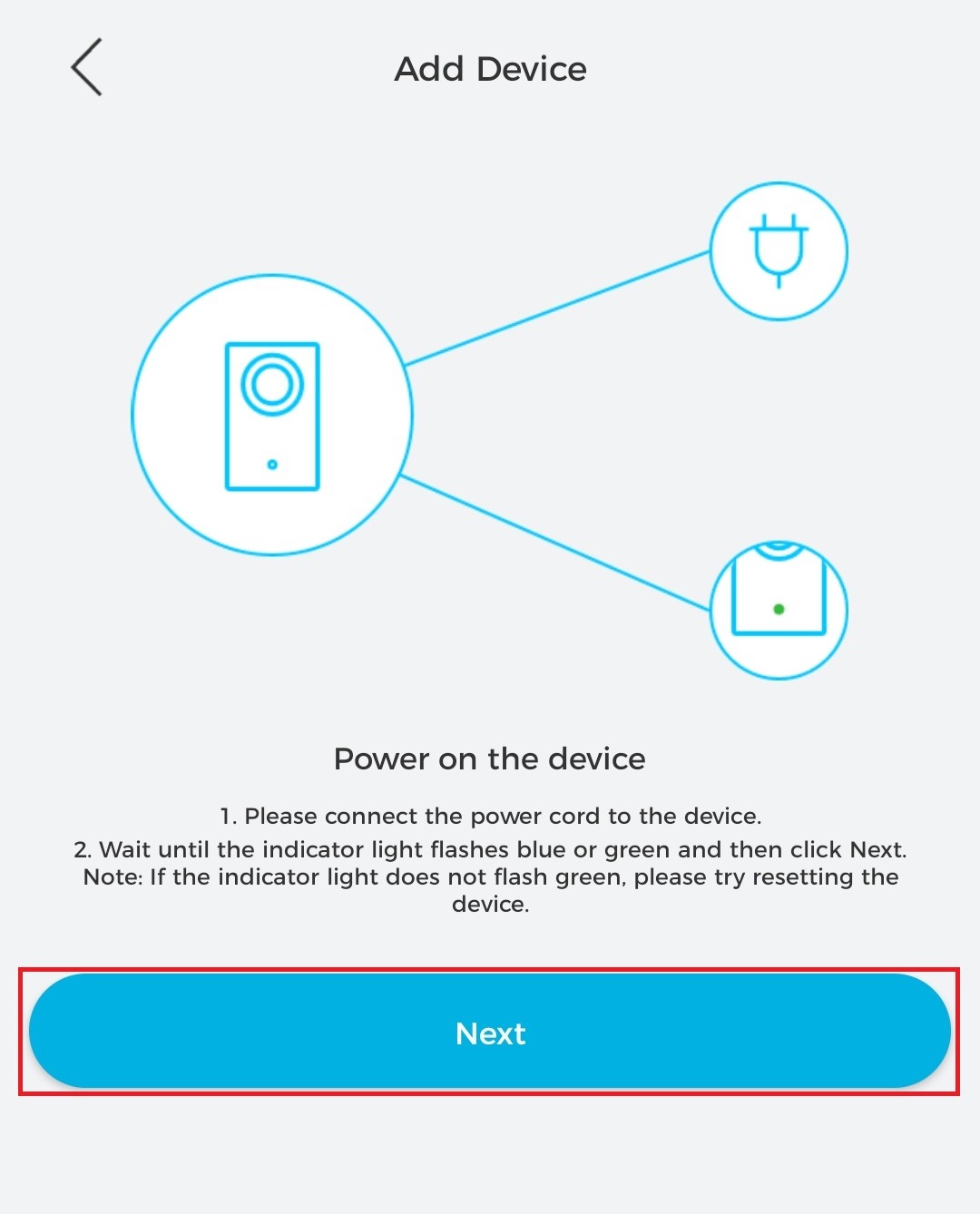
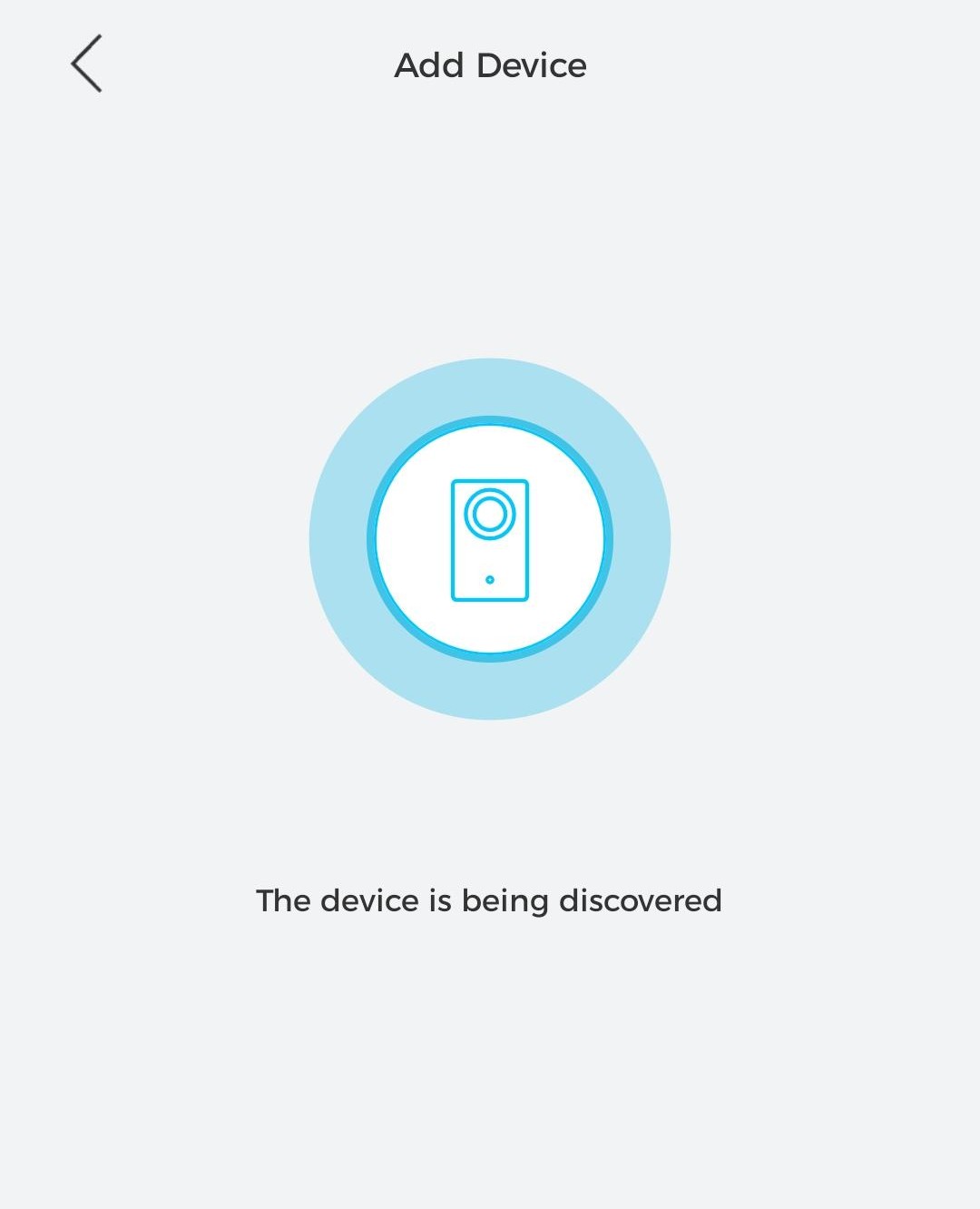
5. At this step, the following screen will appear. Please wait and keep your phone close to the doorbell.
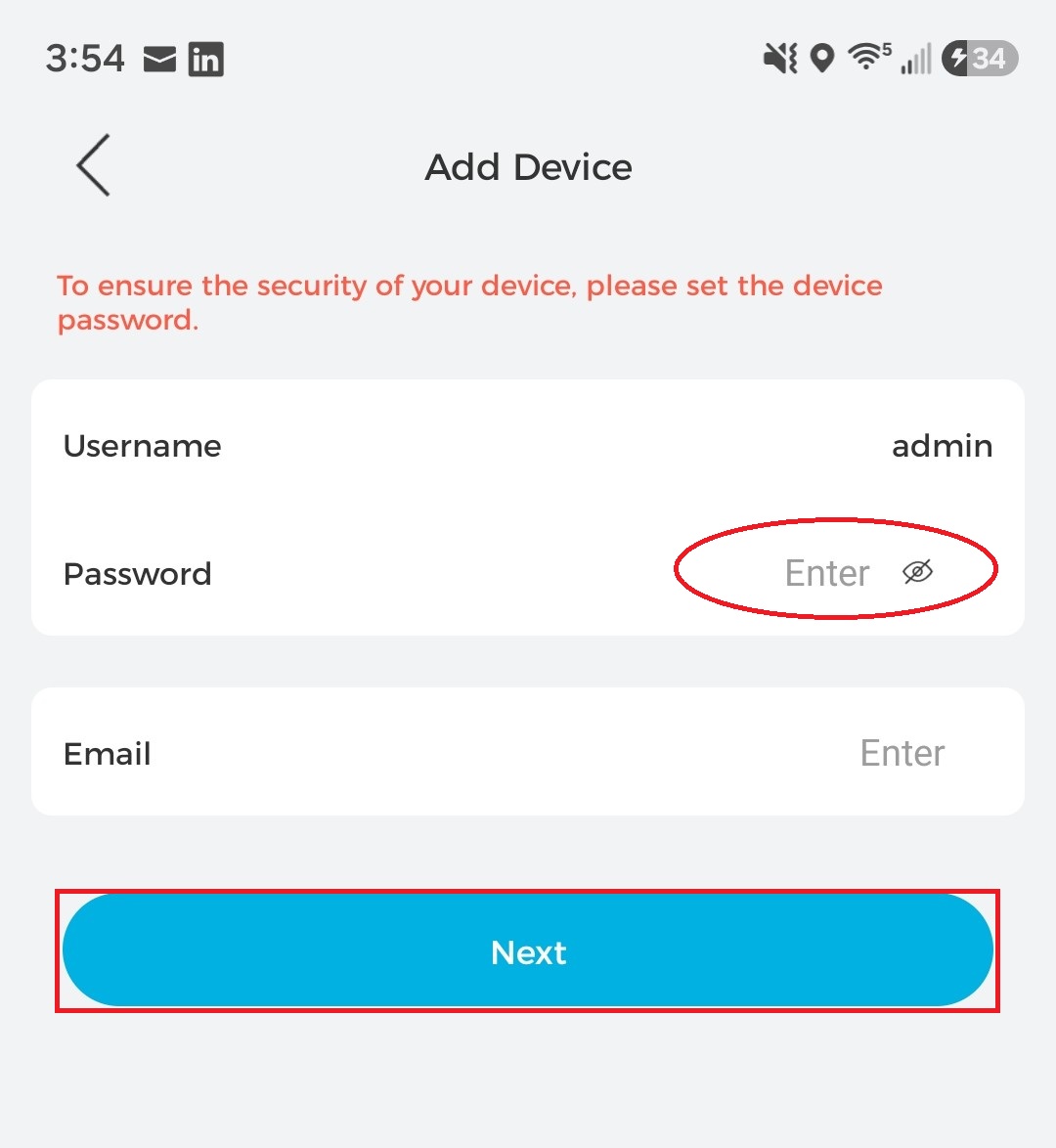
6. Create a password for the doorbell. Providing an email address is optional. Tap "Next" to continue
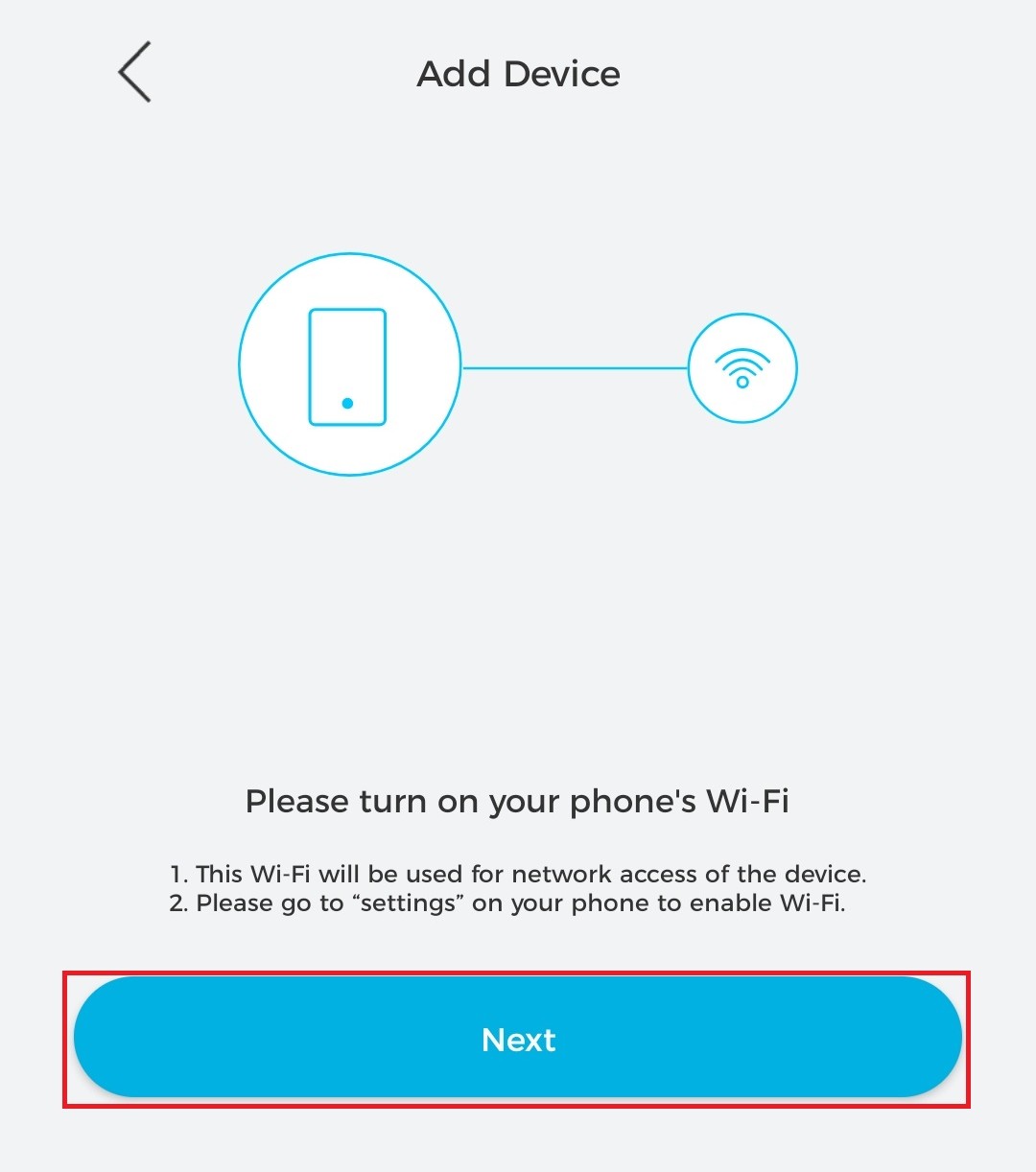
7. Ensure your phone’s Wi‑Fi is enabled, then tap “Next” to continue.
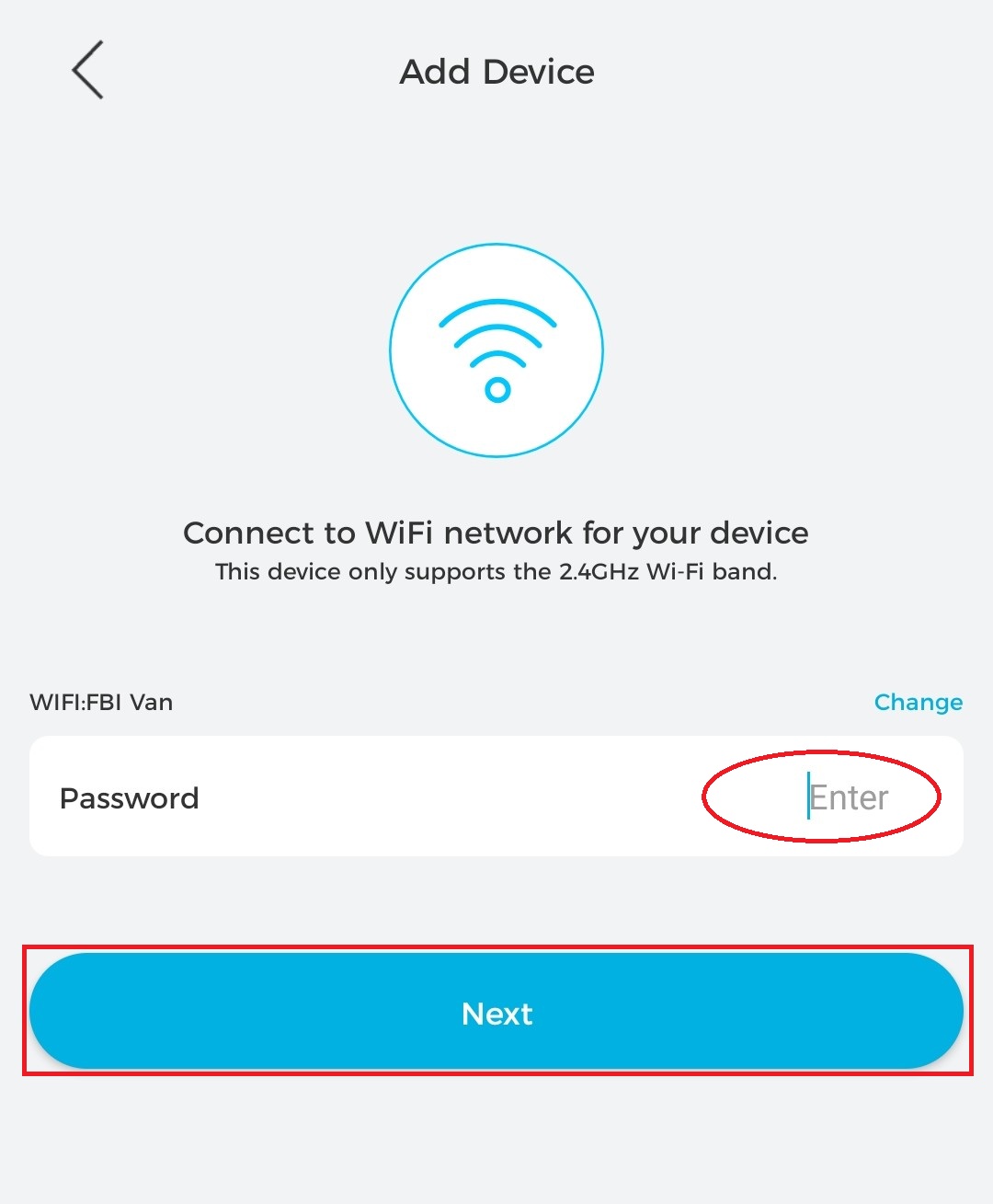
8. Enter your Wi‑Fi password, then tap “Next” to continue.
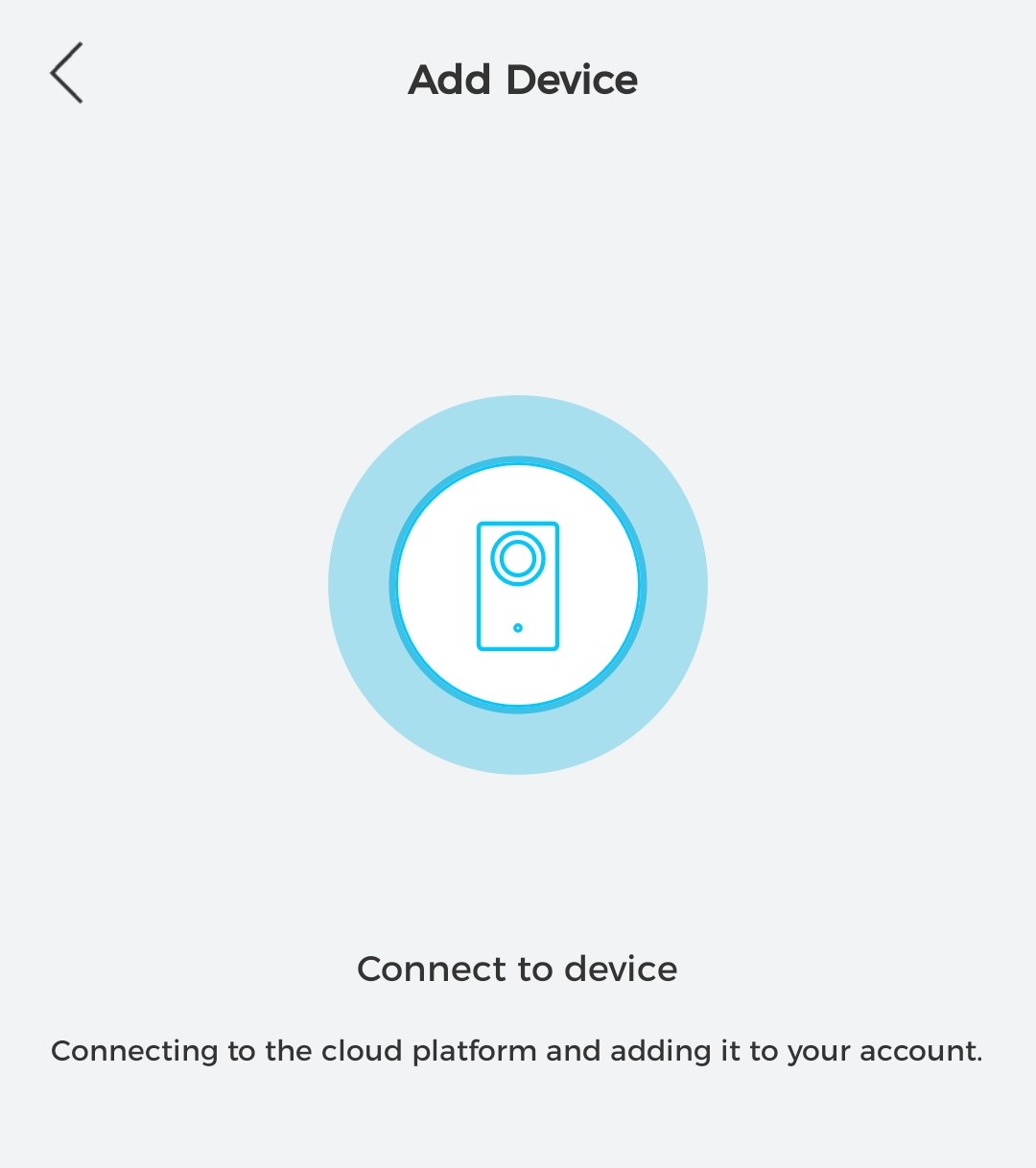
9. On this screen, wait without moving your phone too far away from the chime. This process may take several minutes to complete.
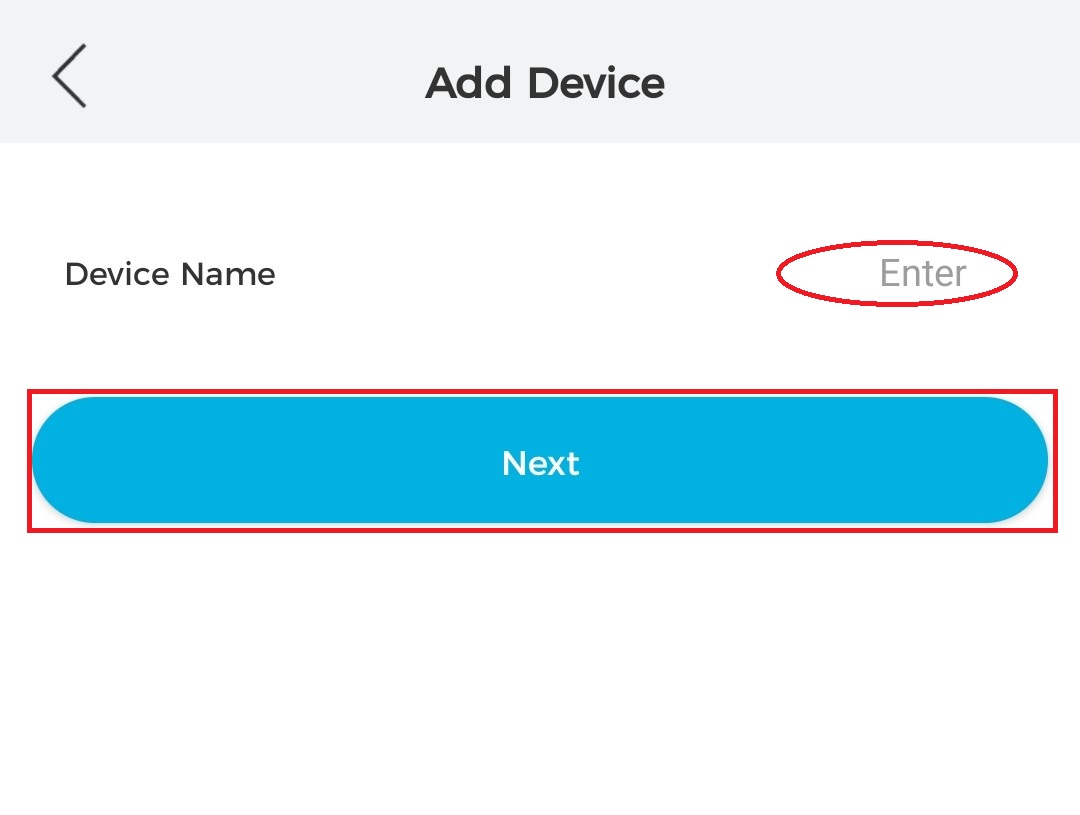
10. Assign a name to the chime, then tap “Next” to continue.
11. Select the doorbell you want to link the chime to, then tap “Next” to continue.

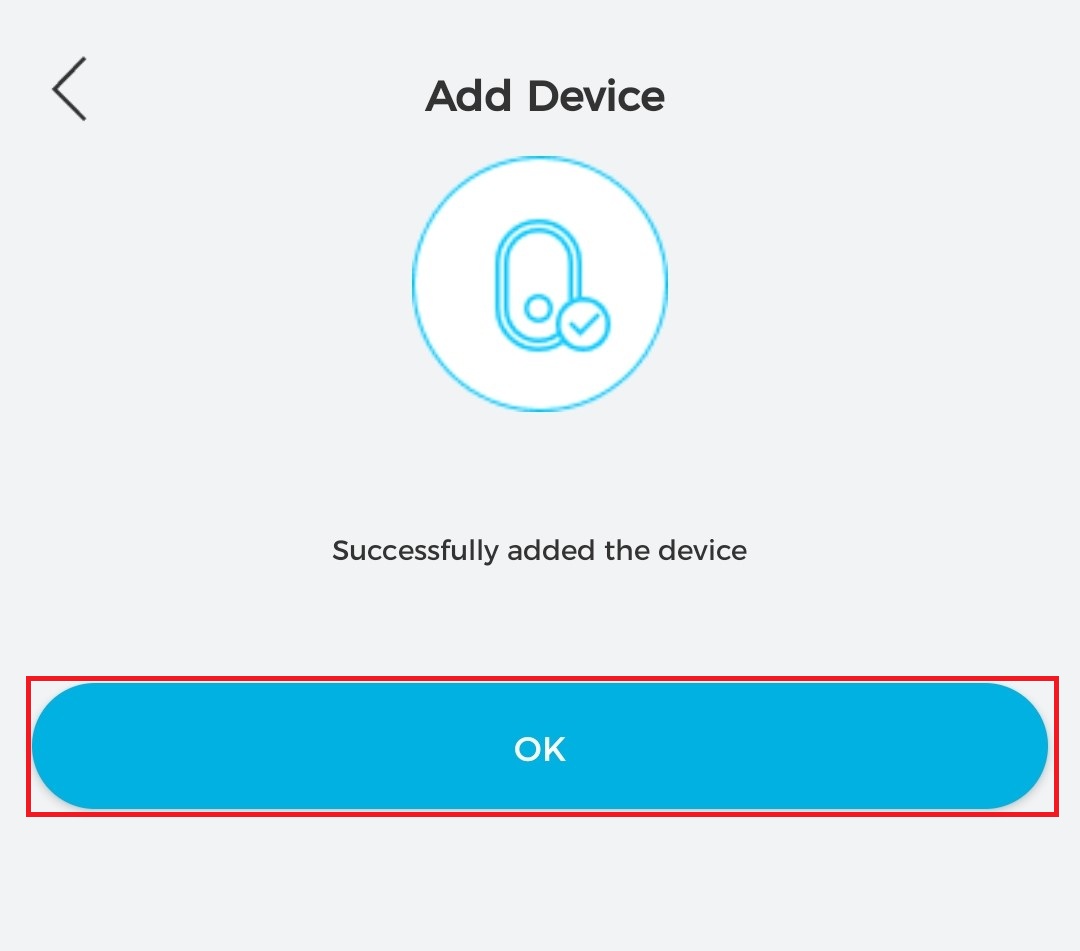
12. If this screen appears, the chime has been successfully linked to the doorbell. Tap “OK” to complete the setup.