NVR/Password Reset For Recorders via Recovery Email

Password Reset For Recorders via WebGUI
Description
This tutorial will go over how to reset the password of the recorder.
Prerequisites
- Accessing recorder's WebUI or local monitor, and have LumiViewer installed on mobile phone.
Video Instructions
Step by Step Instructions
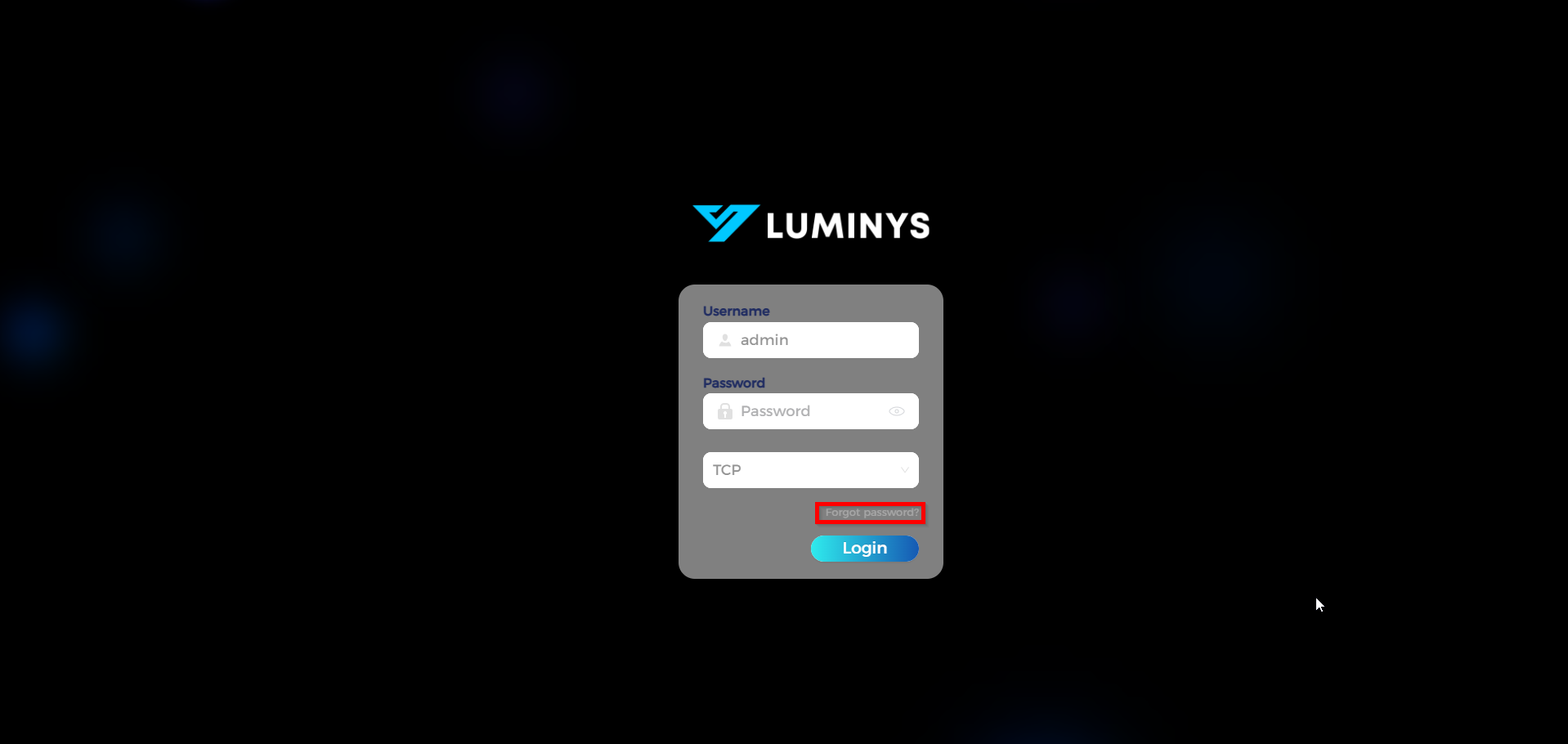
1. Load the WebUI using the recorders IP address or right click on the NVRs local monitor to prompt login. On WebUI, select "Forgot password?" to continue. On the local monitor, if you are prompted for a pattern click "Forgot Pattern" and then click the password reset button to the right of the password field at login.
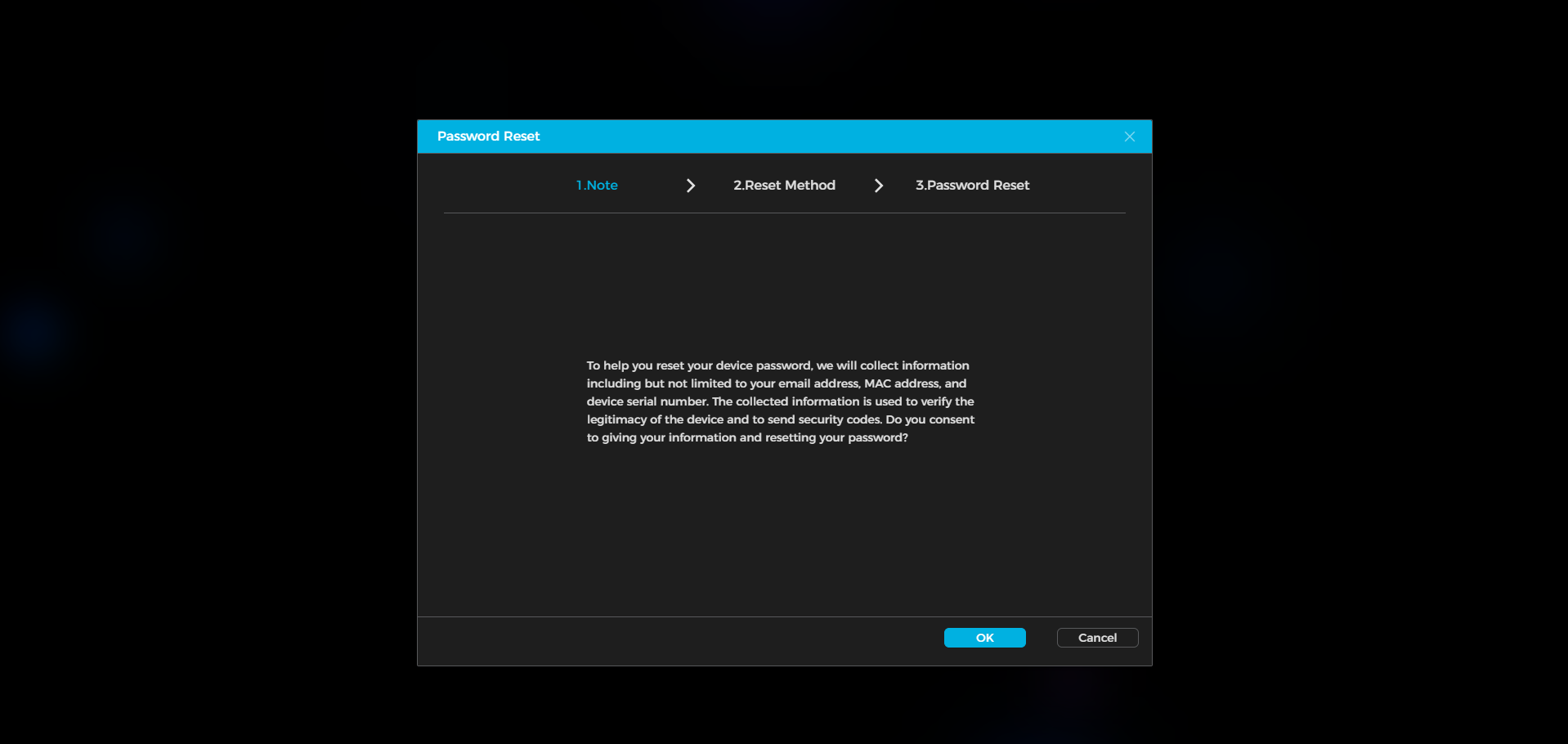
2. Select "OK" to continue.
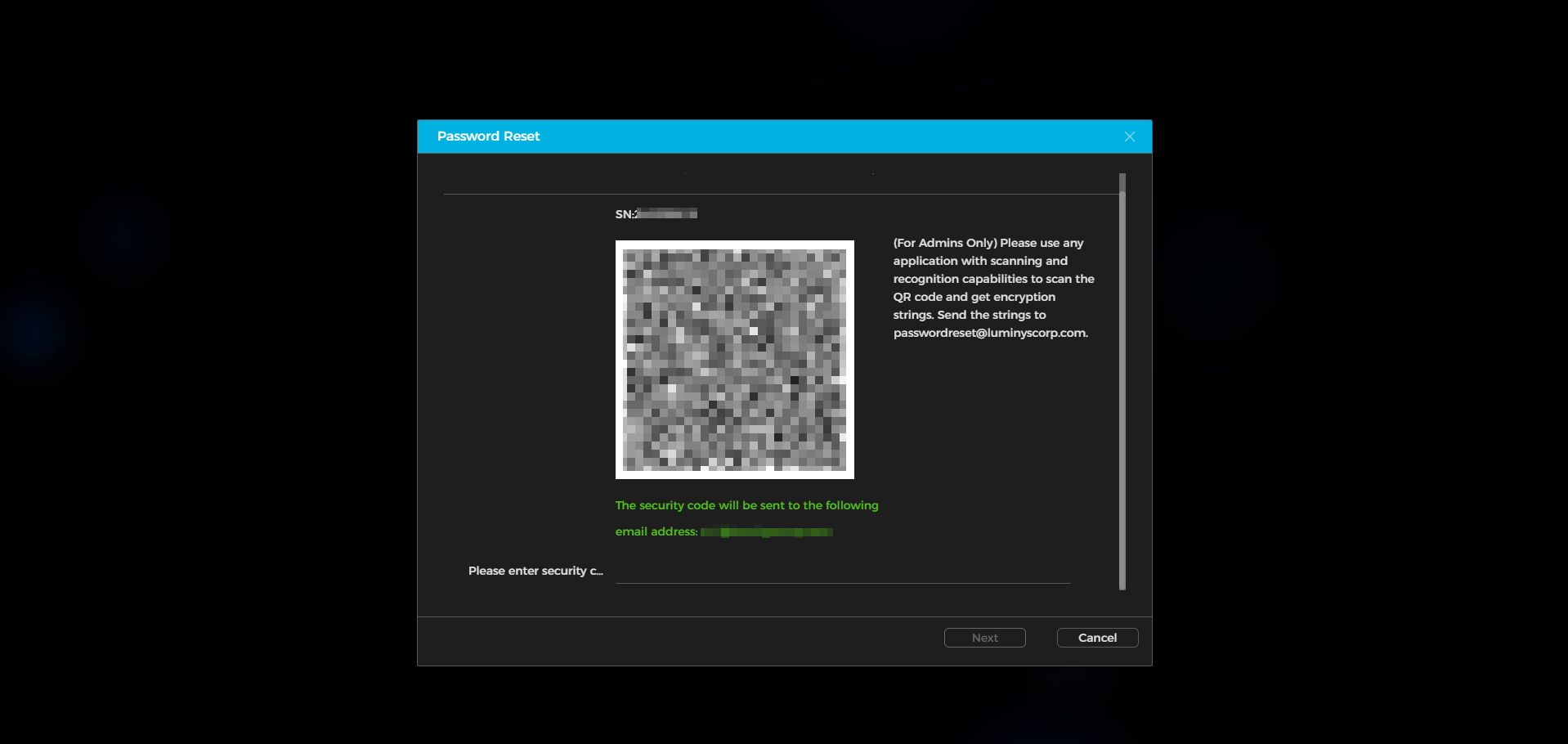
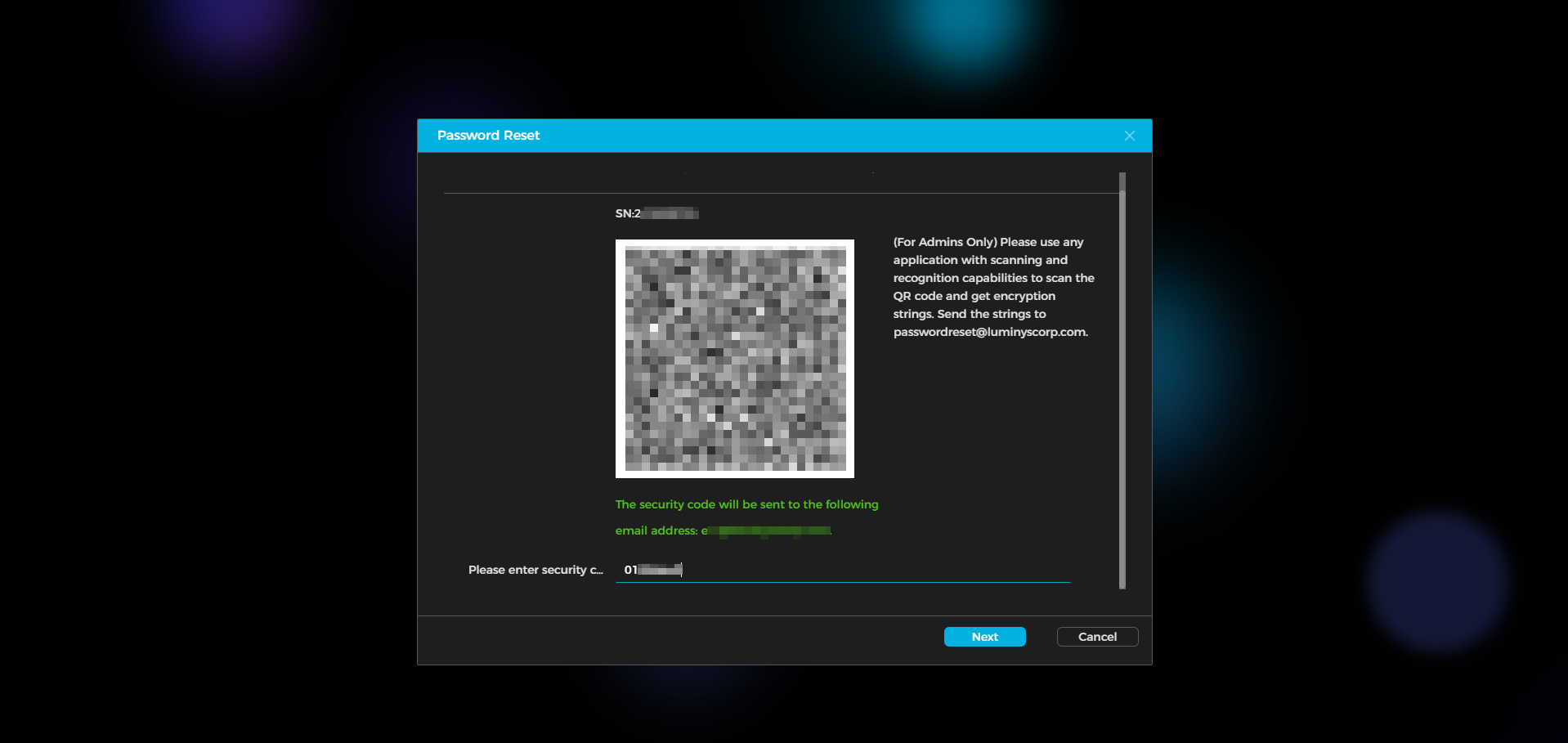
3. A QR code will be displayed in the center, with the serial number above it and the email address below. Use the LumiViewer app to scan the QR code.
4. Open LumiViewer and navigate to "Me" followed by "Password Security".
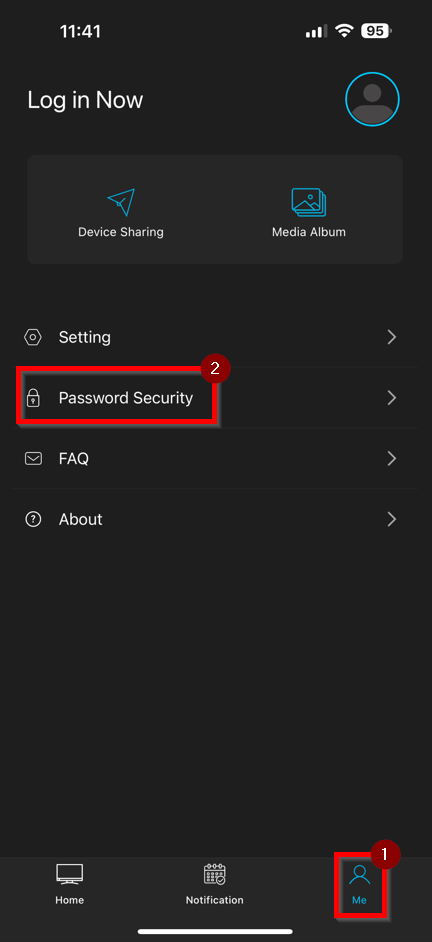
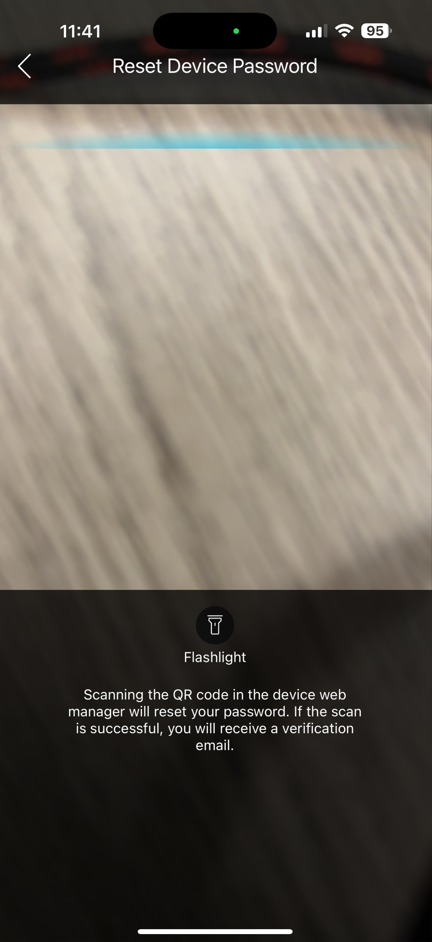
5. Scan the previously displayed QR code from the recorder.
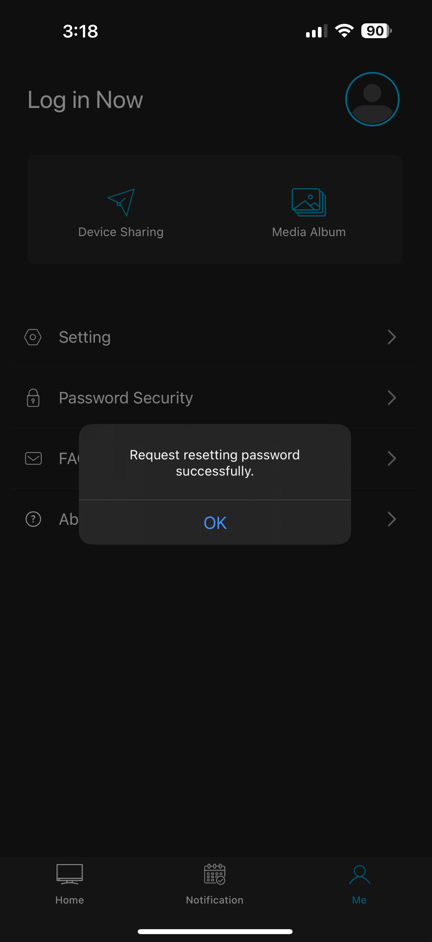
6. A pop-up message will appear confirming that the email has been sent.
7. After some time, check the email for a message containing the reset code.

8. After retrieving the reset code, return to the browser, enter the code, and select "Next".
9. Enter the new password for the admin user account twice and select "OK".
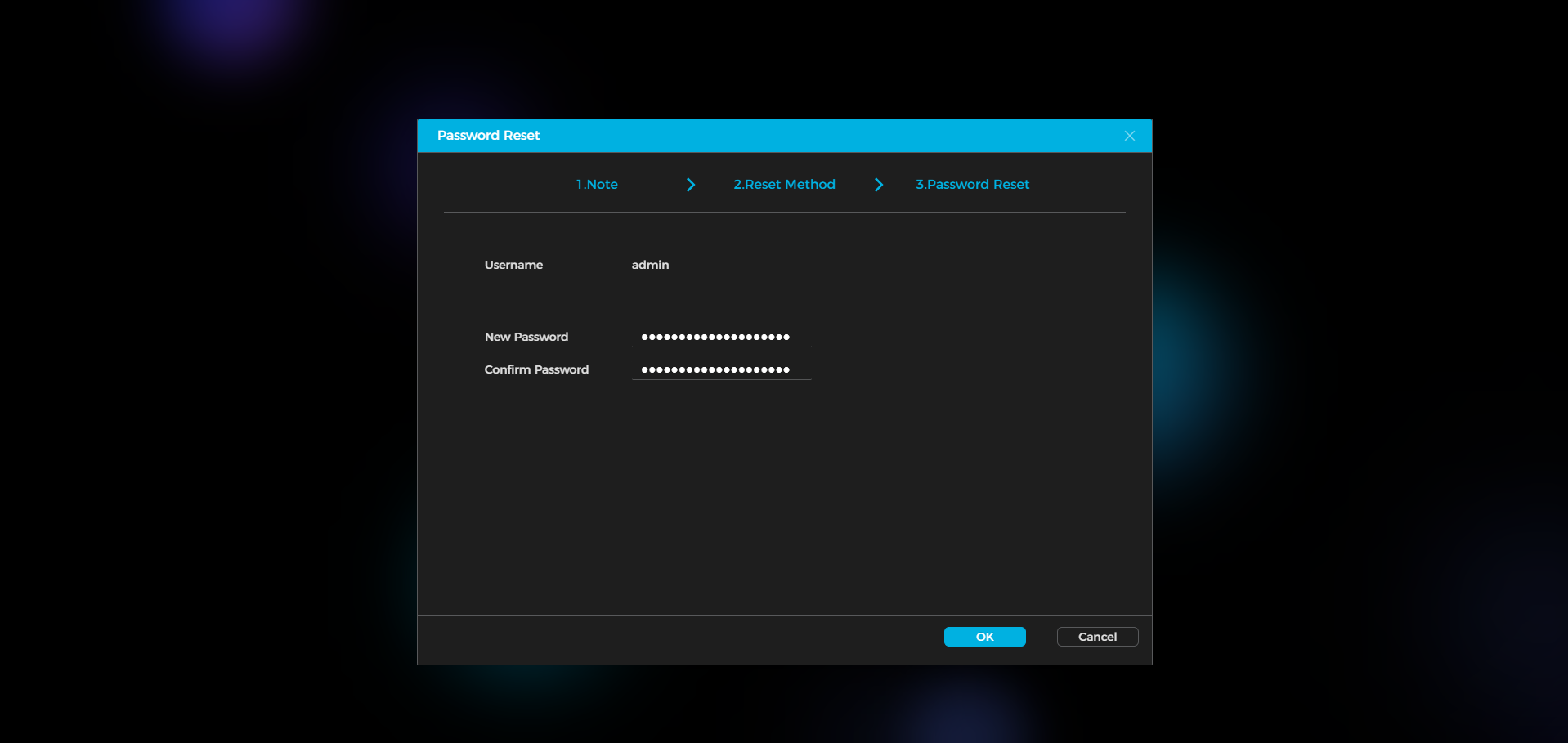
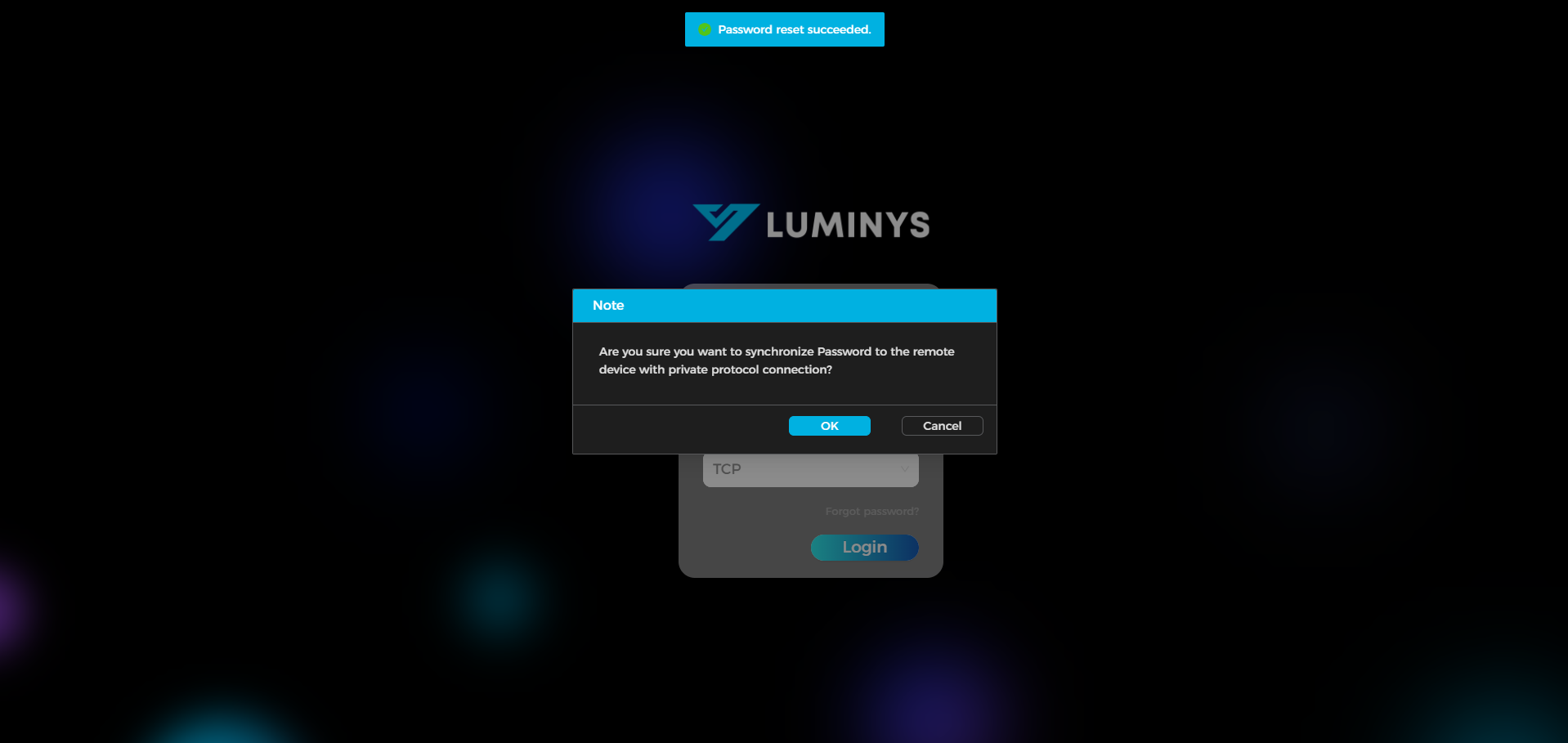
10. A green prompt message will appear at the top of the screen to indicate success. A pop-up will follow, asking if the newly created password should auto-populate on all added devices. This can be ignored by selecting "Cancel".