LumiGuardian/Check battery status

Description
This tutorial will go over on how to check battery status.
NOTE: It is strongly recommended to check the battery status before performing any installation.
Prerequisites
- All necessary tools will be provided inside the storage box.
Step by step
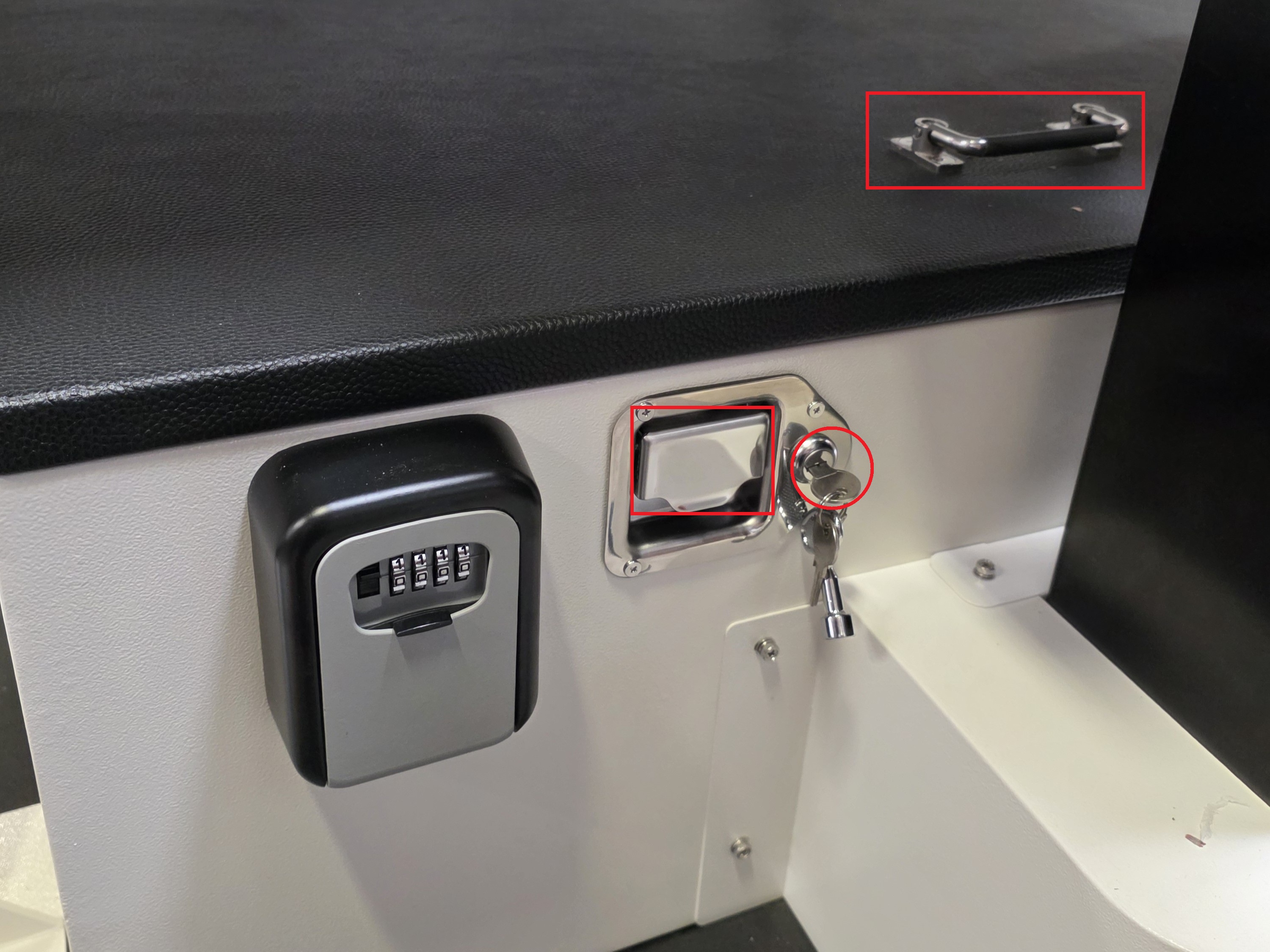
1. Pull down the black cover on the lockbox to reveal the keypad.
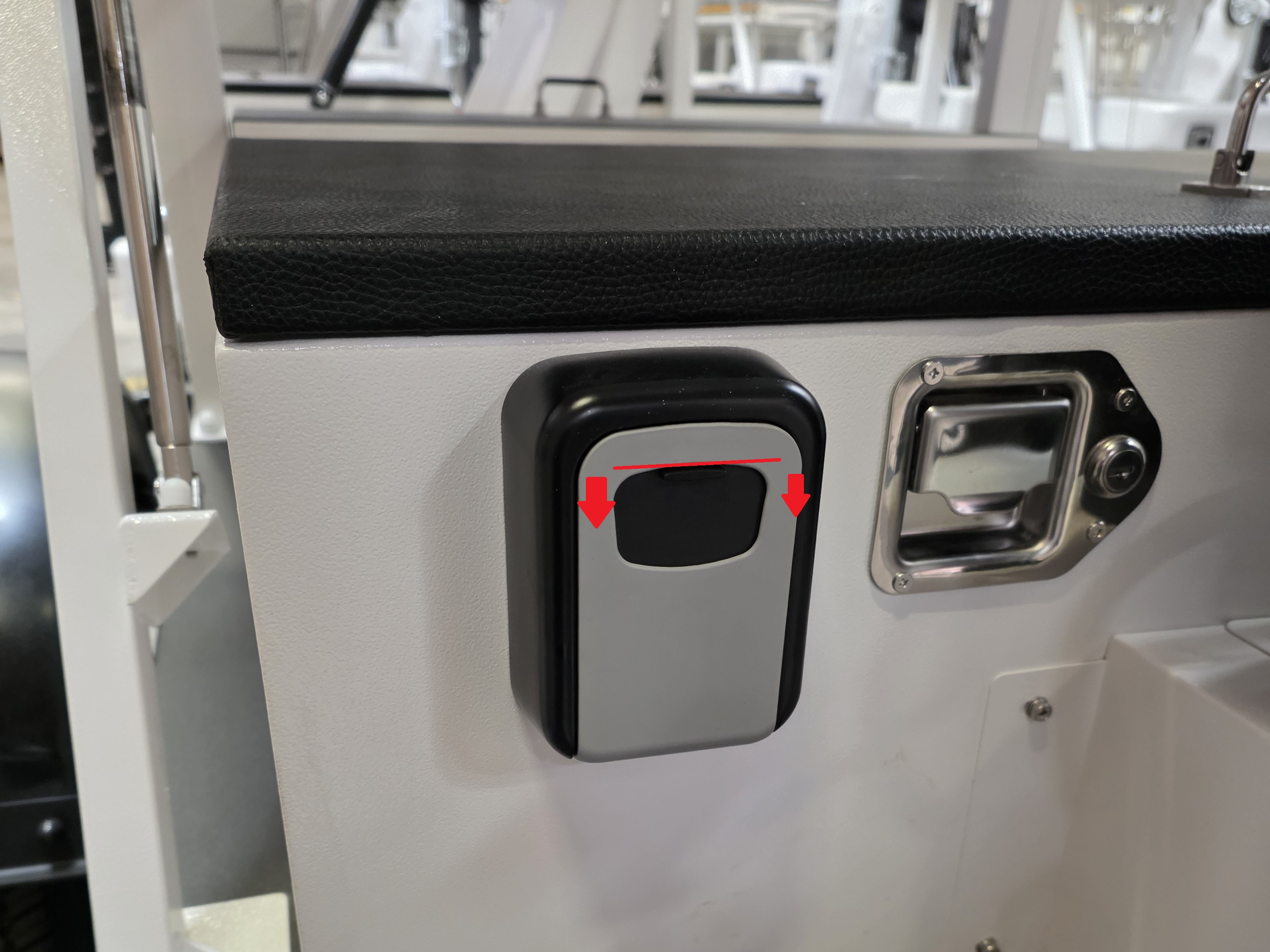
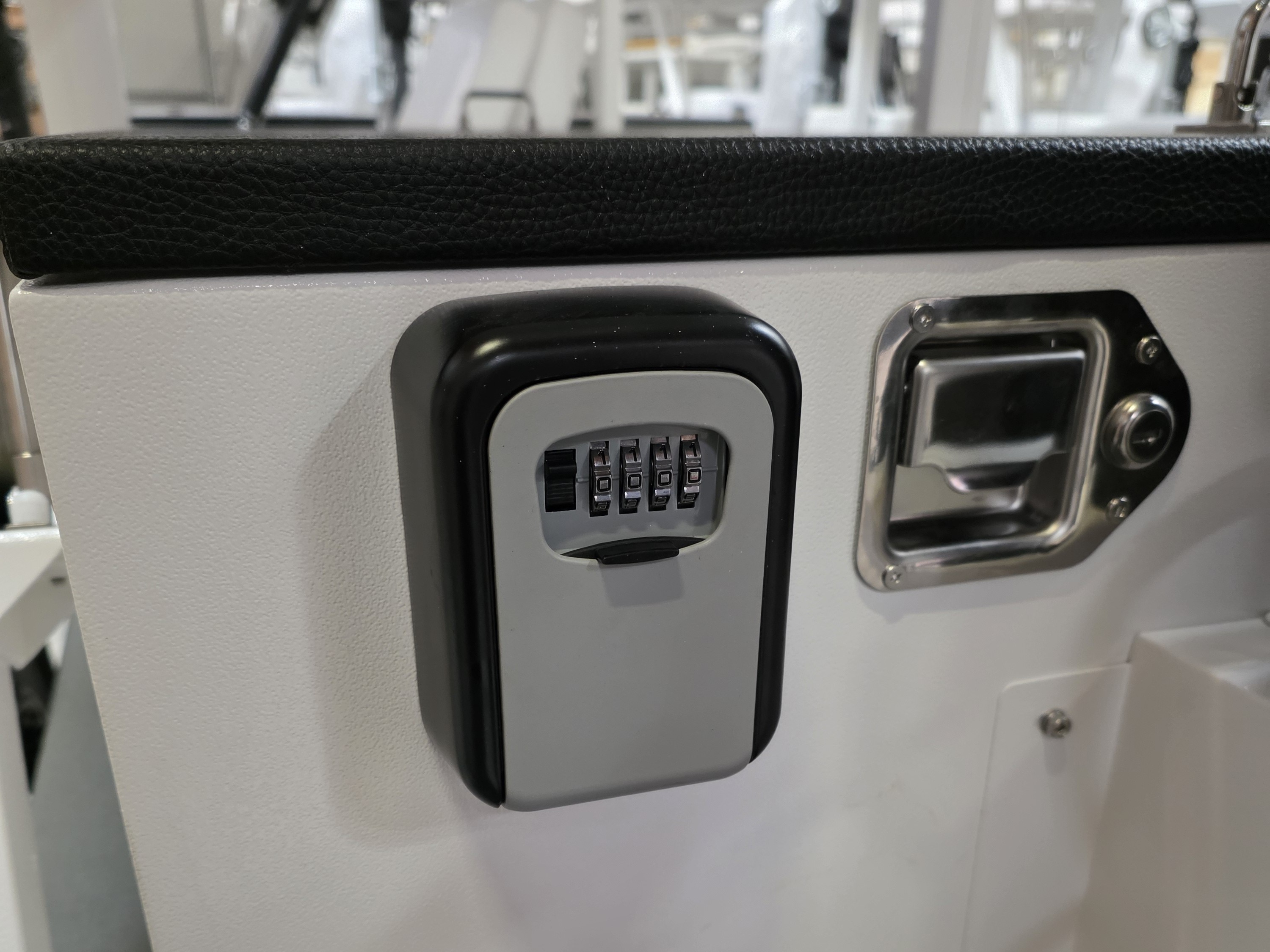
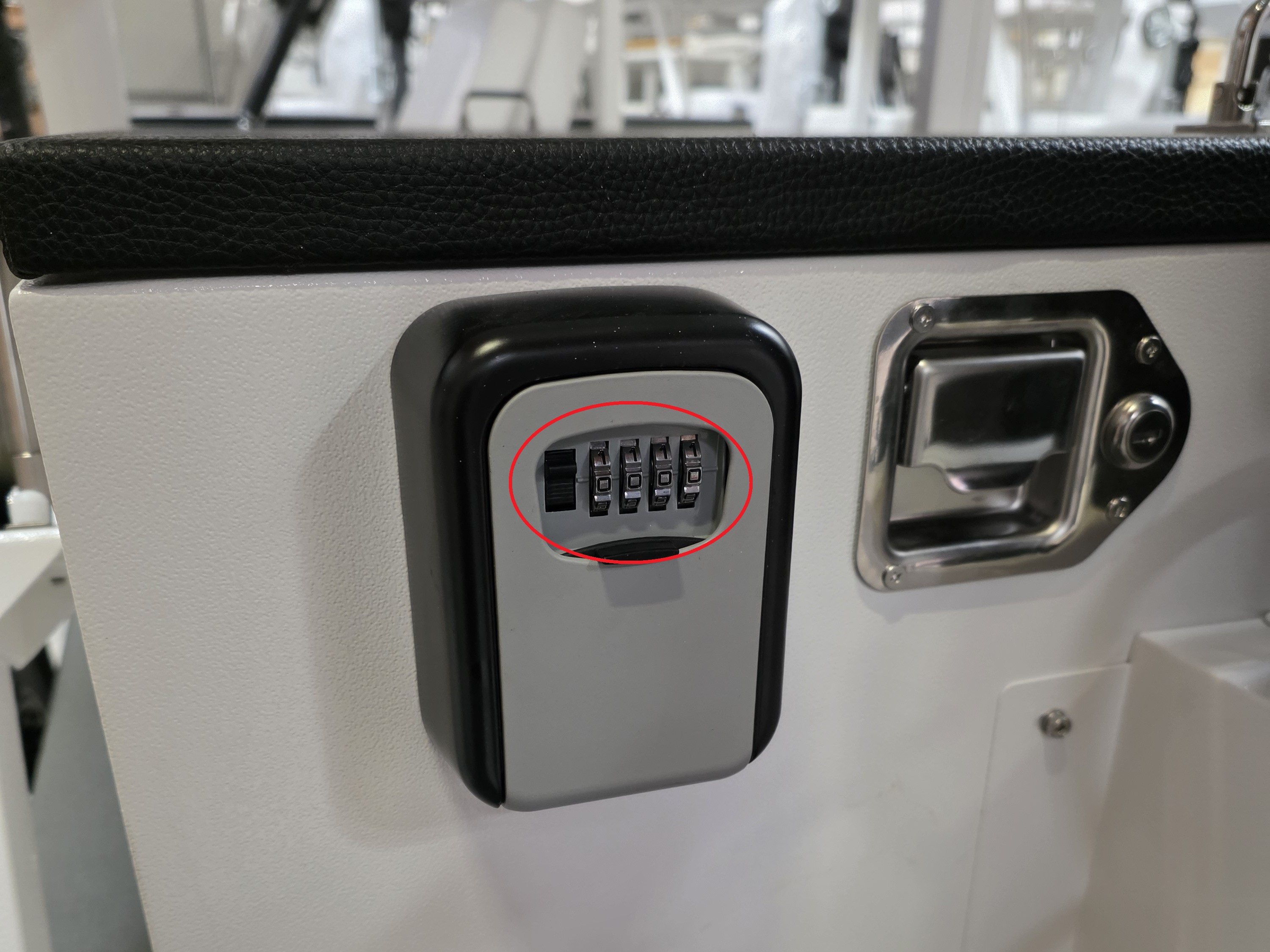
2. Set the dials to the default key code of 0000. To unlock the lockbox, use one hand to pull down the left black handle and the other hand to pull the bottom black cover outward. Inside are the 3 keys for the storage box, electrical box, and control box.
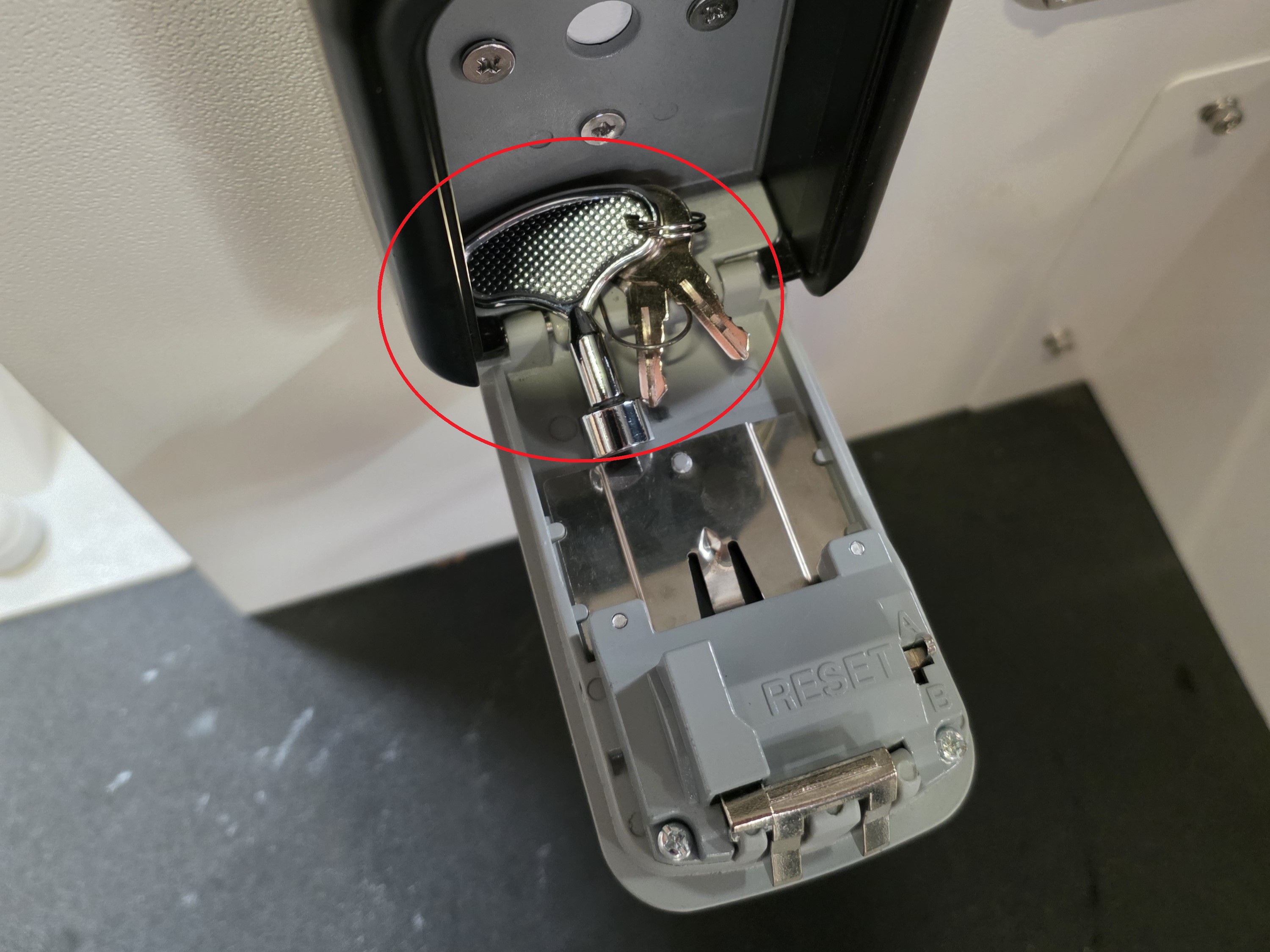
3. Use the small silver key from the lockbox to unlock the electrical box. Pull and hold the metal handle outward with one hand, while using the other hand to lift the plastic black handle upward to open the electrical box.
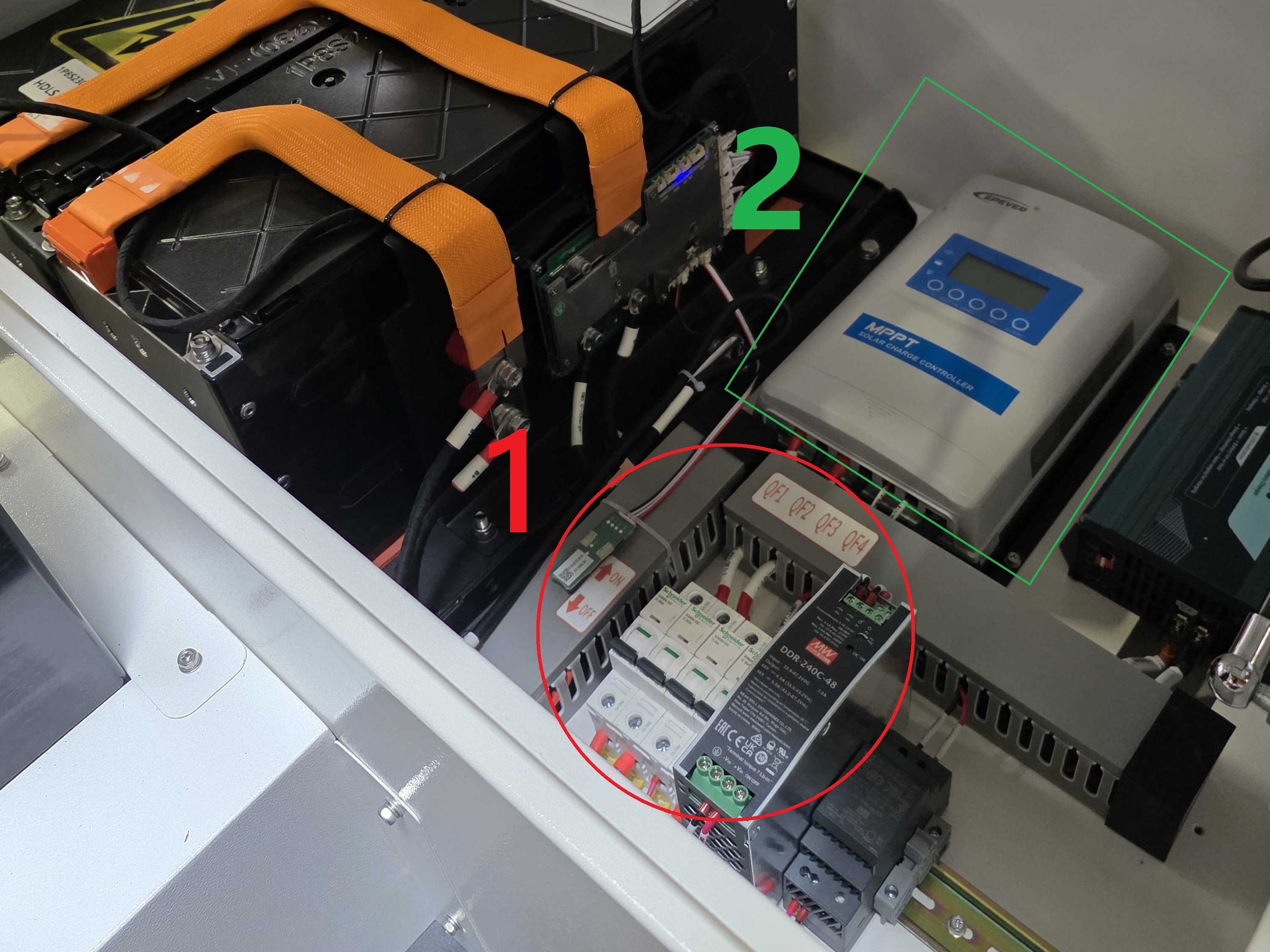
4. Then locate the power switches (1), and the MPPT Screen (2).
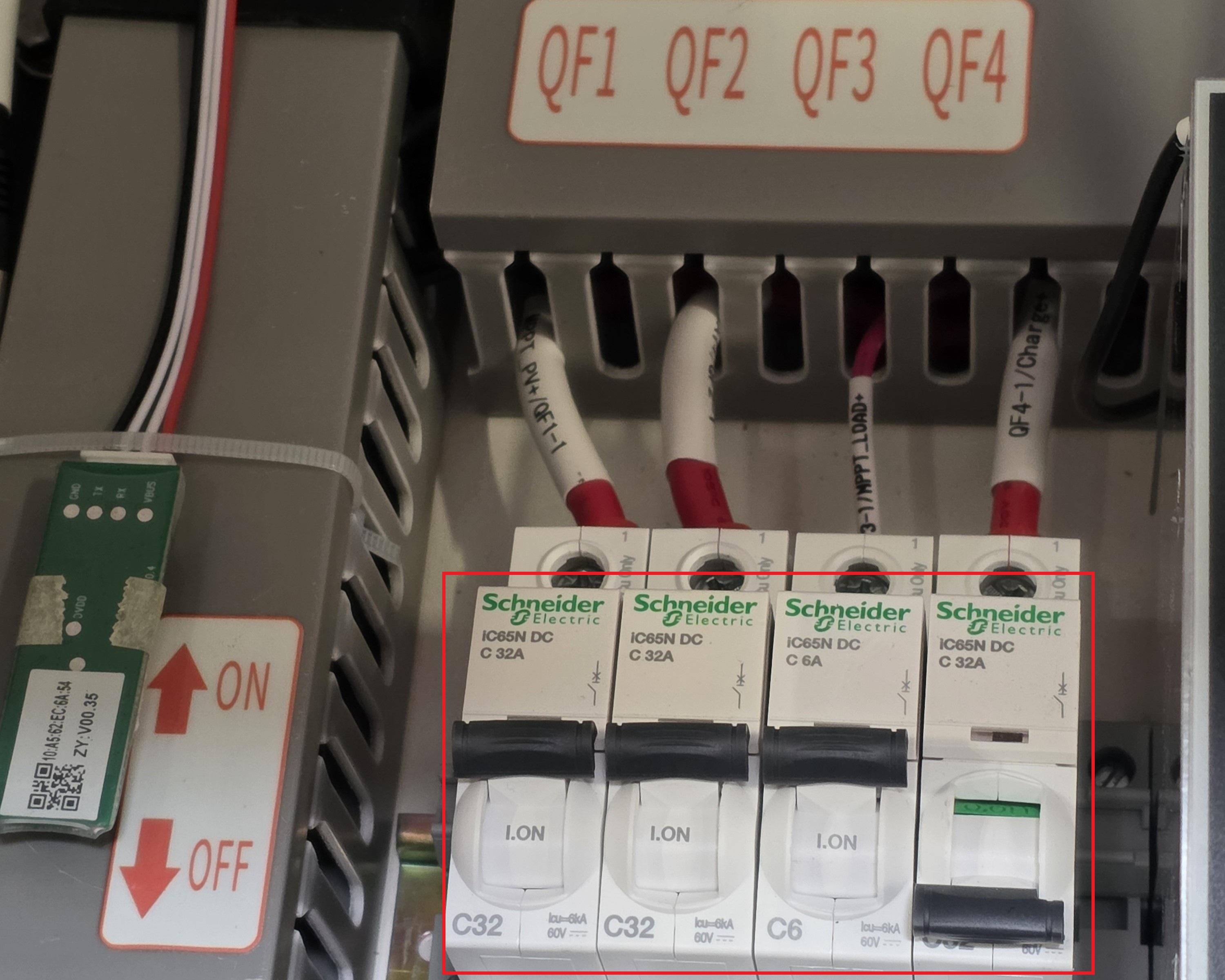
At the Power Switches, Turn on switches QF1, QF2, and QF3; keep QF4 in the off position.
Note: Make sure to turn the switches on in order from left to right. Also, do not constantly turn the switches on and off; it could cause damage to the circuit breakers.
5. On the MPPT screen, locate the battery indicator. If the indicator is orange, please charge the battery using either AC power or a solar panel.
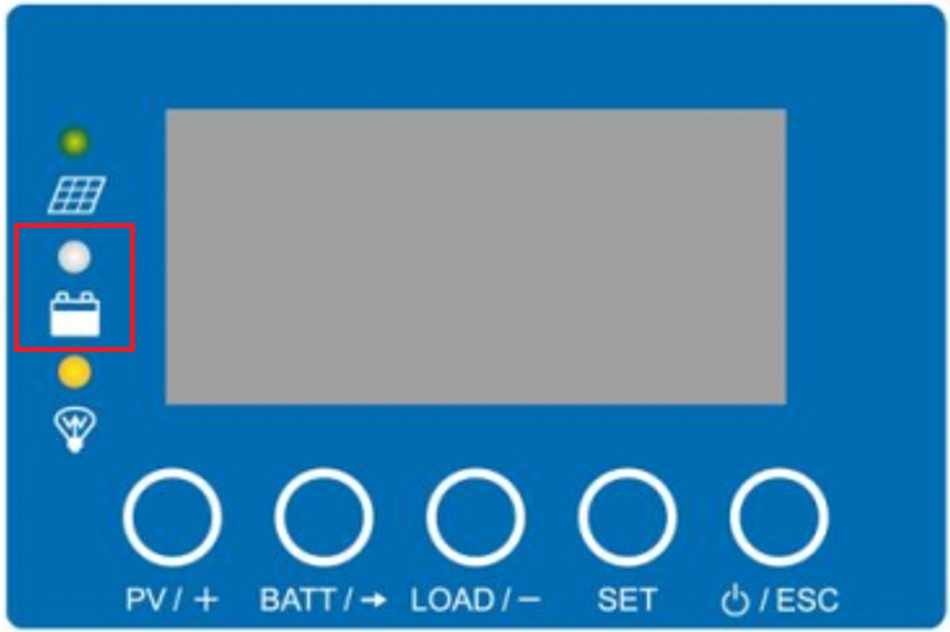
| Indicator light | Color | State | Meaning |
|---|---|---|---|

|
Green | Always On | Battery is normal |
| Green | Slow flash (1Hz) | Battery is fully charged | |
| Green | Rapid flash (4Hz) | Battery is overvoltage | |
| Orange | Always On | Battery is undervoltage | |
| Red | Always On | Battery is over discharge | |
| Red | Slow flash (1Hz) | Battery is over temperature |