NVR/WebGUI Playback: Difference between revisions
From Luminys WIKI
Techsupport (talk | contribs) |
Techsupport (talk | contribs) No edit summary |
||
| (One intermediate revision by the same user not shown) | |||
| Line 5: | Line 5: | ||
===Prerequisites=== | ===Prerequisites=== | ||
* | * Web browser on a computer. | ||
===Video Instructions=== | ===Video Instructions=== | ||
| Line 13: | Line 13: | ||
===Step by Step Instructions=== | ===Step by Step Instructions=== | ||
1. After logging in to the recorder, go to the <span style=color:black;font-weight:bold>Playback </span> section. Select the desired camera | 1. After logging in to the recorder, go to the <span style=color:black;font-weight:bold>Playback </span> section. Select the desired camera on the left side panel, then click the <span style=color:black;font-weight:bold>Play</span> button to begin playback. | ||
[[File:NVR_Playback_WebGUI_1.png|1000px|link=https://wiki.luminyscorp.com/images/5/5f/NVR_Playback_WebGUI_1.png]] | [[File:NVR_Playback_WebGUI_1.png|1000px|link=https://wiki.luminyscorp.com/images/5/5f/NVR_Playback_WebGUI_1.png]] | ||
Latest revision as of 16:00, 21 April 2025
Playback on Recorder via WebGUI
Description
This tutorial will go over how to playback on recorder via webGUI.
Prerequisites
- Web browser on a computer.
Video Instructions
Coming Soon
Step by Step Instructions
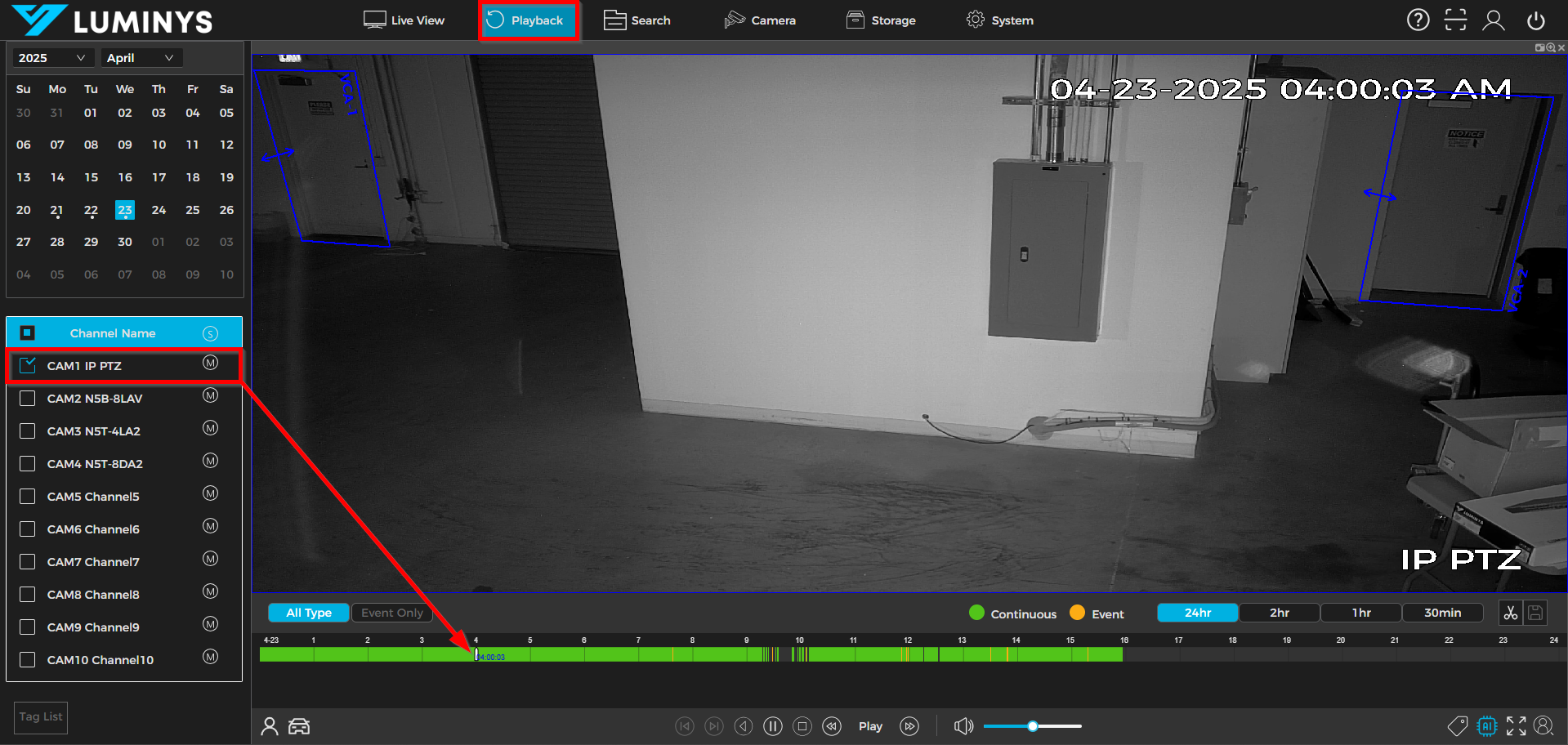
1. After logging in to the recorder, go to the Playback section. Select the desired camera on the left side panel, then click the Play button to begin playback.