Cameras/Dewarping Mode via WebGUI: Difference between revisions
Techsupport (talk | contribs) Created page with "= <div class="center">Dewarping Fisheye Cameras via WebGUI</div> = ===Description=== This tutorial will go over how to dewarp fisheye cameras via webGUI. ===Prerequisites=== * Access the camera via web browser. ===Video Instructions=== <!--<youtube>https://www.youtube.com/watch?v=IQCQncIXNGM&ab_channel=LuminysSystemsCorporation</youtube>--> ===Step by Step Instructions=== <span style=color:black;font-style:italic;>Note: Fisheye typically provides three dewarping mod..." |
(No difference)
|
Revision as of 15:21, 28 April 2025
Dewarping Fisheye Cameras via WebGUI
Description
This tutorial will go over how to dewarp fisheye cameras via webGUI.
Prerequisites
- Access the camera via web browser.
Video Instructions
Step by Step Instructions
Note: Fisheye typically provides three dewarping modes: Ceiling, Wall, and Ground. Each mode includes multiple options for selecting a sub-image, which can be repositioned by dragging with the mouse. Thus, depending on how the fisheye is installed (ceiling, wall, or ground), the appropriate type should be selected.
Ceiling
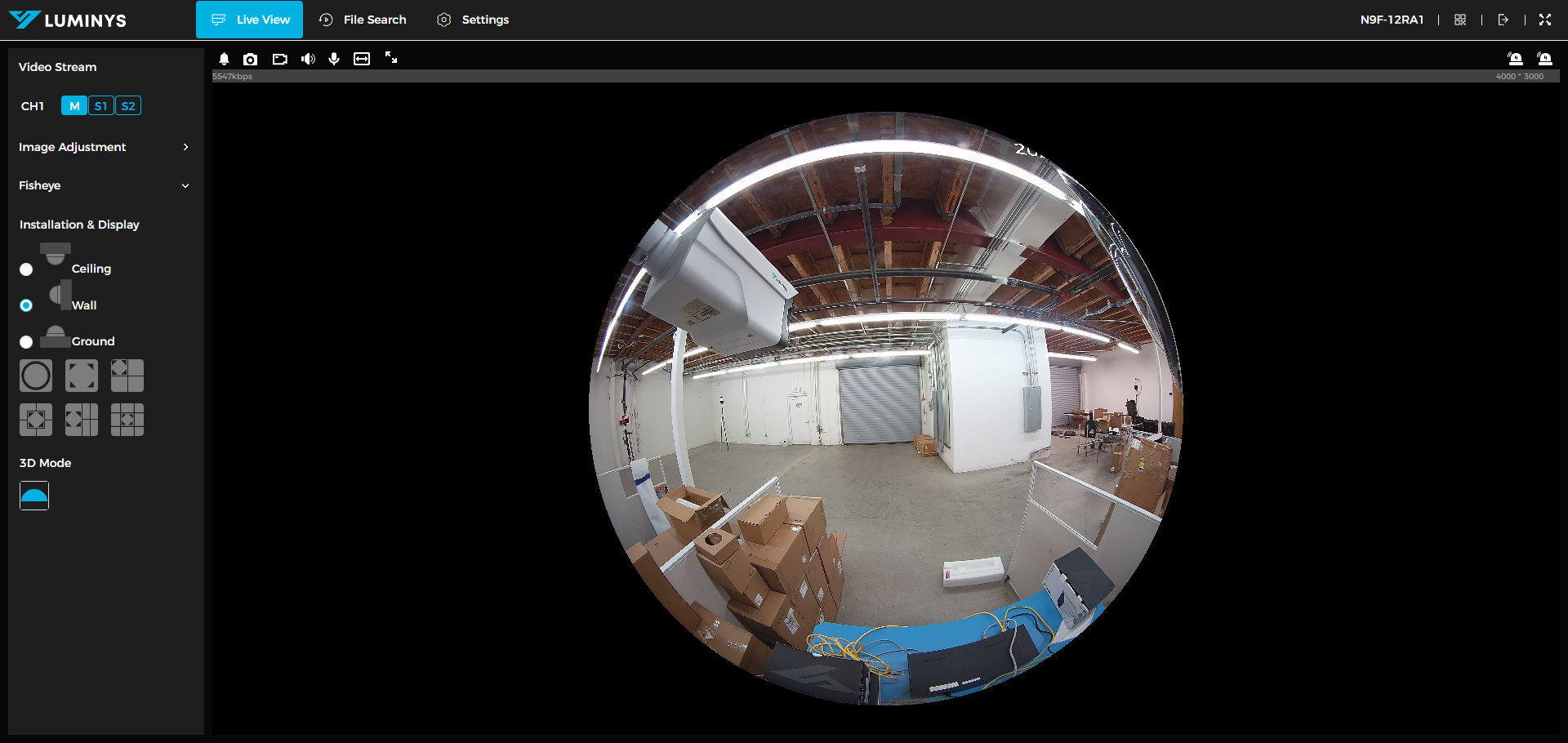
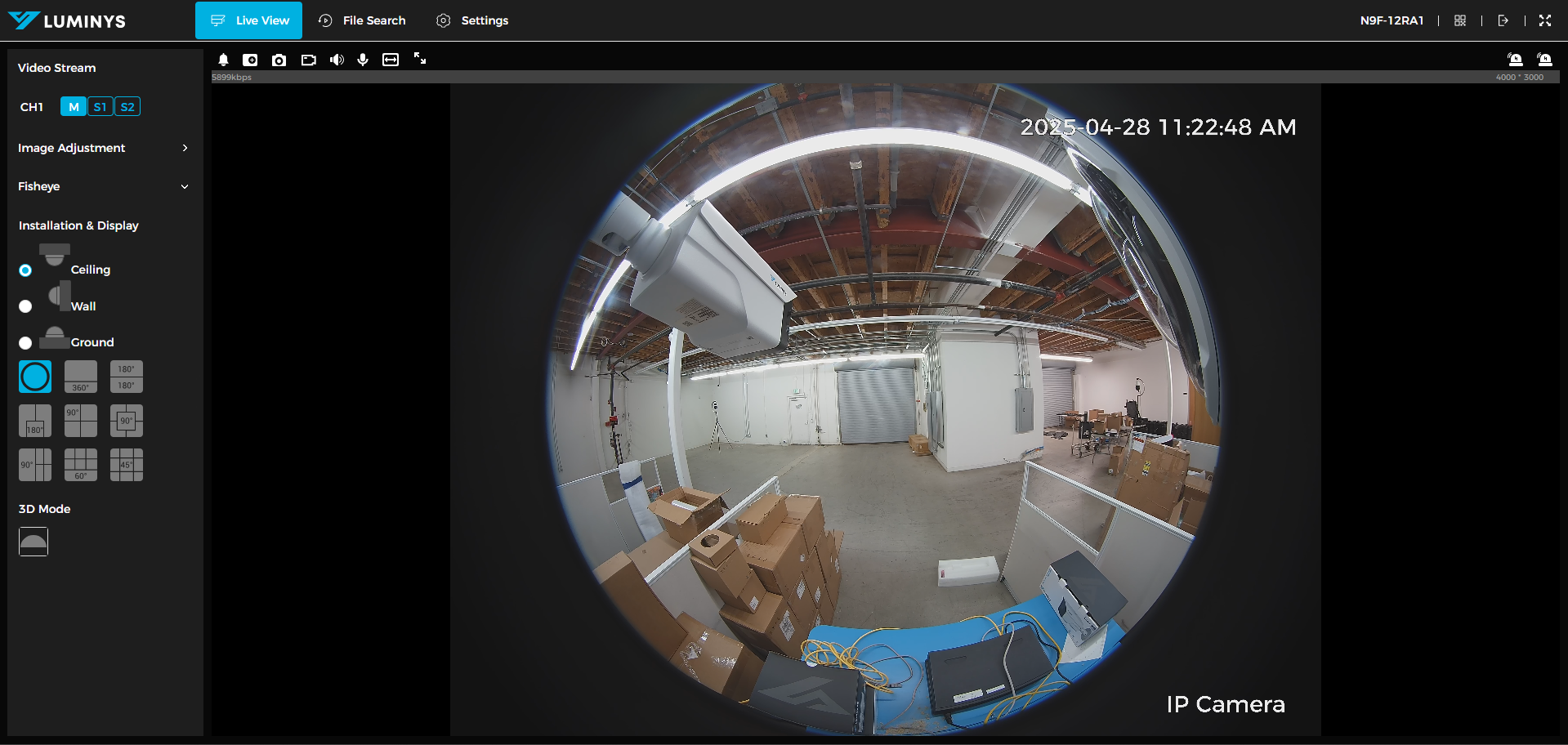
1. This is a default image or view of the fisheye without dewarping.
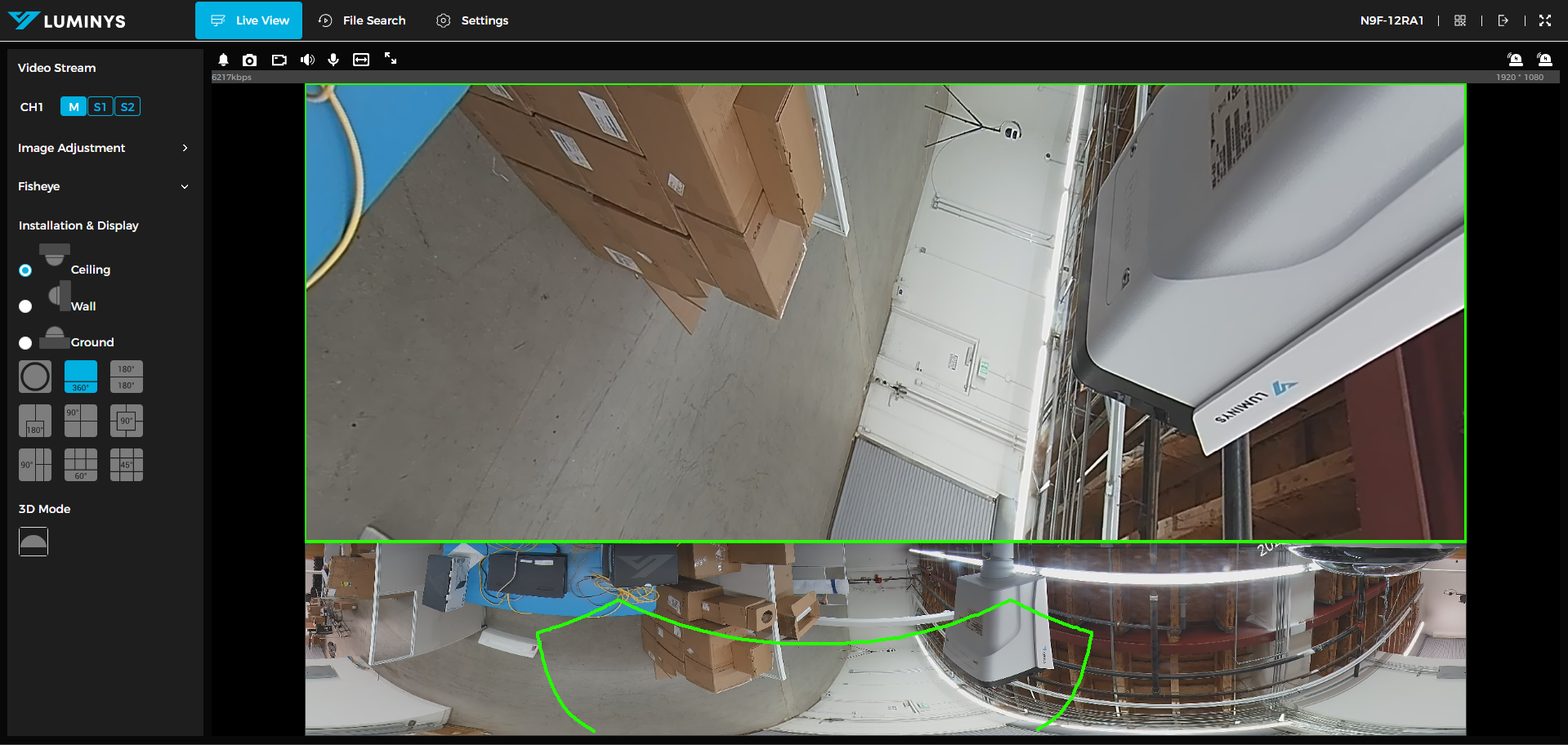
2. 360 degree view on the bottom while sub-image on the top.
3. This divides into 2 sub-images of 180 degrees.
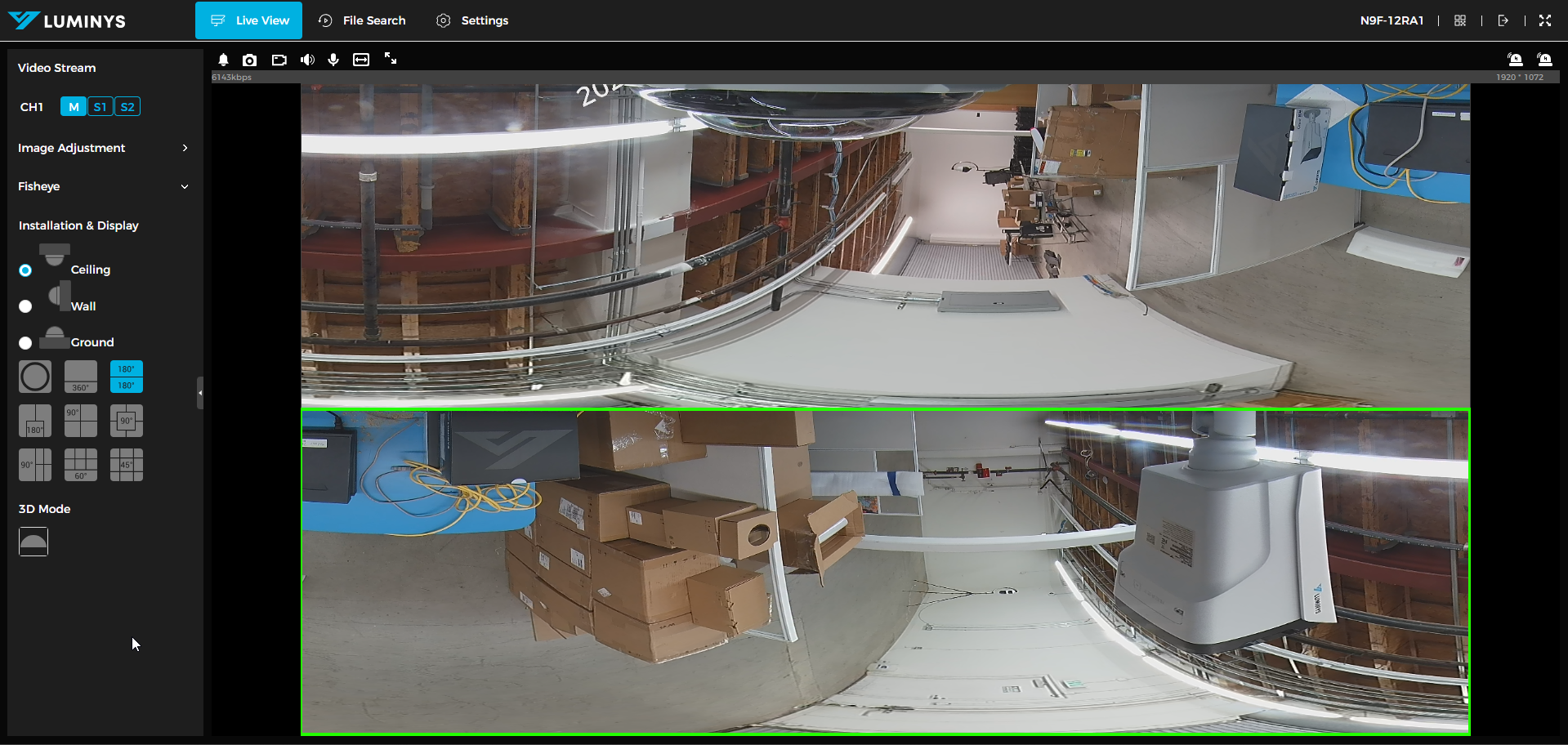
4. 180 degrees splits into 2 sub-images.
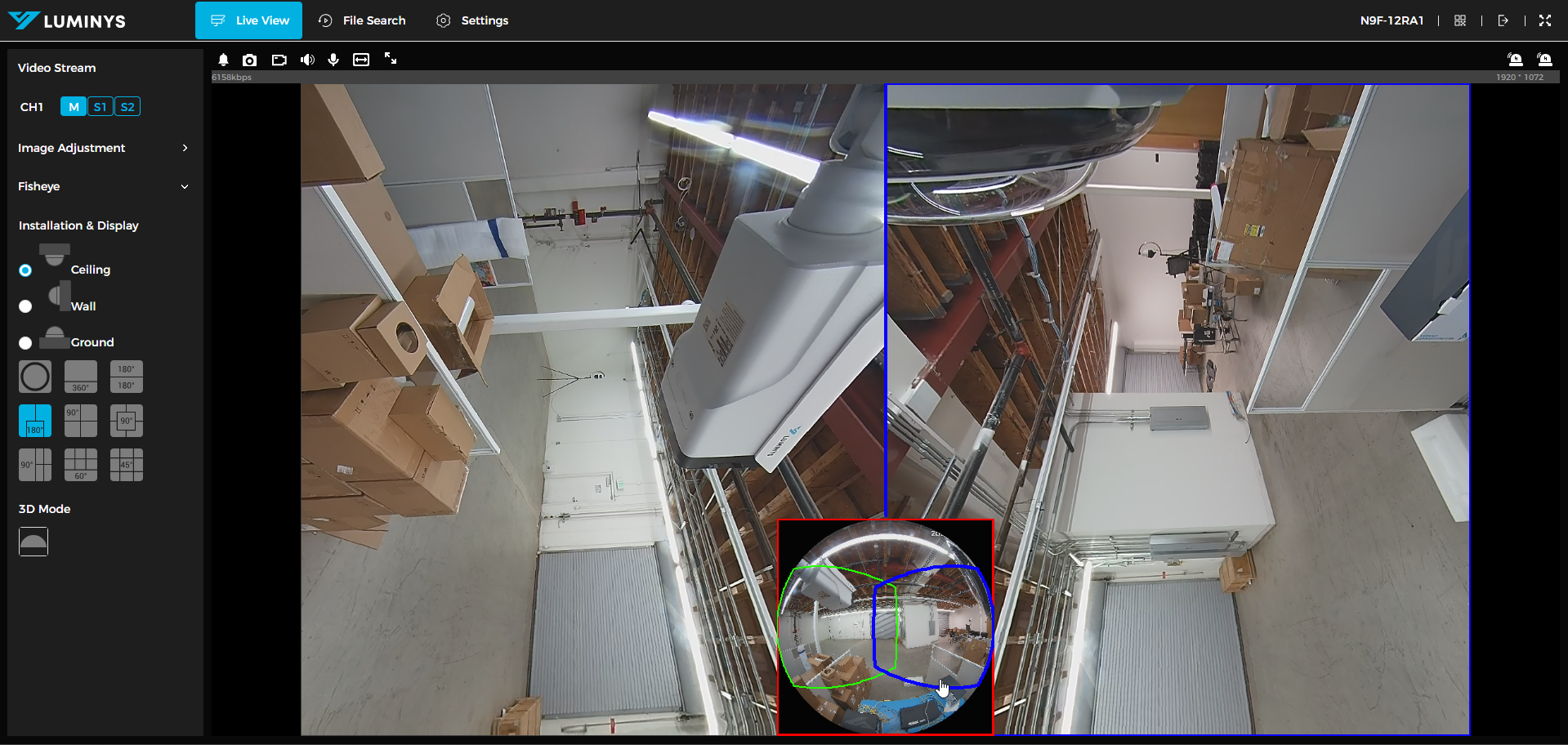
5. 90 degrees with 3 sub-images.
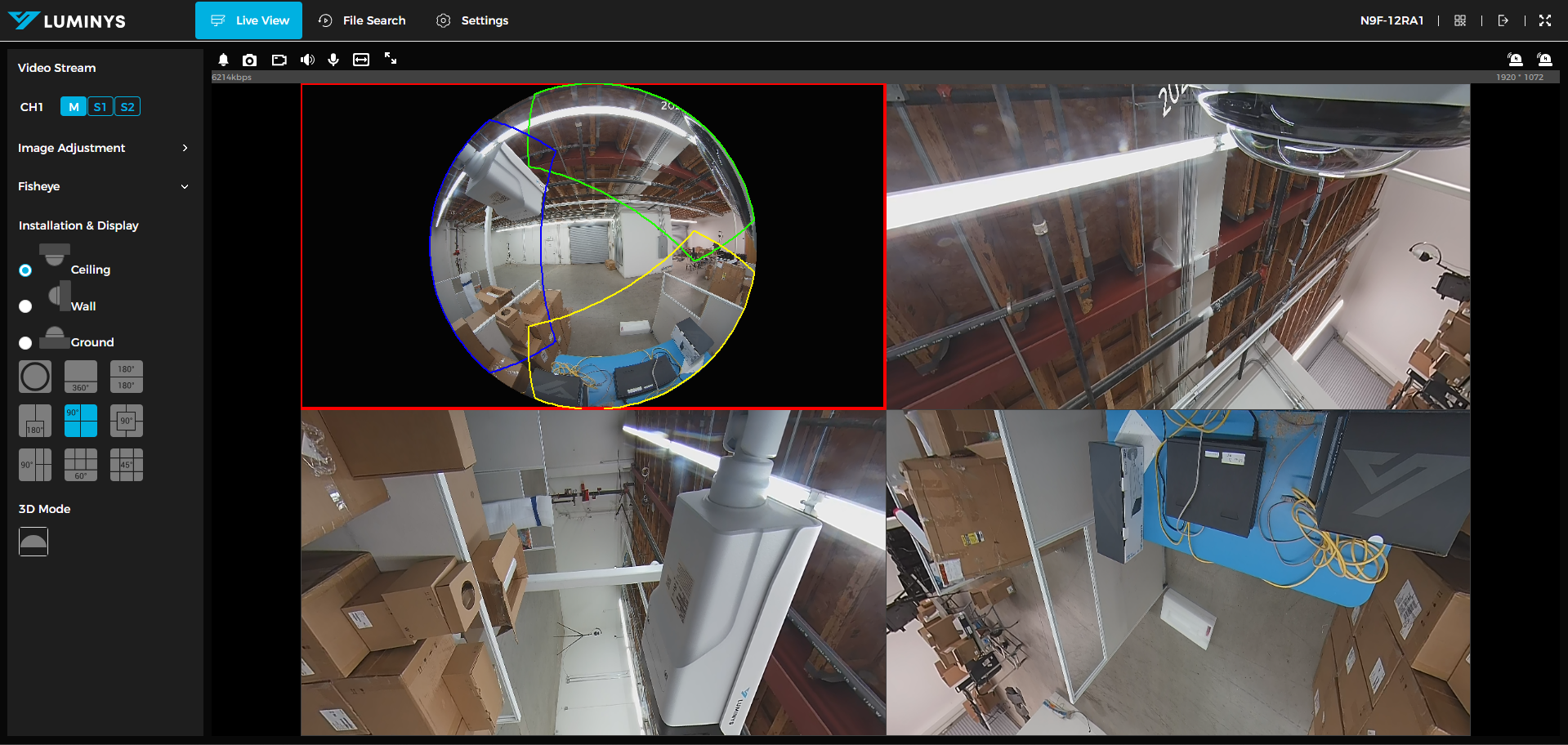
6. 90 degrees with 4 sub-images with original image in the middle.
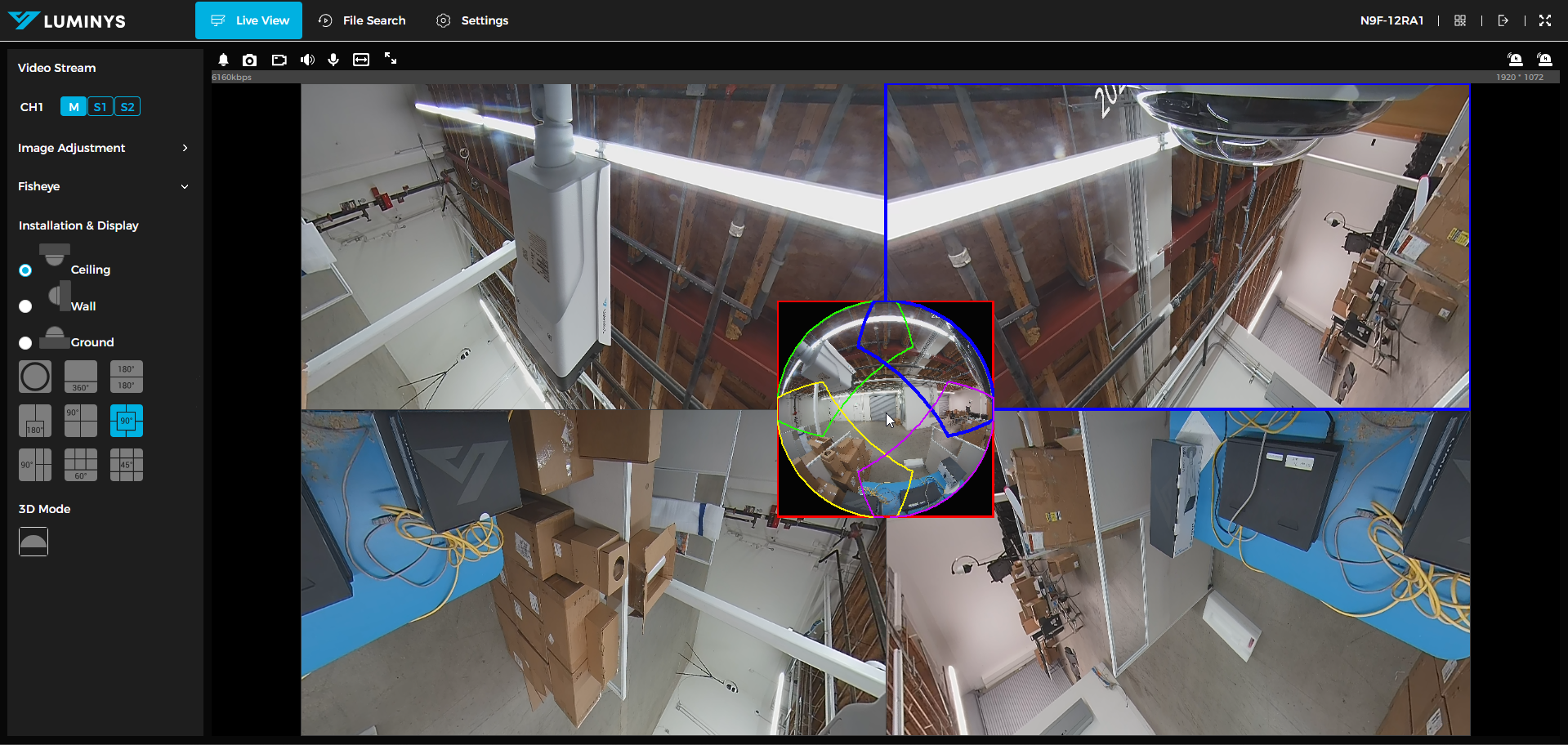
7. 90 degrees with 4 sub-images with original image on the left side.
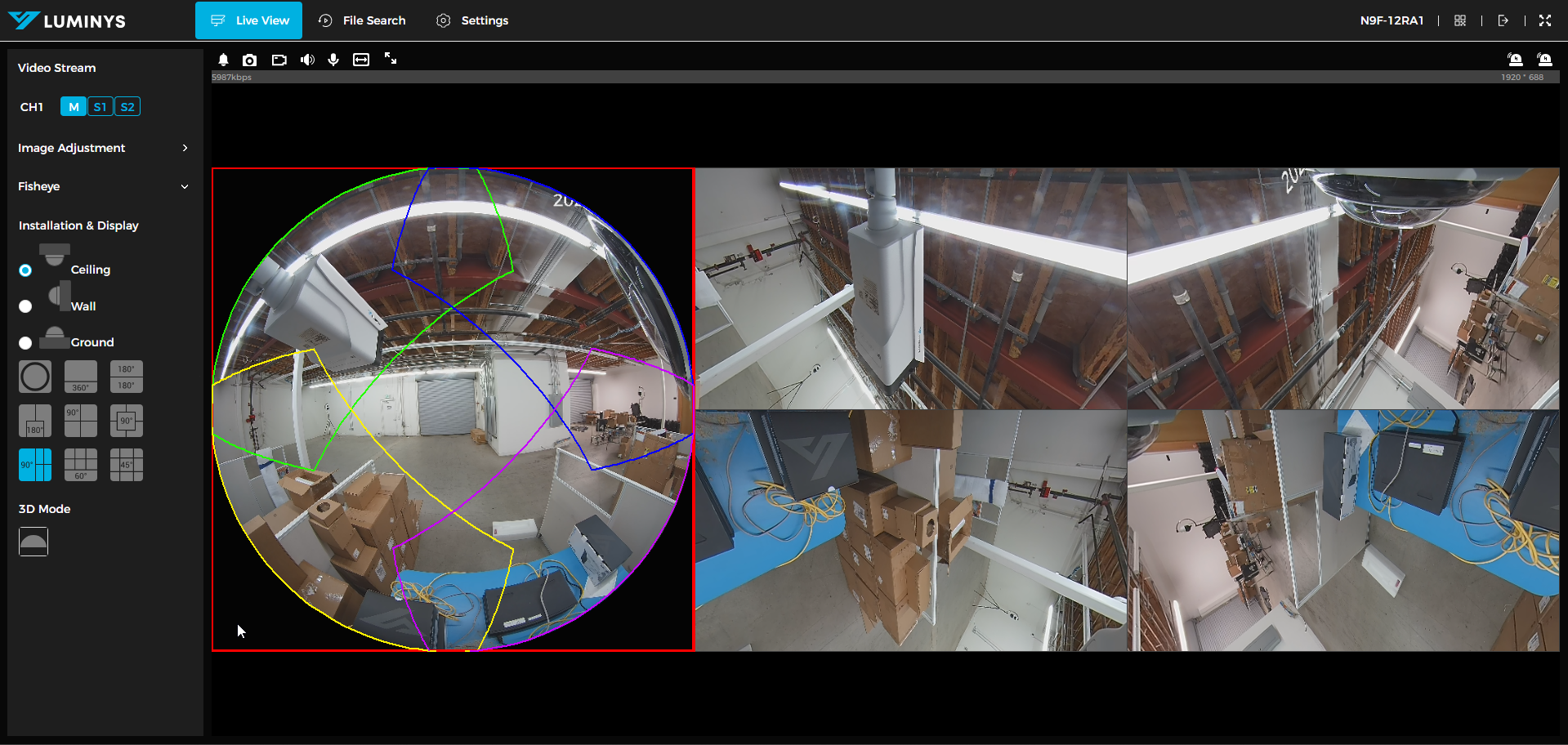
8. 60 degrees with 4 sub-images with warp image on the bottom.
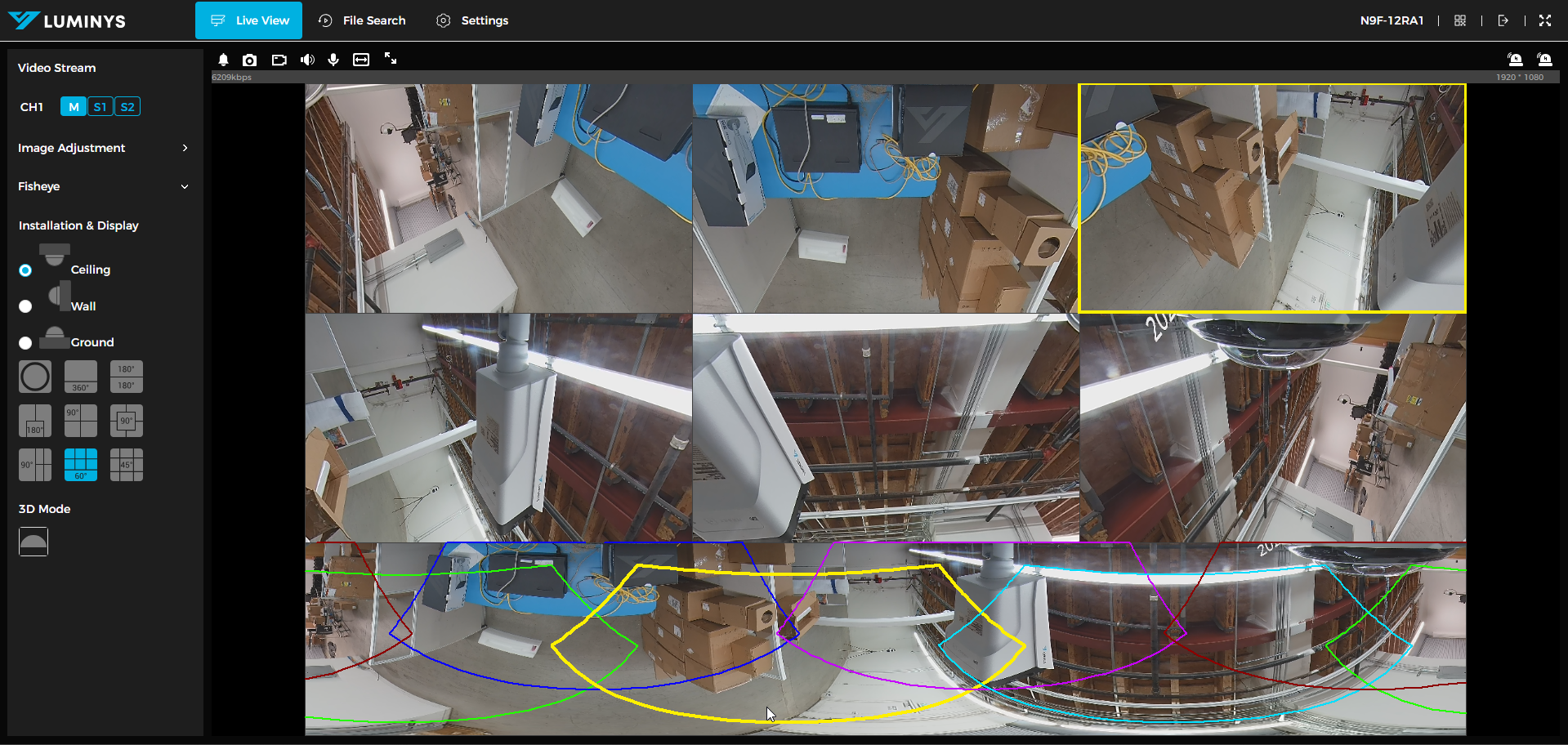
9. 45 degrees with 9 sub-images with original image in the middle.
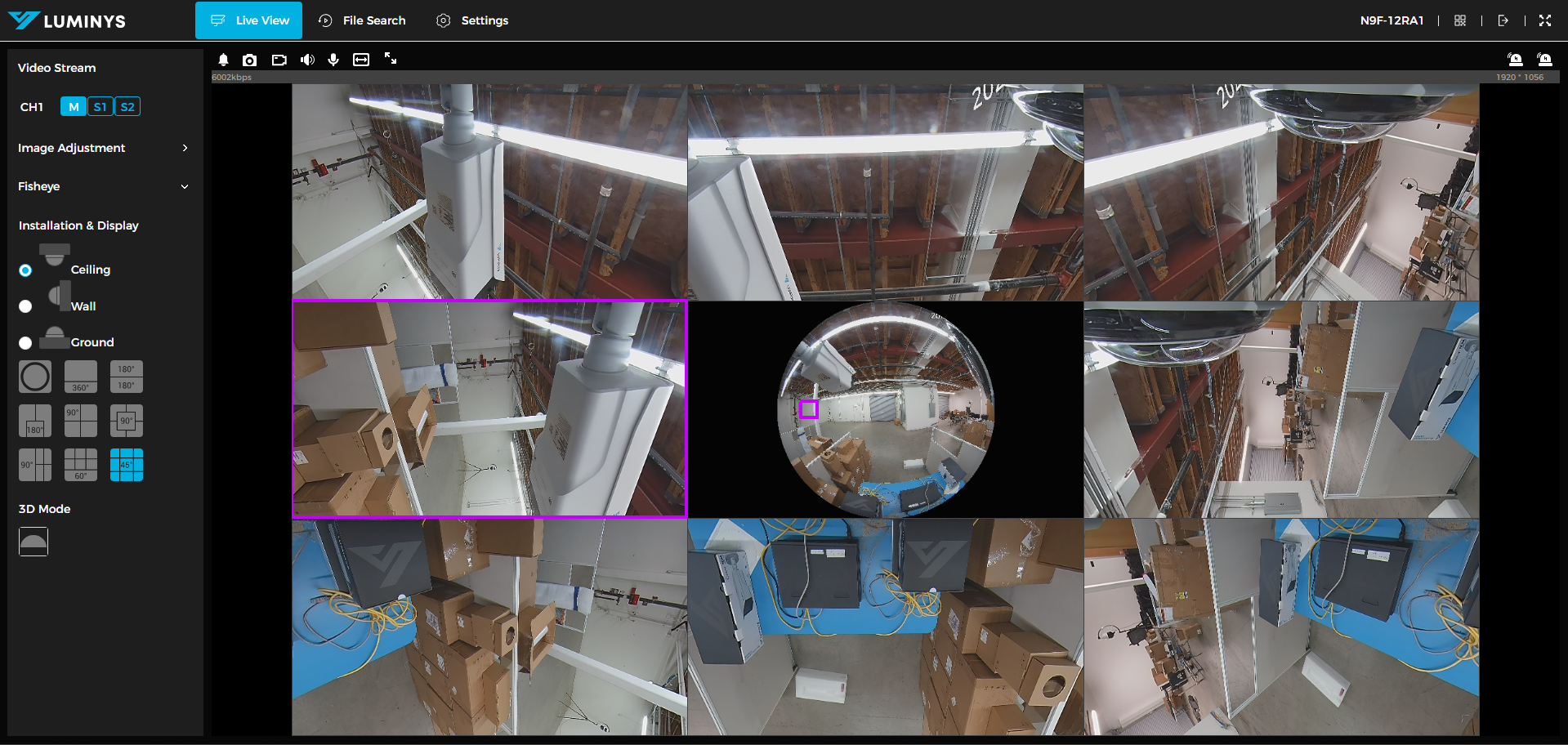
Wall
10. This is dewarp mode for wall.
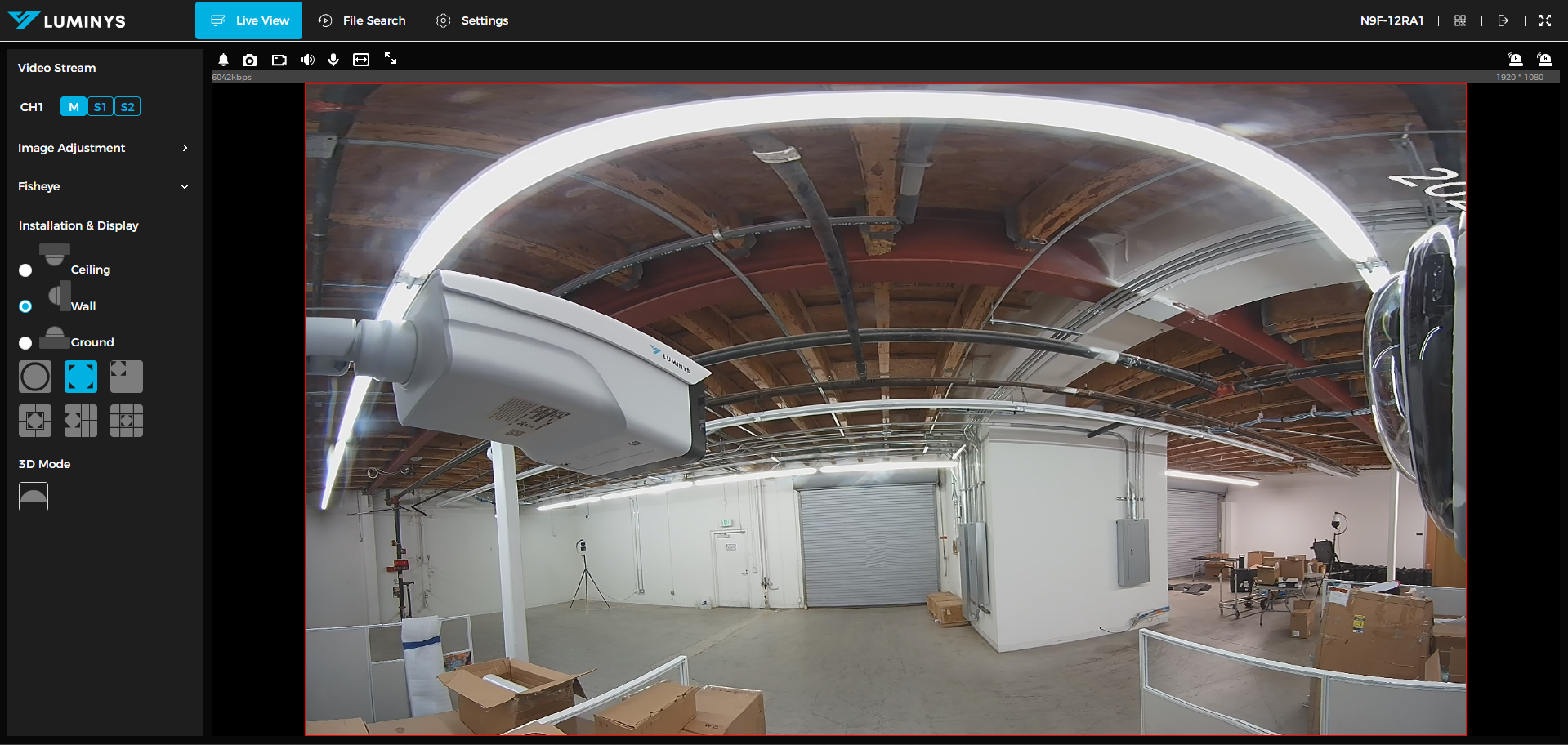
11. Dewarp mode on the top left corner with 3 sub-images.
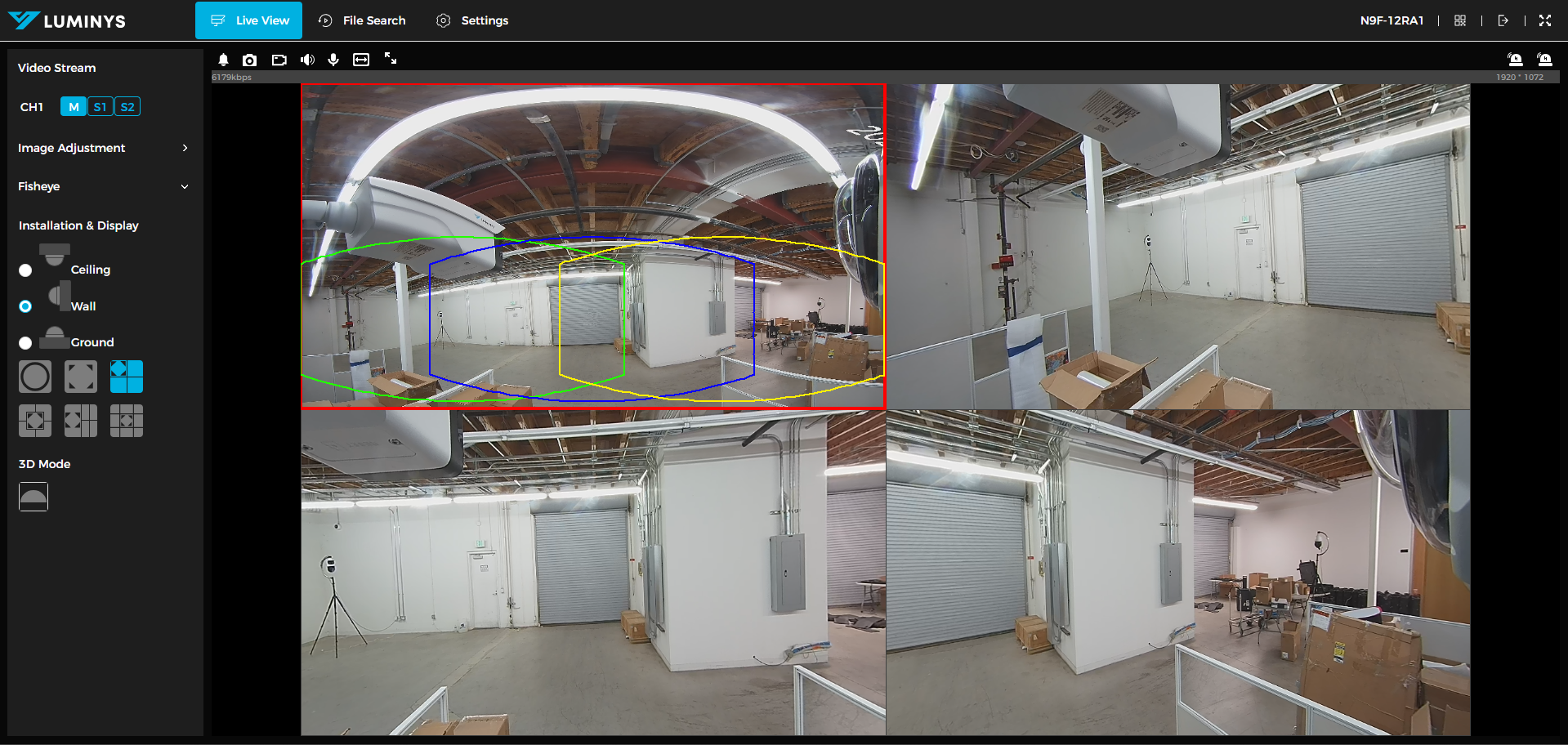
12. Dewarp mode in the middle with 3 sub-images.
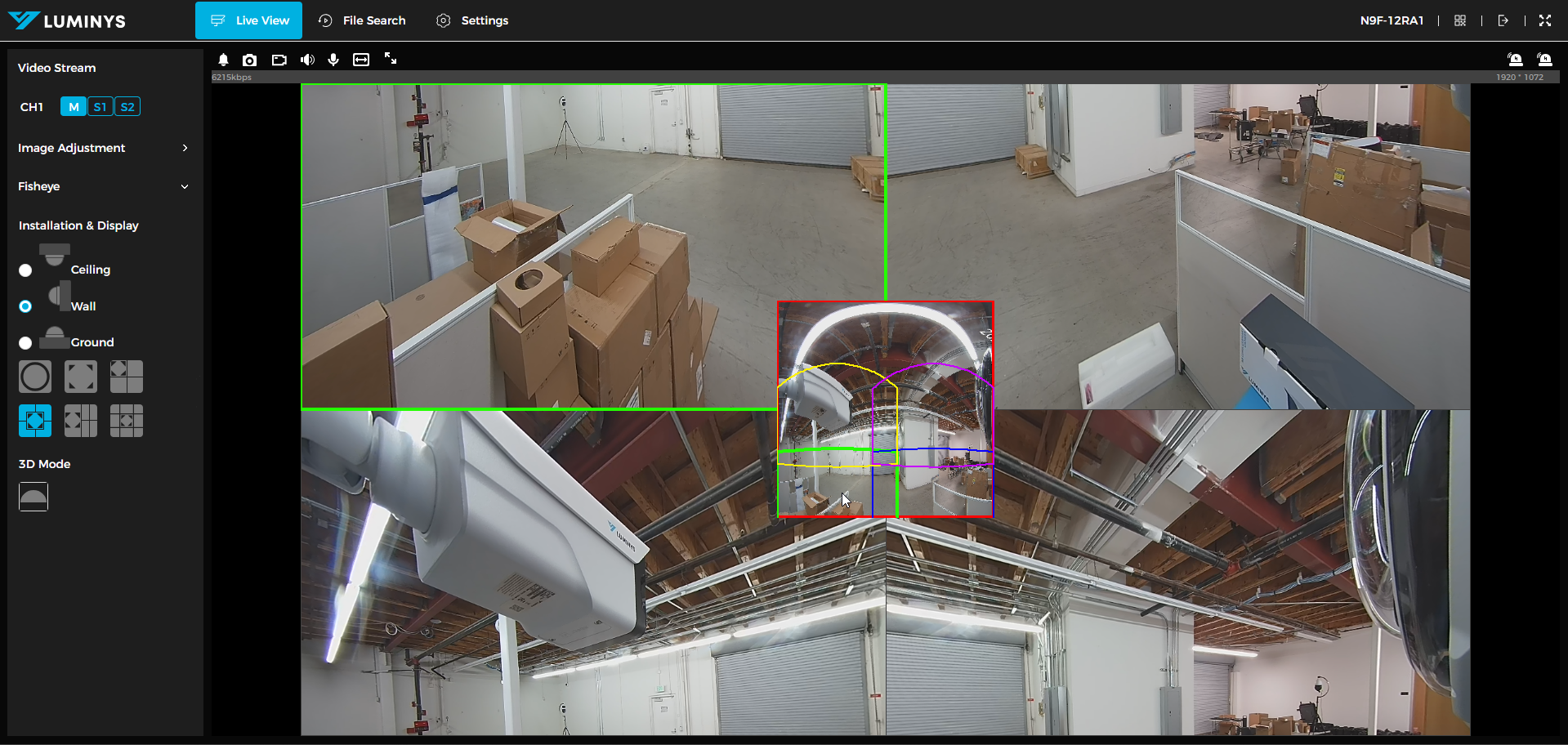
13. Dewarp mode on the left with 4 sub-images.
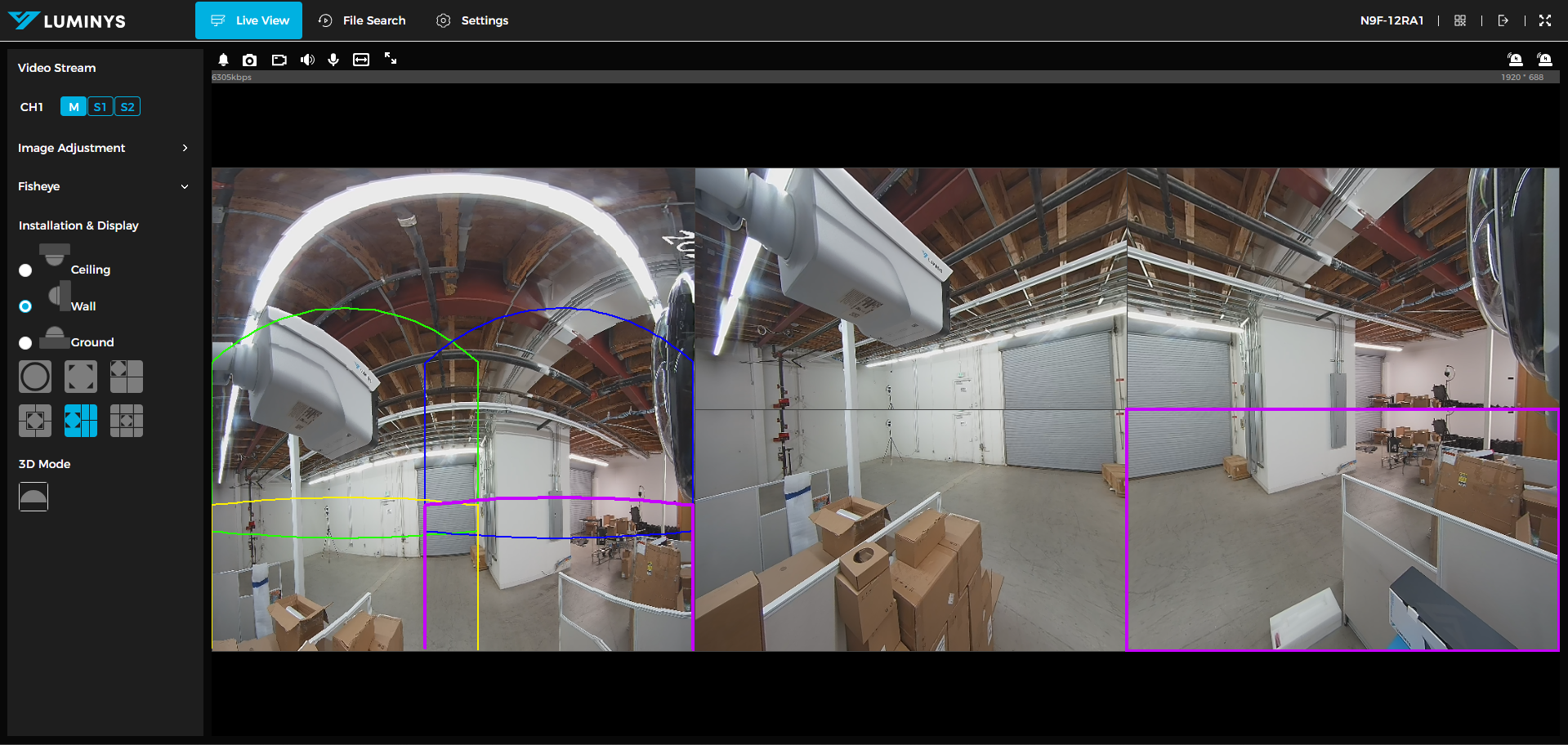
14. Dewarp mode in the middle with 9 sub-images.
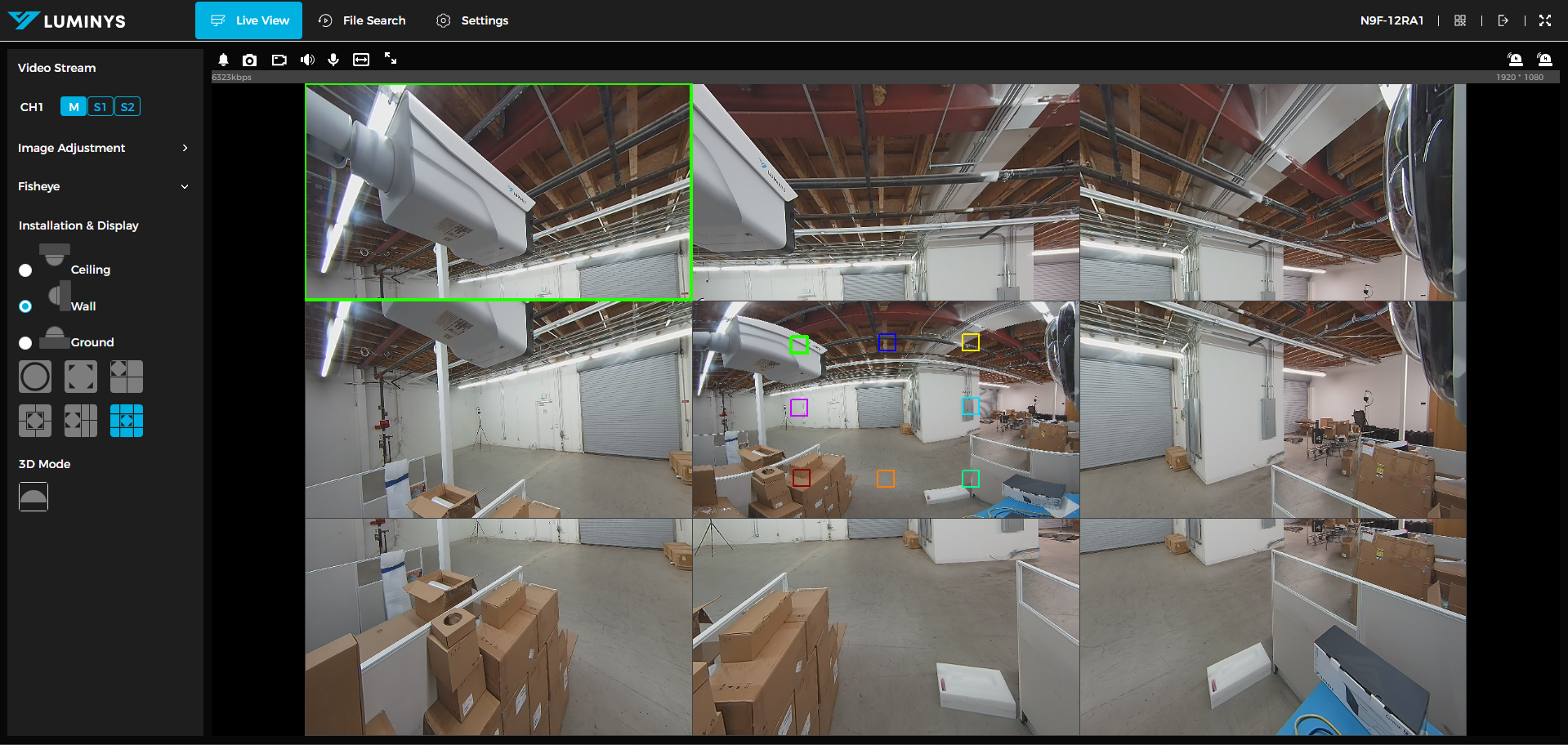
Ground
15. 360 degrees with 1 sub-image on top.
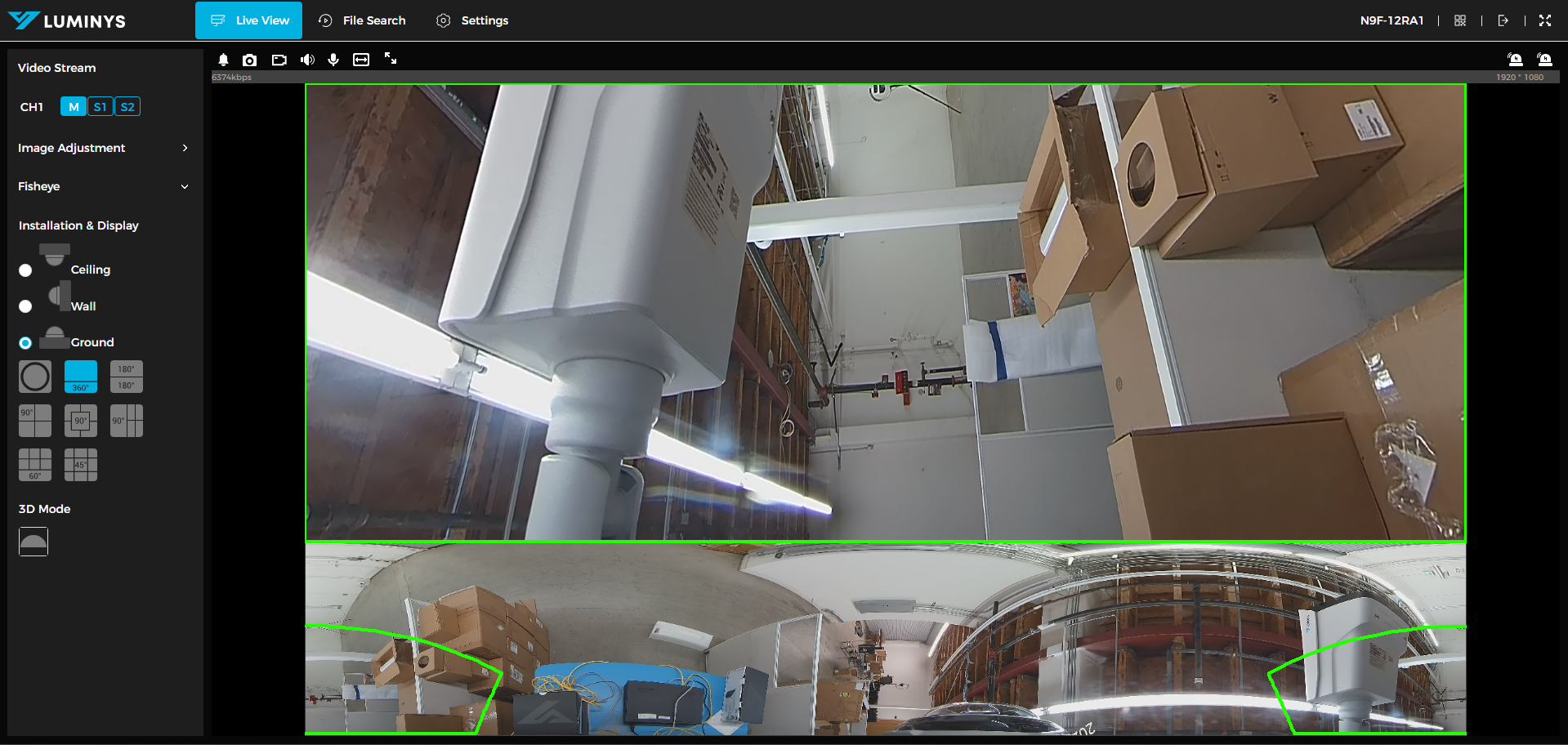
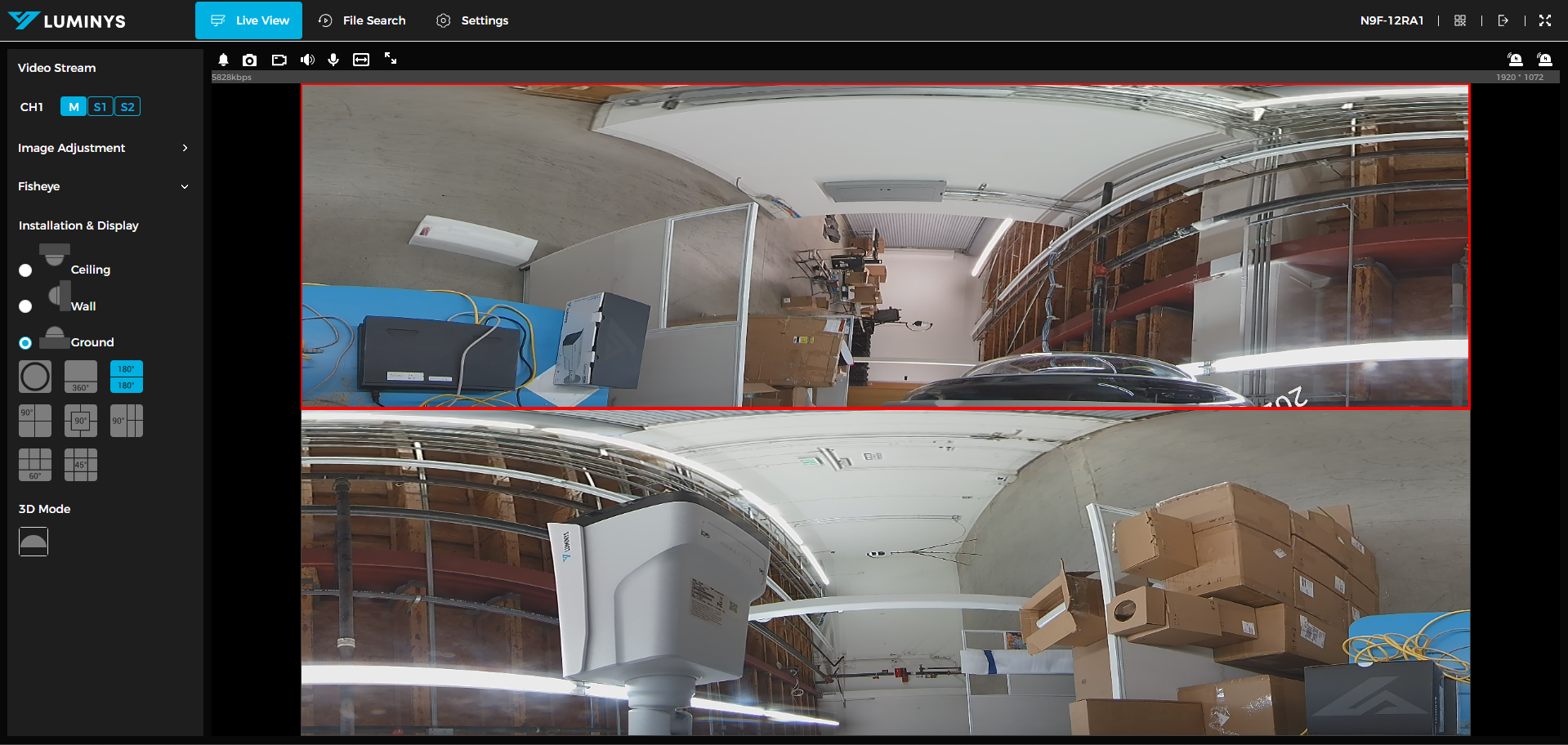
16. 2 180 degrees (sub-images).
17. 90 degrees with 3 sub-images with original image on the top left corner.
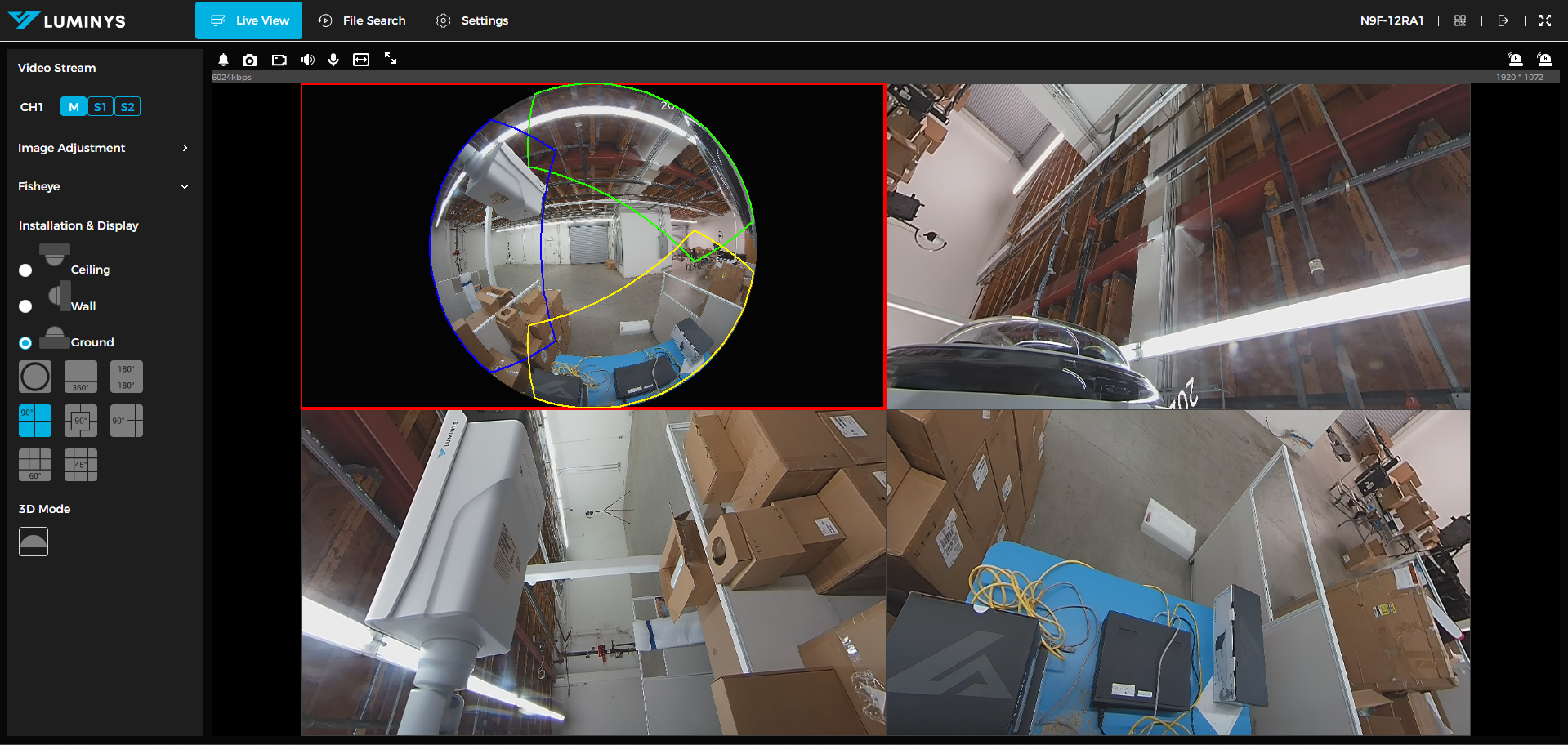
18. 90 degrees with 4 sub-images with original image in the middle.

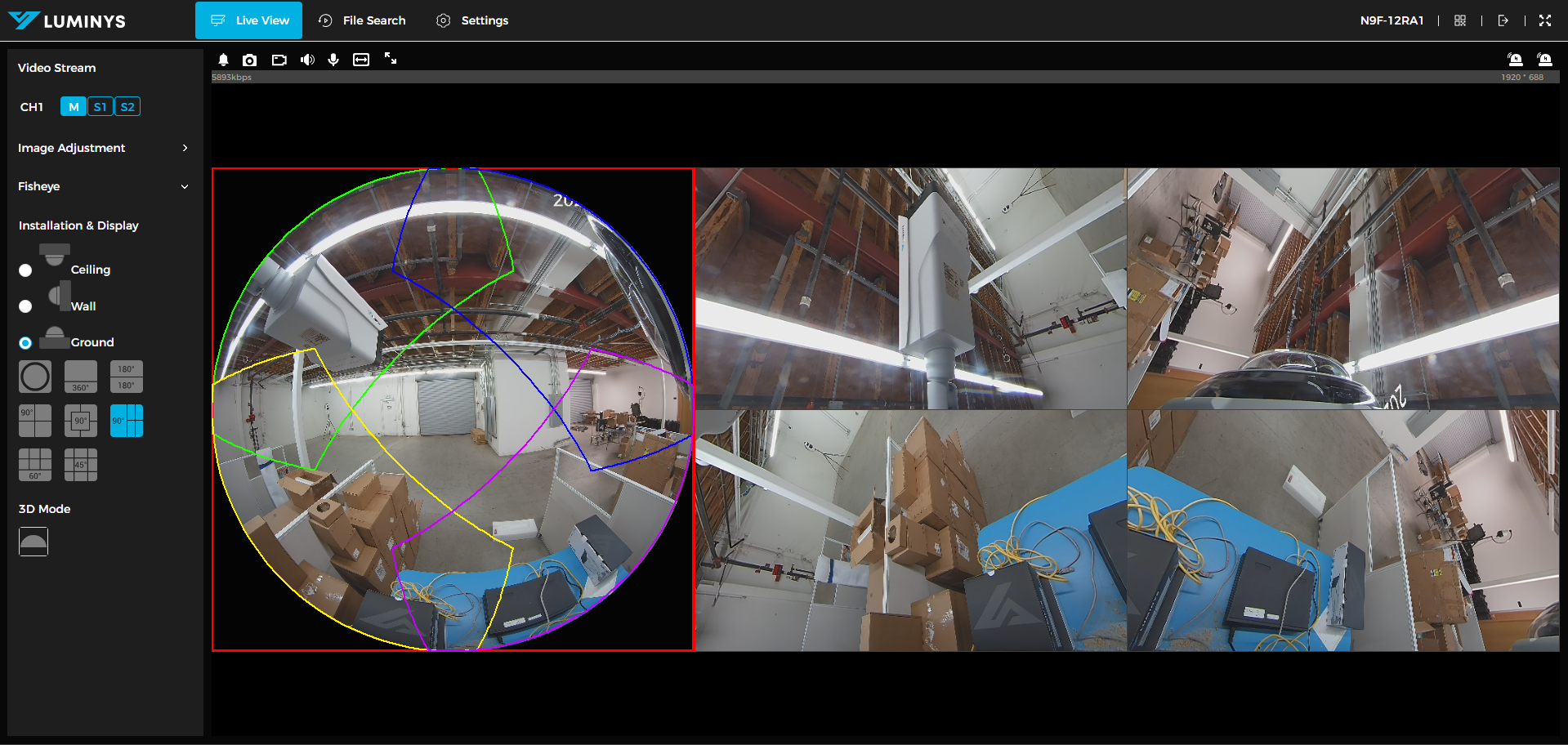
19. 90 degrees with 4 sub-images with original image on the left side.
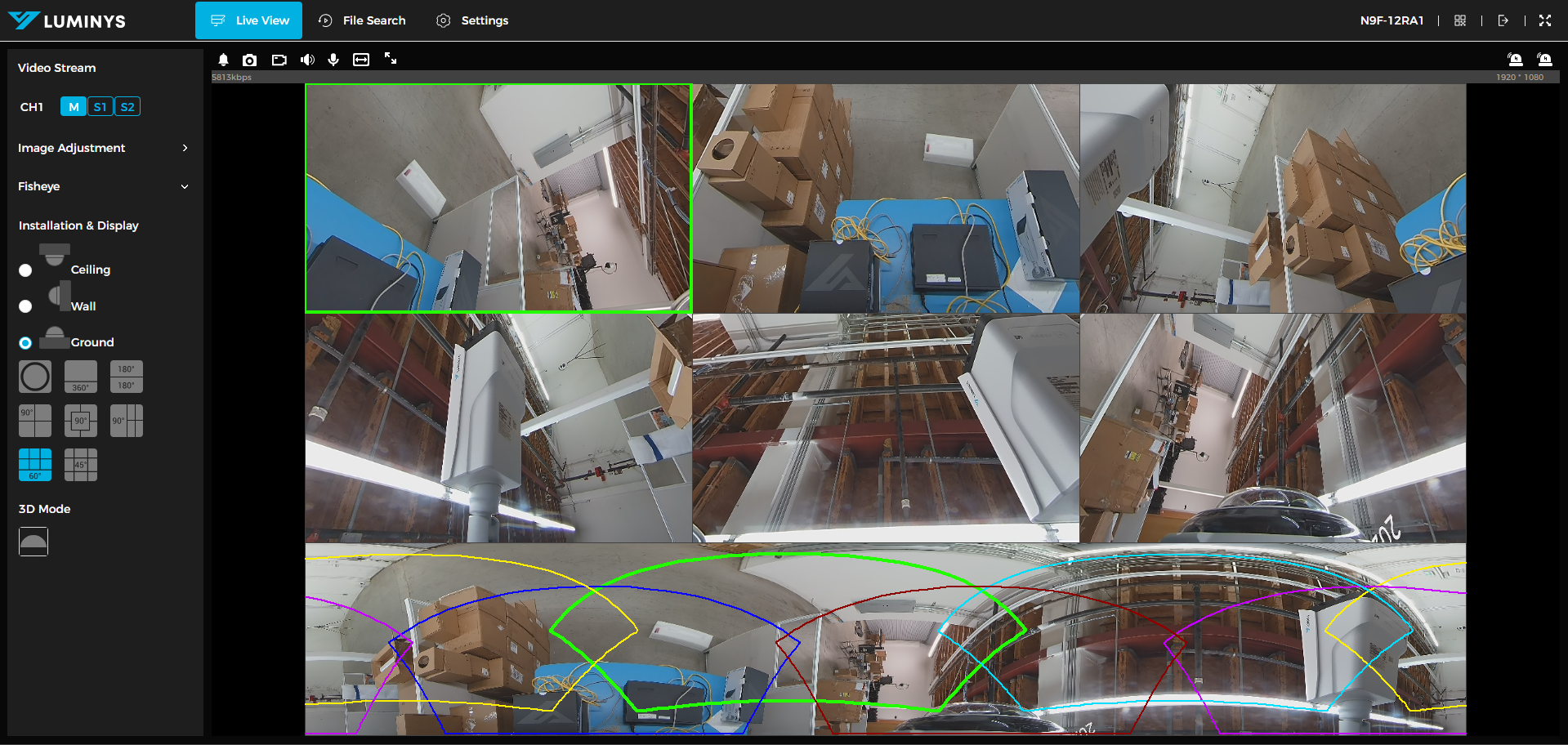
20. 60 degrees with 6 sub-images.
21. 45 degrees with 8 sub-images with original image in the middle.
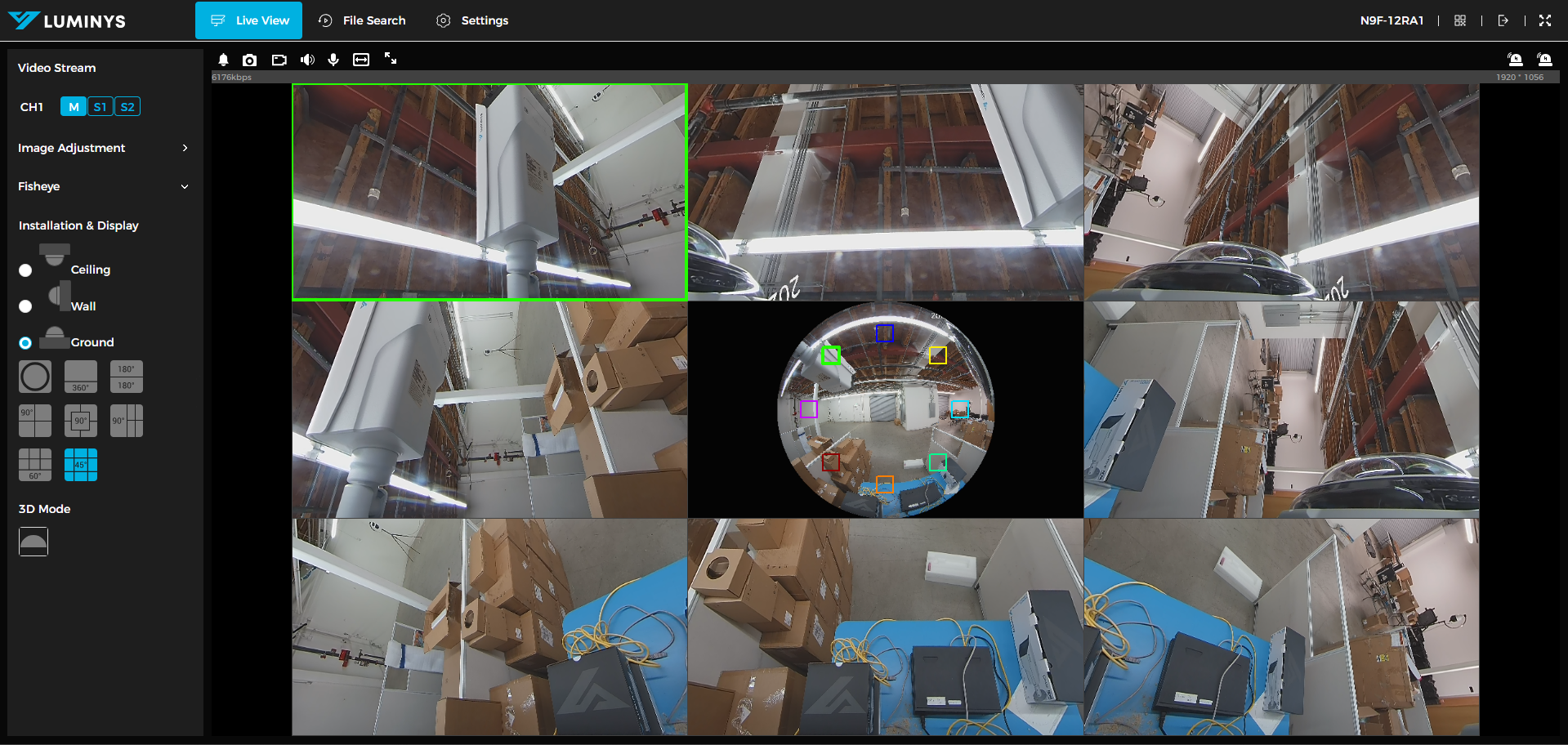
22. 3D mode allows the user to stay in warp mode, and be able to move the image around.