NVR/WebGUI Playback: Difference between revisions
From Luminys WIKI
Techsupport (talk | contribs) Created page with "= <div class="center">Playback on Recorder via WebGUI</div> = ===Description=== This tutorial will go over how to playback on recorder via webGUI. ===Prerequisites=== * LumiViewer application installed on the computer. ===Video Instructions=== <!--<youtube>https://www.youtube.com/watch?v=IQCQncIXNGM&ab_channel=LuminysSystemsCorporation</youtube>--> Coming Soon ===Step by Step Instructions=== 1. After logging in to the recorder, go to the **Playback** section. Select..." |
Techsupport (talk | contribs) |
||
| (5 intermediate revisions by the same user not shown) | |||
| Line 5: | Line 5: | ||
===Prerequisites=== | ===Prerequisites=== | ||
* | * Web browser on a computer. | ||
===Video Instructions=== | ===Video Instructions=== | ||
<youtube>https://www.youtube.com/watch?v=QgKgKI6QOtQ</youtube> | |||
===Step by Step Instructions=== | ===Step by Step Instructions=== | ||
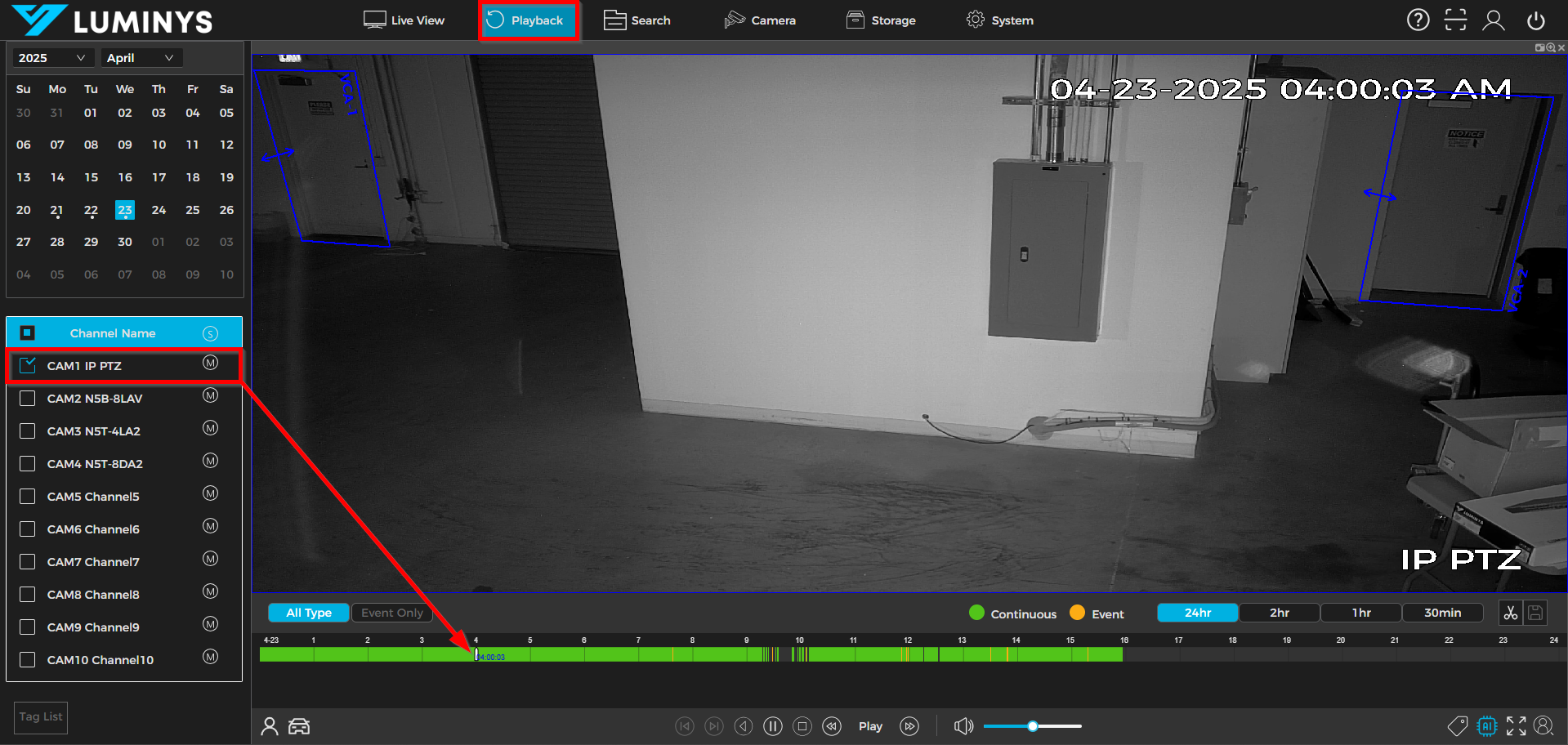
1. After logging in to the recorder, go to the | 1. After logging in to the recorder, go to the <span style=color:black;font-weight:bold>Playback </span> section. Select the desired camera on the left side panel, then click the <span style=color:black;font-weight:bold>Play</span> button to begin playback. | ||
[[File:NVR_Playback_WebGUI_1.png|1000px|link=https://wiki.luminyscorp.com/images/5/5f/NVR_Playback_WebGUI_1.png]] | [[File:NVR_Playback_WebGUI_1.png|1000px|link=https://wiki.luminyscorp.com/images/5/5f/NVR_Playback_WebGUI_1.png]] | ||
Latest revision as of 11:59, 8 June 2026
Playback on Recorder via WebGUI
Description
This tutorial will go over how to playback on recorder via webGUI.
Prerequisites
- Web browser on a computer.
Video Instructions
Step by Step Instructions
1. After logging in to the recorder, go to the Playback section. Select the desired camera on the left side panel, then click the Play button to begin playback.