LumiCloud/Playback: Difference between revisions
From Luminys WIKI
Techsupport (talk | contribs) Created page with "===Description=== ===Prerequisite=== *[https://wiki.luminyscorp.com/LumiCloud/SD_Card_Setup_for_D2C_Camera_via_LumiCloud_Web | Recording setup] ===Instruction===" |
Techsupport (talk | contribs) |
||
| (3 intermediate revisions by the same user not shown) | |||
| Line 1: | Line 1: | ||
===Description=== | ===Description=== | ||
This guide will show you how to access the playback page of the D2C camera. | |||
===Prerequisite=== | ===Prerequisite=== | ||
*[https://wiki.luminyscorp.com/LumiCloud/SD_Card_Setup_for_D2C_Camera_via_LumiCloud_Web | *[https://wiki.luminyscorp.com/LumiCloud/SD_Card_Setup_for_D2C_Camera_via_LumiCloud_Web Recording setup] | ||
===Instruction=== | ===Instruction=== | ||
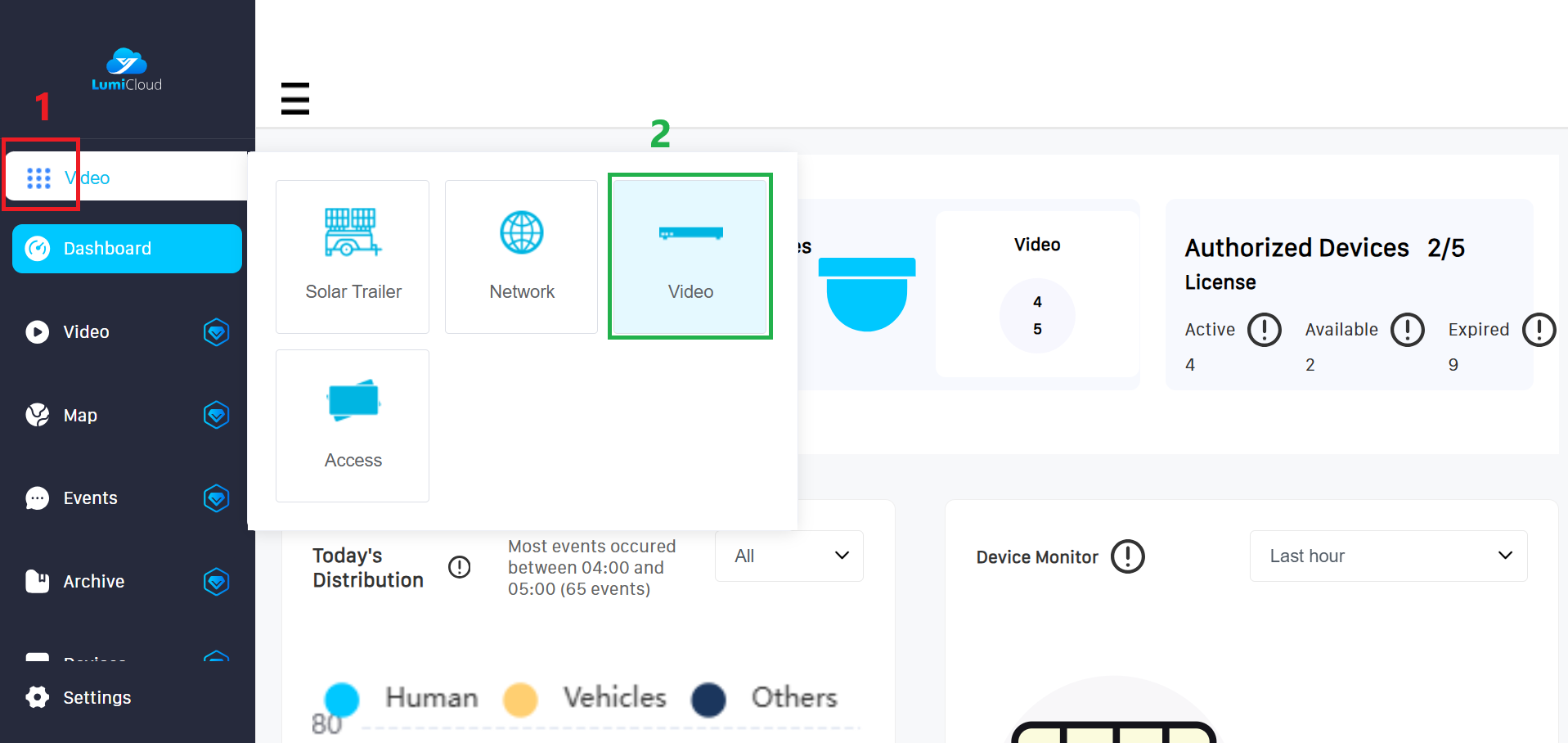
1. After logging in, select launcher <span style = "color: red"> (1) </span> icon from the left panel, then choose the "Video" <span style = "color: green"> (2) </span> option. | |||
[[File:PTZ_Preset_cloud_1.png|1000px|link=https://wiki.luminyscorp.com/images/b/ba/PTZ_Preset_cloud_1.png]] | |||
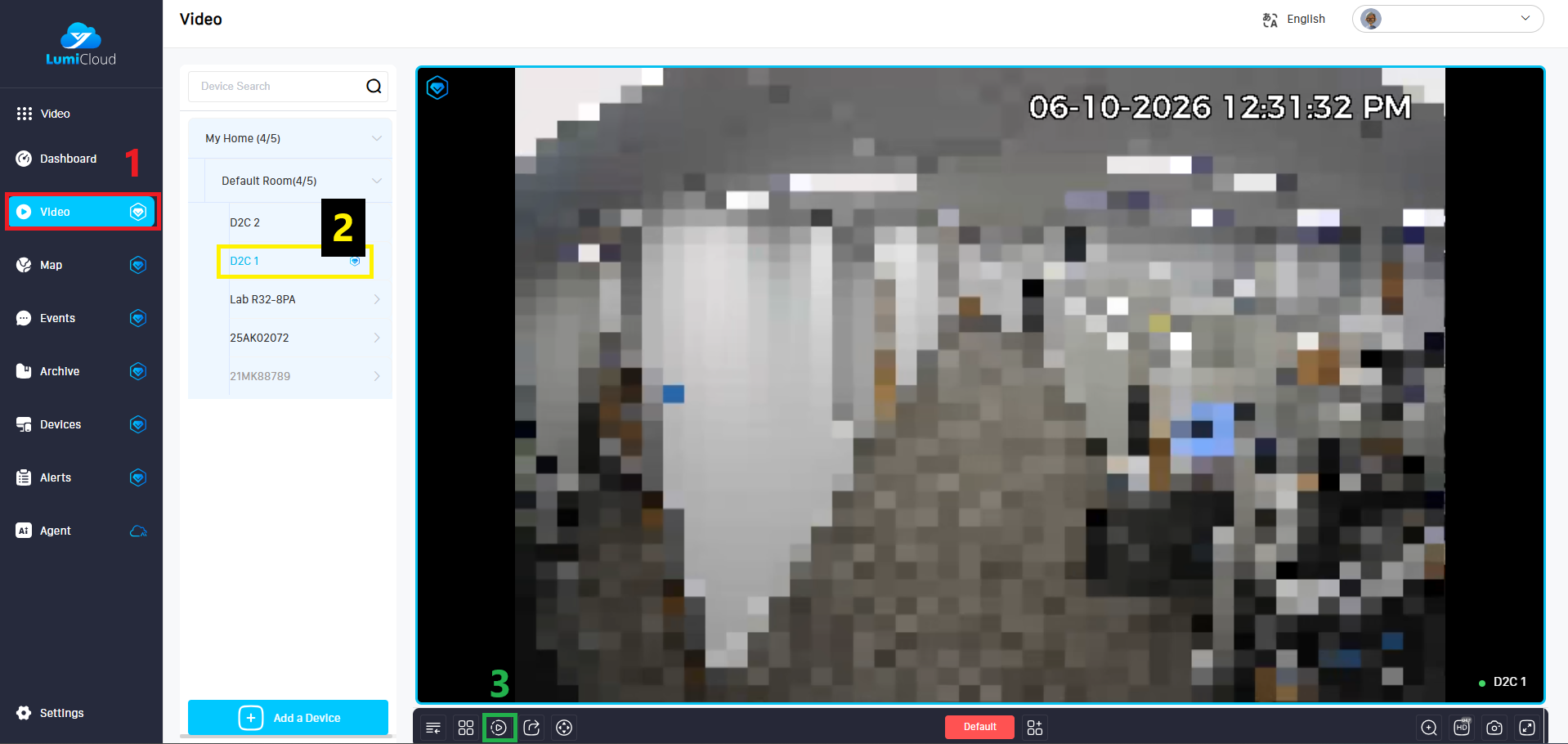
2. Select the “Video” tab <span style = "color: red"> (1) </span> on the left panel, locate the PTZ camera <span style = "color: yellow; background: black"> (2)</span> for which you want to create a preset, and then click the Playback icon <span style = "color: green"> (3) </span> at the bottom. | |||
[[File:D2C_Playback.png|1000px|link=https://wiki.luminyscorp.com/images/e/e7/D2C_Playback.png]] | |||
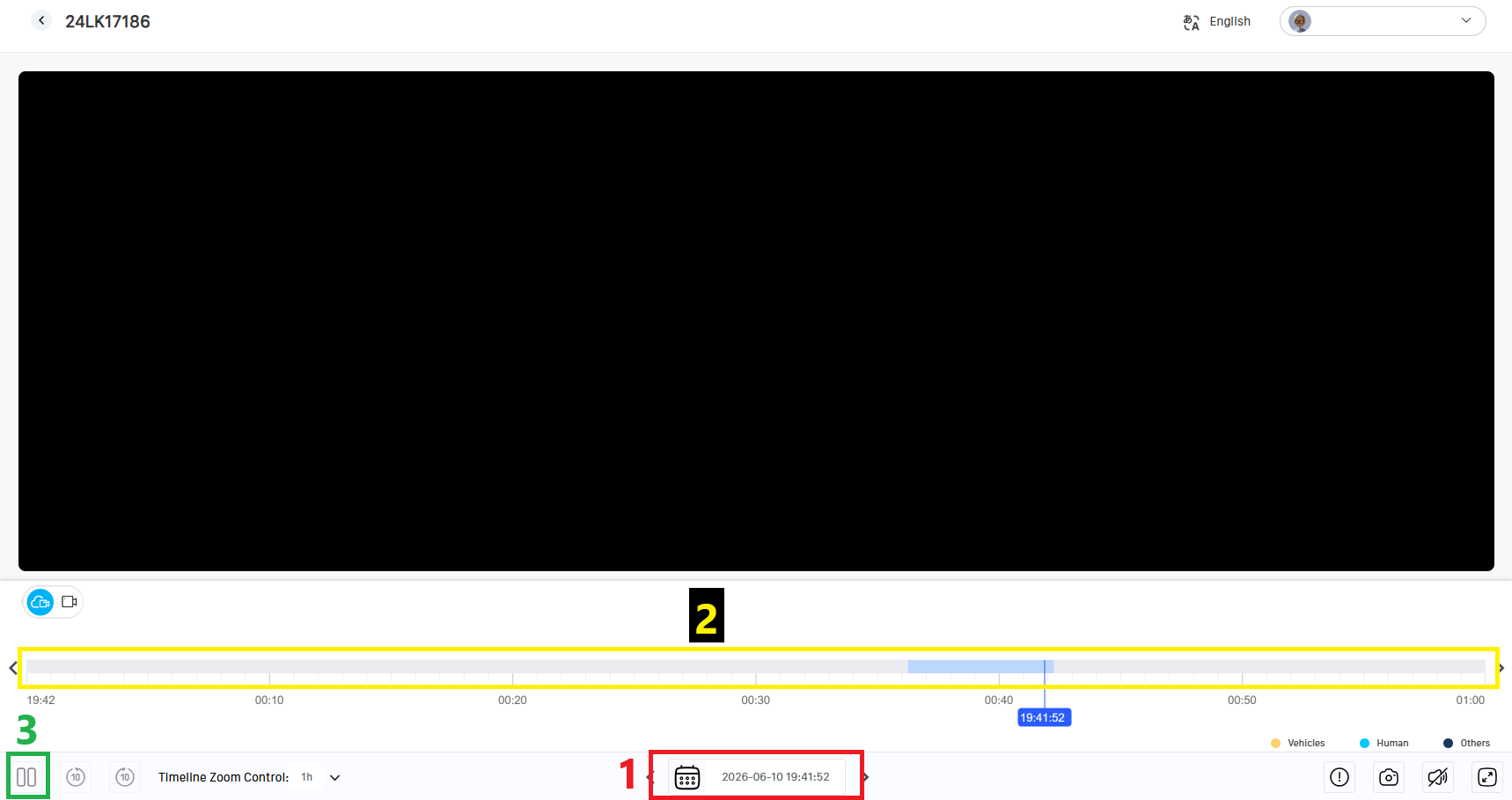
3. On the Playback screen, use the date and time selector <span style = "color:red">(1)</span> to choose the desired date, then use the timeline <span style = "color: yellow; background: black">(2)</span> to select the specific time. After that, use the Play/Pause <span style = "color: green">(3)</span> button to start or pause the playback. | |||
[[File:D2C_Playback_2.png|1000px|link=https://wiki.luminyscorp.com/images/b/bf/D2C_Playback_2.png]] | |||
Latest revision as of 13:00, 10 June 2026
Description
This guide will show you how to access the playback page of the D2C camera.
Prerequisite
Instruction
1. After logging in, select launcher (1) icon from the left panel, then choose the "Video" (2) option.
2. Select the “Video” tab (1) on the left panel, locate the PTZ camera (2) for which you want to create a preset, and then click the Playback icon (3) at the bottom.
3. On the Playback screen, use the date and time selector (1) to choose the desired date, then use the timeline (2) to select the specific time. After that, use the Play/Pause (3) button to start or pause the playback.