LumiViewer Mobile App/How to Remove Devices in LumiViewer: Difference between revisions
From Luminys WIKI
Techsupport (talk | contribs) Created page with "<div class="lm-banner">File:LuminysMainPageBanner2.png</div> = <div class="center">How to Remove Devices in LumiViewer Mobile App</div> = ===Description=== This tutorial will go over how to remove devices in LumiViewer mobile app. ===Prerequisites=== * Devices already added. ===Step by Step Instructions=== 1. On the Home tab <span style = "color:red">(1)</span>, click the gear icon <span style = "color:green">(2)</span>for the device you want to remove from your..." |
Techsupport (talk | contribs) |
||
| (2 intermediate revisions by the same user not shown) | |||
| Line 11: | Line 11: | ||
===Step by Step Instructions=== | ===Step by Step Instructions=== | ||
1. On the Home tab <span style = "color:red">(1)</span>, | 1. On the Home tab <span style = "color:red">(1)</span>, tap the gear icon <span style = "color:green">(2)</span> for the device you want to remove from your account. | ||
[[File:LV_Remove_1. | [[File:LV_Remove_1.jpg|300px|link=https://wiki.luminyscorp.com/images/e/eb/LV_Remove_1.jpg]] | ||
2. Tap the arrow icon to the right of the device name. | |||
[[File:LV_Remove_2.jpg|300px|link=https://wiki.luminyscorp.com/images/c/c5/LV_Remove_2.jpg]] | |||
3. Tap "Delete" when the pop-up appears. | |||
[[File:LV_Remove_3.jpg|300px|link=https://wiki.luminyscorp.com/images/f/fa/LV_Remove_3.jpg]] | |||
4. Tap "Delete" when the pop-up appears. | |||
[[File:LV_Remove_4.jpg|300px|link=https://wiki.luminyscorp.com/images/0/03/LV_Remove_4.jpg]] | |||
Latest revision as of 11:25, 16 June 2026

How to Remove Devices in LumiViewer Mobile App
Description
This tutorial will go over how to remove devices in LumiViewer mobile app.
Prerequisites
- Devices already added.
Step by Step Instructions
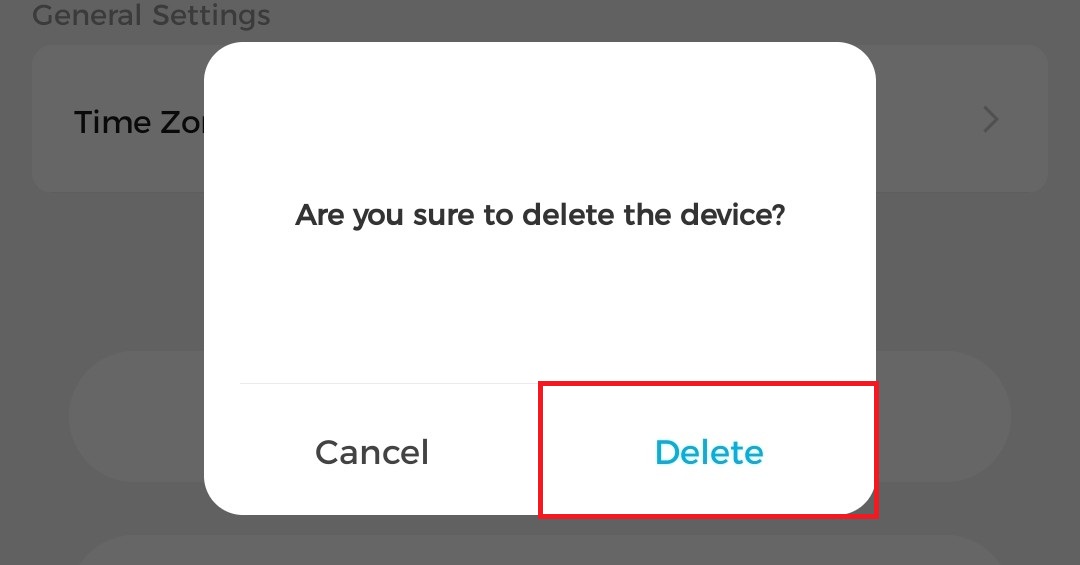
1. On the Home tab (1), tap the gear icon (2) for the device you want to remove from your account.
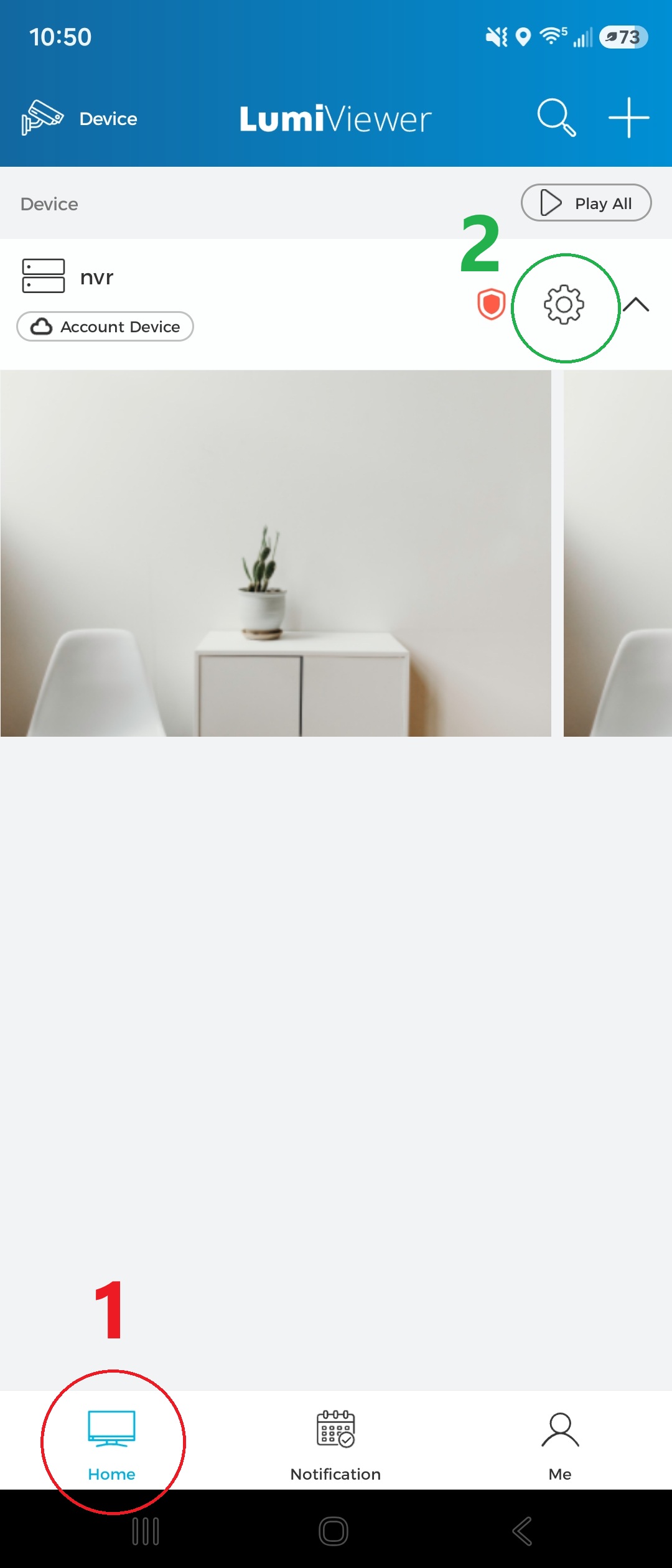
2. Tap the arrow icon to the right of the device name.
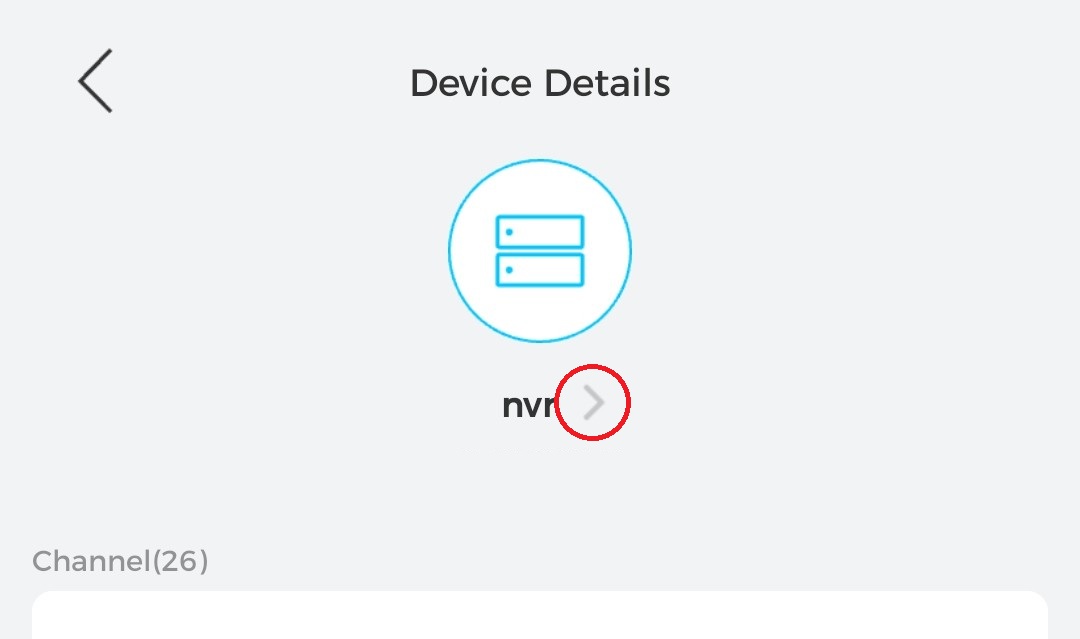
3. Tap "Delete" when the pop-up appears.
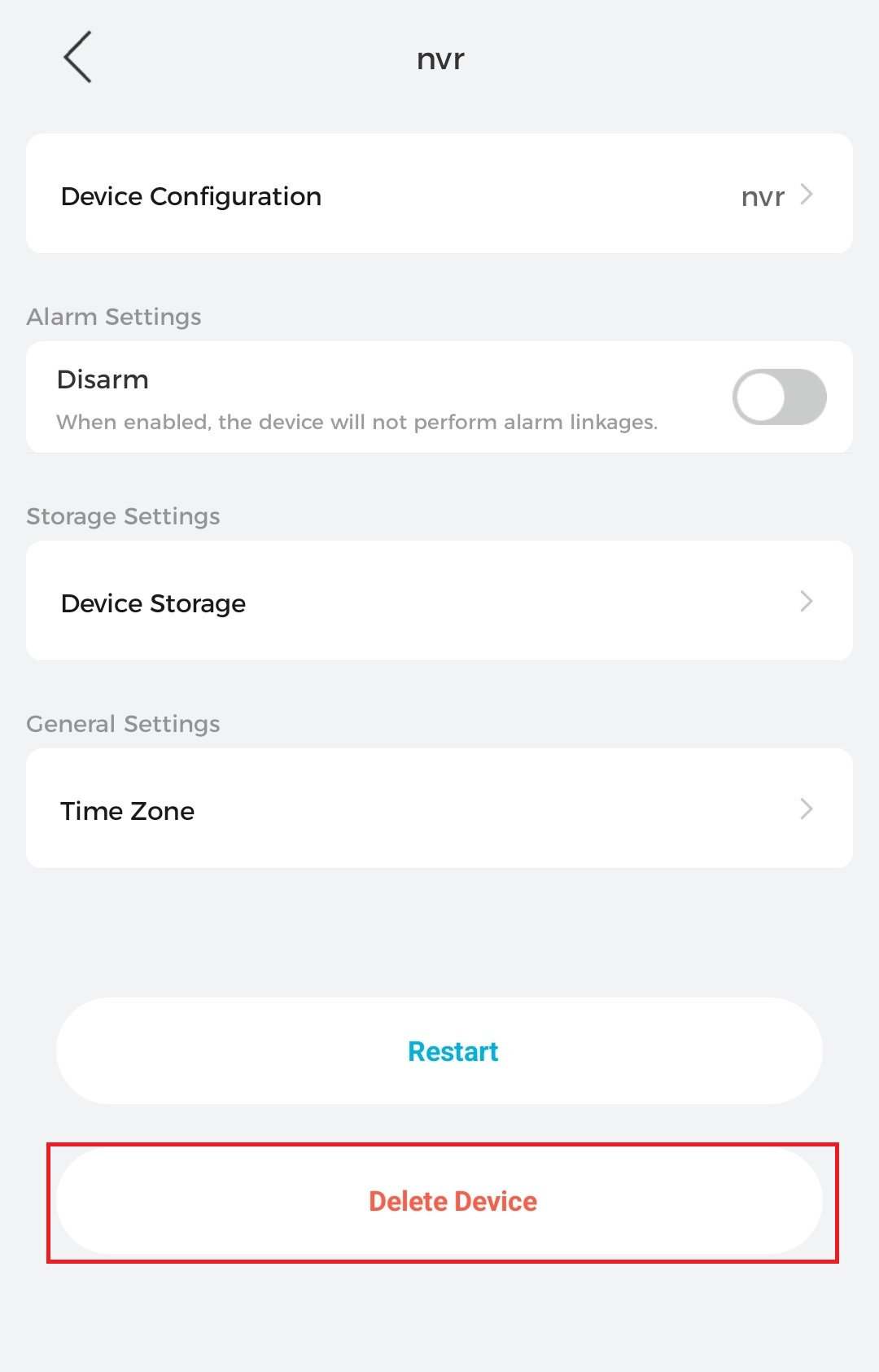
4. Tap "Delete" when the pop-up appears.