LumiViewer Mobile App/How to Remove Devices in LumiViewer: Difference between revisions
From Luminys WIKI
Techsupport (talk | contribs) Created page with "<div class="lm-banner">File:LuminysMainPageBanner2.png</div> = <div class="center">How to Remove Devices in LumiViewer Mobile App</div> = ===Description=== This tutorial will go over how to remove devices in LumiViewer mobile app. ===Prerequisites=== * Devices already added. ===Step by Step Instructions=== 1. On the Home tab <span style = "color:red">(1)</span>, click the gear icon <span style = "color:green">(2)</span>for the device you want to remove from your..." |
Techsupport (talk | contribs) |
||
| Line 11: | Line 11: | ||
===Step by Step Instructions=== | ===Step by Step Instructions=== | ||
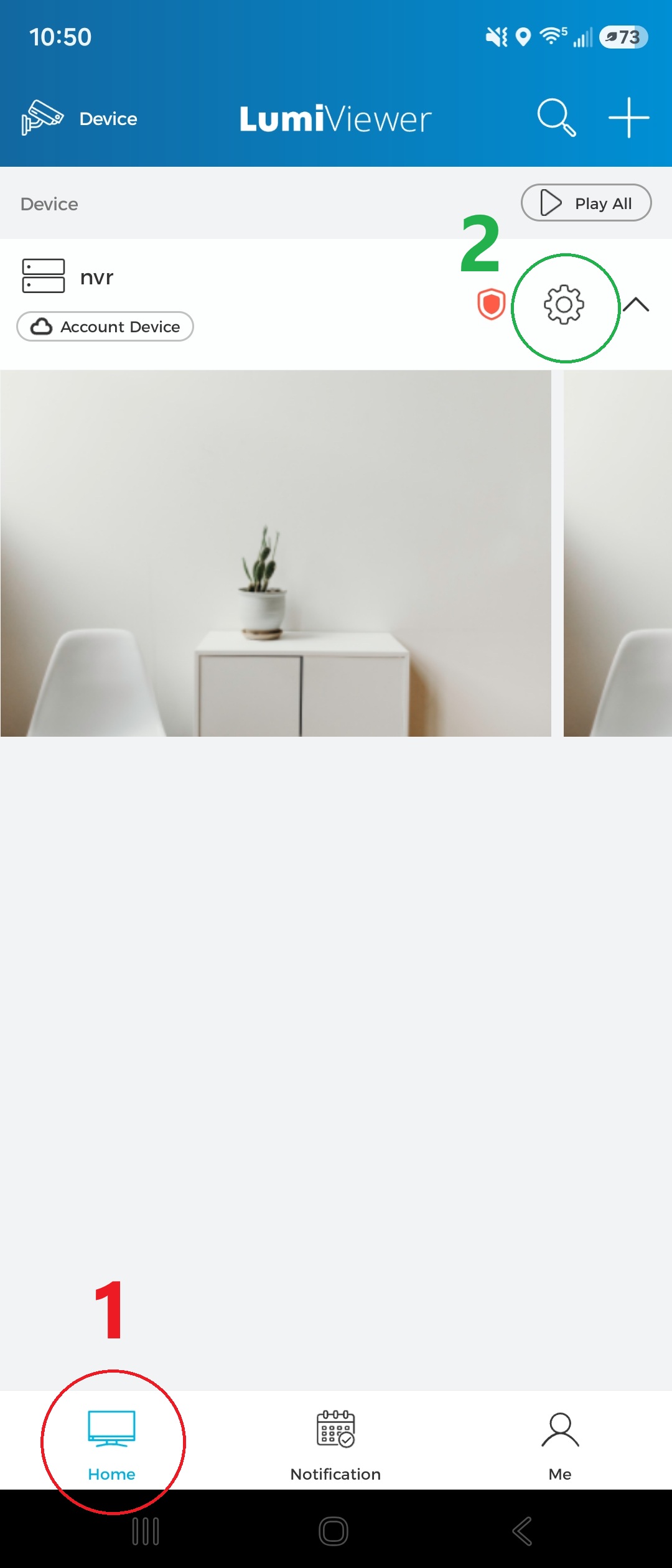
1. On the Home tab <span style = "color:red">(1)</span>, click the gear icon <span style = "color:green">(2)</span>for the device you want to remove from your account. | 1. On the Home tab <span style = "color:red">(1)</span>, click the gear icon <span style = "color:green">(2)</span> for the device you want to remove from your account. | ||
[[File:LV_Remove_1. | [[File:LV_Remove_1.jpg|300px|link=https://wiki.luminyscorp.com/images/e/eb/LV_Remove_1.jpg]] | ||
Revision as of 11:15, 16 June 2026

How to Remove Devices in LumiViewer Mobile App
Description
This tutorial will go over how to remove devices in LumiViewer mobile app.
Prerequisites
- Devices already added.
Step by Step Instructions
1. On the Home tab (1), click the gear icon (2) for the device you want to remove from your account.