Access Control/User Management C-4MA: Difference between revisions
From Luminys WIKI
Techsupport (talk | contribs) |
Techsupport (talk | contribs) |
||
| Line 13: | Line 13: | ||
1. After logging in, the following screen will be displayed.<br> | 1. After logging in, the following screen will be displayed.<br> | ||
<span style="color:red"><b>(1)</b></span> <b>Add:</b> Add a user to the list.<br> | <span style="color:red"><b>(1)</b></span> <b>Add:</b> Add a user to the list.<br> | ||
(2) Delete: Delete a user from the list.<br> | <span style="color:red"><b>(2)</b></span> <b>Delete:</b> Delete a user from the list.<br> | ||
(3) Clear: Delete all users from the list.<br> | <span style="color:red"><b>(3)</b></span> <b>Clear:</b> Delete all users from the list.<br> | ||
(4) Refresh: Refresh the user list.<br> | <span style="color:red"><b>(4)</b></span> <b>Refresh:</b> Refresh the user list.<br> | ||
(5) Export: Export the current user list to an Excel spreadsheet.<br> | <span style="color:red"><b>(5)</b></span> <b>Export:</b> Export the current user list to an Excel spreadsheet.<br> | ||
(6) Import: Import a user list from an Excel spreadsheet using the provided template.<br> | <span style="color:red"><b>(6)</b></span> <b>Import:</b> Import a user list from an Excel spreadsheet using the provided template.<br> | ||
(7) Search: Search users by user ID or name.<br> | <span style="color:red"><b>(7)</b></span> <b>Search:</b> Search users by user ID or name.<br> | ||
[[File:C-4MA_User_Management_1.png|1024px|link=https://wiki.luminyscorp.com/images/6/60/C-4MA_User_Management_1.png]] | [[File:C-4MA_User_Management_1.png|1024px|link=https://wiki.luminyscorp.com/images/6/60/C-4MA_User_Management_1.png]] | ||
Revision as of 17:19, 21 August 2026
☰ Navigation Menu ▾


User Management
Description
This tutorial provides a brief introduction to user management for the C-4MA 4-door controller.
Prerequisites
Step by Step Instructions
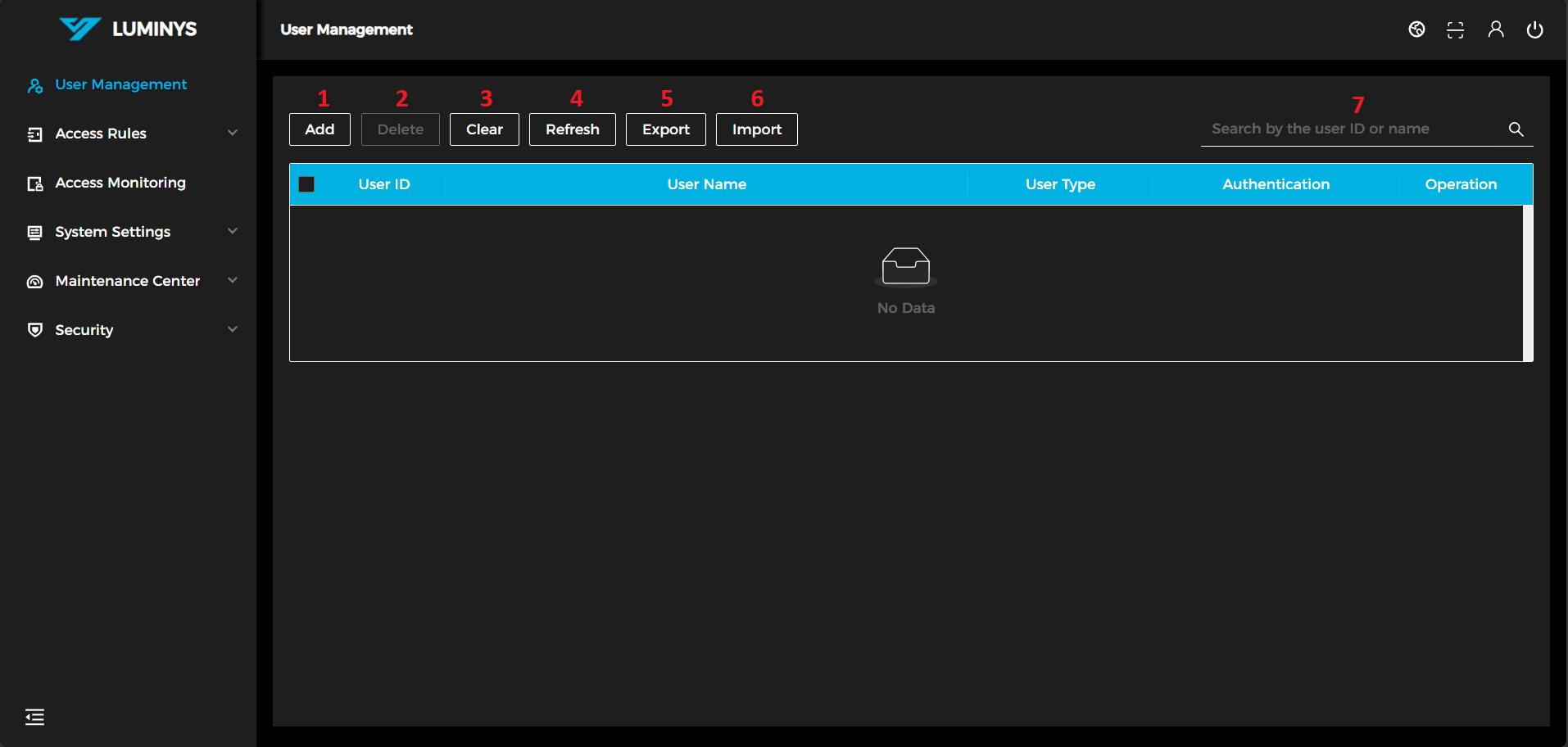
1. After logging in, the following screen will be displayed.
(1) Add: Add a user to the list.
(2) Delete: Delete a user from the list.
(3) Clear: Delete all users from the list.
(4) Refresh: Refresh the user list.
(5) Export: Export the current user list to an Excel spreadsheet.
(6) Import: Import a user list from an Excel spreadsheet using the provided template.
(7) Search: Search users by user ID or name.