|
|
| (6 intermediate revisions by the same user not shown) |
| Line 1: |
Line 1: |
| | {{Header}} |
| | |
| = <div class="center">Camera Instructions</div> = | | = <div class="center">Camera Instructions</div> = |
|
| |
|
| Line 5: |
Line 7: |
| </br> | | </br> |
| {|class="wikitable" style="width:90%; margin:auto;" | | {|class="wikitable" style="width:90%; margin:auto;" |
| !|Models | | !|IPC |
| !|Description | | !|Description |
| |- | | |- |
| Line 42: |
Line 44: |
| =====LumiFlex===== | | =====LumiFlex===== |
| *[[IPC/Enable and Use LumiFlex | How to Enable and Use LumiFlex]] | | *[[IPC/Enable and Use LumiFlex | How to Enable and Use LumiFlex]] |
|
| |
| |-|
| |
|
| |
| Fisheye=
| |
| </br>
| |
| {|class="wikitable" style="width:90%; margin:auto;"
| |
| !|Models
| |
| !|Description
| |
| |-
| |
| |[[File:Fisheye.png|100px|link=]]
| |
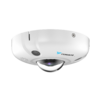
| |! style="text-align:left;"|Luminys Fisheye are specialty security cameras, and they offer high-resolution 360° or 180° panoramic surveillance in a compact design.
| |
| |}
| |
|
| |
| =====Dewarping=====
| |
| *[[Cameras/Dewarping_Mode_via_WebGUI | How to Dewarp Fisheye Cameras in WebGUI]]
| |
| *[[Cameras/Fisheye Record Mode | Change Fisheye Camera Record Mode via WebUI]]
| |
|
| |
|
| |-| | | |-| |
| Line 64: |
Line 50: |
| </br> | | </br> |
| {|class="wikitable" style="width:90%; margin:auto;" | | {|class="wikitable" style="width:90%; margin:auto;" |
| !|Models | | !|PTZ |
| !|Description | | !|Description |
| |- | | |- |
| Line 82: |
Line 68: |
| |-| | | |-| |
|
| |
|
| LPR=
| | Specialty= |
| | </br> |
| | {|class="wikitable" style="width:90%; margin:auto;" |
| | !|Fisheye |
| | !|Description |
| | |- |
| | |[[File:Fisheye.png|100px|link=]] |
| | |! style="text-align:left;"|Luminys Fisheye are specialty security cameras, and they offer high-resolution 360° or 180° panoramic surveillance in a compact design. |
| | |} |
| | |
| | ====Fisheye Dewarping==== |
| | *[[Cameras/Dewarping_Mode_via_WebGUI | How to Dewarp Fisheye Cameras in WebGUI]] |
| | *[[Cameras/Fisheye Record Mode | Change Fisheye Camera Record Mode via WebUI]] |
| </br> | | </br> |
| {| class="wikitable" style="width:90%; margin:auto;" | | {| class="wikitable" style="width:90%; margin:auto;" |
| ! |Models | | ! |LPR |
| ! |Description | | ! |Description |
| |- | | |- |
| Line 92: |
Line 90: |
| |} | | |} |
|
| |
|
| ====WebGUI==== | | ====LPR Setup==== |
| *[[Cameras/LPR Physical Installation Guide | LPR Physical Installation Guide]] | | *[[Cameras/LPR Physical Installation Guide | LPR Physical Installation Guide]] |
| *[[Cameras/LPR Initial Setup | LPR Camera Initial Setup]] | | *[[Cameras/LPR Initial Setup | LPR Camera Initial Setup]] |
| Line 100: |
Line 98: |
| *[[NVR/NVR_LPR_Allow_and_Block_List_Setup | NVR License Plate Recognition Allowlist/Blocklist Setup]] | | *[[NVR/NVR_LPR_Allow_and_Block_List_Setup | NVR License Plate Recognition Allowlist/Blocklist Setup]] |
| *[[NVR/NVR_LPR_Setup_and_Search | LPR Setup and Search via NVR]] | | *[[NVR/NVR_LPR_Setup_and_Search | LPR Setup and Search via NVR]] |
| | </br> |
| | {| class="wikitable" style="width:90%; margin:auto;" |
| | ! |LumiFlex |
| | ! |Description |
| | |- |
| | |! style="width:15%";|[[File:LPR_Left.png|100px|link=]] |
| | |! style="text-align:left;"|LumiFlex technology delivers the comprehensive, flexible coverage of multiple single-sensor cameras using a single camera housing. LumiFlex cameras have multiple camera sensors that can be individually positioned to capture different areas of a scene. The footage from each sensor can then be combined to create one continuous stream to reduce the number of licenses required for a higher return on investment. |
| | |} |
|
| |
|
| | =====LumiFlex===== |
| | *[[IPC/Enable and Use LumiFlex | How to Enable and Use LumiFlex]] |
| | </br> |
| |-| | | |-| |
|
| |
|
| Direct-To-Cloud= | | Direct-to-Cloud= |
| </br> | | </br> |
| {| class="wikitable" style="width:90%; margin:auto;" | | {| class="wikitable" style="width:90%; margin:auto;" |
| !| Models | | !| Direct-to-Cloud |
| !| Description | | !| Description |
| |- | | |- |
| Line 123: |
Line 132: |
| *[[LumiCloud/Playback | Playback]] | | *[[LumiCloud/Playback | Playback]] |
| *[[LumiCloud/Adv_Events_Searching_and_AI_Filtering_Setup | Event Searching and AI Filtering via LumiCloud Web]] | | *[[LumiCloud/Adv_Events_Searching_and_AI_Filtering_Setup | Event Searching and AI Filtering via LumiCloud Web]] |
| | |
| |-| | | |-| |
| | |
| | Analog= |
| | </br> |
| | {|class="wikitable" style="width:90%; margin:auto;" |
| | !|HD Analog |
| | !|Description |
| | |- |
| | |[[File:AnalogCam.jpg|100px]] |
| | |! style="text-align:left;"|For many businesses, the biggest obstacle to upgrading an analog system isn’t the cameras—it’s the wire. Replacing existing coax can mean opening ceilings and walls, pulling new cable, scheduling additional labor, disrupting operations, and increasing installation costs. The Luminys HD Analog series provide a smarter path: reuse the coax already in place and upgrade the security system with modern, higher-resolution technology. |
| | |} |
| | |
| | ====Analog Setup==== |
| </tabber> | | </tabber> |